← All TWiT.tv Shows (Audio)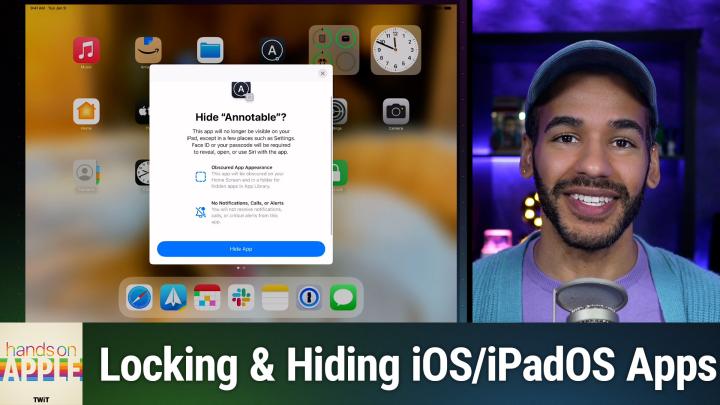
All TWiT.tv Shows (Audio)
Hands-On Apple 192: Locking & Hiding Apps
00:11:23
Protect your privacy like a pro!
Loading summary
Transcript19 lines
- [00:00]
Micah Sargent
Coming up on Hands on Apple, let's take a look at locking and hiding our apps when needed. Stay tuned. Let's map out this week's amazing destinations and travel tips.
- [00:12]
Will
Honestly Will, I didn't plan any trips, but I did switch to T Mobile with their new Family Freedom offer.
- [00:20]
Micah Sargent
That's not the itinerary we're following.
- [00:22]
Will
Well, I'm departing from ATT and embarking on a new journey with T Mobile. They paid off my family's four phones up to 32, $200 and gave us four new phones on the house.
- [00:36]
Micah Sargent
Bon voyage.
- [00:38]
T Mobile Representative
Introducing Family Freedom Our lowest cost will switch our biggest family savings all on America's largest 5G network. Visit your local T Mobile location or learn more@t mobile.com familyfreedom up to $800 per line via virtual prepaid card typically takes 15 days. Free phones via 24 monthly bill credits with finance agreement eg Apple iPhone 16128 gigabyte $829.99 Eligible trade in eg iPhone 11 Pro for well qualified credits end and balance due if you pay off earlier.
- [01:02]
Amazon Music Representative
Cancel contact T Mobile Ever notice how ads always pop up at the worst moments when the killer's identity is about to be revealed during that perfect meditation flow on Amazon Music we believe in keeping you in the moment. That's why we've got millions of ad free podcast episodes so you can stay completely immersed in every story, every reveal, every breath. Download the Amazon Music app and start listening to your favorite podcasts. Ad free included with product.
- [01:37]
Odoo Representative
Imagine you're a business owner relying on a dozen different software programs, each one disconnected. More expensive and more complicated than the last, it can be incredibly stressful right now. Picture Odoo Odoo brings all the tools your business needs into one simple platform. CRM, accounting, inventory, manufacturing, marketing, HR and more. All seamlessly connected. Everything works together, giving you the peace of mind that your business is running smoothly from every angle. Odoo's open source applications are user friendly and designed to scale with your business, saving you time and money. Say goodbye to juggling multiple platforms and hello to efficient integrated management. Stop wasting resources on complicated systems and make the switch to odoo today. Visit odoo.com o d o o.com and discover how Odoo can simplify and streamline your business operations. O Modern management made simple.
- [02:39]
TWiT Host
Podcasts you.
- [02:40]
Amazon Music Representative
Love from people you trust.
- [02:44]
TWiT Host
This is twit.
- [02:54]
Micah Sargent
Welcome to Hands On Apple. I am Micah Sargent and as is always my way, we are talking today about how to make the Most of your devices, your Apple devices. Today we're taking a look at a feature that's available on iPhone and iPad that gives you more privacy and security when needed. So there are, you know, any number of reasons why someone might need to keep someone from accessing specific apps on their device. Maybe you know, it's an untrustworthy individual who you need to show your phone to and you don't want them going through your photos while you are trying to just show them something in the browser. Or maybe you're handing off your phone to your child to play around with and you want to keep them from accessing and you know, turning on and off your lights in the home app or whatever it happens to be. Look, that's whatever reason it is up to you how you go about doing it. My job here is to show you how you can lock apps and hide apps on your device. Before we do that though, I do need to start by explaining a little bit about this process and what it actually does. So when you lock an app, information that's inside of that app when it's locked is not going to appear in other locations. So if you are used to an app showing information in CarPlay or seeing notifications from that app, or you hope to be able to search within that app whenever you do it, or get Siri suggestions or perhaps call history within an app that does call calling outside of phone, then locking that app means that that information is not going to be available there. Something else to bear in mind if you have multiple devices, locking or hiding an app on a specific device does not lock or hide that app on other devices as well. No, it is specific to that device. Now, for children under 13 in a family sharing group, they will not be able to on their device lock or hide an app. However, anyone 13 to 17 years of age in a family sharing group are they're able to lock or hide their apps. But a parent or guardian can see that the app was downloaded, they can see how much time was spent in the app and they can restrict access to it using screen time. So bear that in mind that there is the ability to hide or lock an app, but some of the functionality of that is available to others. So let's head over to ipados and take a look at how to lock an app. And I want you to bear in mind too that this is something that is available on iOS. So here we are on iPadOS. And one thing of note, there are some apps that simply cannot be locked. Many of the apps that come with the iPhone or iPad. So calculator, camera, clock, contacts, find my maps, shortcuts. And as you might imagine, settings cannot be locked. If you're looking at trying to prohibit access to these apps, screen time or guided access are better ways to go about locking those down. But let's go with my example earlier, that you are handing off your phone to a child and you want to keep them from turning on and off your lights. Right now, I can launch the home app and boom, it pops open. I'm able to see and control everything. I don't want that to be the case. I want a passcode, face ID or touch ID to be in the way of someone being able to access the home app. I will tap and hold on home. This is from the home screen. A screen will pop up or a little settings menu will pop up. It's called the quick actions menu. And down near the bottom is Require face id. Because this is a face ID device, I tap Require face ID and up pops a little bit of information about what I'm doing. I choose Require face id. I Face ID authenticate and that gives me the ability to lock it. Now, it does say something very important. Your HomeKit data may appear in the apps below. Without using Face id, you can change this in privacy settings. So it's letting you know, hey, even though you locked this app, these other apps have access to this information. So I can tap done here and now. If I tap on home and I'm going to cover my face id, it says face ID is required to open home. I cannot access this app unless iface ID authenticate. And now I have access. But what if I want to turn that off now? I don't need that to be the way that things go. Well, it's very easy. We tap on it and we choose. We tap and hold on it to access that quick actions menu and we choose don't require face id. Then it requires me to type in a password so my passcode. So I will type that in. And now when I tap on the home app, it no longer requires face ID to unlock. Let's map out this week's amazing destinations and travel tips.
- [08:05]
Will
Honestly, Will, I didn't plan any trips, but I did switch to T Mobile with their new family freedom offer.
- [08:13]
Micah Sargent
That's not the itinerary we're following.
- [08:15]
Will
Well, I'm departing from ATT and embarking on a new journey with T Mobile. They paid off my family's four phones up to 3200 doll and gave us four new phones on the house Bon.
- [08:29]
T Mobile Representative
Voyage Introducing Family Freedom Our lowest cost will switch our biggest family savings all on America's largest 5G network. Visit your local T Mobile location or learn more@t mobile.com familyfreedom up to $800 per line via virtual prepaid card typically takes 15 days. Free phones via 24 monthly bill credits with finance agreement eg Apple iPhone 16128 gigabyte 82999 eligible trade in eg iPhone 11 Pro for well qualified credits end and balance due if you pay off earlier cancel contact T Mobile hey prime.
- [08:57]
Amazon Music Host
Members, Are you tired of ads interfering with your favorite podcasts? Good news. With Amazon Music you have access to the largest catalog of ad free top podcasts included with your prime membership. To start listening, download the Amazon Music app for free or go to Amazon.com ADFreePodcasts that's Amazon.com ADFreeP Podcasts to catch up on the latest episodes without the.
- [09:22]
Micah Sargent
Ads so that is locking and unlocking an app. But what about hiding an app? What if we don't want the app to show up? Well, that's going to be a little different and in this case it does require it to be a third party app. Apps that come installed with iOS to 18 or later cannot be hidden. Only apps that you download separately from the App Store can be hidden. It also is the case that apps that are set by the user as a default web browser cannot be hidden either. So in order to hide an app, which on top of making it so that it's locked, does not appear on the home screen or in the main part of the app library, which I'll get to in a moment, that requires the same thing. Now lock and hide are different things. When you hide an app, its name will still show up in some places, screen time, battery usage by app, and in your App Store purchase history. So just bear that in mind. But let's say I want to hide an app and I have no reason to hide this app specifically. But it's just one that's a third party app that's on my home screen and that's a notable. So I tap and I hold on a notable and I'm going to tap the same thing. Require face id. But when I get to this you'll see that because this is a third party app there's a second option where before with home I had require face ID and cancel. Here I have require face ID and a new option hide and require face id. Tapping on that authenticating is going to let me do that. Now as it says, this app will no longer be visible on your iPad except in a few places, such as Settings, face ID or your passcode will be required to reveal, open or use Siri with the app, it has an obscured app appearance, so the app will be obscured on your home screen. And in a folder for hidden apps and app library, there's a spoiler. You will not receive notifications, calls or critical alerts from this app. I choose Hide app, and now it's not there. If I remember that a notable was showing up there, right there on my desktop, on my wall, on my home screen, how do I access it? Well, in order to open a hidden app, you will need to go to the hidden folder at the bottom of the app folder library. So if we tap on settings and we go to apps and we scroll all the way down, we can see hidden apps iFace ID, authenticate and I can see a notable is there in the hidden app section. From here I'm able to make changes to its settings and be able to view it there and then from the app library, which I access by swiping all the way to the far right side. So I swipe to the left to get to the right. I scroll all the way down past all of these categories to hidden. I tap on Hidden, I authenticate, and up pops a notable here in the hidden apps section. From here I can tap and hold on this app. And remember, I can choose don't require face id. So in order to unhide this app and make it available once again, tap and hold on the app after I've authenticated once to make it appear in the hidden folders, choose don't require face id, authenticate with my face. And now it's back. And I could move it back to my home screen if I wanted to. So I can scroll down here until we get to an and there's a notable. So again, there are many reasons why you might need or want to lock or hide apps on your devices. Works the same on iPhone and iPad. The important thing is to understand the difference. Locking will still show the app, but it requires authentication of some sort to access it. Hiding, on the other hand, is going to make it so that it does not appear except in that hidden folder. But as you saw, you couldn't even see the app icon in the hidden folder until after you've authenticated to prove that you're you. So that is a look at both locking and hiding apps on your iPad and iPhone. Thank you so much for tuning in to this week's episode of Hands on Apple. Always my pleasure to bring you the show. If you have questions for me, micahit TV or hoait tv, those are two ways you can get in touch. Would love, love love to hear from you and help you. As I always say, make the most of your Apple devices. Bye bye.
- [14:01]
TWiT Host
Hey, thanks for tuning in to Twit your tech hub for intelligent, thoughtful conversations. If you want to take your experience to the next level and support what we do here at TWiT, say goodbye to ads and say hello to Club Twit. With Club Twit, you unlock all our shows ad free. You also get exclusive members only content. We do a lot of great programming just for the club members. You also get behind the scenes access with our Twit plus bonus feed and live video streams while we're recording. And don't forget the fantastic Members Only discord. It's where passionate tech fans like you and me hang out, swap ideas and connect directly with all of our hosts. It's my favorite social network. I think you'll like it too. Club Twit. It's not just a subscription, it's how you support what we do and become part of the Twit family. Your membership directly supports the network, helping us stay independent and keep making the shows you love. If you're ready to upgrade your tech podcast experience, head to TWiT TV club TWiT and join us today. Thanks for being here and I'll see you in the Club.