← All TWiT.tv Shows (Audio)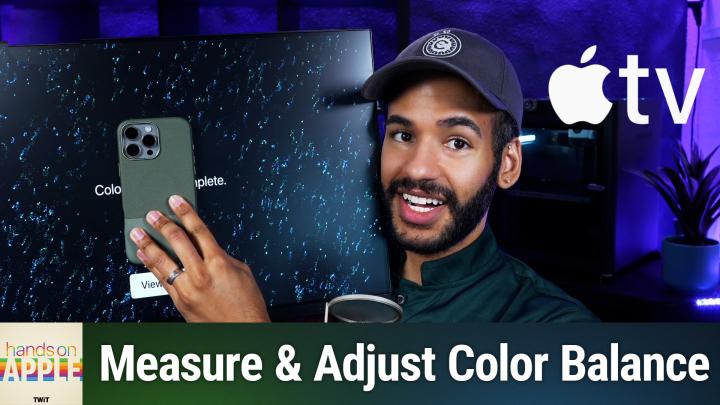
All TWiT.tv Shows (Audio)
Hands-On Apple 194: Apple TV Color Balance
00:06:54
Calibrate using your iPhone!
Loading summary
Transcript30 lines
- [00:00]
Micah Sargent
Coming up on Hands on Apple, let's take a look at a very special, very cool feature on Apple TV that can let you balance your colors. Stay tuned.
- [00:11]
Unknown
25 years ago, a small group of business and government leaders met in Washington, D.C. they envisioned the creation of an independent nonprofit organization with a mission to help people, businesses and government mitigate the growing threat of cyber attacks. Today, the center for Internet Security embodies that vision. For 25 years, it's worked with a global community of IT and cybersecurity experts to develop the CIS benchmarks and CIS critical security controls. These proven security best practices defend against common cyber threats and streamline compliance with industry frameworks, regulations and standards. Today, CIS provides cybersecurity services through threat intelligence and critical resources to help public and private sector organizations alike strengthen their Cyber defenses. Visit cisecurity.org today. That's the letters cisecurity.org to find out how CIS can help your organization as we create confidence in the connected world.
- [01:12]
Let's map out this week's amazing destinations and travel tips.
- [01:16]
Will
Honestly, Will, I didn't plan any trips, but I did switch to T Mobile with their new Family Freedom offer.
- [01:24]
Unknown
That's not the itinerary we're following.
- [01:26]
Will
Well, I'm departing from AT&T and embarking on a new journey with T Mobile. They paid off my family's four phones up to $3200 and gave us four new phones on the house.
- [01:40]
Unknown
Bon voyage.
- [01:41]
Introducing Family Freedom. Our lowest cost will switch our biggest family savings all on America's largest 5G network. Visit your local T Mobile location or learn more@t mobile.com FamilyFreedom up to $800 per line via virtual prepaid card typically takes 15 days. Free phones via 24 monthly bill credits with finance agreement eg Apple iPhone16128Gigabyte8 2999 Eligible trade in eg iPhone11 Pro for well qualified credits end and balance due if you pay off early or cancel.
- [02:06]
Contact T Mobile Ever notice how ads always pop up at the worst moments when the killer's identity is about to be revealed during that perfect meditation flow on Amazon Music, we believe in keeping you in the moment. That's why we've got millions of ad free podcast episodes so you can stay completely immersed in every story, every reveal, every breath. Download the Amazon Music app and start listening to your favorite podcasts ad free included with prime.
- [02:43]
Podcasts you love from people you trust. This is TWIT.
- [02:51]
Micah Sargent
Foreign. Welcome back to Hands on Apple. I'm Micah Sargent and today we Are taking a look at the Apple tv. There's a really nifty feature on the Apple TV that helps you to sort of adjust the color on the television based on visual information sent to your iPhone. It's a really neat feature that I think a lot of people miss when it comes to setting up their Apple TV and properly adjusting the colors. So let's take a look with this. I have to do it all physically as opposed to showing you the Apple TV screen because that won't provide the right information that you need for how this works. So I actually have right here a display for my Apple tv. And as you can see, we've got that open. The first thing that you're going to want to do with this is go to the settings menu and then go down to video and audio. In the video and audio settings. You'd think it'd be in the video part, but it's not. It's underneath the third section here, calibration. And the section is color balance. When you click on this, it says to adjust the color balance. Apple TV will measure and adjust your television's color balance. For best results, avoid bright or highly saturated picture modes like Vivid, dynamic, or sports. So you're going to want to set it to the default color mode for your television. And then after the fact, after you've done this adjustment, then make that change. Then it says you'll need your iPhone with Face ID and iOS 14.5 or later. Bring it close to your television and tap the notification. So I'm going to set this down. So I'm going to move my iPhone, which is unlocked, close to my Apple tv and up will pop a notification that says you can use your iPhone to measure your television's color. Continue or not? Now I will choose continue. Then it says it's preparing. Hold your iPhone close to your television to begin the measurement. So the television is preparing. And what do we have here? A code. So I will type that code in on my phone to authenticate. And now I turn my iPhone around so the front facing camera points at the television in the device outline. So I'm literally going to take my phone and put it on the screen where it goes. And then I feel a vibration on my phone. And it is currently measuring. It's using this face ID camera and it's measuring the display right now. And it's going through the process. You can see the sort of progress bar pie chart rather. And now it says, oh, measuring again. So that was step one. Now it's measuring with step Two, and whenever you're doing this, you don't want to press too hard, especially if like this. It's an LCD display that is matte and therefore doesn't have like a piece of glass over the top of it. So pressing on it can slightly affect the color on the screen. And so now we're doing that secondary measurement and we're nearly there.
- [06:21]
Unknown
Let's map out this week's amazing destinations and travel tips.
- [06:25]
Will
Honestly, Will, I didn't plan any trips, but I did switch to T Mobile with their new Family Freedom offer.
- [06:33]
Unknown
That's not the itinerary we're following.
- [06:36]
Will
Well, I'm departing from AT&T and embarking on a new journey with T Mobile. They paid off my family's four phones up to $3200 and gave us four new phones on the house.
- [06:49]
Unknown
Bon voyage.
- [06:51]
Introducing Family Freedom. Our lowest cost will switch our biggest family savings all on America's largest 5G network. Visit your local T Mobile location or learn more@t mobile.com familyfreedom. Up to $800 per line via virtual prepaid card typically takes 15 days. Free phones via 24 monthly bill credits with finance agreement eg Apple iPhone 16 128GB8 2,999 eligible trade in eg iPhone 11 Pro for well qualified credits end and balance due. If you pay off earlier, cancel contact T Mobile.
- [07:17]
So when I ask, what is Odoo, what comes to mind? Well, Odoo is a bit of everything. Odoo is a suite of business management software that some people say is like fertilizer because of the way it promotes growth. But you know, some people also say Odoo is like a magic beanstalk because it grows with your company and is also magically affordable. But then again, you could look at Odoo in terms of how its individual software programs are a lot like building blocks. I mean, whatever your business needs, manufacturing, accounting, HR programs, you can build a custom software suite that's perfect for your company. So what does Odoo? Well, I guess Odoo is a bit of everything. Odoo is a fertilizer. Magic beanstalk, building blocks for business. Yeah, that's it. Which means that Odoo is exactly what every business needs. Learn more and sign up now@odoo.com that's O-O-O.com.
- [08:16]
This is one of the most spectacular venues with all kinds of character and hospitality scenery.
- [08:24]
Micah Sargent
These people in this Kitty task valley.
- [08:26]
Unknown
They love when you come to see.
- [08:28]
JJ Harrison
What they have to offer. I'm JJ Harrison Ellensburg Rodeo Clown and I want to invite you to the rodeo. Come hang out with us in Ellensburg. Great rodeo. Great time. Two performances on Saturday. One is the Extreme Bulls of the Year event. Do not miss the Ellensburg Rodeo August 29th through September 1st. We'll see you there.
- [08:49]
Micah Sargent
And done. It says Color balance complete. From there we can choose view results on the television. And now it's going to be difficult for you to see, but there is. There are two options. Use Original and use Balanced. And as you might imagine, we will choose use balanced. Once you've done that, the setting in the Apple TV will say balanced. And at any time you can go in and make that change. One important thing to note in order to do this, the television or the iPhone that you have needs to be set up with the Apple tv. So if you've yet to do that, you can start that process by launching the remote app on your iPhone through Control center and get that going. But once you've done that in it calibrates the Apple TV's color based on your television's actual sort of makeup. I think it's a fantastic way and it's sad I'm not able to use it in my living room setup because I've got a projector and so the Apple TV or rather the phone of course if I were to put it over the top will not see anything on the screen because it's the projector is behind it. So it doesn't work for that. But any other kind of television you should be able to use this to properly balance your color. Very cool feature. Let me know how it goes for you. Looking forward to hearing all about it. Thank you so much for tuning in to this week's episode of Hands on Apple. I'll be back again next week with another episode, so stay tuned. Bye bye.
- [10:36]
Unknown
Hey, thanks for tuning in to twit your tech hub for intelligent, thoughtful conversations. If you want to take your experience to the next level and support what we do here at TWiT, say goodbye to ads and say hello to Club Twit. With Club Twit, you unlock all our shows ad free. You also get exclusive members only content. We do a lot of great programming just for the club members. You also get behind the scenes access with our Twit plus bonus feed and live video streams while we're recording. And don't forget the fantastic members Only discord. It's where passionate tech fans like you and me hang out, swap ideas and connect directly with all of our hosts. It's my favorite social network. I think you'll like it too. Club Twit. It's not just a subscription, it's how you support what we do and become part of the Twit family. Your membership directly supports the network, helping us stay independent and keep making the shows you love. If you're ready to upgrade your tech podcast experience, head to Twit TV Club Twit and join us today. Thanks for being here and I'll see you in the club.
- [11:51]
From the Cascades to PDX to your kitchen, we recycle like we live here. That's why governments, brands and recycling companies are all joining together to bring change to make recycling better. As in trusting that your recyclables end up in the right places to be made into new things and having brands help fund the cost of recycling. You can find the Latest updates at recycleon.org Oregon From Mount Hood to the bin under your desk. Together we can do this.
- [12:20]
When the Moore family ditched cable Internet and switched to Zigly Fiber, they got so much more. Mr. Moore got more upload speed for next level gaming and livestreaming streaming to the masses with reliable service. Mrs. Moore is no longer her family's IT guru, leaving her more time to stream games into overtime.
- [12:35]
Will
Let's go.
- [12:36]
Unknown
And young Mason Moore got more done quickly uploading HD product demos and video conferencing without freezing.
- [12:42]
The numbers look good. Brad, you're on mute.
- [12:44]
Switch from cable Internet to Zibli Fiber and get more of what you love for $65 less per month than cable@ziply fiverr.com.