← All TWiT.tv Shows (Audio)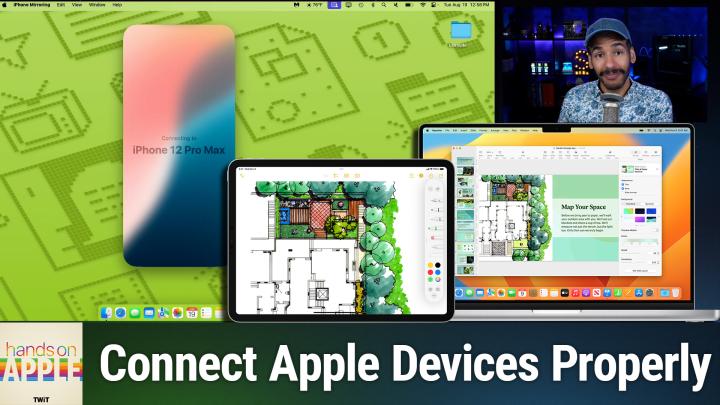
All TWiT.tv Shows (Audio)
Hands-On Apple 196: Troubleshooting Universal Control & iPhone Mirroring
00:28:24
Getting devices to work together
Loading summary
Transcript20 lines
- [00:00]
Micah Sargent
Coming up on Hands on Apple, let's take a look at dealing with some of the issues you might experience while trying to use iPhone mirroring and universal control. Stay tuned.
- [00:10]
TWiT Announcer
Today's show is brought to you by Progressive Insurance. Do you ever think about switching insurance companies to see if you could save some cash? Progressive makes it easy to see if you could save when you bundle your home and auto policies. Try it@progressive.com Progressive Casualty Insurance Company and affiliates potential savings will vary. Not available in all states 25 years.
- [00:35]
CIS Representative
Ago, a small group of business and government leaders met in Washington, D.C. they envisioned the creation of an independent nonprofit organization with a mission to help people, businesses and government mitigate the growing threat of cyber attacks. Today, the center for Internet Security embodies that vision. For 25 years, it's worked with a global community of IT and cybersecurity experts to develop the CIS benchmarks and CIS critical security controls. These proven security best practices defend against common cyber threats and streamline compliance with industry frameworks, regulations and standards. Today, CIS provides cybersecurity services, threat intelligence and critical resources to help public and private sector organizations alike security strengthen their Cyber defenses. Visit cisecurity.org today. That's the letters cisecurity.org to find out how CIS can help your organization as we create confidence in the connected world.
- [01:35]
TWiT Announcer
Let's map out this week's amazing destinations and travel tips.
- [01:40]
Will
Honestly Will, I didn't plan any trips, but I did switch to T Mobile with their new Family Freedom offer.
- [01:48]
TWiT Announcer
That's not the itinerary we're following.
- [01:50]
Will
Well, I'm departing from AT&T and embarking on a new journey with T Mobile. They paid off my family's four phones up to $3200 and gave us four new phones on the house.
- [02:03]
Micah Sargent
Bon voyage.
- [02:05]
T-Mobile Advertiser
Introducing Family Freedom. Our lowest cost will switch our biggest family savings all on America's largest 5G network. Visit your local T Mobile location or learn more@t mobile.com familyfreedom up to $800 per line via virtual prepaid card typically takes 15 days. Free phones via 24 monthly bill credits with finance agreement eg Apple iPhone16128 gigabyte 802999 eligible trade in eg iPhone 11 Pro for well qualified credits end and balance due if you pay off early or cancel contact T Mobile.
- [02:33]
TWiT Announcer
Podcasts you.
- [02:34]
Will
Love from people you trust.
- [02:38]
Micah Sargent
This is tw. Welcome back to Hands On Apple. I am Micah Sargent and today we are taking a look at troubleshooting. Yes it is time to troubleshoot very popular features for macOS and iOS, especially when it comes to mixing devices together, using your iPhone with your Mac. But some of the issues that people experience when it comes to trying to get those two devices to play both ball to work together, that is what we'll be looking at today on the episode. So let's talk about some of the issues that people experience when it comes to universal control and iPhone mirroring. So for universal control, which is the ability to use one mouse and keyboard, typically your Mac's mouse and keyboard to control both a Mac and an iPad, you'll see constant connecting and disconnecting cycles. These happen every 10 to 30 seconds. You might see your iPad disappear from the display settings. You may see it works for one to two minutes and then stops completely. The mouse cursor might freeze at at the boundary of the device. So as your mouse cursor gets to the edge of the screen, it stops working. You may see lag with the keyboard input or complete failure. And then you may also see that universal control works when you are using USB but not when you are using the system wirelessly. As for the iPhone, you might see an alert notification that says that there's a timed out error when you try to connect. You might also see unable to connect to iPhone as an error. The continue button might be unresponsive during setup, connection interrupted after a successful pairing. So it actually connects and then something goes wrong afterward. You tried to use it with your device, but it is not working with your phone and seems to be selecting a different one. And then of course you may not find the iPhone mirroring app on your phone or on your Mac rather at all. So those are some of the issues that I see all people come across when it comes to these cross platform features, that some people end up getting their devices in the first place for these specific features. So let's talk about what we can do. We'll start with universal control. First and foremost, it's important to understand how this technology works and what is involved when it comes to universal control. What is actually at the root of universal control? Well, first and foremost is Bluetooth LE for proximity detection. So essentially when your phone and your, or rather your iPad in this case and your device, your Mac are close together, then it says okay, we can possibly do universal control. So Bluetooth LE between the two devices, seeing how close they are together afterwards. It uses what's called WI Fi direct for data transfer. What does that mean? It means that a local WI Fi connection is established between the two devices to transfer data between the two. It uses iCloud for authentication. So icloud online, meaning that you and the device that you're, well, you being you on the Mac and the device are both running the same icloud account. And then it uses what's called the continuity framework for seamless handoff. So switching between an iPad and a Mac and switching the cursor between the iPad and the Mac is all done by way of the Continuity framework. If any of those components fail, well, then none of it is going to work. Now let's talk about what we need to do when it comes to actually using universal control properly. Here's what you need. First of all, compatible hardware. So in order to use universal control, Apple says you need to have a device that is running macOS monterey 12.4 or later and iPad iOS 15.4 or later. So that's any iPad pro model, that's the sixth generation iPad or later, the third generation iPad air or later, or the fifth generation iPad mini or later. When it comes to Macs, there are quite a few Macs that fall within that line. So I'm not going to get into all of those options. You also need to make sure that both devices are logged into the same Apple id. You also need to have two factor authentication enabled on both devices. And lastly, and this is something that's often overlooked, make sure that in the settings icloud keychain is enabled. This is something that you can turn on on your Mac, you can turn on on your iPad. And so going into your icloud settings and looking to make sure that icloud keychain is enabled is the case. Now what about network requirements? They both need to be on the same WI FI network. And if you're using a mesh network, this can sometimes be an issue depending on how your mesh network is set up. So it's not just the same ssid, it is the same wifi network for both devices. Bluetooth needs to be enabled on all devices, so you can't have Bluetooth turned off. The devices need to be within 30ft of each other, preferably closer. And if you have a VPN or a proxy active, it's best to turn those off. Those are the ways that you know, once all of those network requirements have been met, that you should be able to use universal control. What do we do if it still doesn't seem to be working well? Turns out for like three quarters of the cases of a problem with universal control, it can be fixed by signing out of icloud and signing Back in. That is often the issue. It's a authorization issue, authentication issue. So on your Mac, you head into System Settings, you go to your name in icloud and you sign out. It'll ask you, do you want to keep a copy of your data locally? On this Mac, say yes, critically, do not sign back in yet, restart the Mac and then sign back into iCloud. On your iPad, very similar, you go to the Settings app, not the System Settings app. You tap on your name, you sign out, keep your data on the iPad. Again, don't sign back in yet, restart the iPad, sign back in with the same Apple id and then one more critical option or critical point. Wait five minutes after you've signed in on both devices before you attempt to use Universal control. That gives the whole system time to kind of check in with itself, properly communicate with the cloud and make sure that that authentication is all in place. So that is the most important thing. Now let's look on macOS because there is one more thing that we can do in macOS. Once you have completed a universal control setting, you may have deep within your settings, the library preference. Let me just put it this way. It's a file that is deep within your system that has all of the preference information regarding universal control. We on the last episode went into our library. We're going to do that again. We can go to. You may remember last time we did this, we can choose Go once we have finder selected and choose Go to folder or shift command G. And what we want to do is the tilde key and then slash because remember that's the shortcut. Users slash the name of your account and then library we'll hit enter. From here we need to go into the preferences option. In here we have them all sorted by name. We want to look for. Com and then scroll down to the use and see if there's a universal control. We have universal access and Universal access auth warning. So nothing there. Now we'll go into the by host option and we will look for a universal control option here. And we can see down at the very bottom a universal control option. Now going into the terminal and removing this file and then quitting universal control on the system. Restarting the Mac will create a new version of the Universal control file and can sometimes help you restore access to Universal control. I do not recommend this as the default option. Try the other things first and then go about doing this option. Now there are some features that can sometimes conflict with your Universal control setup. So within the System Settings menu We can check Control center and choose Display or actually look into the display and make sure that we have the option to show inactive Always show in Menu bar or don't show in Menu Bar. We would like to choose Always show in Menu Bar. This will sometimes give you the option to where you may not see it elsewhere. Going in here and being able to turn this on by seeing your iPad pop up is one way to kind of kick it into gear. So if you don't have this turned on in Control center, turn it on, click on the Menu bar and then look here to see if an iPad pops up. That can sometimes be all it takes. But then also in System Settings we can choose Display and look for the plus icon to add an iPad to the display arrangement as well. And then we can also head into our desktop and Dock options and check to make sure that that we have the Stage Manager. Again. This is just another kind of test to kind of kick things off. Turn off Stage Manager, then try to connect the iPad and then you can go ahead and re enable Stage Manager afterward. But this is going to help to kind of look at other things that may be trying to get in the way of the graphics processing of the Mac, like Stage Manager, which happens to be a graphics heavy process and could result in the Mac kind of prioritizing other display options. It's not necessarily going to be again the first step that I would take, but it is something to bear in mind. Now there are two different features. Universal control is the ability to use your mouse and keyboard on one device for both of them, meaning the one Mac trackpad and the keyboard that works with the iPad as well. But there's also Sidecar and so removing your iPads by way of Sidecar can sometimes help if that is conflicting. Again with this, another thing you might do is head into System Settings, choose General, scroll down to Sharing and turn off Internet Sharing. The reason why is because if your iPad is connected over the cable to the Mac and you have Internet sharing turned on, it could be prioritizing the Internet share over using Universal Control. So that's something that will kind of fix that as well. Lastly, you may want to go in and check your network settings. Occasionally you may need to choose your network by going into System Settings Network and clicking on the details for that specific network and removing or forgetting the network and then adding it back. That will sometimes fix things because it could just be a network issue. Last option I have for you when it comes to universal control is take your iPad, plug it in over USB c after you have turned or lightning after you have turned off the Internet sharing option and let the iPad trust the device if that prompt comes up and connect that way by going into system settings, choosing displays, and then hitting the plus icon to add via the USB cable that iPad. Once it's working via cable, disconnect it and try testing the wireless option. Because again, the way that universal control is supposed to work is that it does give you this sort of clever push into a new screen function where you are meant to be able to just move your mouse to the edge of the screen and then push it over more and it automatically connects to the iPad that is to one side of your device or the other. Occasionally that does not work. And that is where that USB cable can be helpful in order to kind of kick it into high gear and say, hey, I know what's going on here. So that is helpful in that specific means of being able to get that connection.
- [16:31]
TWiT Announcer
Let's map out this week's amazing destinations and travel tips.
- [16:35]
Will
Honestly, Will, I didn't plan any trips, but I did switch to T Mobile with their new Family Freedom offer.
- [16:43]
TWiT Announcer
That's not the itinerary we're following.
- [16:46]
Will
Well, I'm departing from AT&T and embarking on a new journey with T Mobile. They paid off my family's four phones up to $3200 and gave us four new phones on the house.
- [16:59]
Micah Sargent
Bon voyage.
- [17:01]
T-Mobile Advertiser
Introducing Family Freedom. Our lowest cost. To switch our biggest family savings all On America's largest 5G network, visit your local T Mobile location or learn more@t mobile.com FamilyFreedom up to $800 per line via virtual prepaid card typically takes 15 days. Free phones via 24 monthly bill credits with finance agreement eg Apple iPhone 16128 gigabyte 82999 Eligible trade in eg iPhone 11 Pro for well qualified credits end and balance due if you pay off earlier, cancel contact T Mobile.
- [17:28]
Micah Sargent
Now that's a look at troubleshooting universal Control let's talk about iPhone mirroring. So iPhone mirroring is the ability to display your iPhone on your Mac's screen. How does iPhone mirroring work? What's the stuff behind the scenes there? So we talked about Bluetooth and wi fi and everything that's being used with the universal control. IPhone mirroring uses the continuity camera framework. So the ability to use the iPhone's camera as a third party or as a external camera for your Mac. It uses H264 HEVC video streaming to stream what's on Your screen. In order to do the initial connection between the iPhone and your Mac, it uses Bluetooth, it does wifi direct for screen data so that transfer and it is end to end encrypted. Very important. Now what is required for iPhone mirroring? In order to use iPhone mirroring, Apple says your computer has to be a Mac with Apple silicon or a Mac with the Apple T2 security chip using macOS Sequoia 15 or later. So very new. Your iPhone needs to be using iOS 18 or later and it has to be set up with a passcode. Your iPhone and your Mac have to be signed into the same Apple account and must be using two factor authentication. Two factor authentication has been a requirement for a while for many of the features, so it's likely you have that already enabled. Your iPhone and your Mac have to have Bluetooth and wi fi turned on. Very important. People turn off their Bluetooth all the time. I'm always trying to get people to stop doing that, but people do it. It's not eating up your battery like you think it is. Turn on your Bluetooth, turn on your wifi, make sure they're both on critically and we talked about this on the iPhone mirroring episode. Your iPhone has to be locked and near your Mac. It can be charging and in standby mode, but it has to be locked and it needs to be near your Mac. Lastly, your Mac cannot be sharing its Internet connection. So remember Internet sharing, that stuff we talked about earlier? If it's sharing its Internet connection with something else, it's not going to work. It cannot be actively using airplay. It cannot be actively using Sidecar if you have any of those features turned on. Remember, Sidecar is the using your iPad as an external display, a little bit different from using one cursor with universal control and keyboard between two devices. Sidecar is just I want my iPad to be an external display. Can't be doing airplay, can't be doing Sidecar cannot be sharing its Internet connection. If it's doing any of those things. IPhone mirroring will not work. Lastly, iPhone mirroring has to be available in your country or region, so it's not available in the EU and it requires a non EU Apple id. It is not enough to have a VPN set that is for a US location. No, the Apple ID must not be an EU Apple id. So once you've done that, then you should be able to use iPhone mirroring. And we've talked about this again before on the show, but there's an iPhone mirroring app and it says in Order to use it, we need to type in the code on our phone, which we'll do. Once we've unlocked the iPhone, we'll click connect and it should connect to this iPhone. And it did indeed. Boom, we're good to go. Now, I can control this iPhone from my Mac, so I had no issues there. But let's talk about some of the things that you can do to fix this problem if you have it in your settings app on your iPhone. If you are having trouble getting this to work, go to general, scroll all the way down to transfer or reset iPhone. Choose reset and up will pop a bunch of different options. Choosing Reset Network settings can sometimes be the thing that gives you that clean network slate. To be able to get this working, it's going to remove all your wi fi passwords, so you're going to need to type those back in again. But this will help to solve network issues when it comes to this. I'm going to choose cancel because as you can see, it's working just fine. On a Mac, you would delete the different networks. So we would go into system settings, we would go into network, and we would choose, in this case, wifi, and we would go through and remove any of the known networks or the currently connected networks. To start over fresh, then you may need to just simply reset the iPhone mirroring app. So we can go down to the iPhone mirroring app, hold down the option key on our keyboard, click and hold on the app in the dock, and then scroll up to force quit. That will force quit the iPhone mirroring app, which essentially restarts it, and then we have the ability to use it once again. So we can go to iPhone mirroring, launch it. It connects to my iPhone and I'm back where I was before. I can also go up into the options up here and choose to revoke access to this specific iPhone. So it will then give me the ability to reset, essentially that iPhone's access. So very easy to do. And then if I need to, I can also go on my iPhone into settings, general airplay and continuity. And we choose iPhone mirroring. And here we could edit this. And because I'm currently connected, it's not letting me. But if I was just on the iPhone, there would be an option to remove this MacBook Air as one of the options. You would remove it and then try again. So basically rebuild the connection, place the iPhone nearby, make sure the phone is locked, make sure that you don't have any focus modes enabled. Sometimes that can mess things up. Sometimes low power mode can mess Things up. You open iPhone mirroring, you wait for it to pop up and then it works for you. You again may see that timed out error. That's where you want to look at your network as the issue there. So going in and doing those network troubleshooting steps we talked about, you may see unable to connect to iPhone again. That's where airplay needs to not be enabled. You also need to have personal hotspot turned off. Make sure that your focus modes are interfering. Make sure this is one that people forget. Screen time. Go into screen time on both your Mac and your iPhone and make sure that you don't have any apps disabled in screen time. Because essentially what you're wanting to not disable is the iPhone mirroring app. Then, and this is a nice little tip here, if you are continuing to experience issues, there's a secret. It's not a secret, but it's an app that is mostly for power users. We're going to hold down command and hit space to bring up our spotlight and we're going to type in console. That's going to bring up an app called console. Here we need to click the start button to start streaming. And what this does is it makes it so that the console app starts listening for information coming in, looking for errors, looking for problems. And I'm going to. Actually, I think what I'll do is try to disconnect from iPhone mirroring and then reconnect to iPhone mirroring by locking this device. And then now the reason why I'm doing that is because what I want to show you is how you view specifically universal control related options. So let's type in universal in the search options here and see if we can't find messages related to universal control. And let's try mirroring instead. There we go. So the process is called iPhone mirroring and we can look for anything that is an error. So we'll choose errors and faults and type in. Now mirroring, there's an error where it's failed to connect. Why it failed to connect. Start monitor join, Start failed. And we can kind of look. So I know this is a little bit complicated, but the idea here is that we look through and see if we can see any indication of why it wasn't able to connect. So here we can see unable to connect to iPhone mirroring while active with another device. So we know that it was trying to connect to a different device at the same time and therefore it was not able to properly get the iPhone mirroring to work and have it pop up here. So looking through and trying to find kind of hints, you may see an error related to the network timeout. That's where you may have a network issue. In particular, where you need to go in and change, remove your network settings or reset your network settings, you may see an authentication failure. If that's the case, then you need to sign out and in with icloud, you may see a permission denied option. And that is where you would want to remove the iPhone on your Mac and remove the Mac on your iPhone and completely redo the process. So depending on the console console output that you see, that may be what's responsible for the problem. The last thing I'll say is that it can be helpful to if you just really are still getting issues. It's there's a chance that something is interfering with the Bluetooth communication between the phone and the Mac. Particularly if your phone is further away than just, excuse me, farther away than right next to your Mac. As it is in my case, if it is farther away, there could be something going on that's interfering. So just be aware of that. If it's in a different room, that can sometimes cause an issue. And then lastly, at the, at the kind of end of things is make sure that you have your, your networks again set to the same network. For those of you with mesh networking, that's the big. That can sometimes be the issue where if your mesh network is not set up to be a true mesh network where the devices can kind of move between the different access points and it's underneath the same, it's kind of complicated. But there are two kinds of mesh networking where one is kind of making independent little options that you can connect to and that can mess things up versus one that is a true blanket of your network, in which case those being connected to the same are not going to be a problem for you. So this is the last and kind of final thing to look at. If nothing else is giving you the answers that you want, nothing else is providing that success that you're looking for, then there's the chance that it could be your network wreaking havoc. But most important, and what I saw most often ends up being the case, is that someone misunderstood the system requirements and thought they had access to iPhone, mirroring and universal control and sidecar, but they did not because their devices weren't new enough or they weren't running the proper operating system or some kind of mixture of those. And just because you have access to one doesn't mean you have access to all of them. So those are all the things that you need to bear in mind when you are attempting to get iPhone mirroring and universal control working between your Mac, your iPad and your iPhone. Thank you so much for tuning in to this week's episode of Hands on Apple. I'll be back next week with another episode. Until then though, bye bye.
- [30:26]
TWiT Announcer
Hey, thanks for tuning in to TWiT, your tech hub for intelligent, thoughtful conversations. If you want to take your experience to the next level and support what we do here at TWiT, say goodbye to Ads and say hello to Club Twit. With Club Twit, you unlock all our shows ad free. You also get exclusive members only content. We do a lot of great programming just for the club members. You also get behind the scenes access with our Twit plus bonus feed and live video streams while we're recording. And don't forget the fantastic members only discord. It's where passionate tech fans like you and me hang out, swap ideas and connect directly with all of our hosts. It's my favorite social network. I think you'll like it too. Club Twit. It's not just a subscription, it's how you support what we do and become part of the Twit family. Your membership directly supports the network, helping us stay independent and keep making the shows you love. If you're ready to upgrade your tech podcast experience, head to TWiT TV club TWiT and join us today. Thanks for being here and I'll see you in the Club.