← All TWiT.tv Shows (Audio)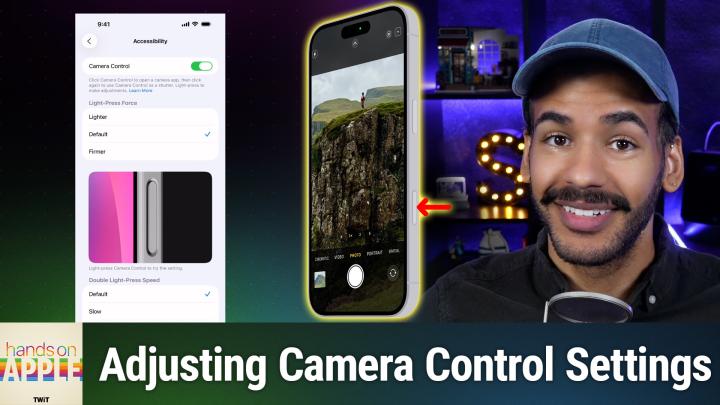
All TWiT.tv Shows (Audio)
Hands-On Apple 197: The Ins & Outs of Camera Control
00:15:07
From pocket to perfect shot
Loading summary
Transcript5 lines
- [00:01]
Micah Sargent
Coming up on Hands on Apple, let's dive in to the camera control button on your iPhone. Stay tuned.
- [00:07]
Progressive Insurance Announcer
Today's show is brought to you by Progressive Insurance. Do you ever find yourself playing the budgeting game? Well, with the name your price tool from Progressive, you can find options that fit your budget and potentially lower your bills. Try it@progressive.com Progressive Casualty Insurance Company and affiliates Price and coverage match limited by state law not available in all states.
- [00:35]
Micah Sargent
Podcasts you love from people you trust. This is twit. Welcome back to Hands on Apple. I am Micah Sargent and today I thought it would be a good idea for us to take a look at the camera control button. If You've got an iPhone 16, 16 Plus, 16 Pro or 16 Pro Max, and you have not used the the built in camera control, you can be forgiven by me and I think by others. It is a really intimidating new button that has some features that can be a little bit confusing. And so I will forgive you if it's not something that you have made regular use of. In fact, it's something that I have not made regular use of. And so it's worth talking about how it works, what it does, what you can do with it. So let's head over to iOS and take a look. All right, here we are on iOS and we are running this on an iPhone 16 Pro Max and therefore we are able to use the camera control. To be clear, Apple describes it as camera control, not the camera control button. So when you're talking about that button on the side of the iPhone that has capacitive touch, that is just camera control. How does it work? Well, in order to launch your camera, you can simply click and that launches the camera app. If you click it once while your iPhone is unlocked and we'll get into that because things can change there. Then it will launch by default the camera app. By default it will also launch the camera app in photo form, not video form and therefore clicking again will let you take a photo. So you could see having your phone up, you click the button once, it launches your photo app and then boom, you click it again, full click to take a photo. Now, there are some settings that you can adjust using camera control. Apple says exposure depth. So whether or not there's a depth of field effect going on and how deep the effect is zoom. The types of camera that you're using, the photographic style and the tone are all able to be changed using camera control. And while clicking to launch the camera and clicking again will take a photo in order to adjust these Settings, you simply lightly press that camera control button twice to open an overlay that shows you the settings. So instead of clicking all the way down, I will simply double click. And now you can see on the right side it shows you your options. Now, zoom is the default, but we can also swipe to go to cameras, to styles, to tone. And so let's see depth, there's exposure, let's go to cameras and we, we simply tap, not full click, but tap to select zoom. And then we're able to switch between the zoom modes by swiping on camera control. Now that lets you switch between the front facing camera because of the way that the zoom is set up, 0.5x, 1x, 2x and 5x, because these zooms are technically also based on the camera that you have built in. Now, it's important to know that when it comes to this feature, you really have to understand the difference between a light press on camera control and a click. And that's where things can get confusing. And I do think that it's going to take a little bit of practice on your part to figure out what you're doing there. Now, with this, you can also use it to lock exposure. So if you are looking at a photo and you're about to take a photo and you like how things are set up, and once you've clicked to launch the camera and once the camera auto focuses and auto exposes, you can tap and hold on camera control to lock the exposure and the focus. So double pressing the camera control will show you those different settings that you can change by swiping through pressing and holding. And I should say again, this is the light press. This is not the full clicking of the camera control will then let you lock in that auto exposure and auto focus. Now that's a look at what camera control is able to do in the camera app. But we do have some options for controlling how camera control works. So what we'll do is we'll launch the settings app, we'll scroll down and we'll go into camera. And in here, the first setting is the one we want to deal with. System settings, camera control. We tap on this and the first thing that we're able to do is under launch camera, we can choose what camera launches and is ready to take a photo in this section. So tapping on that lets us choose from the different apps that have said, hey, I am able to serve as a camera make camera control work with me. So as you can see, for me, I have camera, the default. I have Claude I have Code scanner now, Code scanner is built in. That's an Apple sort of section of the camera app Halide, which is a third party app. Indigo, which is Photoshop's app Instagram. And importantly, it's not just going to launch the Instagram app, it's going to launch the camera within the Instagram app. Leica Lux again will launch the camera magnifier. Once again an Apple feature, Snapchat, which no, it's not just going to launch the Snapchat app. It will launch the Snapchat camera and then none. So that could disable the camera control. I have it set to camera because I like to use Apple's built in camera. That's what I use. But any of those apps are able to be used. Simply selecting them will then make it so that when you click, click fully click the camera control button, though that app, that app's capture session will launch. You can also choose how camera control is activated. So by default, as I said, when you have the phone unlocked, clicking it will launch your camera. You can change that to double click so that it requires a click click in order to launch. If you find yourself accidentally activating camera control, this might be something that you change. The next section or the next setting rather is called require screen on. And what this says is the screen needs to be turned on. It doesn't necessarily have to be unlocked, but needs to be turned on in order for the camera control button to launch your camera session. If you turn this off even while it's in your pocket and the screen is off, pressing that button is going to launch your camera. Now this may be something that you want because if you're like me, I'm actually going to turn this off. Now. The times when I feel like camera control would be the most beneficial to me is when I'm out and about and I see something I want to take a photo of and I want to pull my phone out of my pocket and sort of at the same time as I'm pulling it out, click that camera control button and boom, launch a camera session. So that is why I'm turning mine off under controls. This is a way to say what controls are available with the little tap that we did earlier, that soft sort of tap on the camera control. So by turning on or off the camera adjustments options, it will let you say, no, I don't want that to be a feature. I don't want to be able to go in and make changes to the camera. I just want it to simply do click to Take a photo after I've clicked to launch the camera session and of course tap and hold to be able to lock auto exposure and autofocus. If we choose customize, we can make a few adjustments here. First and foremost, you can decide whether a light press or a long swipe are able to access the suggestments menu. If you turn both of these off, then you're not able to access the adjustments menu this way. So the only way would be that double click that we talked about before. That double tap that we talked about before. Here a light press and a swipe will also access the adjustments menu to launch exposure, depth, zoom, cameras, styles and tone down. Below is the option that says Clean preview. What this does is within the app because it knows that you're accessing these features via the camera control. It says we don't need to show them on screen, just get those out of the way. That's the clean preview. Turning that off will keep those controls available on the screen. And here I'm actually going to turn off swipe as a gesture to access these features because I know in my mind that my muscle memory is tied to that double tap to be able to access those features. Next is lock focus and exposure. This is the feature that I showed you earlier. While I'm in camera control, let the phone find my exposure and my focus and then press and hold, lightly press and hold to be able to lock that exposure and focus to what it is. If you don't like that feature, turn this off. Then the last one is launching Visual Intelligence. Now this of course is the feature that is part of Apple's AI package, Apple Intelligence package that uses what you capture with your phone. And we've talked about Visual Intelligence before, so we won't go into that to give you information. So being able to quickly find data detectors like an address and a date of a flyer. This is where Visual Intelligence comes into play. Pressing and holding Camera control. Now again, this is different from once you've launched the camera. Lightly pressing and holding to lock exposure and focus. This is where you fully press and hold the button the first time so it doesn't launch the camera session, it launches the Visual Intelligence session. Turning this off will disable that feature. So you don't ever have to use Visual Intelligence if it's not something that you want to make use of. Lastly, there are some accessibility settings. There is a simple option to turn off the camera control button entirely. So it's kind of another way to do so. And then how much is required to have the Phone recognize what is considered that light press. So those are the options like changing your settings or the light press that you hold to lock exposure and focus. Is it something where you want less pressure to trigger that light press? More pressure, which would be firmer or default. And you can use this little indicator on screen to show you when it detects, based on your current settings, whether you've done a light press or a click. And then there's the double light press speed and the double click speed. So is it something where you need a little more time to do a double light press to launch the settings, the camera settings, or even more time to be able to do so? So how much space in between each click would still be considered a double click or a double light press. So adjusting these to slow, slower or default can help you kind of narrow in on what works for you for making that double click or double light press. So those are the accessibility settings for camera control. As I said before, camera control I found when it first launched a little bit intimidating. And I find myself not making use of the feature because I have a lot of muscle memory built into using the lock screen shortcuts to launch the camera. But being able to a understand exactly how it works, what each of the buttons do, what I'm doing when I press those buttons, all very important to being able to use it and perhaps make it part of my muscle memory going forward. So by kind of taking a bit of time to study that and finding the places where camera control could fit into your workflow. As I mentioned, like if I have my phone in my pocket and I see something I want to capture, knowing that I can pull out my phone as I click that camera control button and immediately take a photo, that's a place where it makes sense. So having that ready is what I needed to change in order to make camera control work better for me. I want to thank you so much for taking the time to join me today on Hands on Apple. Always a pleasure to have you here. I'll be back next week with another episode, but until then, it is time to say goodbye. See you next time.
- [14:37]
Leo Laporte
Get your tech news exactly how you want it with Twitt tv. Tech News Weekly with Micah Sargent delivers quick hit coverage and exclusive journalist interviews, giving you the inside scoop on breaking tech stories in under an hour. Now for deeper dives, I hope you'll join me, Leo Laporte and a great panel of tech industry experts. That's every Sunday. With this one week in tech, we'll break down everything from AI breakthroughs to privacy concerns to cybersecurity alerts in the tech world's longest running and most trusted tech news roundtable. So efficient or in depth, the choice is yours. Subscribe to both shows wherever you get your podcasts, and head on over to our website, Twit TV for even more independent tech journalism.
- [15:24]
Micah Sargent
Sam.