← All TWiT.tv Shows (Audio)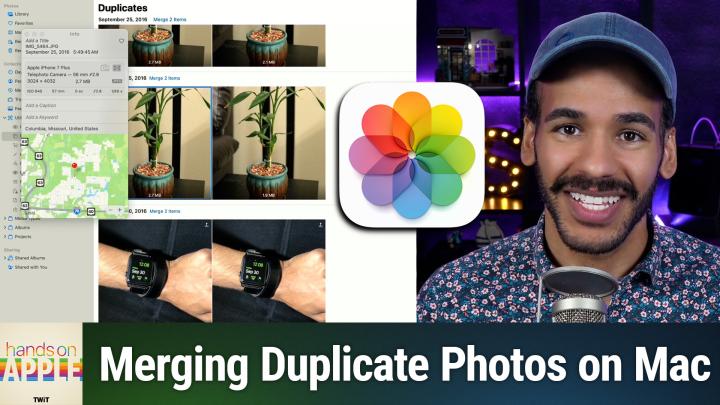
All TWiT.tv Shows (Audio)
Hands-On Apple 198: Deduplicate Pics in the Photos App!
00:07:56
Easiest Way to Find & Merge Dupes
Loading summary
Transcript15 lines
- [00:00]
Micah Sargent
Coming up on Hands on Apple. Let's take a look at how to deduplicate your photos on macOS.
- [00:07]
Leo Laporte
Today's show is brought to you by Progressive Insurance. Do you ever think about switching insurance companies to see if you could save some cash? Progressive makes it easy to see if you could save when you bundle your home and auto policies. Try it@progressive.com Progressive Casualty Insurance Company and affiliates. Potential savings will vary. Not available in all states. Let's map out this week's amazing destinations and travel tips.
- [00:35]
Will
Honestly, Will, I didn't plan any trips, but I did switch to T Mobile with their new Family Freedom offer.
- [00:43]
Leo Laporte
That's not the itinerary we're following.
- [00:46]
Will
Well, I'm departing from ATT and embarking on a new journey with T Mobile. They paid off my family's four phones up to $3200 and gave us four new phones on the house.
- [00:59]
Micah Sargent
Bon voyage.
- [01:01]
T-Mobile Announcer
Introducing Family Freedom. Our lowest cost will switch our biggest family savings all on America's largest 5G network. Visit your local T Mobile location or learn more@t mobile.com FamilyFreedom up to $800 per line via virtual prepaid card typically takes 15 days. Free phones via 24 monthly bill credits with finance agreement eg Apple iPhone16128GB8299 Eligible trade in eg iPhone11 Pro for well qualified credits end and balance due if you pay off early or cancel contact T Mobile.
- [01:27]
Micah Sargent
Stay tuned.
- [01:30]
Leo Laporte
Podcasts you love from people you trust.
- [01:34]
Micah Sargent
This is twit. Hello, welcome back to Hands on Apple. I am Micah Sargent and today we are taking a look at a simple utility tool that's built into your Mac. When you have a bunch of photos and some of them are are, well, copies of other photos, there are many third party tools that can help you deduplicate the photos that you have. But we're not talking about third party tools today. We're talking about something that your Mac has built right in. So let's head over to macOS and take a look. All right, here we are on Mac OS and we are in the photos library. Now it's important to understand that the duplication tool does take some time to scan your Mac and get a picture of what you've got in your library. So with that in mind, you may see over time more and more photos appear in this area as more duplicate photos are detected. So once you've opened the library on your the photo library on your Mac in the toolbar on the left, you want to look for the collections section. In the Collections section, there is a utilities option, and within that are a bunch of different, well, utilities. Because macOS's photo app will automatically kind of categorize the photos that you have based on what it detects. So it may detect receipts and categorize those in one area. So you can quickly get rid of those if you don't need them or if that is the place where you save them. Find them easily. It can detect handwriting, so it will look for photos that include handwriting. Maybe you've taken a photo of something that you want to remember later. That's a great place to go and find it. Illustrations. So if you find an illustration that you like, you take a photo of it. That's an easy way to find it. Recently viewed, recently edited, Recently Shared all of those are great for remembering something that you just did. So you can go, oh, right, I was just trying to. I just shared that with my other friend. Now I want to share it with this friend. Imports. Those are the photos that you have imported recently that of course have come from your phone or an external hard drive or some other thing. Documents, which is going to include both typed documents, but also any other kind of document that you import into the Photos app and you have duplicates.
- [04:17]
US Cellular Announcer
Have you noticed that the way we use our phones is ironic? Phones are for connections, but we look at them more than we look at each other. That's ironic. So U.S. cellular created U.S. mode to help us reconnect. It helps us use phones a little less. Ironically, a phone company wanting people to use their phones less is ironic. Let's find US again with US mode from US Cellular. Visit uscellular.com built for us to get started.
- [04:42]
Leo Laporte
This episode brought to you by Red Canary. When cybersecurity threats hit fast, you need an MDR partner that moves faster. Red Canary delivers 24. 7 expert MDR support and actionable insights. Plus it helps you detect four times more threats so you can stay ahead without burning out. Red Canary clears the noise and has your back every hour, every incident. Get the backup you deserve. Visit redcanary.com difference to learn more.
- [05:12]
Micah Sargent
So with the duplicates option under utilities, if we click on that, we will see a series of duplicate photos. This is going all the way back to 2016. And what we want to do is look at what we have here. So on the left we have a photo that is 2.5 megabytes. On the right we have a photo that is 1.8 megabytes. And the Photos app has recognized these both as the same photo or near enough to the same photo that we only need to keep one. Here is what Photos has to say about duplicates. Duplicates are classified both as exact copies that may have different metadata data. So it could be that the photos are exactly the same, save for one has the information about where the photo was taken and one is stripped of information about where the photo was taken, as well as photos that appear to be the same but may have unique resolutions, file formats or other slight differences. So it could be that one is a PNG while one is a jpeg. It could be that one is slightly larger and one is smaller in this case for some reason these two photos are slightly different. If I click on the one on the left and hit the eye icon to get information about it, I can see that the photo was taken in Columbia, Missouri. And I can see that it was taken on an Apple iPhone 7 Plus if we click on the one on the left. Let's look at what's different here. Well, it appears that only the file size is different. Both of them have the location. Both of them show that it was taken on the iPhone 7 plus both of them show that they were taken with the telephoto camera. So the only difference is the file size. Interesting. If we click on the Merge to items button above the photos, a little prompt pops up. It says the selected items appear to be the same but may have unique resolutions, file formats or other slight differences. Merging will keep one version of the duplicates that combines the highest quality and relevant data and move the rest to recently deleted. So if you have more than one photo that's all the same, it will also move those away, but it combines all of the data across them. So choosing merge two items leaves just one behind and now we can see what we have left. Now you'll notice that these are very similar. That is because I took these photos all at the same time to try to capture what it was like to use the telephoto camera at the time. If you're looking for an incredibly robust deduplication tool, then the built in duplicates option is not going to be that for you. You will need to use a third party tool to do that. I have in the past suggested Gemini from the wonderful folks who make CleanMyMac and other tools. So that may be something that you choose to use instead. Can do what's sort of called fuzzy deduplication. It can look at photos that are very similar but different enough that a standard deduplication tool can't tell that they're the same. So photos taken around the same time. Perhaps it's burst photos or as I showed you those different photos of that lucky bamboo, it very easily would have been able to say this, this, this, this, this all the same photo. Do you just want to keep one of them? However, for a basic, no extra cost deduplication tool, you've got it right there in the photos app for macOS underneath your utilities. That is going to bring you and me and us to the end of this episode of Hands On Apple. Thank you so much for tuning in this week. I'll be back again next week with another episode, more tips, tricks and everything in between. Thank you and goodbye.
- [09:16]
Leo Laporte
Get your tech news exactly how you want it with TWiT TV. Tech News Weekly with Micah Sargent delivers quick hit coverage and exclusive journalist interviews, giving you the inside scoop on breaking tech stories in under an hour. Now for deeper dives, I hope you'll join me, Leo Laporte and a great panel of tech industry experts. That's every Sunday with this Week in Tech. We'll break down everything from AI breakthroughs to privacy concerns to cybersecurity alerts in the tech world's longest running and most trusted tech news roundtable. So efficient or in depth, the choice is yours. Subscribe to both shows wherever you get your podcasts and head on over to our website, Twit TV for even more independent tech journalism.
- [10:05]
Micah Sargent
Sam.