← All TWiT.tv Shows (Audio)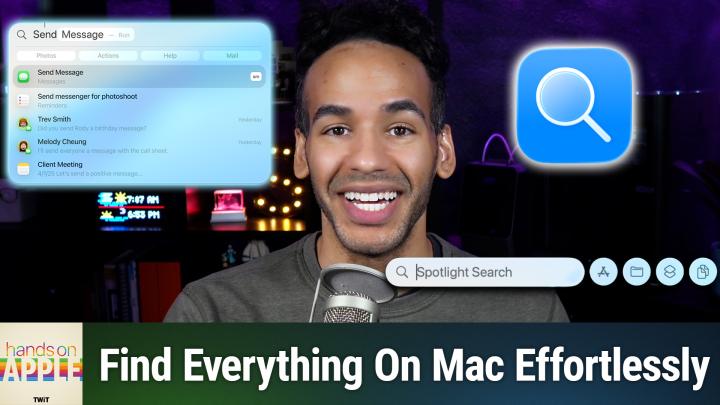
All TWiT.tv Shows (Audio)
Hands-On Apple 202: Spotlight Supercharged in macOS Tahoe
00:12:09
Search Faster & Smarter With New Tools!
Loading summary
Transcript32 lines
- [00:01]
Narrator
25 years ago, a small group of business and government leaders met in Washington, D.C. they envisioned the creation of an independent nonprofit organization with a mission to help people, businesses and government mitigate the growing threat of cyber attacks. Today, the center for Internet Security embodies that vision. For 25 years, it's worked with a global community of IT and cybersecurity experts to develop the CIS benchmarks and CIS crew critical security controls. These proven security best practices defend against common cyber threats and streamline compliance with industry frameworks, regulations and standards. Today, CIS provides cybersecurity services, threat intelligence, and critical resources to help public and private sector organizations alike strengthen their Cyber defenses. Visit cisecurity.org today. That's the letters CIC isecurity.org to find out how CIS can help your organization as we create confidence in the connected world.
- [01:01]
Jeff Bridges
Morning Zoe. Got donuts.
- [01:03]
Dana
Jeff Bridges why are you still living above our garage?
- [01:06]
Jeff Bridges
Well, I dig the mattress and I want to be in a T Mobile commercial like you teach me so Dana.
- [01:13]
Dana
Oh no, I'm not really prepared. I couldn't possibly at t mobile get the new iPhone 17 Pro on them. It's designed to be the most powerful iPhone yet and has the ultimate pro camera system.
- [01:25]
Jeff Bridges
Wow. Impressive. Let me try. T Mobile is the best place to get iPhone 17 Pro because they've got the best network.
- [01:32]
Micah Sargent
Nice.
- [01:33]
Dana
Jeffrey, you heard them.
- [01:34]
Jeff Bridges
T Mobile is the best place to.
- [01:36]
Micah Sargent
Get the new iPhone 17 Pro on.
- [01:38]
Jeff Bridges
Us with eligible trade in in any condition. So what are we having for lunch?
- [01:43]
Dana
Dude, my work here is done.
- [01:45]
T-Mobile Announcer
The 24 month bill credit is on experience beyond for well qualified customers plus tax and $35 device connection charge credit send and balance due if you pay off earlier. Cancel Finance Agreement iPhone 17 Pro 256GB $1099.99 and new line minimum $100 plus a month plan with auto, PayPal, taxes and mobile network in the US based on analysis by Oklahoma Speed Test Intelligence Data 1H 2025 Visit T mobile.com this.
- [02:02]
Red Canary Announcer
Episode brought to you by Red Canary when cybersecurity threats hit fast, you need an MDR partner that moves faster. Red Canary delivers 24.7expert MDR support, total visibility and actionable insights. Plus it helps you detect four times more threats so you can stay ahead without burning out. Red Canary clears the noise and has your back every hour, every incident. Get the backup you deserve. Visit red can@aerie.com difference to learn more.
- [02:31]
Micah Sargent
Coming up on Hands on Apple let's take a look at some new features in Spotlight in macOS Tahoe. Stay tuned.
- [02:42]
Red Canary Announcer
Podcasts you love from people you trust. This is Twit.
- [02:57]
Micah Sargent
Welcome back to Hands on Apple. I'm Micah Sargent, and today we are taking a look at something fun, I think, that has come to macOS Tahoe. I love talking about Spotlight, and Spotlight has had some pretty great improvements in macOS Tahoe Mac OS 26. So we're going to break this up into a few videos, the first of which is going to be all about search. So let's head over to macOS Tahoe and take a look. All right, here we are on the macOS Tahoe desktop, my desktop, and as you can see, currently nothing there. The way that I like to open Spotlight is by holding down the command key and hitting Spacebar to bring up Spotlight. But you can also access Spotlight from the menu bar if you have the Spotlight icon turned on. It's a little magnifying glass. That's the icon for Spotlight. Clicking on that will bring up Spotlight Search as well. Now, if you have ever moved the menu bar, rather the Spotlight search bar around on your Mac and you wish for it to return to the center, if you hold down the control key on your keyboard and click and hold on Spotlight in the menu bar, it will return it to that default location. Just a little tip there, but let's talk about Search first and foremost. When we hold down Command and hit Spacebar, you will notice something changes here because next to Spotlight Search, a little bar appears that shows four circles. The first one is Applications, the second one is Files, the third one is Actions, and the fourth one is Clipboard. And we'll talk about each of those as we kind of move through this. But first and foremost, just note that Spotlight has some changes to give you better browsing. So we will talk about browsing in the next episode of Hands On Apple. Today, it's all about search. So first thing to know is that Spotlight is going to automatically rank results based on things that you use. So files, folders, apps that will all be ranked together and has to do with the kind of relevance that it is to you. So if I were to type in Chihuahua, for example, you in this case aren't seeing very many results because there aren't too many of them. But there we go. Now it kind of populates with the different options that we have. First and foremost, it's showing me a heif image, then a PDF, I may want to look at the jpeg and it's basing all of this on my actions and activity on the Mac to determine what it thinks is the most important. Now, right below our search term, you can see some different tabs here. This lets you limit your search to each of these scopes. So contacts to Kika, which is an app for archiving and unarchiving files, dictionary, photos, preview, PDF, et cetera, et cetera. So bear in mind that, yes, results can be ranked. Now, as I mentioned, you can filter these searches by not just the app, but also the file provider, the file type, or the folder. So with each of these sections, I can say I only want to see photos that features Chihuahuas, and in that case it is the Photos app. But I can also take a look at some of the other options for this. Of course, with this in particular, we do have some kind of slowdown to this system because of the fact that we are working with a Mac that has not had the opportunity to go through the whole process of indexing the Spotlight. But we can see these different options that are available to us, including a song in Apple Music, or again, the dictionary option, or if there's one in Notes. So all of that can kind of help you separate and filter down by again, app, file, type, folder, image, et cetera. And if I were to kind of look for a PNG file specifically, I can help to narrow that down even more. Now, one other thing that's really nice about the new Spotlight search functionality is as you use it, it can hold onto your history, so you can access past Spotlight searches and actions, which we'll talk about as well by pressing the up arrow. So pressing that up arrow will show you the different things that you've typed in before, and that way you can kind of be reminded of what it was you were doing. Or if you have a very common use case, then that might be what you need to get right back to what you were looking for in the past. Another thing to note is that now Spotlight results don't just show you your history of pages that you visited, but it will also search open windows and tabs. So if you have something open, it can help you find stuff that you're working on right now. So in my Safari window, I've got Twit open. I've got an article from the Verge about Alien Earth. I have an OpenAI article and something about Claude. So let's see what happens. If I type in Claude, you can see that it shows me a Safari page that I have open there. I could also do it for Alien Earth. Boom. It shows that Verge article. And so I've got some different stuff there. I Can also open up the numbers app. Or if we are in a finder window, let me see if I have multiple finder windows open. I can see those as well. So we could take a look at Adobe Acrobat, the app. But also being able to switch and search. As you see, this kind of reloads to show us some of the different options that are available whenever we type in Acrobat in this case. So all of those pages or documents that we were looking for can pop up there and give us the ability to open those. And then we could limit it to, you know, just Acrobat Distiller or just preview right there as well. If you like what you heard and you want more of this week's top stories in tech, well, subscribe to Tech News Weekly. Every Thursday I talk with the journalists making and breaking the tech news. So we will downsize these windows once more. And another option is if you have Dropbox or Google Drive or another third party cloud service where you have content stored there, Spotlight search results can include this content so that you can see those files right there in Spotlight. So this is specific to, you know, even if it's not available locally on the device like Dropbox and Google, all of them do this. They, they offer the functionality to kind of keep the content in the cloud, which has played, it's been at issue with sometimes in the past Spotlight being able to properly index those. That's just improved. So now those are indexed as well. You can also do something that I think is very nice, which is right there from Spotlight search. You can do a quick website search for really popular apps. So for example, I can type in IMDb and then hit the tab key. Well, that one didn't work this time. Let me try it all lowercase and see if that helps. So IMDb is one that should work, but in this case, let's just do Amazon. As I have seen that one work, I can hit tab after typing in Amazon. And now if I do a search here, let's go with I don't know, let's go with I'm just going to type in pumpkin pie. I'm kind of curious what will happen and hit Enter. Then it does a search on Amazon for pumpkin pie, showing us some of those pumpkin pie syrup options for your beverages. I would imagine that once this is done indexing, then IMDb would work. Other options include things like YouTube. So you could do a search on the YouTube website in order to find a YouTube video. But as you saw, Amazon was one that did work and Then the last thing that I want to mention is you can actually use this to ask specific questions. So you can say, I don't know when was the last, the last total eclipse? And if we let that load for a second and scroll down, we can see an option to ask Siri or we can also see an option, it should show up here at the bottom. This is one of the things that's a little bit perplexing about this at times is you sometimes. There we go. You have to wait for these, the content to load. So then I can ask Siri when was the last total eclipse? And see what Siri has to say. It says August 21st of 2017. The last total solar eclipse visible in the United States was at that time. But you can also use it to ask chat GPT when was the last total eclipse? And you'll notice I'm specifically not saying solar lunar, I am just asking it this way. And because I am logged out, then it's not able to use that to find it. But it does pop up that notification giving you the ability to go in and use it there. So that is another way to search if you don't want to simply, you know, do a Spotlight search or be able to go to a to use that third party tool for. So one other thing to say about the search functionality of Spotlight specifically is type. You just need to type in a few things because that's going to show you some of what's available and what it can search for. For example, right here, when I type in the word ask, it is popping up some different options in settings like ask to join hotspots, ask to join networks, or it can show me tips in the tips app, ask Siri to get information on Apple Watch or play audio on Apple Watch. So it's not just these specific pages, but it also has more information that's included that you wouldn't have otherwise in your Spotlight search. So quite a bit more powerful than Spotlight of yesteryear. But as you saw, I do feel that there's still some ironing out to do when it comes to this because it takes a minute to load and even after things are indexed, it can sometimes change what the search results are. And so hopefully Apple will see over time the improvements that could be made to make this even better. So folks, that is a look at Spotlight Search. Next week we will take a look at Spotlight browsing and then Spotlight actions after that. Thank you so much for tuning in to this week's episode of Hands on Apple. I'll See you again next week.
- [14:30]
Jeff Bridges
Bye.
- [14:30]
Micah Sargent
Bye.
- [14:41]
Jeff Bridges
Morning, Zoe. Got donuts.
- [14:43]
Dana
Jeff Bridges, why are you still living above our garage?
- [14:46]
Jeff Bridges
Well, I dig the mattress and I want to be in a T mobile commercial like you. Teach me, Saldana.
- [14:53]
Dana
Oh no, I'm not really prepared. I couldn't possibly at t mobile get the new iPhone 17 Pro on them. It's designed to be the most powerful iPhone yet and has the ultimate pro camera system.
- [15:05]
Jeff Bridges
Wow, impressive. Let me try. T mobile is the best place to get iPhone 17 Pro because they've got the best network.
- [15:12]
Gold Belly Announcer
Nice.
- [15:13]
Dana
Jeffrey, you heard them.
- [15:14]
Jeff Bridges
T mobile is the best place to.
- [15:16]
Micah Sargent
Get the new iPhone 17 Pro on.
- [15:18]
Jeff Bridges
Us with eligible traded in any condition. So what are we having for launch?
- [15:23]
Dana
Dude, my work here is done.
- [15:25]
T-Mobile Announcer
With 24 month bill credit is on experience beyond for well qualified customers plus tax and $35 device connection charge credit send and balance due to payoff earlier. Cancel Finance agreement. IPhone 17 Pro 256 gigs $1,099.99 and new line minimum $100 plus a month plan with auto pay plus taxes and fees required. Best mobile network in the US based on analysis by Ooklove Speed Test Intelligence data 1H2025 visit t mobile.com hey guys.
- [15:42]
Gold Belly Announcer
Have you heard of Gold Belly? It's this amazing site where they ship the most iconic famous foods from restaurants across the country anywhere nationwide. I've never found a more perfect gift than food. Gold Belly ship Chicago deep dish pizza, New York bagels, Maine lobster rolls and even Ina Garden's famous cakes. So if you're looking for a gift for the food lover in your life, head to goldbelly.com and get 20% off your first order with promo code GIFT. That's goldbelly.com promo code GIFT.