← All TWiT.tv Shows (Audio)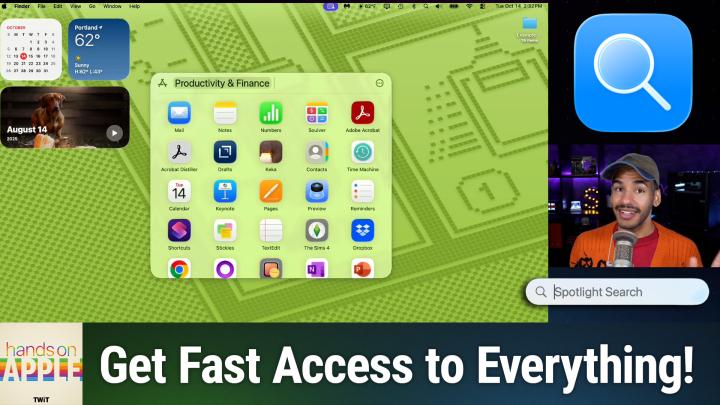
All TWiT.tv Shows (Audio)
Hands-On Apple 204: Browsing With Spotlight in macOS Tahoe
00:12:17
Quickly Access Apps, Actions, Files, & Clipboard
Loading summary
Transcript18 lines
- [00:00]
Progressive Insurance Announcer
Today's show is brought to you by Progressive Insurance. Do you ever find yourself playing the budgeting game? Well, with a name your price tool from Progressive, you can find options that fit your budget and potentially lower your bills. Try it@progressive.com Progressive Casualty Insurance Company and affiliates Price and coverage match Limited by state law not available in all states.
- [00:26]
MIDI Health Promoter
This podcast is supported by MIDI Health. Are you in midlife? Feeling dismissed, unheard or just plain tired of the old healthcare system? You're not alone. For too long, women's serious midlife health issues have been trivialized, ignored and met with a just deal with it attitude. Many of us have been made to feel ashamed or forgotten. In fact, even today, 75% of women seeking care for menopause and perimenopause issues are left entirely untreated. But here's the powerful it's time for a change. It's time for midi. MIDI is not just a healthcare provider, it's a women's telehealth clinic founded and supported by world class leaders in women's health. What sets MIDI apart? We are the only women's telehealth brand covered by major insurance companies, making high quality, expert care accessible and affordable for all women everywhere. Our clinicians provide one on one face to face consultations where they truly listen to your unique needs. We offer a full range of holistic, data driven solutions from hormonal therapies and weight loss protocols to lifestyle coaching and preventive health guidance. This isn't a one size fits all care. This is care uniquely tailored for you. At miti, you will join our patients who feel seen, heard and prioritized. You will find that our mission is to help all women thrive in midlife, giving them access to the health care they deserve. Because we believe midlife isn't the middle at all. It's just the beginning of your second act. Ready to feel your best and write your second act script? Visit join midi.com today to book your personalized insurance covered virtual visit. That's joinmitte.com midi the Care Women Deserve.
- [02:11]
Micah Sargent
Coming up on Hands on Apple. Let's take a look at what I promised which is a return to Spotlight in macOS Tahoe. Stay tuned.
- [02:22]
MIDI Health Promoter
Podcasts you love from people you trust.
- [02:27]
Micah Sargent
This is TWiT. Welcome back to Hands on Apple. I am Micah Sargent and as I said I would. We are continuing on with our overview of the new features, a new way of things when it comes to Spotlight in macOS Tahoe. Yes, Apple has updated macOS Tahoe with some new features and Some changes to existing features to make Spotlight even more powerful than it already was. So let's head over to macOS and take a look. Here we are on macOS, and as you can see, I have the desktop open and I currently don't have Spotlight running. Now, we've talked a lot about how to access Spotlight. One way is by going up to the menu bar and clicking on the Spotlight icon if you have it there. My favorite way to access Spotlight, and the way that I regularly do, is by holding down the command key and hitting the spacebar that opens up Spotlight Search. Now, today we're talking about the browsing features of Spotlight. So last time we talked about how to search with Spotlight. That's what you're used to doing. Now Spotlight becomes even more powerful and capable, letting you access apps, actions, files, and clipboard all from Spotlight. So let's start at the top. The first thing that we can do is access apps in a new way. When you launch Spotlight, you have a few ways of gaining access to this area. You can hold down the command key and hit the one on your keyboard to immediately access applications. Or you can use the arrow key, the right arrow key, to bring up the four browse options of which applications is the first. If you do use the arrow key, you will have to hit enter after you hit arrow key. So command one is technically faster to access applications. Now, when you do this, it's actually going to categorize your apps based on how you use them and the categories to which they belong. So I can see I can quickly access utilities, for example, and in fact, typing in a word is going to start to kind of trim down and filter out what apps I'm looking for. So it shows the ones that I use the most at the top. 1, password, system, settings, messages, Safari, photos. And then underneath it has them listed alphabetically. But I can quickly just view the utilities I have installed. I can quickly change that from utilities by hitting the backspace key or delete key to remove that category and say, oh, I only want to look at developer tools. I only want to see productivity in finance, or I only want to view the apps for creativity that will quickly just bring up those apps and then. And from that point, I am able to launch any of these apps that I would like. Now, if you have iPhone mirroring turned on, as I talked about before, it will actually show you the apps on your phone as well. So it's a quick way to gain access to iPhone mirroring and launch an app from your phone that is nearby and is charging. We've talked a lot about how to go about using iPhone mirroring, so we won't cover that in this episode, but that is how you access apps both on your Mac and as I mentioned, being able to also access those apps from your phone. Have you heard of Club Twit? Well, here's what it gets you Ad free versions of every show, a feed of bonus content and members only shows you won't hear anywhere else. Like my Crafting Corner and Stacy's Book Club. It's the easiest way to support the work we do and stay even closer to the tech community around Twit. Join today at Twit TV Club Twit. If we go back to Spotlight search, I hit the escape key to return to the basic spotlight. But of course you can always hold down command and hit space. The third way of kind of getting to that browse menu where you can choose from the different icons is to move your mouse, which is going to bring up those four options. But I'm a big keyboard user, keyboard shortcut user and so that's the way that I'll be doing it. Now Command 2 is going to bring up our files. Files are exactly what you would expect. You can see recent files, but it also has intelligent suggestions based on what you are regularly doing at a given time. So it's going to pull those relevant documents up for you very easily and then you can just simply move through and see what it is that you want to act on. Like the applications. You also can filter based on an application or a type. So for example, I can say I only want to see files that are available in preview. I want to see files that are PDFs, I want to see files that have to do with Xcode. And there's an also a numbers option. Now again those categories are going to be based on what you actually do on your Mac. And so in fact, let me just see here really quick. I'm kind of curious. On my Mac when I go to the files section I have Google Drive and TextEdit as I regularly using TextEdit I also have Preview which I'm not surprised and I so that's what shows up on my Mac based on my usage in particular. Now long time listeners, longtime watchers, you will be familiar with a certain button that has appeared under the files part, which is my favorite button, the three dots meaning more if we click on this, it lets us change how the content is viewed. You can do a grid which shows you little icons of the different files or you can Do a list. Personally, I'm a list person. It has a little icon next to it with a preview of what the document is. So that way I'm able to see what is being shown on the Mac. Once again, to hop out of files, we hit the Escape key to get back to the main Spotlight search. So so far we've covered apps and we've covered files. The third browsing option, Actions, if we hit the three, if we hit the right arrow key three times, we'll get to Actions, or as I mentioned, Command three, which will bring up actions as well. Now, this is a really cool category because there are hundreds of options for setting actions on your Mac. And with each of these, you can set up something called a quick key, which we're going to talk about in next week's episode, all about Spotlight actions. But this is a way to view some of the stuff that's possible. Now, many of these are going to be actions that are actually shortcuts. Some of them are just basic actions that are part of macOS built in. But it's a quick way to do different things on your Mac. So it's providing me some suggestions based on my activity and actions. So I can send a message. I can start a timer with the Clock app, I can create a note with a Notes app, send an email with the Mail app, or create a calendar event with the Calendar app. But it also looks at the other apps that I have and looks for actions for those. With the Books app, I can open my default collection of books. I could play an audiobook with. Oh, let's keep scrolling. We've got drafts with hundreds of actions. Fantastical. My calendar app of choice. Let's do fine. For example, with Finder, I have actions to allow me to connect to a specific server, create a folder, delete files, label files, move files, rename files, Freeform. I can create a new board image playground. Quickly create an image. You get the idea. These are shortcuts, sometimes literally shortcuts. Apple shortcuts to be able to quickly take action. They're called actions on your Mac. And when you use Quick Keys and leverage Quick Keys, you'll be able to quickly make that happen again. We'll talk more about actions in the next episode and how to even create your own actions, which is nice as well. The last section, arguably one of the most helpful sections, and that is Clipboard. With Clipboard, you have access to a Clipboard manager, meaning that you can see the different things that you have copied to your Clipboard and get at them. So if you copied a link earlier on and then you were moving about, you know, doing other things and you went back and suddenly, oh no, I copied something new. I don't remember what that link was. Don't worry, Clipboard has it there in the Clipboard history. So to access Clipboard once again, we would hit the arrow key, in this case four times. Or we can do Command four once Spotlight is open. First thing I'll mention, three dots. Hitting that more icon lets you clear your Clipboard history. Or you can go into Settings, which has some information about privacy related to Clipboard, where you can say stuff from this app. Don't include it as part of my Clipboard. Well, Clipboard history in this case, I can see a URL, I can see a png, a jpeg, a HEIF image, a PDF. It's not just text, it's also files. And what's cool about this is if I open up a text edit document and I go to my clipboard by holding down Command, hitting space and then holding down Command and hitting 4, I can, if I have my cursor in my TextEdit document, as I do, I can easily take text that I copied and move down with the arrow key and hit return to immediately paste it into my TextEdit document. This of course works with pages. It works with any text entry location. And let's do that again and do it with the URL, which in this case is just going to paste the URL. If we launch Safari and we do Command 4 once again, that URL because I'm in the URL bar, will let me access that. If I had a rich text document, then I would be able to let me do file new format and we'll change this to rich text. And then I can hit command space and command four and let's paste this PNG into our rich text document here. And so now you can see that I'm able to paste an image from my Clipboard as well. It will keep quite a rich history on your clipboard. So that's something to bear in mind. If we hit those three dots and we choose Settings, that's going to bring up the Spotlight settings where you are able to say by scrolling down Clipboard search, which says allow Spotlight to search and display. Excuse me, items you've copied to your Clipboard. Items on your Clipboard will be available for 8 hours. Personal and sensitive information may appear in search results. So that's just something to bear in mind and gives you the ability to say, actually, I don't want that to show up on Clipboard so you can turn that off if that's a feature that you're not interested in. That is a look at Spotlight browsing, a way to access your apps, your files, your actions, and your clipboard, all from Spotlight, a command space away. Next week we'll take a look at Spotlight actions, including creating and personalizing your actions, as well as quick keys to give you even more power on your Mac with just a few quick keyboard movements. Thank you so much for tuning in to this week's episode of Hands On Apple. Always a pleasure to bring you the show and looking forward to seeing you again next week. Bye bye.
- [14:29]
Jeff Bridges
Morning Zoe. Got donuts?
- [14:31]
T-Mobile Spokesperson
Jeff Bridges why are you still living above our garage?
- [14:34]
Jeff Bridges
Well, I dig the mattress and I want to be in a T Mobile commercial like you teach me so Dana.
- [14:41]
T-Mobile Spokesperson
Oh no, I'm not really prepared. I couldn't possibly at t mobile get the new iPhone 17 Pro on them. It's designed to be the most powerful iPhone yet and has the ultimate pro camera system.
- [14:53]
Jeff Bridges
Wow, impressive. Let me try. T Mobile is the best place to get iPhone 17 Pro because they've got the best network.
- [15:00]
MIDI Health Promoter
Nice.
- [15:01]
T-Mobile Spokesperson
Jeffrey, you heard them.
- [15:02]
Jeff Bridges
T Mobile is the best place to.
- [15:04]
Micah Sargent
Get the new iPhone 17 Pro on.
- [15:06]
Progressive Insurance Announcer
Us with eligible traded in any condition.
- [15:09]
Jeff Bridges
So what are we having for launch?
- [15:11]
T-Mobile Spokesperson
Dude, my work here is done.
- [15:13]
T-Mobile Legal/Disclaimer Voice
24 monthly build credits on experience beyond for well qualified customers + tax and 35 device connection charge credit send and balance due if you pay off earlier. Cancel Finance Agreement. IPhone 17 Pro 256 gigs $1,099.99 A new line minimum 100 plus a month plan with auto pay plus taxes and fees required. Best mobile network in the US based on analysis by Oaklove Speed Test Intelligence data 1H2025 Visit t mobile.com.