← All TWiT.tv Shows (Audio)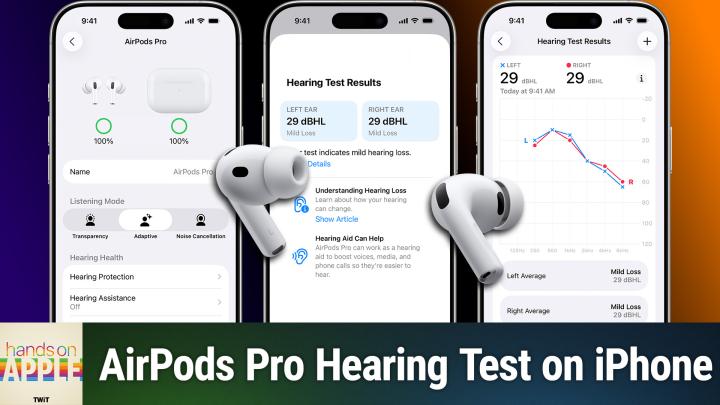
All TWiT.tv Shows (Audio)
Hands-On Apple 206: Testing Hearing Health With Just iPhone & AirPods Pro
00:08:56
Demo of Apple's Hearing Test
Loading summary
Transcript35 lines
- [00:01]
Narrator
25 years ago, a small group of business and government leaders met in Washington, D.C. they envisioned the creation of an independent nonprofit organization with a mission to help people, businesses and government mitigate the growing threat of cyber attacks. Today, the center for Internet Security embodies that vision. For 25 years, it's worked with a global community of IT and cybersecurity experts to develop the CIS benchmarks and CIS critical security controls. These proven security best practices defend against common cyber threats and streamline compliance with industry frameworks, regulations and standards. Today, CIS provides cybersecurity services, threat intelligence, and critical resources to help public and private sector organizations alike strengthen their Cyber defenses. Visit cisecurity.org today. That's the letters cisecurity.org to find out how CIS can help your organization as we create confidence in the connected world.
- [01:01]
Jeff
Morning Zoe. Got donuts.
- [01:03]
Dana
Jeff Bridges why are you still living above our garage?
- [01:06]
Jeff
Well, I dig the mattress and I want to be in a T Mobile commercial like you teach me.
- [01:12]
Dana
So Dana oh no, I'm not really prepared. I couldn't possibly at t mobile get the new iPhone 17 Pro on them. It's designed to be the most powerful iPhone yet and has the ultimate pro camera system.
- [01:25]
Jeff
Wow, impressive. Let me try. T Mobile is the best place to get iPhone 17 Pro because they've got the best network.
- [01:32]
Narrator
Nice.
- [01:33]
Dana
Jeffrey, you heard them.
- [01:34]
Jeff
T Mobile is the best place to get the new iPhone 17 Pro on us with eligible traded in any condition. So what are we having for lunch?
- [01:43]
Dana
Dude, my work here is done.
- [01:45]
T-Mobile Announcer
The 24 month bill credit is on experience beyond for well qualified customers plus tax and $35 device connection charge credit send and balance due if you pay off earlier. Cancel Finance Agreement iPhone 17 Pro 256GB $1,099.99 and new line minimum $100 plus a month plan with auto pay post taxes and FE mobile network in the US based on analysis by Ooklove Speed Test Intelligence data 1H 2025 visit t.
- [02:01]
Rubrik Announcer
Mobile.Com AI agents are everywhere, automating tasks and making decisions at machine speed. But agents make mistakes. Just one rogue agent can do big damage before you even notice. Rubrik Agent Cloud is the only platform that helps you monitor agents, set guardrails and rewind mistakes so you can unleash agents not risk. Accelerate your AI transformation@rubrik.com that's R U V R I K.com coming up on.
- [02:32]
Micah Sargent
Hands on Apple, let's take a look at completing a hearing test with just your AirPods and your iPhone. Stay tuned.
- [02:42]
Jeff
Podcasts you love from people you trust.
- [02:46]
Micah Sargent
This is Twit. Welcome back to Hands on Apple. I am Micah Sargent and today we are taking a look at a feature that's built in to your phone paired with your AirPods. Since Apple has all of the information needed between these two devices to provide a unique audio profile for you as you're listening to music or other content, you can actually complete a hearing test on your phone that then will be used to better provide a sound profile unique to you. So this process is able to be completed when you have a pair of compatible AirPods and your phone. Let's take a look at how that works. Now, it's important to understand that as I'm doing this, I'm going to have to remain quiet for most of the test. So this is probably one of the more visual versions of Hands on Apple that you've seen. If you are listening to it, you will be able to follow along and hear the sounds of the test. But much like a hearing test that you would take in a lab, it's all about listening to tones and then tapping, in this case on a screen to indicate, yes, indeed, I have heard those tones. So let's take a look at the process. You'll know when it's time for me to be quiet, as I will be quiet. Let's head over to iOS. So here we are on iOS and the first thing I need to do is take my AirPods. I have the latest version AirPods Pro 3 as you can see there and I am going to pop them into my ears. Now once you've popped them into your ears, you will be able to tap on and in this case I tap on mic as AP3 and in your AirPods. So for you, you'll look for the name of your AirPods there. Tap on it to go into the settings for those AirPods and from here you'll see under the Hearing Health section, an option that says take a hearing test. When you tap on this, it tells you a little bit about what's involved. Says hearing loss is common. It can get worse over time. A five minute test can identify if you have hearing loss and then if you have mild or moderate hearing loss. AirPods Pro can provide hearing assistance that makes voices, music and the sounds around you easier to hear. So we'll choose get started. It will start with a little bit of a survey asking if you're 18 years or older. I am. Am I currently experiencing allergies, a cold or infection in my ears or sinuses? No, because that would of course affect your hearing or pot potentially could affect your hearing. And then have you been in a loud environment like a concert or construction site in the last 24 hours? No. Something else that is likely to affect your hearing. I'll choose next. And here is where things start to get serious. Now, the first thing you can see is that as I'm talking it says there's too much noise in this environment, which means this is not a good place to complete a hearing test. Now I of course am making this sound. So what I need to do is, is be quiet. So from this point on you'll notice that it's going to be me being quiet again. You have to watch along to see how this works. And in fact, if it's too loud in the environment, it won't even let you tap next to start the test. But I'm going to be quiet. It's going to change to say it's okay in this environment and I'll be.
- [06:14]
Able to tap next. I actually will make a little sound here. It tells you what you need to.
- [06:24]
Do about placing your AirPods in the.
- [06:27]
Correct ear, making sure that they are.
- [06:30]
In the right ear if they're supposed to be, in the left ear if.
- [06:32]
They'Re supposed to be. It also tells you to adjust the position and depth of each AirPod until the fit is snug but comfortable. So having that good fit and then it tells you that it's going to.
- [06:43]
Play some sounds in your earpod ears to determine the fit is good because there are microphones that are listening to.
- [06:50]
How the sound is playing in your.
- [06:52]
Ear canal and then provide that experience, adjust that experience based on it.
- [07:02]
Rubrik Announcer
AI agents are everywhere, automating tasks and making decisions at machine speed. But agents make mistakes. Just one rogue agent can do big damage before you even notice. Rubrik Agent Cloud is the only platform that helps you monitor agents, set guardrails and rewind mistakes so you can unleash agents, not risk. Accelerate your AI transformation@rubrik.com that's R U V R I K.com.
- [07:39]
Micah Sargent
If you like what you heard and you want more of this week's top stories in tech, well subscribe to Tech News Weekly. Every Thursday, I talk with the journalists making and breaking the tech news.
- [07:52]
It says that the fit is good and it's quiet enough to test my hearing. So we are good to go and we're good to begin from here. It turns on Do Not Disturb on your phone so that there aren't any notifications getting in the way and then it's going to play some tones. It says it will play tones at different volumes and frequencies, and each tone is going to pulse three times.
- [08:12]
I can play back the sound to hear what it sounds like.
- [08:16]
In this case, I'm going to tap next, and we should be ready to start the test. During the test, listen carefully and tap the screen once. Tap the screen once when you hear a tone pulse. It's okay if you miss a tone because you'll have another chance to hear it. And if you get too loud, it will actually say that it's a little too loud in the environment and that you won't be able to complete the test. So I'm going to be quiet and start. So I just completed the left ear. I did find it a little difficult, as sometimes I wondered if my. If I was actually hearing a tone or if my brain was making me hear a tone. And then there were other times where I felt like my breathing and movement was getting in the way of me being able to hear the sounds. So that's something that you may struggle with as you are completing the test. All right, now we're going to move on to the right ear. Okay. We just completed the test. It says show results, and it also says that the test has been saved to my health records. When I choose this, I can see.
- [09:50]
That I have little to no hearing loss.
- [09:53]
One decibel of hearing loss, I guess, would be the DBHL little to no loss.
- [10:01]
And on my right ear, one decibel.
- [10:03]
Of hearing loss as well.
- [10:06]
So it talks about how you can keep your hearing healthy. You can read an article about that. I'm actually going to take these AirPods out. Well, I can't just yet. And then also says that there's no change needed. It says Hearing aid on AirPods Pro is not recommended. The current AirPods tuning is the right match to your test results. So there's a little bit of tuning that I have set up. I can see details of it, and it shows on average the hearing loss in left and right. And it looks like my left ear has a little bit more hearing loss in the. In the higher frequencies. And then it's sort of my left and right align when it comes to the rest of the frequencies. So I'm able to see with that audiogram what's going on, which is nice. And it's also saved in the health app, so I can access that later and choose done. So now that's been set up on my AirPods. Now I can go ahead and take those out. So if you have been wondering how to complete a hearing test. Or perhaps you've not done it because you were, you know, thinking it's going to be super involved, it's going to take a long time. Or you just weren't sure what it looked like. There is what it looks like to complete a hearing test on your iPhone using your AirPods. Folks, I want to thank you so much for joining me. I'm still talking quietly. I want to thank you so much for joining me for this week's episode of Hands on Apple. I'll be back next week with another episode, but until then, thank you so much for tuning in. We'll catch you next time. Bye bye.
- [11:53]
Foreign.
- [11:58]
Rubrik Announcer
AI agents are everywhere, automating tasks and making decisions at machine speed. But agents make mistakes. Just one rogue agent can do big damage before you even notice. Rubrik Agent Cloud is the only platform that helps you monitor agents, set guardrails and rewind mistakes so you can unleash agents, not risk. Accelerate your AI transformation@rubrik.com that's R U B R I K dot com.