← All TWiT.tv Shows (Audio)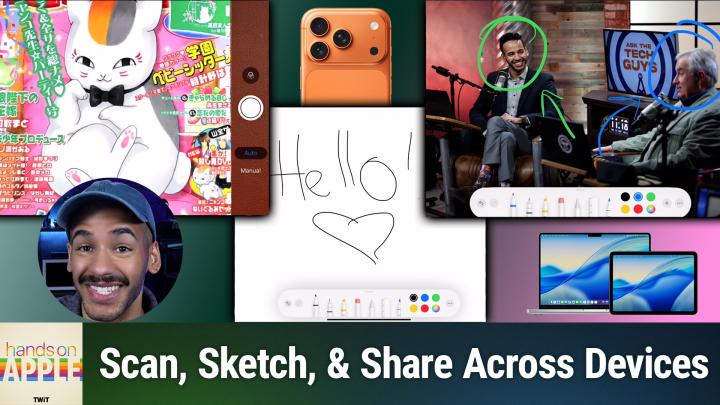
All TWiT.tv Shows (Audio)
Hands-On Apple 214: Continuity Features You May Have Missed
00:10:40
Continuity Camera, Sketch, & Markup
Loading summary
Transcript13 lines
- [00:01]
American Express Announcer
Experience a membership that backs what you're building with American Express Business Platinum. Enjoy complimentary access to the American Express Global Lounge Collection and a welcome offer of 200,000 points after you spend $20,000 on purchases on the card within your first three months of membership. American Express Business Platinum there's nothing like it. Terms apply. Learn more@americanexpress.com Business Platinum.
- [00:30]
Disney Promo Announcer
Disney wants to know, Are you ready?
- [00:33]
Micah Sargent
Yes.
- [00:34]
Disney Promo Announcer
For Marvel Studios Thunderbolts the New Avengers now streaming on Disney let's do this. One of the best Marvel movies of all time is now streaming on Disney.
- [00:44]
Micah Sargent
Hey, you weren't listening to me.
- [00:46]
Disney Promo Announcer
I said Thunderbolts the New Avengers is now streaming on Disney.
- [00:51]
Lincoln Nautilus Announcer
Meet the New Avengers.
- [00:53]
Micah Sargent
That's cool, man.
- [00:54]
Disney Promo Announcer
Marvel Studios Thunderbolts the new Avengers rated PG13 now streaming on. You guessed it, Disney.
- [01:01]
Lincoln Nautilus Announcer
Whether you bond over streaming binge worthy videos, watching sports recaps, video gaming, or by unplugging altogether, the 2026 Lincoln Nautilus Hybrid helps keep you connected throughout your journey. Learn more@lincoln.com available connectivity, features and functionality vary by model. Package pricing, trials and term lengths vary by model. Video streaming and games are only available while parked.
- [01:26]
Micah Sargent
Coming up on Hands on Apple, let's take a look at Continuity sketch, Continuity markup and continuity camera. Stay tuned podcasts you love from people you trust. This is twit. Welcome back to Hands on Apple. I am Micah Sargent, and today we are taking a look at continuity. Now, we've looked at continuity in the past, but what's important to understand here is that there are many continuity features and depending on what devices you own, you may have access to more of them than you realize. And so continuity at its base, when Apple sort of first introduced the concept of continuity, it was this idea that you could use your multiple devices together, that if you were browsing Safari on your Mac, you could easily then open up Safari on your iPad and pick up where you left off. Or you could pass music along from one device to another. Or if you were on the phone, you could tap the top of a home pod and be able to pass along the audio to it and use your home pod as a speakerphone. Well, continuity, this idea of these devices kind of talking to one another and creating their own little network of interactivity is something that works in multiple ways. And so it's a reminder for some of you or could be the first time that you realize for others as we take a look at continuity sketch and continuity markup and kind of the extension as well of continuity camera. So let's head over to macOS to kick us off. All right, here we are on macOS. And first and foremost, keep in mind that both of the devices that you're using need to have WiFi and Bluetooth turned on. They need to be signed into the same Apple account, and they need to be within 30ft of each other. Okay? So when all of those things are met, then it is the proper conditions for these continuity features to work. Now, if yours still aren't working, as was the case with me, what I needed to do was plug in my device to the other device. So again, with macOS, I have an iPad that I'm going to be showing these features on. I needed to plug that iPad into the Mac and then have the iPad kind of pop up the prompt that says, do you want to trust this device? At which point it said, oh, this is an iPad that is matching all of these requirements. So now you can use this. Now, the first thing to understand is that you can use macOS on almost any page to be able to insert a sketch, a photo, or a scan. Okay, so here on the desktop of macOS, if I right click down at the bottom, I see an option that says import from iPad. Now you may see import from iPhone. You may see import from iPad. Again, it depends on which are matching those cond. But with this you can easily. Again, I right clicked on a Mac. You can also down the control button and then click to get to this screen. And I can choose from the three Take photo, scan documents, add sketch. So let's see how these work. I'm going to choose Take photo and you'll see that a little thing pops up and it says use your iPad's camera to take a photo. Now, if we switch over to our iPad here, you'll see that we have the way, or the necessary way of being able to take a photo. So up has popped the photo UI and I can then take a photo of an item and I will click or tap rather on the shutter button and I can see that photo on my iPad and I will choose Use photo. And then if we head back over to Mac os, you can see that the photo I took now pops up on my Mac. Now this works in not just the desktop, but I could right click in Finder. I could be working in a pages document, a numbers document, and be able to add them from there as well. But here's the cool thing. It's not just for taking photos. As I showed before, we have some other options including Scan documents and Add Sketch. So let's see what scan documents looks like. So we'll click on this on macOS, we'll head back over to the iPad and we will lift. And in this case, we're still going to use the same item, but instead we're going to do it from a scanned document point of view. So I'll bring up that image. I'll see am I happy with the way that it's cropped? I might make some adjustments to it ever so slightly just to get the crop just right as we want it here, like so. And we'll crop the top down, fix that, crop this side in just a bit. And now choose. Well, I guess I'm not happy with the way that the bottom left looks there. So we'll do that one again and choose Done. And now we can tap Done. And once again, we will head back over to Mac OS and we can. Whoops, I have two images there. So I'll choose save. And those images now pop up. And because I took two of them, the second one's by accident, it actually shows up as a PDF document with both of the pieces there. So you could imagine if you're, you know, trying to capture a receipt or another document and you are, you know, you have multiple pages, this is a great way to do that. The last option is the option to add a sketch. Now, if we do the sketch option once again, we'll head over to the iPad. If you have an Apple pencil, you can use it with the Apple pencil. But here I can create a sketch and I'm just using my finger for this. And there we go. And I will choose done once again. And we'll pop back over to the Mac and you can see there's our sketch. And it does it as a png, so it's got the transparency in place. I could take that sketch and be able to edit it or move it around however I need to.
- [08:11]
GSK Shingles PSA Speaker
I didn't think the pain from the shingles rash would affect simple everyday tasks like bathing, getting dressed, or even walking around. I was wrong, though. Not everyone at risk will develop it. 99% of people over the age of 50 already have the virus that causes shingles, and it could reactivate at any time. I developed it, and the blistering rash lasted for weeks. Don't learn the hard way like I did. Talk to your doctor or pharmacist today. Sponsored by gsk.
- [08:41]
Micah Sargent
Whoa, look at the time. Time is flying. And there's only a little bit of time left to take our annual survey. Sorry, it's freezing. Here, your feedback helps to guide the of Twit. Your feedback matters. It makes us make our shows better. So if you head to Twitter TV survey 26 before January 31st, that is the time to tell us what you think. And by the way, every time one of you fills out the survey, it gets a couple of degrees warmer here. So I could really use it. It'll only take you a couple of minutes, I promise. Thanks so much. We appreciate it. And oh, wow, I appreciate the few of you who've filled out the survey because it's already getting warmer here anyway, TWiT TV Survey 26. So that's continuity sketch and continuity camera. Obviously being able to use the camera to take photos of things. But that's not all that you're able to do with continuity. You'll remember that I promised you continuity markup as well. With continuity markup, you can take a document that you have on macOS. So, for example, this image that I have of Leo Laporte and myself, and you can right click and move down to quick actions. That's one way to get to markup or in the finder. You can simply select it from your finder Quick actions. And when the markup page comes up at the very end, you should see your device, be it an iPhone or an iPad. And if we click on this, what happens is on iPadOS, the image pops up and then I can easily let's change the color here. We'll go green because we're writing on mica and we'll go blue for Leo. And while I'm doing this on the iPad, I want to switch us back to macOS. It's updating there as I do it. So then I could do some pencil sketches. And you'll notice that it's popping up over there on iPad OS or excuse me, on Mac OS as I am writing this on my iPad. And so those live markup options are taking place. And then when I'm done, I'll choose done. It leaves the iPad, it stays on the iPhone, or, excuse me, on Mac os. And you can see here now that I have that markup in place. So I'll choose revert. We don't want to mess with that image for now, but all of that was available just from a simple right click or a finder action. So that is some of the sort of features that you may have missed. Continuity markup, continuity sketch, continuity camera, continuity cameras. Pretty well known and many people will make use of that feature for being able to use your iPhone as your webcam but the idea that in any, in many of the places on your Mac, whether you're in a pages document, you are, you know, in the finder, wherever you happen to be, just simply right clicking and being able to import those in very handy. And the built in scanner functionality that your iPad or your iPhone has is actually quite capable as a replacement for a traditional scanner. I did. I gestured. I just realized here, because I have a scanner over to the side. You don't know that you can't see that, but now you do. So that's a look at some of the continuity features that you may have missed on this episode of Hands on Apple. Thanks so much for being here. I'll catch you again next week for another episode. Until then, goodbye everybody.