← All TWiT.tv Shows (Audio)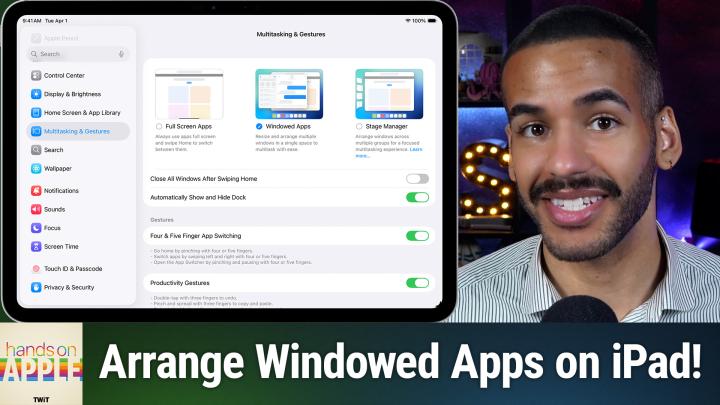
All TWiT.tv Shows (Audio)
Hands-On Apple 217: Multitasking & Gestures on iPad
00:06:42
Full Screen, Windowed Apps, & Stage Manager
Loading summary
Transcript1 lines
- [00:00]
A
Coming up on Hands on Apple, let's take a look at multitasking and gestures on the iPad. It's time for a refresh. Stay tuned. Podcasts you love from people you trust. This is Twit. Hello and welcome to Hands on Apple. I am Micah Sargent, and today we are taking a look at something that I think comes up a lot, but a lot of people don't take the time to kind of review it, relearn it, learn it for the first time, everything in between that is multitasking and gestures on your iPad. Because, yes, you can change the way that you interact with the operating system based on how you have things set up. So let's head over to ipados and take a look. Look. All right, here we are on ipados and you can see that I've launched the settings app. I've scrolled down on the left side to choose multitasking and gestures. Now, from this screen, we have three different options. First and foremost, full screen apps, then windowed apps, and lastly, stage manager. Choosing between these lets us know which of the modes we want to use. Let's start with full screen apps. Full screen apps is the way to have it, so that when you are using iPad apps, launching any of them will make them full screen. So here I have the freeform app open. Here I have the settings app open. Here I have the app Store app open. Here I have the home app open, and so on and so forth. All of those apps are completely full screen. Now, you'll notice, or you may have noticed that if you chose full screen apps, when you scroll down, the gestures options may have changed. And that starts with the type of multitasking that you're doing. So with four and five finger app switching, the way that you go to the homepage is by pinching with four or five fingers in order to switch apps, by swiping left and right, you can do so with four or five fingers. So I'm placing four fingers on the screen, swiping left, swiping right, and that's allowing me to change it. And then last but not least, you can open the app switcher by pinching and pausing with four or five fingers. So if I take these five fingers and I pinch, Oops. And I pinch and I pause, and I pinch and I pause, then it opens up that app switcher. You can see that the app appeared on the left. So going back into this, we also have our productivity gestures. Double tapping with three fingers will undo something. Pinching and spreading with three fingers, so pinch will copy Spread with three fingers will paste and then swiping left with three fingers will also undo. Swiping right with three fingers will redo. There's also the option to shake to undo on iPad so you can type something you don't like it. Shake your iPad back and forth and an undo option will pop up. We've talked about this before. Being able to swipe your finger from the corner of the screen to access screenshots or quick notes. And the last option here is Picture in Picture. So it says that when you go to the home screen or you use other apps. So it could be any app that you're using. Videos and FaceTime calls where they're allowed will automatically continue in picture in picture. So if you're on a FaceTime call, you swipe up to go look at something. That person will still remain on the FaceTime call there for you easily to see. The next section is called Windowed Apps. And choosing this option, you will notice, actually does make a difference when it comes to the gestures. So first, close all windows after swiping home. What that means is, is that while you are, whenever you go to the home screen, however you access the home screen, actually doing this is going to close the windows that you have open. I have this turned off. And then there's the option to automatically show and hide the dock. But what are Windowed apps? Well, it's the new way of doing things on macOS where you could have an app open, but you can take your finger and move it to the bottom right corner of the screen to resize an app and place it where you need it. And then you can swipe up to bring in another app if you want to. And so we can open a window for this and I can move these around and have these stacked up and down and below each other and access all of them at the same time. And then if I were to go to the home screen again, if I had close all windows after swiping home turned on, it would close all those windows out. There are some gestures that are specific to this swiping to reveal to the menu bar, which lets you swipe from the top center of the screen to reveal the new menu bar that is much like macOS. The last option is Stage Manager. Stage Manager also has an option to automatically show and hide recent apps and then automatically show and hide the dock based on your usage of it. We've gone into Stage Manager in the past, so I won't be talking a lot about Stage Manager here, but understand that Stage Manager works where you basically have one app in front of you at all times, but there are views of your other apps on the side. They're sort of waiting on the side of the stage to come on when it's their turn. So that is what Stage Manager does. So between these different options, full screen apps is the classic version of iPadOS. Windowed Apps is the brand new version of iPadOS. And then last but not least, Stage Manager is that sort of in between state, although it's still available because there are still fans somehow of Stage Manager. Folks. I know that's a quick look, but I did want to talk about multitasking and gestures because I have seen and actually heard someone say, please help me, when it came to trying to figure out how they saw somebody who had a bunch of different windows open on their iPad and they were like, can I do that? And so being able to understand how to do that, where to access it, and what each of these settings means, I think is very important. Thank you so much for tuning in to this week's episode of Hands on Apple. I'll be back again next week with another one. Bye. Bye.