← All TWiT.tv Shows (Audio)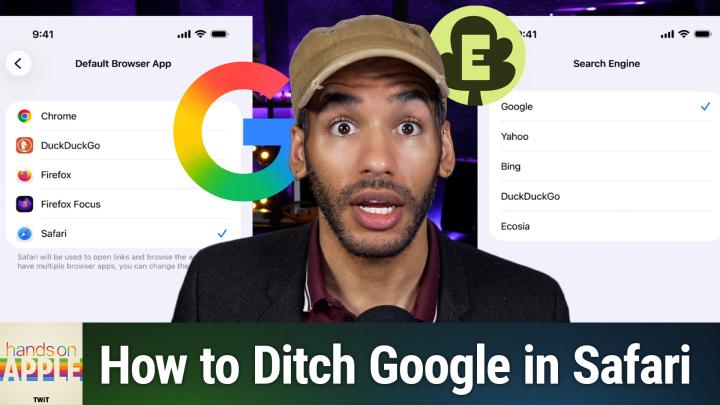
All TWiT.tv Shows (Audio)
Hands-On Apple 234: Changing Your Default Search Engine
00:19:28
Google Alternatives in Safari
Loading summary
Transcript1 lines
- [00:01]
A
Alright, you go to look something up, you type your question, hit return, and before you even get to an actual website, well, there's a wall of AI generated text telling you what it thinks you wanted to know. For some folks, hey, that's handy. For a lot of us, it's the moment we started wondering if there's a better way to search. Here's the thing. If you're on an iPhone, an iPad or a Mac, switching away from Google is genuinely one of the easiest changes you can make. You don't have to install anything, you don't have to leave Safari and you can undo it just as fast. So let's get into it. Podcasts you love from people you trust. This is Twit. Hey, it's Micah Sargent. And today on Hands on Apple, I am ready to answer the complaints, the cries, the pleas, everything else in between. Look, I've heard people talking about their frustration with Google and its kind of hard lean into AI generated results, especially after its last news event. And so with this lean into AI generated results, having these AI overviews at the top of most searches, AI mode, which pushes this chat style experience over just, you know, getting that list of blue links. If you just wanted to find a source and click it, well, it feels like there's a lot of extra cruft in between you and the answer that you're looking for. You know, it sent a lot of people looking at alternatives and that's why we've seen a huge spike in DuckDuckGo downloads and DuckDuckGo searches. DuckDuckGo has talked very clearly and often about how well things are going for the company. But the point of this episode isn't to tell you that Google is bad. Okay, I'm not here to do that. Google is a company. It's that you get to decide what powers your search. But the thing is, most people have never realized how easy that is to change when it comes to, to making that change on Apple's platforms. Before we get into how to make those changes though, we have to talk about where your, your Google search and search in general kind of lives on your devices. So let's take a look at that. Flipping switches just yet because we got to talk about what we're actually changing and frankly it's less than what you might think. The main place that Google shows up by default is Safari's search engine. Okay, so when you launch Safari and you type in a search, then by default it is going to be Google search that does so. So you type that into the address bar, you hit return or you hit the enter icon on your phone and that is the extent of it. But the cool thing is this is where you're able to make a change if you would like. Now this is sort of per device, this, this setting, it does technically kind of sync across icloud, but I've seen some syncing issues, so it's something to be aware of. You basically change it on your iPhone and if you've got Safari syncing turned on through icloud, then you will probably see it happen on other platforms. If you don't, then you'll need to change it there as well. Keeping things consistent is helpful, but something that I want you to be aware of up front. A little caveat. This specifically control controls Safari, it's not controlling everything. This setting that we're going to look at, Spotlight, Siri web results, they're not user configurable the same way. So remove Google from my Apple life entirely if that's what you're trying to do. It's not really a setting that exists. What you can fully control is Safari and frankly for most people, that's where the majority of searching is happening. So how do we do this? Well, on your iPhone and your iPad, you'll launch the settings app and you should be taken to the main screen here. Now before we would just scroll down and we would choose Safari in this menu. Now that Safari is not there, a lot of people have kind of gone, where's the, where do we do this? Now is this a setting that we can change? Yes, due to, well, many things, but arguably in part due to the complaints that Apple was prioritizing its own apps above third party apps. We've seen a shift in where Apple puts its settings so that all apps are treated equally. So you actually need to tap in the settings app on the apps option. From here we want to find Safari. Now you might think it's in that defaults app section. It's not. We need to scroll down until we find Safari. I'm going to use the thing on the side there, the Alphabet, to find Safari. Here and now we can see our options. It is here. If we look down, we can see in search engine, we have a choice. This is Google, Yahoo, Bing, DuckDuckGo and Ecosia. Now I want to make it clear that if you want to do this on Safari, in the menu bar of Safari, you would go into Safari settings. You click on the search tab in those settings and then you can find the search engine option. So this is this is the difference between the two. Arguably, frankly, a little bit easier on the Mac to be able to do so. But if we're doing this on an iPhone or an iPad, not on Safari on desktop, then this is how you go about making that change. They're all right here. Now look, I want to make it clear there's no penalty other than perhaps lost searches for experimenting. If you try DuckDuckGo for a week and you feel like it's missing something, you can switch back and it's the same process heading into your settings and making this change. So there's no reason not to play around and see If Yahoo, Bing, DuckDuckGo or Ecosia work better for you. Now here again, what you're actually choosing from Google, Yahoo, Bing, DuckDuckGo, Ecosia. And I want to mention that Ecosia, that may be one that you haven't heard of. This is the option that the ads that ecosia serves up, revenue from those ads actually goes toward planting trees. So that could be a selling point for you. Now, depending on your region, your menu may look slightly different. Here in the US and in my region of the US these are the options that I have. Now, of course you'll also notice there's no none of my favorite button the or an empty option or a further option. There's no way to change this. These are the options that you have. You can't type in your own, you can't set up your own here. So if you're wanting to use Start Page or bravesearch or Kagi, they're not here. And so you can't use those. Now you could technically use a Safari extension that redirects the search to those engines. You could also switch to a different browser that supports it natively, and we'll talk about that further down the line. But if you are using Safari and you want to set this up on your device, this is how you do it. You know, if you usually use Google and you're tired of those results, boop, pop it over to duckduckgo, ecosia and you're able to do that. Now, this is what's cool about these settings, is that there's a lot more to it than simply setting your search engine because you're also able to differentiate between your main search and your private browsing search. But we'll talk about that in some of the other settings in just a moment. Before that, though, I want to take a quick break for our sponsor this episode of Hands on Apple, brought to you by Delete Me if you ever wonder how much of your personal data is out there on the Internet for anyone to see, I understand. And honestly, it's probably more than you think. Your name, your contact information, your Social Security number, your home address, even information about your family members, it's all there being compiled by data brokers and sold online. And anyone on the web can then buy those private details. This can lead to identity theft, to phishing attempts, to doxing, to harassment. But now you can protect your privacy with Delete Me. You know me as a tech insider, as someone who hosts a show and covers this stuff regularly, is looking at the stories. I'm aware of how little privacy we have and how much of the personal information I have and you have is out there. And honestly how that information can be used to compromise my safety and security. So that's why I personally recommend, and I also personally use Delete Me to solve this problem for me and help keep me protected. I get the notifications letting me know and frankly that's a big part of it. It's not so much about how it's affected me, but the fact that it will show me, oh, this data broker has this information about your family member. I signed up for this being online, extremely online. My grandma, my uncle, my aunt, they didn't sign up for it, so I want to protect them as well. Delete Me, a subscription service that removes your personal info from hundreds of data brokers. You sign up, you provide Deleteme with exactly what information you want deleted, nothing more, nothing less. And then their experts will take it from there. Now DeleteMe is going to send you regular personalized privacy reports so you'll get those in your email showing you what information they actually found, where they found it, what they removed. And Delete Me is not just a one time service. Love this. Deleteme is, is always working for you. It's constantly monitoring and removing the personal information you don't want on the Internet. To put it simply, Deleteme does all the hard work of wiping your and your family's personal information from data broker websites. So take control of your data and keep your private life private by signing up for Deleteme at a special discount for our listeners today. Get 20% off your Delete Me plan when you go to JoinDeleteMe.com TWiT and use the promo code TWIT at checkout. The only way to get 20% off is to go to JoinDeleteMe.com TWIT and enter code TWIT at checkout. That's JoinDeleteMe.com TWIT code TWIT. And of course, we thank Deleteme for sponsoring this week's episode of Hands on Apple. Let's head back. So, as I mentioned, we have now taken a look at changing your browser, of changing your browser search engine and changing the default search option. But there's so much more that you can do to further protect your privacy if you would like to. First and foremost, something that's kind of nice is that you can make things a little bit simpler for you. Perhaps. Sometimes you want to search with AI. If you're looking for a quick answer, sometimes you want to search for something that's a little bit more involved. It could be somewhere in between. And what you may want to do also to compare is look in the Safari settings under the search section and look at the second option. Here it says also use in private browsing. If we toggle that off, you're then given the choice of choosing which search engine you want for your private browsing. So that means that I can say, hey, for most things, I want Google for this, I want DuckDuckGo. So actually making that change there is really handy if you want to compare results. And then this goes even further because you also have different options here. Search engine suggestions, Safari suggestions show recent searches, quick website search and preload top hit. So let's talk about these. Well, first and foremost, when you type in the address bar, Safari can actually start to send your keystrokes off to get suggestions. So it can do that from your search provider. It can also do that from Apple itself. So search engine suggestions means that Apple is sending off your keystrokes, which you're starting to type, and then populating your your search bar with suggestions based on what, in this case, DuckDuckGo thinks you're probably going to search. Apple is sending that off. It's feeding back. The second option, which is Safari Suggestions, is actually Apple's own. So a more private, but not completely private method for this would be to turn off search engine suggestions such that Apple is the only one that is able to suggest things to you. If you turn off Safari suggestions, then none of them will start to populate. So honestly, if you're thinking about switching, you know, search engines for privacy reasons, not just about those annoying AI overviews, then you will want to turn these off. Show recent searches will of course show you searches that you've seen before and preload top hit. What that does is when you do a search, you know, cactus leather pants, cactus leather Pants. Yes. And you hit enter, the results are going to return, you know, a list of 15, 20 results at the top. That top hit, your browser will actually go to that page in the background and start to load that page so that by the time you tap on it, that page has already started to load. But if you would prefer that that not happen, then you need to turn off preload top hit. There's also this other suggestion in here or setting in here rather called quick website search, which will let you search for specific specific search engines within, within Safari. Now you'll notice that these get added automatically depending on where you search. And so recently I was on the pro wrestling fandom, which is hilarious. And because I went to that page, there was a name that I was looking for online and this person ended up being a pro wrestler. You feel how you feel about pro wrestling. And so because I searched on that page, it has provided me with that shortcut. What you can do is say when I type in a specific term. So in this case I could type in like wrestling and then space and then type in a word. Instead of just searching with your basic search engine, it will actually use the website's search to search for something. This is also possible with things like, well, Twit. If I wanted to, I could go to Twit tv, I could search for something there. Safari would pick up on the fact that I had searched that page before and populate it with an option here for specific website searching. Very cool functionality that you would otherwise need an extension to be able to create, but something that's been added. All right, let's talk a little bit because there are some other options that you have here. And it's important to understand that your choice for default search engine is going to be the choice of what answers your queries inside of Safari. That's default search engine. You can also change your default browser. And what that does is it tells the system what app opens when you tap a link from mail, from messages or across various apps, unless they have a built in browser themselves or if they are for some reason circumventing your choice. And these are two separate settings. So you can keep Safari as your browser, as the default browser and just change the search engine. And frankly that's what we've covered here. But you can also go further and actually switch your entire browser. So in order to do that, well, you remember that page that I told you or that option that I chose you told you about. We were in settings, we tapped on apps and right there at the top default apps, if you tap on that, you could change the browser app that you use. And the cool thing is here it will show you the different options based on what you have installed. So I have the Chrome browser installed, I have DuckDuckGo installed, I've got two different Firefox apps installed and I've got Safari. The developer makes itself known to the system as a browser and then that is how this gets populated here. From that point on, if the app is using the default built in functionality for rendering a link that you tap on in an app, then it will pop open in this default browser of choice. So most of Apple's own apps, it will pop open in whatever you choose here. It doesn't have to be Safari, it could be Firefox. There are as I mentioned, some apps that have in app browsers, so they will pop up there instead. But you can make this change on your Mac. You could go into desktop and dock and change the default web browser there. Although on my Mac I just like to open the system settings and use that search key at the top and I just type in, in this case default. And I know you're not seeing this on screen, but I've typed that in and then I can just find default web browser and change it there as well. So very easy to do. Now switching to Chrome as your default browser obviously not going to accomplish much since Chrome is Google's. But if you move to something like DuckDuckGo's browser or if you move to Brave, well then those browsers are going to have different default search engines that will provide you with that change. So I understand, you know, the desire to change your default search engine and it's one of those settings that sounds technical and like you may have to go in and make a bunch of changes to settings in a bunch of different places, but it's actually laughably simple. A couple of taps and you're done on every device. So if the AI heavy direction of Google search isn't for you, you've now got DuckDuckGo, you've got Ecosia, you've got a few others that maybe I wouldn't suggest using sitting one menu away. Plus the option to wall off private browsing with its own engine and stop leaking those keystro while you're at it. The one thing that is important to understand though, this is really a Safari story, right? Spotlight and Siri, they both have their own web search behavior and so you don't get the same control over those. So it's not about completely scrubbing Google out of your life. It's not about scrubbing Google's AI search suggestions, but it is about taking back the part that you can control. And for most people, the Safari address bar is where the searching actually happens. So make that one change and, well, you've reshaped the bul bulk of your search experience. Thank you so much for tuning into this week's Hands On Apple. Always a pleasure to bring you this show. I have been and will continue to be Micah Sargent and I'll catch you next time. Bye Bye.