← All TWiT.tv Shows (Audio)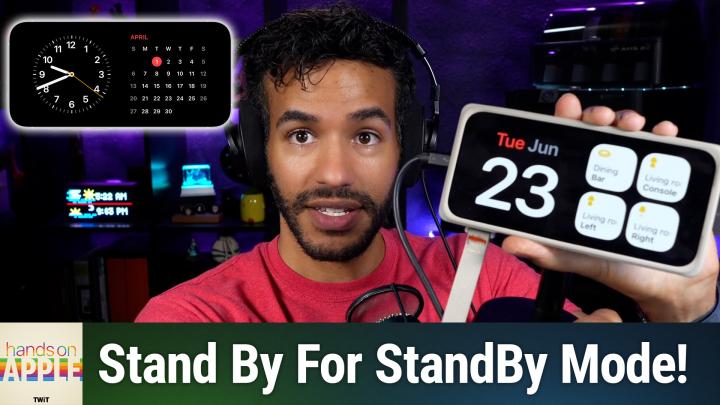
All TWiT.tv Shows (Audio)
Hands-On Apple 237: StandBy Mode
00:13:46
Unlock More From Your Charging iPhone
Loading summary
Transcript5 lines
- [00:00]
A
You probably charge your iPhone on a nightstand or a desk every single day, and for all that time, it just sits there showing you nothing. But if you tip it on its side while it's charging, something happens. It becomes a clock, a calendar, a photo frame, a little smart display you didn't know you owned and didn't pay extra for. That is standby. And today we're setting it up right. Podcasts you love from people you trust. This is Twit. Welcome to Hands on Apple. I am Micah Sargent and today we are taking a look at standby, that really handy feature that makes your iPhone a little bit more useful when you're not really using it. So how does this work? What are we doing here? How are we getting it to go? Well, you just need two things in. In order to use standby, you need an iPhone that is charging and you need that iPhone to be oriented in landscape or on its side. So you can see here I've got an iPhone that is charging, and I've got an iPhone that it is in landscape mode. If it was in portrait mode, it would turn off, but in landscape mode, it goes back to the standby mode. Now, when it comes to this, the way that you turn it on is actually quite simple. You simply need to. I said simply twice there. You need to go into your settings and we'll take a look at this in our iPhone. So here we are on the iPhone and we will go down until we get to standby and you just need to toggle it on. Make sure you toggle on standby in the first part and then kind of take a look at these other options that are here. Now, it's important to understand that this is a feature that works best with a phone that has always on display, but it does work with a phone that goes back as far as iPhone 11. So let's kind of talk about that always on aspect of it. In order to have continuous, always lit standby mode, you do need to have an always on display. Now, these are typically iPhone pro models. Every other compatible iPhone, it will work. The way that you get to standby is by tapping your phone, kind of nudging the table, or through communicating with your digital assistant. S I R I as far as those phones, as I mentioned, anything that can run iOS 26. So that goes back to the iPhone 11. And in order to move between the three views that you have, you have left and right movements, and then each view allows for up and down movements within. So let's kind of take a look at the options here we've got of course standby, but the second option here is display and here are the rules. You choose when the display turns off, so I have it set to automatically do. So that means that the display, if it is, if the iPhone is not in use and if the room is dark, it will actually automatically turn off that display. It does that by looking at when the phone is being glanced upon and you can also set it to turn the display off after 20 seconds of being on. So you would sort of tap the table, have it come on and then have it turn off. Or you can say never turn it off with your always on display. Now with the options in display you have special night options. So when it's in night mode it does that by detecting the ambient lighting in the room. When it's in this night mode it will display with a red tint and that is helpful because it has less of an impact on brightening the room when it's a red light. Lastly, the motion to wake option, which says that when motion is detected in the room at night, then it will also turn on the display. So there are a number of things that can automatically make the display turn on that could have to do with your attention and focus on the device, it could have to do with your movements, it could have to do with a jostling of the table or by communicating with Siri. Next we will take a look at the different modes, the different views that you have for standby. But first we do need to take a quick little break so I can tell you about today's sponsor of Hands On Apple. The sponsor today is Threat Locker, bringing you this episode of hands on Apple. ThreatLocker's Zero Trust platform now delivers the industry's most comprehensive suite of Zero Trust solutions, protecting endpoints, networks and the cloud. By extending Zero Trust enforcement to cloud services and company networks, ThreatLocker ensures that devices are validated through a secure broker before connecting to platforms such as Salesforce, Microsoft 365, Asana, Google Workspace and GitHub. Even if a user is successfully phished, attackers cannot access resources unless they have possession of the user's trusted device. ThreatLocker works across all industries and provides 24.7us based support. It supports Windows, Mac and Linux environments and enables comprehensive visibility and control. Rob Thackeray, the end user technical architect at Heathrow Airport, said threatlocker was the most intuitive solution we tested and the responsiveness of the organization, the willingness to engage with us, set up a demo and work with us on weekly audit reviews was very good. It's great to have an ongoing relationship with a company that's so responsive to our requests. Trusted by global enterprises such as JetBlue, the Indianapolis Colts, and the Port of Vancouver, Threat Locker consistently receives high honors in industry recognition. It's a G2 high performer and best support for enterprise summer 2025 Peerspot ranked number one in application control and GetApp's best functionality and features award in 2025. So confidently ensure users have access to a consistent, safe network connection. Offices, remote users, internal servers and critical services can maintain smooth operations without the need to open inbound ports or deploy traditional VPN solutions. Your end users will get the secure, reliable internal system access need without complex infrastructure changes. Get unprecedented protection quickly, easily and cost effectively with ThreatLocker. Visit threatlocker.com TWIT to get a free 30 day trial and learn more about how ThreatLocker can help mitigate unknown threats and ensure compliance. That's threatlocker.com TWIT all right, let's head back to the show as we continue to take a look at standby mode. Now with this of course we have our phone in portrait, but what we're going to do is turn it to landscape while it's here and we will of course lock this device and pop it onto charge here. Sometimes standby mode has trouble connecting, so you may it'll have trouble recognizing that it has indeed connected. So now we can switch to the landscape view and you'll see that there's a widgets view which those side by side widget stacks. In order to edit this you simply long press and that will give you the ability to edit between the different options here and so you can decide whether the widgets Smart Rotate so this has a news piece, it has a calendar and it has a clock and Smart Rotate is turned on. Widget suggestions are also turned on so all of these can help to surface the right information at the right time. Weather calendar reminders, a timer, you know, these things that you're actually going to use. So if we tap that plus button we could see some beautiful weather options here. We could see potentially your grocery list is another great step you can take. Again, a clock is very handy here. These are the suggested options. Maybe you just want a photo. It could also just be a beautiful animal drawing. I don't know about a spider. Some people might not be into that idea, but those are some of the options that you have here. And again, the idea is that what are the things you're going to actually glance at Right. What are the things that you're actually going to use? And then on the right side, I have a calendar, a reminder, and access to some of my most commonly used smart home objects. Very handy to have. The second view is your photos view, which you can access by swiping to the left. And in order to see the photos, you, you do need to unlock the phone. So typically this is going to be accessible via your face, but because there's a nice little microphone in the way, it did not show me that. Now this will show you featured shots and memories. By default, these typically have swipeable themes, so you can choose nature or pets, cities, people, and then you can add your own albums and hide the themes that you don't want. So once again, tapping and holding lets you switch between them. You can hit the plus sign to add more more you simply hit in the top left corner the eyeball to hide or show different categories. And so we'll tap done there and then we'll switch to the final view, which is a beautiful clock. This is multiple clock styles that you can swipe through vertically. So this shows the current time, it shows the date, there's even weather there. And my next alarm, really fun stuff here. That, that all just depends on the way that you want it to be. And we can tap and hold to edit any of these. So we've got float option, we've got digital option, we've got world option. I'll tap on the float I think it was called, or no digital option. And we can change the color. It automatically picked green. Seems to know that about me. But you can go through and change those if you'd like. And for the solar option, it will change based on the time of day or night. And the nice analog clock as well. So swiping between those shows you some of the options therein. Lastly, live activities and now playing controls will automatically appear here when you are using the device. So if you have AirPods in, for example, you can get those live activities or those now playing controls too appear when one of those activities is taking place. When it comes to using standby on the regular, I want to remind everybody about night mode. It's very nice to be able to turn off the brightness and that's what night mode can do for you. Because you may be using standby mode during the day, that's a time to have those, those controls on screen. But at night, you don't want that bright light shining in your room. So that nice red is much better emotion to wake. That might be something that you want. It might be something that you don't want. That's going to depend on the traffic in whatever room you have it. And with MagSafe, this is very cool. If you have a MagSafe enabled charging stand, then Standby will actually remember your preferred view in the different places that you charge. So on your desk you may have one view that you like to use and you can switch between them and pop it there. That's the view you'll see when you go to a different location and you pop it there. Change the mode to something else and you'll be able to keep it there as well. Standby also works with your Sleep focus mode so that you are able to tie it to that instead of simply using the ambient light sensor that's built in. So so I've been ending these episodes with homework and I think we'll do so again. Go ahead and set up Standby in a spot that you charge every day. Pick a single view that fits that location. So if it's on a nightstand, you probably want to clock. If it's at your desk, why not have those widgets there and then just this is important with widgets especially, trim it down to what you want to actually see at a glance. Not stuff you're going to be interacting with always, but stuff that you just want to see at a glance. Right?
- [13:11]
B
Right.
- [13:12]
A
Live with it for a week and then notice how often you check it instead of fully picking up your phone. Which also leaves it to charge, which is quite nice as well. Thank you folks for tuning into this week's episode of Hands on Apple. It's always a pleasure to bring you this show. You can email me Micahit TV with your thoughts, your suggestions, etc. And I'll be back next week with another episode. Goodbye.
- [13:47]
B
Ryan Reynolds here from Mint Mobile with a message for everyone. Paying Big Wireless way too much. Please, for the love of everything good in this world, stop with Mint. You can get premium wireless for just $15 a month. Of course, if you enjoy overpaying. No judgments. But that's weird. Okay, one judgment anyway, give it a try@mintmobile.com Switch upfront payment of $45 for
- [14:09]
A
3 month plan equivalent to $15 per month required intro rate first 3 months only, then full price plan options available, taxes and fees extra. See full terms at mintmobile. Com.