← All TWiT.tv Shows (Audio)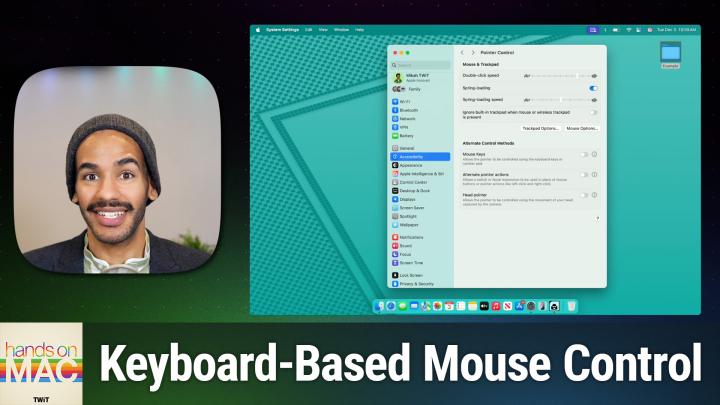
All TWiT.tv Shows (Audio)
Hands-On Mac 160: How To Turn Off Mouse Keys in macOS Sequoia
00:10:06
Troubleshooting an Oft-Enabled Accessibility Feature
Loading summary
Transcript15 lines
- [00:00]
Micah Sargent
Coming up on Hands On Mac, let's take a look at a feature that sometimes trips people up because they don't mean to enable it. It's called Mouse Keys and we'll take a look at that next on Hands On Mac. Stay tuned.
- [00:12]
Bluehost Ad
Got great ideas but no idea how to build a website get bluehost with their AI design tool, you can quickly generate a high quality, fast loading WordPress site instantly. Once you've nailed the look, just hit enter and your site goes live. It's really that simple. And it doesn't matter whether you're a blogger, influencer or just starting your side hustle, bluehost has you covered with built in marketing and e commerce tools to help you grow and scale your website for the long haul. And when you upgrade to Bluehost Cloud, you get 100% uptime and 24. 7 support to ensure your site stays online through heavy traffic. Bluehost really makes building your dream website easier than ever. So what's stopping you? You've already got the vision. Make it real. Visit bluehost.com right now and get started today.
- [01:00]
Micah Sargent
It's better over here.
- [01:02]
T-Mobile Ad
Now at T Mobile get four 5G phones on us and four lines for $25 a line per month when you switch with eligible trade ins. All on America's largest 5G network.
- [01:13]
AT&T Ad
Minimum of 4 lines for $25 per line per month with auto pay discount using debit or bank account. $5 more per line without autopay plus taxes and fees and $10 device connection charge phones via 24 monthly bill credits for well qualified customers. Contact us before canceling entire account to continue bill credits or credit stop and balance on a required finance agreement due bill credits end if you pay off devices early.
- [01:29]
AT&T Business Ad
Ctmobile.com and now a next level moment from ATT Business. Say you've sent out a gigantic shipment of pillows and they need to be there in time for International Sleep day. You've got ATT 5G so you're fully confident, but the vendor isn't responding and International Sleep Day is tomorrow. Luckily, AT&T 5G lets you deal with any issues with ease so the pillows will get delivered and everyone can sleep soundly. Especially you. ATT 5G requires a compatible plan and device. 5G is not available everywhere. See att.com 5g4u for details. Podcasts you love from people you trust.
- [02:08]
Micah Sargent
This is twit. Hello and welcome to Hands On Mac, the show where I cover all things Apple. The show where I help you figure out what the heck is going on with your Apple devices. This week we're taking a look at a feature that sometimes accidentally gets enabled. And it is a feature that when enabled can be very confusing, very perplexing, and rather difficult to figure out what the heck is going on. Anecdotally, I've heard from a few people who've asked me why suddenly is my keyboard not letting me put text into anything? And why suddenly is my keyboard making my mouse move across the screen? Well, I have your answer. It's a handy accessibility feature called Mouse Keys that you may not have intended to enable. So let's head over to macOS Sequoia and take a look at what we're working with here. So here we are on macOS Sequoia and the first thing we're going to do is launch the System Settings app. Within the System Settings app, we'll click on Accessibility and then we're going to scroll down until we get to Pointer Control. Within Pointer Control, you will see a section called Alternate Control Methods. When you get to Alternate Control Methods, you'll see a feature that says Mouse keys. That's the feature we're talking about. We want to click my favorite button, the little I button, and up pops some different settings here. Now, depending on your version of macOS, you may see that the press the Option key five times to toggle mouse keys. Setting is toggled on, meaning that if at any time, somehow, some way you brush up against the option key, you have an animal that likes to hang out on your keyboard. What, whatever it happens to be, ends up pressing that option key five times. Mouse keys gets turned on. So I'm going to turn it on just to show you what this looks like. One hint that this is happening is you'll see something pop up on the screen. If I push option 5 times 1, 2, 3, 4, 5, up pops a little display that says mouse keys turned on. And if you have sound turned on on your Mac, you will also hear a little sound. It sounds like kind of some clicking going on. Now with mouse keys turned on, a few things happen. If you have a Mac that has, well, a keyboard rather that has a separate numpad, you will use the numpad to move your cursor across the screen. If you do not, you use the built in keyboard to do so. So because this is a Mac, a MacBook Air, this of course does not have a separate numpad. So the keys that are used are 7, 8, 9, U, I, O, J, K, L and then you also use the I key. Well, I guess I mentioned the I key, but you use the M key and you use the period key. So 7, 8 and 9 are all of your up directions. 7 is at an angle to the left, 9 is at an angle to the right, 8 is at an angle up. So as I'm going to show you, I'm pressing an 8 and it's moving my cursor up when I'm just tapping to press. Now if I hold down, it starts to move the mouse up again. Seven is going to take me at an angle to the left. 9 is going to take me at an angle to the right. Think of it as your Compass rose, where 8 is north and so 9 is northeast, where O is of course east. So if I tap on O and hold it, it moves me to the right. If I tap on L and hold it, it moves me to the southeast. If I tap on K and hold it, it moves me straight down. J would be southwest, U would be west, and seven would be northwest, with eight of course being once again north. Now the other keys that I mentioned, starting with I, that is equal to actually clicking the mouse. So let me move it to something on the screen. We're going to move it down to our dock at the bottom and I want to open the recycling bin, the trash bin. So we will go over. Remember that O is right. And you can see this can be a little bit difficult. And 8 is up to north. And now if I click I or if I tap I, that opens up my trash can. I have it set. Remember with those accessibility features, we have it set so that it does not ignore the built in trackpad when mouse keys is on. If you turn that on, things get a little complicated because you're using mouse keys in that way. And then there's also think about what if you're on the desktop, right, and you have a file that you're trying to move. How do I do a click and hold? Well, that's where M comes in. M lets you press and hold lets you actually press and hold. The mouse button is what it's equivalent to. And releasing the mouse button is the period. So if I press M, it's going to hold onto that file and now I can move it. U lets me move it over and then to release the file, I simply press period and it drops it there. So this is for people who, for whatever reason might need some other way of controlling the keyboard or rather the mouse cursor on the screen. But you probably don't want this enabled if it's not a feature that you have any interest or need in using and so I can toggle it off by 1-2-345 using that keyboard shortcut. But of course the best way to make it so that this doesn't turn on unless you absolutely want it on is to click that little I and make sure that press the option key five times to toggle mouse keys is.
- [08:21]
Bluehost Ad
Toggled off Got great ideas but no idea how to build a website get bluehost with their AI design tool, you can quickly generate a high quality, fast loading WordPress site instantly. Once you've nailed the look, just hit enter and your site goes live. It's really that simple. And it doesn't matter whether you're a blogger, influencer or just starting your side hustle, bluehost has you covered with built in marketing and e commerce tools to help you grow and scale your website for the long haul. And when you upgrade to Bluehost Cloud, you get 100% uptime and 24. 7 support to ensure your site stays online through heavy traffic. Bluehost really makes building your dream website easier than ever. So what's stopping you? You've already got the vision. Make it real. Visit bluehost.com right now and get started today.
- [09:12]
T-Mobile Ad
After investing billions to light up our network, T Mobile is America's largest 5G network. Plus right now you can switch keep your phone and we'll pay it off up to $800. See how you can save on every plan versus Verizon and at and t@t mobile.com keepandsw.
- [09:31]
AT&T Ad
Up to four lines via virtual prepaid card allow 15 days qualifying unlock device credit service ported 90 plus days with device and eligible carrier and timely redemption required. Card has no cash access and expires in six months.
- [09:41]
Micah Sargent
I'll quickly mention the couple of other features here I mentioned ignore or rather settings Here I mentioned ignore built in trackpad when mouse keys is on. That of course makes it so that the trackpad won't work. So if you needed to rest your hands there for example, and not worry about swiping away from something that you're trying to control, that's a great way to do that Initial delay that tells you how long it takes for the actual click to happen and then maximum speed tells the system how quickly over time you want that mouse key feature to work. So how long does it take for it to kind of ramp up and at what? Rather initial delay is how long it takes to ramp up. Maximum speed is how quickly you'll let it go as you're holding down on the U on the O. One last thing I'll mention here, because I want to make sure I talk about the people who have numpads. If you do have a numpad, things are a little bit easier, a little bit kind of simpler to visualize because you use 7, 8, 9, 4, 5, 6, 1, 2, 3, 7, or rather 8 is north, 6 is east, 2 is south, 4 is west, with 7, 9, 3 and 1 being those respective degrees in between or directions in between. 5 is, as you might imagine, the click of a mouse button. Zero is how you press and hold the mouse button. And in both of these system settings, whether you're using the keyboard or you're using the numpad separately, the period key is how you release the mouse button. So if you ever find yourself with a oh, and that's the other thing that is important to understand is that when this is enabled, it does disable your ability to enter text using the keyboard. So you can't use the keyboard or the numeric keypad to enter text while mouse keys is turned on. So if you've ever been on your Mac and you're going, why can't I put in text? And why is it when I'm typing a word that has the letters U, I, O, J, K, L or M in it, which is going to be pretty common, why in the world is it not? Why is it moving my cursor across the screen? That's why. Because mouse keys has been enabled. So that is going to bring us to the end of this episode of Hands On Mac. A little tip about a great accessibility feature that you might not need to have enabled. How to turn it on, how to turn it off, and everything in between. That is what I love to bring to you here on this show, Hands On Mac. I will be back next week with another episode. Until then, be sure to reach out to me, micahwit TV with your questions. And I want to mention to all of you who are listening, if you're listening and you want to be watching the video, join Club Twit Twit TV. ClubTwit gets you access to the video versions of these Club Twit shows. It also gets you access to loads of other great features. And for a limited time, we're offering two weeks of Club Twit for free. So head to Twit tvclubtwit to check that out. And for those of you who are watching, hey friends. Hey Club Twit members. Remember that you can get months of Club Twit for free by referring your friends TWIT TV clubtwit Referral to check that out. Thanks so much and I'll see you again next week.
- [13:02]
AT&T Ad
Bye bye.
- [13:14]
Micah Sargent
It's better over here.
- [13:16]
T-Mobile Ad
ATT customers Switching to T Mobile has never been easier. We'll pay off your existing phone and give you a new one free. All on America's largest 5G network. Visit t mobile.com carrier freedom to switch.
- [13:29]
AT&T Ad
Today pay off up to 650 via virtual prepaid MasterCard in 15 days. Free phone up to $830 via 24 monthly bill credits plus tax, qualifying port and trade and service on go 5G next and credit required. Contact us before canceling entire account to continue bill credits or credit stop and balance and required finance agreement is due.