← All TWiT.tv Shows (Audio)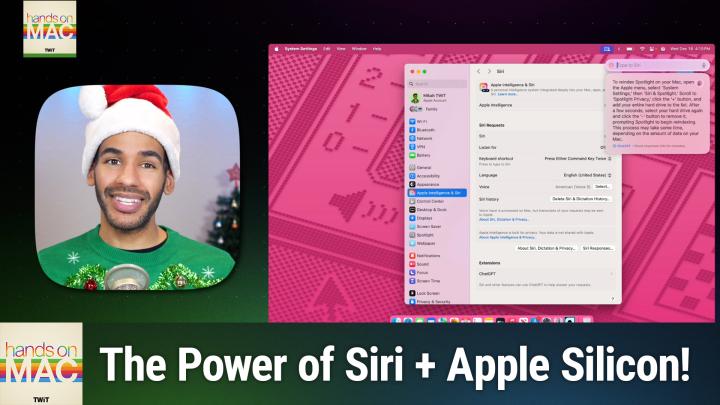
All TWiT.tv Shows (Audio)
Hands-On Mac 163: Siri Updates for macOS Sequoia Users
00:14:45
Learn Voice Commands, Use ChatGPT, and More on Apple Silicon
Loading summary
Transcript1 lines
- [00:00]
Micah Sargent
Coming up on Hands On Mac, let's take a look at Siri settings on macOS Sequoia. Stay tuned. Podcasts you love from people you trust. This is Twit. Welcome back to Hands On Mac. I am Micah Sargent and today we are taking a look at Siri on the Mac. Yes, I have heard that some of you use Siri on the Mac and maybe some of you need to be reminded about Siri on the Mac. Siri has gotten some improvements, particularly if you have an Apple silicon chip in your Mac and you are wanting to use it to control your Mac. There's a lot that you can do, but I thought I'd start by kind of talking about some of those things. So first and foremost you can use Siri to answer questions. These can be questions that have to do with your Mac, but they they can also be questions that are in general. In fact, Apple gives some suggestions like what causes seasons and where's the nearest grocery store and what was the top song in 1991? On top of that, again, if you have an Apple silicon chip, you are also able to ask questions like how can I turn off noise cancellation on my AirPods Pro? Or how can I change the brightness on my Mac? All of those things are able to be accessed using Siri. You can also use Siri with apps so you can create a note. In the Notes app you can say add couscous to my grocery list to add those items. In your reminders app you could say play a playlist of happy songs to play songs in Apple Music. Basically all of the built in apps you are able to control using Siri on the Mac. You can also do it to complete some interesting tasks so you can make changes to your settings or if you're wanting to find your lost AirPods for example, so you can say ping my iPhone, you can say turn off the lights, you can say turn on voice control, you can say increase my screen brightness. So earlier when I gave that example of asking for support, you could instead just say increase my screen brightness and it will do that for you. If you have a Mac that has an M1 chip or later, then you are also to able to kind of maintain context with your requests and we'll talk about that in a moment. You can also use Siri to access ChatGPT if you're running macOS Sequoia and you have a Mac with an M1 chip or later let's take a look at what it means to make back to back requests. So if you are using your device that has, again, an M1 chip in it. And you want to make a request, you could say, how are the. How are the Lions doing this season? And Ciri would then tell you, and then you can say, when are they playing next? Because you've already asked about the Lions. Then Ciri will maintain that context, knowing that you are talking about the they that you had just mentioned. You could even go as far as then to say, add that to my calendar. So the date that Siri provides, it knows, oh, you're talking about that date. And I want. And you want me to add it to your calendar so that context can be maintained there as well, which is quite nice. As I mentioned, you can use it to access ChatGPT. So if you're using macOS 15.2 Sequoia and you turn on that ChatGPT extension, you can do things like ask it to compose a short poem about using the Mac. So if we head over to Mac os, we can take a look at some of these settings and I can show you some examples. So here on macOS, the first thing we want to do is go down into System settings and then we want to scroll until we find Apple Intelligence and Siri. From here, let's talk about the different options that we have. First and foremost, you have the choice to have Apple Intelligence turned on or off. That's going to give you the ability to access some of these features that we just talked about. But most of the features that we talked about, save for something like ChatGPT, is going to be included with the system. Now, in the next area that shows Siri requests, these are all your basic Siri options. If you toggle off Siri in this section, it will remove Siri from your menu bar. It will get rid of Siri in terms of being able to use it, access it, et cetera. You can choose under Listen for. You can have it listen for hey its name, or you can just have it listen for its name and hey its name. Or you can turn this off. I have this feature turned off. I don't want Siri to hear me on my Mac unless I specifically am trying to reach it. So I have that turned off. But if you want it always listening for that specific tag, then you can do that. You can set up a keyboard shortcut. So there are lots of different options like pressing the globe button. There's also press the left command key twice, press the right command key twice, press either command key twice, or you can customize it. So if I press either command key and choose Enable shortcut. That's what's required the first time. It's going to bring up the Siri option and you'll notice that that was a typing feature. We'll take a look at that in a moment. Language English, United States. If you choose other options, you may or may not have access to some of the more advanced features, depending on the language. The voice, you can change the voice. I have American Voice 5, but you can choose from these different American voices. Australian, British, Indian, Irish and South African. Noting of course that this is English language in those different voices. So you'll get an English speaker, but with one of those accents. And then there's the option to delete Syrian dictation history. This, of course, is anything that you choose to send to Apple regarding your interactions. That is what will be removed if you choose that down at the bottom about Siri dictation and privacy. That tells you about the system and what you're handing over if you choose to. So if you click on that, you can say, you can see how Siri is actually making use of your different applications and then you can go further to say, no, I don't want you to have that. And then Siri responses. This is an important one because if you don't have this feature turned on, so if it's turned off, then only when you use that hey, insert name here command will Siri actually speak back to you. If you have this turned on, then Siri is going to always speak back to you. So if you don't want a chatty Siri, then turning that off is probably your better bet. The last area is extensions. This is only something you're going to see if you're running 15.2 to have that ChatGPT extension. This is the ability to actually communicate with ChatGPT. Here you can see that it says setup prompts. It says allow Siri to suggest ChatGpt when you make a request that requires it. So in this case, toggling on that button is going to let Siri say, look, I don't know how to do that, but ChatGPT probably does. Do you want me to reach out in that way? Clicking on about ChatGPT extension and privacy tells you all about how Apple uses the ChatGPT service and integrates with OpenAI in that way and what your privacy implications are therein. So with all of that in mind, you've learned now how to turn off Siri, how to change, how it listens to you, etc. Let's take a look at one of these more complicated requests. So I'm going to tap command and I'm going to say write a short poem about the joy of using a Mac and it's going to say, oh, I can't do that. To write that, you'll need to enable ChatGPT says not now or get started. I'm going to choose get started. Then it pops up some rules and instructions about what this means. It integrates with Siri. You can use it to compose text and writing tools. And it works with a ChatGPT account, if you have one. You decide what gets shared with ChatGPT. You can turn that off at any time in Settings. If you do use it with an account, then of course ChatGPT has access to that information and links it to your account. If you use it without an account, then Apple sends that data anonymously and it will not be used to train OpenAI models. That's the deal that Apple has in place. So in the bottom left hand corner you'll see use ChatGPT with an account. You can always hit back, but I'm going to choose Enable ChatGPT without the account. Now that request is being sent off to ChatGPT anonymously. And up pops the short poem. It says, sleek silver shell shining bright Awakens with a gentle light Magic With a single click every task becomes a trick With a touch the world unfurls in pixels Dreams and swirls Glide art and sound in its grace delight is found Seamless wonders every day A trusty guide along the way Pure joy and work and play. With my Mac I find my way. You're able to take this and make a copy of it if you'd like. Put it somewhere else if you want to, and make adjustments to it as you see fit. Now, in this type to Siri function, I'm going to do something like how can I control my max? Let's go with control my max volume and we'll see what happens here when I ask this question. So this came directly from the macOS user guide. It's kind of a little bit like having me in your Mac. Here's how to control the volume on your Mac. Use the volume keys on your keyboard or the control strip. Click the sound control in the menu bar or control center, then drag the slider. Let's ask it a more complicated question. How do I re index spotlight? It doesn't know. Interesting. So I'm going to say yes, use ChatGPT to answer this question and let's see what happens when it sends it off to there and ChatGPT can answer it. To re index Spotlight on your Mac, open the Apple menu, select System Settings, then Siri and Spotlight scroll to Spotlight Privacy, click the plus button and add your entire hard drive to the list. After a few seconds, select your hard drive again and click the minus button to remove it, prompting Spotlight to begin re indexing. This process may take some time, depending on the amount of data on your Mac. So now you can see that's the way to do it, but it's not sort of an easy official way, and so I'm not surprised to see that it's not included in the basic options and suggestions that are provided by macOS. Let's talk about that question that I asked earlier. How do I, whoops, do I turn off noise cancellation on my AirPods Pro? And here we see to use noise cancellation on your AirPods Pro, open control center on your iPhone or iPad, tap the volume control Tap the noise control button to turn on noise cancellation. So I did say turned off, but that does give me the answer that I was looking for. So that is a way to access Siri and do so without needing to actually communicate out loud. You can of course choose to communicate out loud simply by accessing Siri and then using the microphone button, for example, to communicate that way. I prefer to type to Siri if I'm going to be using Siri, and so that makes it a little bit easier. Some other examples if you're asking about Apple products, you could say, how do I download an app on my Mac? How do I import photos on Mac? How do I make the text on my Mac bigger? How do I make my own memoji? If you are trying to get answers again from ChatGPT, you can even say ask ChatGPT to summarize this document for me, or ask ChatGPT for some ideas on how to spend a free afternoon in Malibu if I don't feel like hitting the those are some examples that Apple actually provides. So it's not required that you sort of beat around the bush when it comes to talking about using and prompting ChatGPT, but those are some examples of how to make use of it. So again, kind of from the top, you can enable and disable Siri right there in those settings. You can choose whether Siri hears you out loud by a command that you're asking for. You can change the keyboard shortcut for Siri, and you can choose whether Apple holds on to that information after a period of time. And now with the latest version of macOS, Sequoia also, you can integrate with ChatGPT. We hear that Apple is going to add other extensions, including for example, Google's Gemini in the future, so that's something to bear in mind as well. So thank you so much for tuning in to this week's episode. I really appreciate you being here and I'll see you again soon. I hope you had a lovely end of your year and are off to a great start in 2025. Bye. By.