← All TWiT.tv Shows (Audio)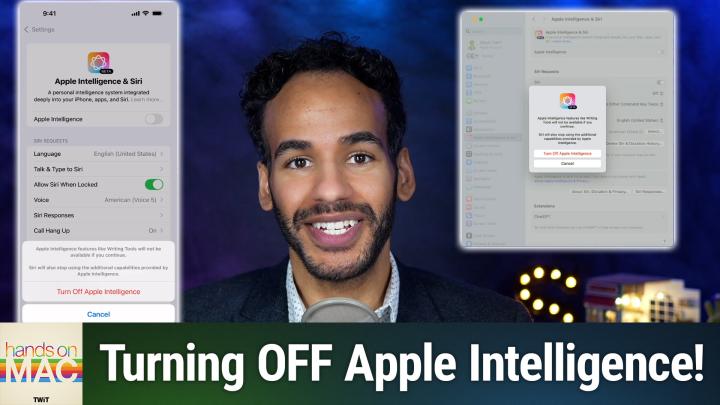
All TWiT.tv Shows (Audio)
Hands-On Mac 167: Disabling Apple Intelligence
00:07:42
How to Turn Off Apple's New AI-Powered Features
Loading summary
Transcript9 lines
- [00:00]
Micah Sargent
Coming up on Hands On Mac, let's take a look at disabling the feature that is now enabled by default on your devices, Apple Intelligence. Stay tuned. Podcasts you love from people you trust.
- [00:18]
TWiT Host
This is TWiT.
- [00:28]
Micah Sargent
Welcome back to Hands On Mac. I am Micah Sargent and today we are taking a look at how to turn off Apple Intelligence on your various devices. This, of course, is a feature that is now enabled by default on your iPhone, your iPad. The feature, of course, gives you access to loads of Apple Intelligence features, including generating emoji using writing tools, being able to access ChatGPT via Siri, and so many more. But some people don't want to make use of these features and if you were looking to disable them, well, it is a possibility. So I'm going to show you how to do that. We'll start with macOS. Here we are on macOS, and the first thing we'll do, and pretty much the only thing we have to do is head into system settings and then where we would typically find the Siri section, we now see the Apple Intelligence and Siri section. From here we simply toggle off Apple Intelligence. You will get a prompt that says Apple Intelligence features like writing tools will not be available. If you continue, continue, Siri will also stop using the additional capabilities provided by Apple Intelligence. So from that point on, not only will you not have access to writing tools, but any of the new smarts that Siri is purported to have will not be part of the system. So we will choose turn off Apple Intelligence, at which point you will see that the only controls you have for Siri, the main controls, like actually using Siri in the first place, being able to access Siri via the keyboard shortcut, if Siri will listen out loud for you to communicate with it and the voice that you can choose for it at any time. If you decide you'd like to turn back on those Apple Intelligence controls, you simply need to head into your system settings, choose Apple Intelligence and turn those on from there. So what we're going to do now is we are going to close out of this and we are going to head to the iPhone.
- [02:39]
NerdWallet Sponsor
Listeners. As we go into a new year, we all have a lot on our plates. There are backpacking trips across Europe to plan, personal best to crush in the gym and capsule wardrobes to create good thing. Our sponsor, NerdWallet is here to take one thing off your plate. Finding the best financial products, introducing NerdWallet's 2025 Best of Awards list. Your shortcut to the best credit cards, savings accounts and more. The nerds have done the work for you, researching and reviewing over 1100 financial products to bring you only the best of the best. Looking for a balance transfer credit card with 0% APR? They've got a winner for that. Or a bank account with a top rate to hit your savings goals? They've got a winner for that too. Know you're getting the best products for you without doing all the research yourself. So let NerdWallet do the heavy lifting for your finances this year and head over to their 2025 Best of Awards at NerdWallet.com awards to find the best financial products today.
- [03:37]
Chumba Casino Sponsor
Ready to level up? Jumbo Casino is your playbook to fun. It's free to play with no purchase necessary. Enjoy hundreds of casino style games like Bingo, Slots and Solitaire anytime anywhere with fresh releases every whether you're at home or on the go. Let Shumba Casino bring the excitement to you. Plus get free daily login bonuses and a free welcome bonus. Join now for your chance to redeem some serious prizes. Play Chumba Casino today. No purchase necessary. VGW Group void we're prohibited by law 18 TNC supply so here we are.
- [04:09]
Micah Sargent
On the iPhone running the latest version of iOS and the way to turn off or disable Apple Intelligence on this device is similar to what you would do on the Mac. We head into Settings, we go to the main settings page and scroll down until we find Apple Intelligence and Siri. We tap on that and once again at the top we'll see Apple Intelligence. Now I want you to pay attention to something because there's one setting here that's going to change when we turn off Apple Intelligence. Right now on screen under Siri requests you will see a section marked Talk and type to Siri. When I turn off Apple Intelligence, I get that same prompt that I saw on macOS to basically say yes, I do want to turn off Apple Intelligence and when I do talk to Siri is the only option that presents itself to me. Talk and type to Siri is an Apple Intelligence feature for the most part and so if you want to re enable the ability to turn on or rather to actually type whenever you're communicating with Siri, then you'll need to use an accessibility preference instead of just using the Apple Intelligence features. Now if at any time I want to turn this back on, toggling it on causes the device to re download the Apple Intelligence on device models and so that will take time and you will likely see a prompt that says as this does downloading support for Apple Intelligence connect iPhone to Wi Fi and power while models are downloading and that is actually going to redownload those models to the device and give the phone the ability to do much of what it does directly on the device. Now let's take a look at how this works on iPad. As you might imagine, the process is pretty similar. We launch the settings app and we look for Apple Intelligence and Siri and we simply toggle off Apple Intelligence. We'll get another prompt, turn off Apple Intelligence and at which point it switches off and that talk to or type to Siri setting changes to just talk to Siri. That's kind of another way to kind of confirm that it actually has changed. Now if we tap this again, we're saying no, actually I want to use Apple Intelligence at that point. If Apple has removed, if the OS rather has removed the on device models, then those will need to be redownloaded. Removing those models will of course give you some space and some storage space that you can save. And I've found that kind of tapping out of that section and tapping back into it can sometimes kind of re trigger what the settings look like, including the Talk to Siri option, which of course if it is fully downloaded and Apple Intelligence is fully enabled, will have that and type to Siri option. So if we head back over to iOS now, I can see that talk and type to Siri are shown up and that gives me the ability to double tap the bottom edge of the iPhone to actually type out a message instead of communicating out loud with Siri. So that is how you disable Apple Intelligence on the iPhone and on the iPad. So that is how you turn off the Apple Intelligence features that have been decidedly turned on for you if at any time you decide that it's not for you. Thanks so much for tuning in to this week's episode of Hands on Mac. I'll be back next week with another episode, but until then I hope you have a great day night, whatever it happens, to be wherever you are whenever you're listening to this. Thanks. Bye bye.
- [07:51]
TWiT Host
Hey buddy, are you a geek? Are you a tech enthusiast? Then I would love to invite you to join a tech community like no other. You can gain exclusive access to to our incomparable quality tech content for just $7 a month. With Club Twit as a member, you'll Enjoy all twit TV shows ad free, plus access private video feeds for insider shows like iOS Today, home theater Geeks and so much more. Dive into the members only TWIT plus bonus feed for behind the scenes content, club discussions and special events. But here's the best Join our incredible Discord community to watch live show productions, chat with hosts and participate in Exclus members only activities. It's your backstage pass to the world of twit. Whether you're a tech enthusiast or a lifelong learner, Club TWIT elevates your knowledge while entertaining your interests. Get two weeks free when you sign up now for $7 a month and unlock unparalleled access at Twit TV. Club Twit. That's Twit TV Club Twit. And from the bottom of my heart, thank you and welcome to the Club.
- [09:12]
T-Mobile Sponsor
At T Mobile. We'll give you four free 5G phones and four lines for only $25 per line per month with eligible trade ins. And no, it's not a contest, it's every day for a limited time. Everyone's a winner on America's largest 5G network.
- [09:25]
Minimum of 4 lines for $25 per line per month with autopay discount using debit or bank account. $5 more per line without autopay. Up to $830 off each phone via 24 monthly bill credit plus taxes, fees and $10 device connection charge for well qualified customers. Contact us before canceling entire account to continue bill credits or credit stop and balance on required finance agreement too. Bill credits end if you pay off devices early. Ctmobile.com.