← All TWiT.tv Shows (Audio)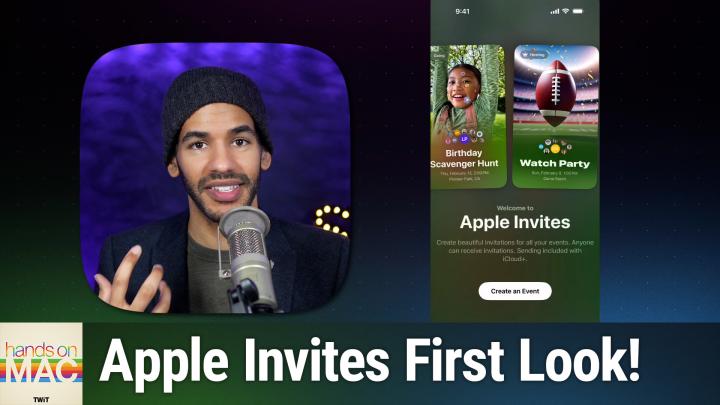
All TWiT.tv Shows (Audio)
Hands-On Mac 168: The Apple Invites App
00:17:11
Creating clean event invitations
Loading summary
Transcript7 lines
- [00:00]
Micah Sargent
Coming up on Hands on Mac, let's take a look at Apple's just released, just announced new app, Apple Invites. This is a first look.
- [00:12]
Unknown
Podcasts you.
- [00:13]
Micah Sargent
Love from people you trust. This is Twitter. Hello and welcome to Hands on Mac. I am Micah Sargent and today we are taking a look at the new Apple Invites app, an icloud perk available for icloud subscribers to use and create invites and anyone else to be able to receive invites. So let's talk about what we're working with here. So here we are on iOS and this new app is essentially a way for you to create invites to events and manage people attending those events and manage a whole bunch of other features. So we're going to kind of go through them as we take a first look at this app. But when I first launched this app, this is what I'm presented with now. It's important to understand that in order to create invites, you need to have an icloud subscription. So creating and sending, I should say invites is part of an icloud subscription. As Apple points out, subscriptions start at as low as 99 cents a month. But if you have an icloud subscription, you get to make them. You can send them to whomever because this is not just an app but also a web app essentially. And so if you are sending it to someone who doesn't have an icloud account, doesn't have an iPhone, they are able to still access the invite. Even in those cases, if you are sending it to an iPhone and the person downloads the Apple Invites app, that's going to be kind of the best, most, you know, viewer experience. But there are those other options available and in fact 9 to 5, Google has an article showing how Apple Invites work on Android which we'll include a link to in the show notes so you can kind of see what that's like. But let's go about creating an event. So first and foremost we have the option to add a background. And when we create a background, we can choose a background that is presented to us. We can pull from our photos, we can take a photo with the camera, or we can go, excuse me, into Image Playground. Image Playground of course, lets you use Apple's artificial intelligence, its AI or Apple intelligence tools to create a custom image. But in this case I'm just going to choose Basic. We'll go with a green color for the background. Now the event is going to be called Friendly Barbecue and we can change the typeface that's used here. We choose a date and time this is going to take place on Friday, February 21st starting at 6pm and we have the option to say this is an all day event or it has an end time. So we'll say it goes from 6 to 8pm and then we can choose a location which I'm going to switch away for just a moment to protect my specific location and we'll come back. So I'll tap on location and I can choose something nearby. I'm trying to think what's nearby. There's a place called Hopscotch in Portland and so we'll choose that and so let me move back here. So I've selected Hopscotch as the location and I can tap done. And you can see that that now has been added to the event. It says that it's hosted by me. When I add a description, I can use Apple's writing tools to better create the description or I can just write it myself. So I could say join together for a delicious meal of BBQ and all the fixins and that's like that. And then of course hosted by me. So I'll tap done there. In fact I might actually change that to just be my first name and you can see that my image is included what the weather is going to be like on that day. It will tell you that and then the directions to the place as well as the ability to create. And I think this is what's so cool, a shared album. So if I tap on create album then I am given the ability to create an album that everybody who participates in this rsvp, this invite is able to upload photos. Now importantly, you do not need an iPhone, but you do need an icloud account to view and upload photos. It doesn't count against your own icloud storage or anything like that, it just gets uploaded. But you do need to have that icloud account in order for that to work. So just bear in mind that that is the case when you are choosing to create an album. So once I've created that, everybody who participates, and I think this is what really sets it apart, can create or rather can share photos to this album. And so you can say you know, any photos that you take that day, go ahead and add those to the library. And then last but not least, you can also create an Apple music playlist. And of course in this case people need to have an Apple Music account in order to create a playlist. So I'm going to call it the Friendly Barbecue Playlist. We'll tap done and now There's a new Apple Music playlist that people can add music to, there's a shared album that people can add photos to, and there's all of the location information as well. So I'm actually going to edit the background now and I am going to use Playground to create a repeating background.
- [06:40]
Unknown
25 years ago, a small group of business and government leaders met in Washington D.C. they envisioned the creation of an independent non profit organization with a mission to help people, businesses and government mitigate the growing threat of cyber attacks. Today, the center for Internet Security embodies that vision. For 25 years, it's worked with a global community of IT and cybersecurity experts to develop the CIS benchmarks and CIS critical security controls. These proven security best practices defend against common cyber threats and streamline compliance with industry frameworks, regulations and standards. Today, CIS provides cybersecurity services, threat intelligence and critical resources to help public and private sector organizations alike strengthen their Cyber defenses. Visit cisecurity.org today. That's the letters cisecurity.org to find out how CIS can help your organization as we create confidence in the connected world. Like your favorite startup's growth curve, T Mobile's coverage keeps scaling because T Mobile helps keep you connected from the heart of Portland to right where you are on America's largest 5G network switch. Now keep your phone and T Mobile will pay it off up to $800 per line via prepaid card. Visit your local T Mobile location or learn more@t mobile.com KeepAndSwitch up to four lines via virtual prepaid card left 15 days Qualified unlock device Credit service report in 90 plus days Device Knowledgeable carrier and timely redemption required Card is no cash access and expires in six months.
- [08:13]
Micah Sargent
Let's go a repeating pixel background and see what that does because I kind of want it to be in the style of the emoji stuff and it whoops, I forgot to add it there. So we've got friendly barbecue as one of the kind of cues and it doesn't seem to be creating that for me. So I'm just going to remove that and stick with the original image here of this odd meat as the image and then I can choose preview. This shows me what the invite will look like for people. Friendly barbecue Friday, February 21st 6 to 8pm at Hopscotch in Portland. The weather, the directions, adding photos and then of course the playlist as well. And you can choose I'm going, I'm not going or maybe I'll tap next and now it's creating that invitation and now I have the ability to share a link to this invite, copy the link to the invite, mail out the link to the invite, send a message to the link with the invite. And when you do this, you have the option to approve guests or just have them automatically approved whenever they are added. So if you're creating a more public invite or you're worried that maybe your friend of a friend of a friend might send it to their friend of a friend, this is a great way to make sure that guests are approved. You can choose to invite individuals. This is a one time link, so it's specific to them as opposed to creating that more public link that is shared across multiple people. And then you have in the actually let me go ahead and turn on approve guests. And so that way if someone were to get an invite, then they need to be approved and I'm gonna send one to myself, but I'm gonna move away from the camera for a second just in case it tries to show people's phone numbers, which we don't want it to do. So what I'll do is I will add Micah Twit, which of course is the work account that I have and I will share that so I can show you what this looks like. Now I can share that via messages directly to Micah Twit and now Micah Twit will have that. And I can turn on of course notifications for this. If you are on a device that does not have if you're on a device that does not have the app, notifications will be sent to you via email. So you will still receive updates to the invite even if you are not a user of the actual app. App. I'm looking to see if I got the invite. Aha. That just came through. So now I'm going to tap on that invite and it pulls up on iCloud.com for me and of course prompts me to bring to get the Apple Invites app. And I am going to try and approve this so that we can see what it looks like when a person has joined. Now of course at any time I can tap those three dots next to the person who hasn't responded. I can view their information, I can decide whether they are allowed to invite others. That's if you don't use that public link and then of course remove from the event. So if you decide, no, I actually don't want this person to be part of the event, then you can take them and remove them. While that continues to load for the Micah Twit phone. I want to show you one more thing which is in the top right corner we have some different settings. So here we can choose if people can bring plus ones. So you can say it's you plus one guest, you plus two guests, all the way up to five, whether again whether again you are choosing to approve guests or not. So they can't join the event unless they've been approved, whether the background preview is shown without their being approved. So basically the invitation will not have any photo or anything like that until they are actually confirmed that they are who you think they are. And then the ability to add an image description to the background image is also here. You can duplicate the event, you can cancel the event, you can pause replies, which means that for a period of time people aren't able to respond to it. And then you can also delete the event. So of course canceling the event means that it still sticks around the event itself, but you are not making use of that event anymore versus deleting it where it goes away entirely. So I'm going to open on my device the event invite and I'm going to choose going and in it I'm able to select what all gets shared. So do I have my full name, do I include my profile picture or just initials? And then last but not least, my contact information is only able to be viewed by the host. So I will tap done on that and you can add a message to it. I'm looking forward to it and send the reply and then we should see in a moment. Yes, that has now changed to going down here at the bottom of the screen and I can choose view information and I see their contact information and their invitation link that they specifically got and that they are indeed going to the event. Now I am able to look at this and invite more guests if I want to. I can send a note to people so that says, you know, hey, I just heard that it's going to be raining on that day, so we're going to move it inside. I can also add it to my calendar very easily so that you know, you don't forget it and I'm going to cancel out of that because we won't actually be doing this event. But last but not least, I just want to join the shared album and upload a couple of photos and then we will see what that looks like on the other end. So I've added three photos to the shared album. You can add a comment if you'd like, but when you post it then it will pop up in the shared album section. As soon as it uploads, I can see the playlist and my Apple music library and I can of course add songs to the friendly Barbecue playlist if I'd like and be able to add it to my playlist as well. So let me just add a song and we'll see here what we've got. So then we go back and now you'll see boom, those photos popped up there and I'm able to view those photos right here. I can add new photos, I can manage it in the photos library, but in any case they're all there and I can even like them. So one last thing here I want to remind everyone you are able to create and send out invites if you have an iCloud plus subscription. Regardless of whether you have an ICLOUD subscription, you are able to receive these RSVPs and interact with them. If you want to upload and interact with photos, you do need an ICLOUD account. If you want to interact with Apple Music playlists, you need an Apple Music account. So those are the limitations on what is able to be used. But I love that Apple has made this possible to be used on all sorts of devices. This is not exclusive to just iPhones, so your Android friends can have just as much fun with these event invites as you can on your your iPhone. Folks, thank you for tuning in to this week's episode of Hands On Mac. You know less going through the tour of the brand new Apple Invites app and of course I'll be back next week, hopefully feeling better, sounding better with another episode of Hands On Mac. Thanks and catch you next time. Bye bye.
- [17:21]
Unknown
Hey buddy, are you a geek? Are you a tech enthusiast? Then I would love to invite you to join a tech community like no other. You can gain exclusive access to our incomparable quality tech content for just $7 a month. With Club Twit as a member, you'll Enjoy all twit TV shows ad free plus access private video feeds for insider shows like iOS7 today, home theater geeks and so much more. Dive into the members only Twit plus bonus feed for behind the scenes content, club discussions and special events. But here's the best perk. Join our incredible Discord community to watch live show productions, chat with hosts and participate in exclusive members only activities. It's your backstage pass to the world of twit. Whether you're a tech enthusiast or a lifelong learner, Club Twit elevates your knowledge while entertaining your interests. Get two weeks free when you sign up now for $7 a month and unlock unparalleled access at TWiT TV Club. TWiT. That's TWiT TV ClubTWiT. And from the bottom of my heart, thank you and welcome to.
- [18:44]
Dennis Black
With New Year's resolutions, many of us will make a vow to eat healthier. And that's a good thing. But what about our beloved pets and their nutrition? Greetings. I'm naturopathic doctor Dennis Black, and here at Meow Greens, we're on a mission to provide better nutrition for all cats. Because, truthfully, all cat food is dead food, which is why we created Meow Greens in the first place. We bring their dead food back to life with live vitamins, minerals, probiotics, enzymes, omega oils, antioxidants, and so much more. All with a tasty formula that your cat will love. You can improve your cat's coat digestion and energy and have less vet bills. Let 2025 bring a new year and a new pet. Get a Jumpstart trial bag. Normally $20. Get 100% discount with promo code MEOW. You just cover the shipping. Bring your pet's food back to life. Get your free Jumpstart trial bag. Go to meowgreens.com use promo code MEOW. M E O W so good your cat will ask for it by name.