← All TWiT.tv Shows (Audio)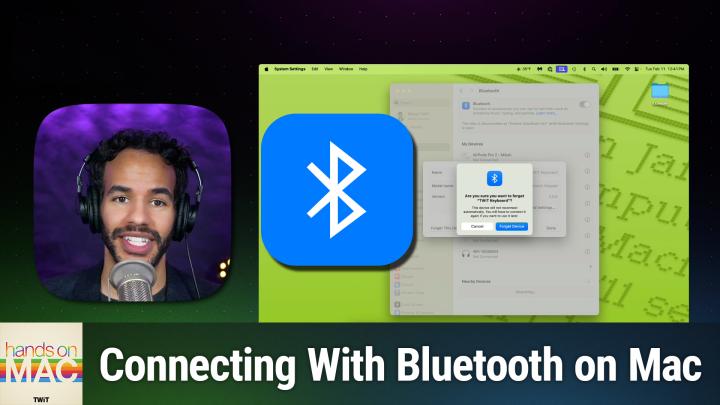
All TWiT.tv Shows (Audio)
Hands-On Mac 169: Flaky Bluetooth on Your Mac? Here's How to Fix It
00:08:32
Conquer Mac Bluetooth Issues Like a Pro
Loading summary
Transcript7 lines
- [00:00]
Micah Sargent
Coming up on Hands On Mac, let's take a look at troubleshooting Bluetooth on our macOS devices. Stay tuned. Podcasts you love from people you trust. This is TWiT. Welcome back to Hands On Mac. I am Micah Sargent and today we are taking a look at what we can do when Bluetooth is giving us trouble on our Mac. So let's head over to macOS and take a look. All right, here we are on macOS Sequoia, and the first thing I have to say is this is a little annoying because it used to be a little bit simpler to do some of the basic options for Bluetooth troubleshooting. That is because there was a way for you to reset the Bluetooth module, the sort of system, the underlying system that manages Bluetooth connections simply by holding down the option key and the shift key and clicking on the Bluetooth icon in the menu bar. If you did that, it would present you with a menu that would include a button that says, quite literally, reset Bluetooth module. That is no longer an option on macOS. And so it is a little bit more involved. But let's say you're having trouble where you keep having your Bluetooth peripherals disconnect or you, you're having trouble getting a new Bluetooth device to connect. We're going to go through the troubleshooting steps that are involved there. First and foremost, any anyone who's doing troubleshooting will tell you the best thing you can do is the first and best thing you can do is simply restart your machine. So make sure you've done that first before you start digging into even more troubleshooting. Because a simple restart can sometimes be all you need to do. After that, you will launch system settings and you will go into Bluetooth and you're simply going to tog and back on Bluetooth connectivity. At that point, check to see if the nearby device that you're looking for is showing up and is available to you. And if this is a device that you've connected before and you are having trouble with it, it's always worth going in to that device and clicking the eye icon for information and going to the forget this device option. And basically what that does is it forces a repair of the device. So from that point forward, then you can connect the device as if it was brand new. And that can sometimes take care of the issue for you. Now, there's something else that I want to show you, which is that of course, here in this menu we can see the different devices that are connected. And of Course, if we have Bluetooth available to us in the menu bar, we can see the different devices that are connected or have recently been connected. But let's go down to System Settings in case you don't have Bluetooth in your menu bar. The way that you do that is to go to the Control center option in the System Settings, look for Bluetooth and make sure show in menu bar is selected. Once you've done that, if you hold down the option key before clicking on Bluetooth in the menu bar, you will be presented with a lot more information. You get the address for each of the Bluetooth devices, including the device itself, the host device, and you will get, if it is presented, the firmware version for those devices as well. So this can give you a little bit more information about what you're trying to connect, where it is, and if it is being detected by the system. Again, this used to be the place where you could go in and reset the Bluetooth module, but that is no longer an option.
- [03:58]
Unknown Speaker
25 years ago, a small group of business and government leaders met in Washington, DC. They envision the creation of an independent non profit organization with a mission to help people, businesses and government mitigate the growing threat of cyber attacks. Today, the center for Internet Security embodies that vision. For 25 years it's worked with a global community of IT and cybersecurity experts to develop the CIS benchmarks and CIS critical security controls. These proven security best practices defend against common cyber threats and streamline compliance with industry frameworks, regulations and standards. Today, CIS provides cybersecurity services, threat intelligence and critical resources to help public and private sector organizations alike strengthen their Cyber defenses. Visit cisecurity.org today. That's the letters cisecurity.org to find out how CIS can help your organization as we create confidence in the connected world.
- [04:58]
Listeners Are you looking for a shortcut to better auto insurance for you? Something that takes all the research off your plate. Something that's easy, Something that matches you with lower rates. Something genius. That's where NerdWallet comes in. Their nerds already did the work for you. Just answer a few questions and ta da, you'll be matched with top insurance providers in your area. Find the right rate for you@nerdwallet.com after all, using NerdWallet is more than smart. It's genius. Not all applicants will qualify for the lowest monthly payments. NerdWallet Insurance Services Incorporated, CA resident license number OK 92033.
- [05:29]
Micah Sargent
Last if you have restarted your machine. If you have unpaired and repaired your device. If you have toggled on and off, or rather off and then on Bluetooth, then there's one more thing you can do, and that is use Activity Monitor. If we hold down the command key and press space, we bring up Spotlight. So we're going to start typing in the word activity, which will bring up Activity Monitor. We'll hit enter to select Activity Monitor and that will present us with the different processes and apps that are currently running. And in the search bar, I'm going to type in the word blue. That's going to show us the Bluetooth system that is running on the Mac. If we select that system and we use our mouse to select the hexagon with an X in it that is in the menu bar. Wait, is that. Sorry, the octagon. Yeah, eight sides. Then we are able to choose stop and up will pop a menu option or a prompt rather that says quit. Force quit or cancel. We want to choose force quit. That is akin to resetting the Bluetooth module like we've done before. Now, every bit of advice suggests that after you force quit a process, you should restart your machine as opposed to just going forward because the system will restart Bluetooth user D. But going ahead and restarting the machine is not a bad idea. To make sure that everything gets kicked back into how it should be at that point. That will restart Bluetooth user D, which is kind of the system running things behind the scenes and give you kind of a fresh go of things with your Bluetooth connectivity. If restarting the machine, toggling on and off Bluetooth unpairing and repairing or attempting to repair the device and completely killing Bluetooth user D and restarting Bluetooth user D do not work for you. It is likely there's something going on on your Bluetooth device. So make sure that you have the latest version of the firmware installed. Go ahead and just double check that it's that it's charged and if not, make sure to charge it fully. Sometimes that can make a difference and hopefully, hopefully, fingers crossed, by that point you've got the connectivity that you are looking for. My only other suggestion in those cases would be to make sure you don't have anything around that could be interfering in some way with the connectivity. So double checking that you don't have a microwave running at the same time. Although again, these are things that are really unlikely, but still a possible means of causing issues when it comes to Bluetooth connectivity. That is going to bring us to the end of this episode of Hands on Mac a little look at troubleshooting bluetooth on your macOS devices. If you have questions, you can always reach out to me. Micahit TV Love to hear from you. Thanks so much for tuning in and I'll catch you next week for another episode of Hands on Mac. Bye bye.
- [08:42]
Unknown Speaker
Hey buddy, are you a geek? Are you a tech enthusiast? Then I would love to invite you to join a tech community like no other. You can gain exclusive access to our incomparable quality tech content for just $7 a month. With Club Twit as a member, you'll Enjoy all Twitt TV shows ad free plus access private video feeds for insider shows like iOS today, home theater Geeks and so much more. Dive into the members only Twit plus bonus feed for behind the scenes content, club discussions and special events. But here's the best Join our incredible Discord community to watch live show productions, chat with hosts and participate in exclusive members only activities. It's your backstage pass to the world of twit. Whether you're a tech enthusiast or a lifelong learner, Club Twit elevates your knowledge while entertaining your interests. Get two weeks free when you sign up now for $7 a month and unlock UN paralleled access at Twit TV Club Twit. That's Twit TV Club Twit and from the bottom of my heart, thank you and welcome to the club.
- [10:04]
Like your favorite startup's growth curve, T Mobile's coverage keeps scaling because T Mobile helps keep you connected from the heart of Portland to right where you are on America's largest 5G network switch. Now keep your phone and T Mobile will pay it off at the $800 per line via prepaid card. Visit your local T Mobile location or learn more@t mobile.com KeepAndSwitch up to four lines of your virtual prepaid card. Allow 15 days qualify and unlock device, credit service port in 90 plus days, device and eligible carrier and timely redemption Required card is no cash access and expires in six months.
- [10:34]
Valentine's Day is just around the corner and nothing says love like the warmth and comfort of a Miki Couture blank. Whether it's for your sweetheart, your best friend or even yourself, Mikki Couture has the perfect gift to make hearts melt. From luxurious textures to stylish designs, Mikkure blankets are the ultimate way to show you care. Plus now through Valentine's Day, enjoy exclusive savings on our limited edition Valentine's collection. Visit any of our stores or shop online at www.mika and give the gift of love, comfort and warmth this Valentine's Day. Nikki Couture blanketing the world in warmth and love.