← All TWiT.tv Shows (Audio)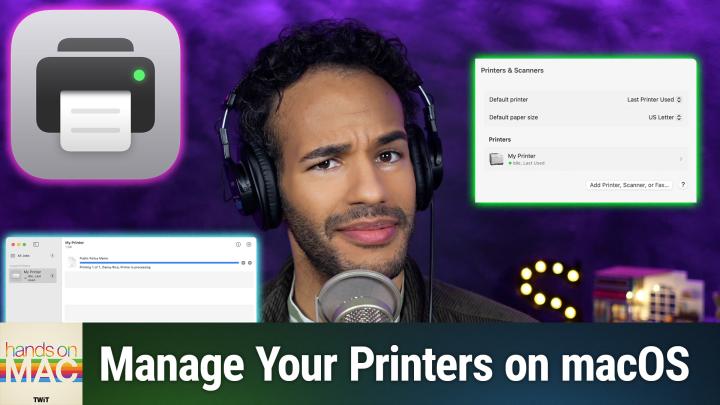
All TWiT.tv Shows (Audio)
Hands-On Mac 170: macOS Print Center Walkthrough
00:12:40
An essential utility if you print!
Loading summary
Transcript4 lines
- [00:00]
Micah Sargent
Coming up on Hands On Mac, let's take a look at an important app on the Mac that you may have never taken a look at. It's Print Center. Stay tuned. Podcasts you love from people you trust.
- [00:18]
Unknown Host
This is Twit.
- [00:28]
Micah Sargent
Hello and welcome to Hands On Mac. I'm Micah Sargent, and today we are taking a look at an important app utility for those of us who, yes, still have printers at home. You know, it's been the case that lots of different versions of macOS over time have had different ways of interfacing with your printers. And over time, that has all kind of solidified into an app called Print Cent. That is a utility. So let's head over to macOS and take a look. Now, my favorite way of finding an app is by holding down the command key and then hitting space to bring up Spotlight. You can also access Spotlight if you have the default setup by going to the little search icon in the menu bar at the top. Or you can also go into your finder, go into Applications, find the Utilities folder, and then get to Print Center. But I'm going to do my classic one, which is to start typing in Print center and void. Voila. I only have to type in pri and hit Enter and it brings up Print center for me. Now, if you have printers on your network that you have set up previously, chances are those apps, those apps, those printers are going to show up here. You'll see that I have two printers and one of them is also a fax machine. So it shows up under faxes as well as known printers. In the sidebar, on the left of Print center, you can see a list of the jobs that's like what you are, what you have in the print queue. And you can see beneath that a list of, again, the printers, where clicking on them gives you the ability to see what jobs are waiting, what print jobs are waiting, what you're waiting to print. You'll also see little bits of information about your printer. So for the OfficeJet printer, you can see that there's a green circle. That means everything's okay, but it's currently idle. Whereas my brother printer, the laser printer that I have, has a yellow icon, a little yellow circle, and that means that there's some sort of alert, which in this case is that the printer may be out of toner. It is running low on toner. It is not quite out. So I'm continuing to use it until it actually runs out. Now, from here on the left side, let's say you don't see your printer Go ahead and click the little plus icon in the bottom left hand corner. And that gives you the ability to look for printers on the network in different ways. The default option uses Bonjour, which is a network protocol that sort of makes devices just by being plugged in and available on the network to discover. You can also type it in by the IP address specifically, or if it's working through a Windows setup, then using the Windows option gives you that ability to try to find the printer that way. So the best way to start is with default. But if default isn't working, you can try IP before finally moving over to Windows. With IP again, you hit you enter the actual IP address of the printer on the network. You choose the protocol, which of course is going to depend on what it is. I recommend choosing Airprint. If your printer supports it, it is the easiest way to make that printer available not just to your Mac, but also to your iPhone and iPad and other Apple devices. And then we'll go back to default here, because in this case I can see two printers that are available. There's a Bonjour printer and a Bonjour multifunction printer, because that is, as I mentioned, a fax machine and also a scanner. If we click on one of these and let's say it wasn't already part of the system, I can immediately choose Add, but I have the option to say where it's located and then also what software it should use. I can choose Auto Select. I can choose Select Software. I can choose other. Auto select will choose the best available option that's built into the Mac. If you download the printer drivers, then you can select those instead. You can also have the system look for those drivers using Auto select to try to find the driver that is specific to that device. Afterward, you click Add, and it will make that available on your specific but also on the network. Now, let me select one of these and show you some of the other options that you have. If we look at the top bar here, I've got a pause icon and an eye icon. You know, that's one of my favorites. The pause icon will stop a job that is in. That will pause a job that is in the work and make it so that you can say, oh no, I want to cancel that or I want to do something else. The eye icon of course, gives you information. So here I could change the name of this printer if I wanted to. I can see the model for this and you'll see that it shows that it's an Airprint printer. Its specific Device name and which current version of the driver. If the printer has a local server so it has a web page, you'll see a button. You can click here to show the printer web page and gain access to that. And then what Find Printer does is if the printer is not it's available on the sidebar, but it's showing a red circle and it's saying it can't find it. Choosing Find Printer can sometimes help kind of kick that into gear and help you find it. Depending on the drivers and the built in firmware, you may also be able to check the supply levels which show here that as of updated at 12:22pm, these are the approximate supply levels. For the black toner cartridge inside of the printer. I can choose okay and let's select the HP OfficeJet Pro. Choose I as well and you'll see once again, show printer web page is here and supply levels. Because we're working with four cartridges, we've got the cyan, magenta, yellow and black cartridge or key cartridge. And these four are not toner, but instead are ink cartridges. And of course once again, those are approximate levels because this is a multifunction printer that also includes fax and scanning. I am able to choose a third icon up here which opens up the image capture app. And if we choose the HP Office Jet scanner, let's see what's on the scanning bed. So it waits for the scanner to load and can show you what's there. Depending on if your device has a document feeder, you may have that show up at the top. I can choose show show details here. So this will do that overview scan that I was hinting at there while it warms up the scanning head and then runs a quick scan. I can see. Oh weird. There's an Echo Studio manual inside of the image capture. We won't go into detail about using image capture. That's for a different episode, but I wanted to show you that that is where the scanner part is. Now with this option as well, I can right click on any of these and also choose to pause. I can see information as well. Used with the I button. Make it the default printer so that it automatically shows up as the choice Whenever you choose print, add it to the doc so you can quickly access this page of Print Center. Remember the printer which kind of holds onto it even if it were to lose knowledge of this printer by having it kind of leave the network and then of course remove the printer, which will give you the ability to take it out and kind of, if you needed to this is a great troubleshooting step where if for some reason the printer is giving you issues, removing it and then adding it back is helpful. Now, up at the top in our menu bar, we do have some other options. Printers and scanners settings here. And that will take us into the system settings page where we will see what options we have. The default printer, the default paper size, a specific printer which shows us its name, its location. We can view the queue here, which would open up the Print center page, whether it's shared on the network, what its driver is. So essentially the same information that we have within Print center available in the system settings, you can reset the printing system if you're ever having troubles with that reset known printers, which of course would remove those. And then also you can quickly go into the printer option, which gives you much of the same access, but also the ability to add a printer or print a test page, which will give you some basic information about the printer, how it's connected, what its current levels are, that kind of a thing. And at any time, if you go ahead and print something, you can pause, you can go into it and you can resume that job, or you can simply remove it. So if you decide, oh, actually I don't want to print that 300 page PDF, I meant to just print one page. That's a great way to select that job and say, no, no, no, no, no, I don't want that to be part of it. You also can access, along with the Print center the completed jobs. And so it will show you recent jobs, recent printings that you've done, and give you the information about where those are. If you have a lot of printers, if you're working maybe in an office or something like that, and you print something out and then you go, you're like, oh, I need to get that. You could check that page out to say, oh, I printed it in my coworker's office space, not in my local office space. That's why it's not on the printer. Somebody didn't take it, it's just in a different spot. Print center is your means of being able to kind of troubleshoot and add, remove, adjust printers as needed. So that is a look at the Print center utility in macOS. Look, I know there aren't a lot of, a lot, a lot, a lot of people who have printers at home, but I do get questions a lot about using a printer with Mac and also with being able to kind of manage those printers. So I find that's the best way to go about finding the printer's webpage. If you're not getting it via just typing in the IP address in your browser or something like that, heading into Print center and finding it there lets you do that configuration that you might not otherwise be able to do. And that's a great way to perhaps avoid installing some of those really overfilled and kind of ridiculous print utility software that's supposed to just be, you know, drivers, but often includes a lot of bloated software that you don't need. I find that being able to figure out the printer's online webpage and going there makes it the best way to do so. So thank you so much for tuning into this episode of Hands On Mac. As always is it is a pleasure to bring this to you and we will catch you again soon for another episode. Thanks for being a member of Club Twit if you are, and if you're not, don't forget TWiT TV club TWiT to check it out with a two week free trial for a limited time. So hop on that. All right, I'll catch you next time for another episode. Bye bye.
- [11:19]
Unknown Host
Hey buddy, are you a geek? Are you a tech enthusiast? Then I would love to invite you to join a tech community like no other. You can gain exclusive access to our incomparable quality tech content for just $7 a month with Club Twit as a member, you'll enjoy all Twitter shows, ad free plus access private video feeds for insider shows like iOS today, home theater Geeks and so much more. Dive into the members only Twit plus bonus feed for behind the scenes content, club discussions and special events. But here's the best Join our incredible Discord community to watch live show productions, chat with hosts and participate in exclusive members only activities. It's your backstage pass to the world of twit. Whether you're a tech enthusiast or a lifelong learner, Club Twit elevates your knowledge while entertaining your interests. Get two weeks free when you sign up now for $7 a month and unlock unparalleled access at Twit TV. Club Twit. That's Twit TV Club Twit. And from the bottom of my heart, thank you and welcome to the.