← All TWiT.tv Shows (Audio)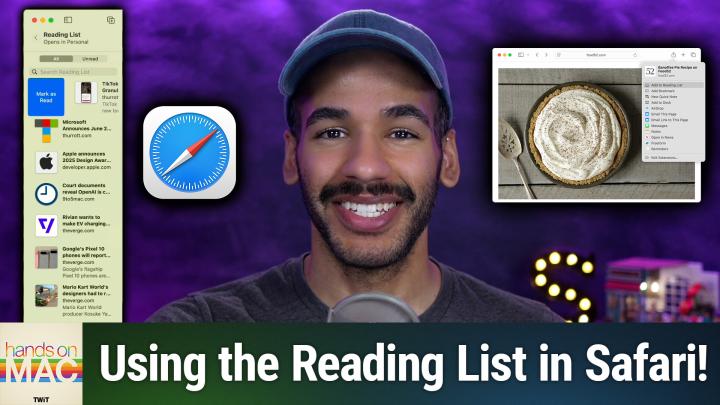
All TWiT.tv Shows (Audio)
Hands-On Mac 185: Safari Reading List
00:11:19
The built-in alternative to Pocket!
Loading summary
Transcript25 lines
- [00:00]
Micah Sargent
Coming up on Hands on Mac, let's take a look at a way to save what you're reading for later without needing that little tool that went away. Stay tuned.
- [00:10]
Leo Laporte
This episode brought to you by Red Canary when cybersecurity threats hit fast, you need an MDR partner that moves faster. Red Canary delivers 24.7expert MDR support, total visibility, and actionable insights. Plus it helps you detect four times more threats so you can stay ahead without burning out. Red Canary clears the noise and has your back every hour, every incident. Get the backup you deserve. Visit redcanary.com difference to learn more. This episode brought to you by the Electronic Frontier Foundation. In fact, if you ask me, the whole Internet's brought to you by the EFF. For 35 years, the electronic Frontier foundation has been fighting to make sure that when you go online, your rights go with you. Eff I owe him a big debt of gratitude. They rescued our podcast and every podcast from patent trolls. They helped encrypt the web to protect your privacy. They prevail in lawsuits against government secrecy and surveillance. These are the good guys and they have a podcast, how to Fix the Internet. It's all about what happens if we win the fight and get things right online. And it's a great listen. The fight for digital rights, it's bigger and more urgent than ever. EFF is member supported. I'm a member. You should be a member. The more members they have, the stronger they can fight in statehouses, courthouses and on the streets. Season six of how to Fix the Internet started May 7th. Listen@eff.org podcast and while you're there, join the EFF.
- [01:38]
Unknown
They're the good guys 25 years ago, a small group of business and government leaders met in Washington, D.C. they envisioned the creation of an independent nonprofit organization with a mission to help people, businesses and government mitigate the growing threat of cyber attacks. Today, the center for Internet Security embodies that vision. For 25 years, it's worked with a global community of IT and cybersecurity experts to develop the CIS benchmarks and CIS critical security controls. These proven security best practices defend against common cyber threats and streamline compliance with industry frameworks, regulations and standards. Today, CIS provides cybersecurity services, threat intelligence, and critical resources to help public and private sector organizations alike strengthen their Cyber defenses. Visit cisecurity.org today. That's the letters cisecurity.org to find out how CIS can help your organization as we create confidence in the connected world.
- [02:43]
Micah Sargent
Podcasts you love from people you trust.
- [02:48]
Leo Laporte
This is Twit Foreign.
- [02:58]
Micah Sargent
Welcome back to Hands On Mac. I'm Micah Sargent and today, given the fact that Pocket has gone the way of the dodo, well, at least as far as it seems, I thought it'd be a good time to talk about the fact that you have a built in tool for doing, you know, pretty much what Pocket did for you all that time. So let's talk about what that is. It's called Reading List and it exists in Safari across your various devices. So let's head over to macOS to take a look. Although I should note this is also available on your iPhone and your iPad as well. All right, here we are on macOS and as you can see, I have Safari open and I'm going to go to a website that has articles like the Verge for example, and I'm going to open up a document. So let's or document an article. Let's take a look at this article about Mario Kart world. Now let's say I started to read this, but I need to go do something and come back to it later. Well, all you have to do is go up to your Bookmarks tab and choose Add to Reading List. You'll also notice that next to that is the keyboard shortcut. Shift Command D. Command D of course, is the well known way to bookmark something. Shift Command D adds that to your reading list instead. You can also see that right beneath it is a great option that says Add Open tabs to Reading List. If you have multiple documents open multiple articles open that you don't think you're going to be able to get to right now, but you might be able to get to later. This is a great way to get to them whenever you're ready by putting them in your reading list. So we'll add this to the reading list and what I want to do is go through and find a few more things to add. Now remember that we were able to do Command Shift D to add it to our reading list. You can also simply shift click on a link on the page to add it to the reading list as well. So I'm going to quickly find a few things to add here and we're going to go to another site. Let's go to 9to5mac. We'll add this and then we'll go to 6colors.com and add something from there. And then we'll go to. Let's go to Paul. Well of course that's Thorat.com, not PaulThorat.com and add something from here. Remember I'm holding down the shift key and then clicking to add it to my reading list. Now, to access my reading list, I'm simply going to click in the top left corner where we have the show sidebar button. And in doing so, you can see I've got one tab open, I've got some other group tab groups open as well, or available rather as well. But down here at the bottom of the sidebar, I've got bookmarks, I've got reading list, I've got shared with you, and I've got icloud tabs. We're of course going to choose reading list and that will open up our reading list. Now, there are a couple things you can do when it comes to your reading list. I can scroll down from the top so that I can search my reading list. I can sort between what I've read and what I have yet to read. I can of course, click on something to go to that page. If I right click on the reading list item, I have the option to open this reading list item in a new tab, a new window, mark it as read save offline, which we'll talk about in a moment, delete it, meaning removing it from my reading list, and then clear all items, which of course will take that and the other items in our reading list and get rid of them. If you have a trackpad, you can swipe with your trackpad. Swiping to the right will open up the mark as red option. Swiping to the left lets you remove it or save it offline so that you can access it that way. Now, the save offline option is great because what that lets you do is if you are in a place where you aren't able to access the Internet, that page will be available to you and you're able to go through and take a look at it. We're going to take a look at what it's like to view the reading list next.
- [07:05]
Unknown
Hi, Zoe Saldana. Welcome to T Mobile. Here's your new iPhone 16 Pro on us.
- [07:10]
Zoe Saldana
Thanks. And here's my old phone to trade in.
- [07:12]
Unknown
You don't need to trade in. When you switch to T mobile, we'll give you a new iPhone 16 Pro. Plus we'll help you pay off your old Phone up to 800 bucks and you still get to keep it.
- [07:21]
Zoe Saldana
There's always a trade in.
- [07:22]
Unknown
Not right now. @ T Mobile.
- [07:23]
Zoe Saldana
I feel like I have to give you something in return for karma.
- [07:26]
Unknown
That's okay.
- [07:27]
Zoe Saldana
I don't really have much in my purse. Oh, let's see. Hand Sanitizer. It's lavender.
- [07:31]
Unknown
I'm good.
- [07:32]
Seriously.
- [07:33]
Zoe Saldana
Let me check this pocket. Oh, mints.
- [07:35]
Unknown
Really, I'm fine.
- [07:36]
Zoe Saldana
Oh, I have raisins. I'm a mom. Wait, wait one sec. I've got cupcakes in the car.
- [07:41]
Unknown
It's our best iPhone offer ever. Switch to T Mobile. Get a new iPhone 60 Pro with Apple Intelligence on us. No trade in needed. We'll even pay off your phone up to 800 bucks with 24 monthly bill credits. New line 100 plus a month on experience beyond Finance Agreement 999.99 and qualifying forwarded for well qualified plus tax and ten dollar connection charge. Payout via virtual prepaid card below 15 days credits and balance due if you pay off earlier.
- [08:04]
Ryan Reynolds
Cancel CT mobile.com Ryan Reynolds here from Mint Mobile with a message for everyone paying Big Wireless way too much. Please, for the love of everything good in this world, stop with Mint. You can get premium wireless for just $15 a month. Of course, if you enjoy overpaying. No judgments. But that's weird. Okay, one judgment anyway. Give it a try@mintmobile.com Switch upfront payment.
- [08:28]
Zoe Saldana
Of $45 for three month plan equivalent to $15 per month required intro rate first three months only, then full price plan options available, taxes and fees extra. See full terms@mintmobile.com so once you've got.
- [08:37]
Micah Sargent
Your reading list open, let's go to this first article here. And here's the cool thing about the reading list. As I'm reading here at the top and I go through and I see my article, blah blah blah, I get to the bottom and if I continue to scroll once I get to the bottom of the page, it will just pop us on to the next article. See, now we're on the third one. This Apple announces 2025 Design Award winners. I can scroll down to the bottom of this and and just push through to the next one. Now we're on to 9 to 5 Mac, so on and so forth. So it's very easy to quickly scroll through your various reading list items. And you may remember whenever we had clicked on the Bookmarks tab that there is an option to select the previous item in the reading list. Select the next item in the reading list and what you can do with that is add a keyboard shortcut to quickly move through those different items so it starts to feel a little bit more like Google Reader Pocket, one of those tools. The last thing I want to mention is as you can, as I mentioned, you can save these offline. What that does is sort of Create a snapshot of that page that's available to you should you ever be disconnected from the Internet, so that even if you're in a place where, okay, I've got no connection, that whole page is going to be available to you. And you can move through your reading list that way. I'm going to see that because I've gone through this list already. These are all red. So if I go to the Unread tab, only this Rivian article, which I didn't scroll all the way through, and the Google Pixel 10 article were the ones that were left as being unread. Now if we go back to the Unread tab, they're all gone. It's all moved over to the all tab, meaning that it has been read. So there's one more tip that I want to give you about the reading list, and that is that maybe you just want to make it so that regardless of where you are and whether you have connection, you can always access your items. That is possible for you to do. You can set it up so that it always saves these articles offline. You go to Safari in the menu bar, you choose Settings, you go to Advanced, and then here you find the option that says Reading List and choose Save Articles for Offline reading automatically. From that point on, anytime you add items to your reading list, those items will be saved automatically offline. They will, as long as you have icloud syncing turned on sync to your iPhones and your iPads, as will their red status where they appear in that list. And they will download as well to be offline on those various devices too. So that way you have those articles, you can get to them no matter where you are. And again, I love that option in bookmarks to be able to choose Add Open tabs to reading lists. So if you got a jet boom, you can save all of them. You hop into public transit, you pull open and you've got all those articles ready for you to read, just as you want to now with Reading List, it's not obviously a complete replacement for some of the other sort of read it later, save it later services that you might have access to. But between that and your ability to turn on the mode that kind of simplifies the page, it comes relatively close, particularly because of the built in syncing that exists between devices. So let me show you really quick as we go back to macOS here. I can choose the webpage options in the top right or the top left of the main bar. And I can choose Show Reader. So now I have a reader view of this document and I can move on to the next one Microsoft announces June 2025 update for the new Outlook Move on to the next one this page doesn't have a reader view, so you can see there's no reader view option allowed, so it honors that setting for the webpage. This does have a reader view available, so I'm able to scroll through that. This does as well, so on and so forth. Being able to access the reader views of these various PA and of course you have control over the theme so you could make it black in the background, gray in the background, sepia toned in the background and choose the typeface. In this case it's currently San Francisco, but you might like something like New York or Times New Roman which is a little bit easier to read or so they say. I personally love a Georgia because of the serifs on the side and that way you are able to view these pages exactly as you want to in your reading list. So between reading list and that reader view in Safari, hopefully you can find an easy to use and easy to find and easy to integrate replacement for Pocket if that's the tool you were using before. Folks, thank you so much for tuning into this episode of Hands On Mac. As always, love love love hearing from you. You can reach out micahit TV to get in touch and I'll catch you again next week for another episode. But until then, it is time to say goodbye.
- [14:02]
Leo Laporte
Hey buddy, are you a geek? Are you a tech enthusiast? Then I would love to invite you to join a tech community like no other. You can gain exclusive access to our incomparable quality tech content with Club Twit as a member, you'll Enjoy all twit TV shows ad free plus access private video feeds for insider shows like iOS today, home theater geeks and so much more. Dive into the members only Twit plus bonus feed for behind the scenes content club discussions and special events. But here's the best Join our incredible Discord community to watch live show productions, chat with hosts and participate in exclusive members only activities. It's your backstage path to the world of twit. Whether you're a tech enthusiast or a lifelong learner, Club Twit elevates your knowledge while entertaining your interests. Get two weeks free when you sign up now and unlock unparalleled access at Twit TV Club Twit. That's Twit TV Club Twit. And from the bottom of my heart, thank you and welcome to the.
- [15:13]
Micah Sargent
Sam.