← All TWiT.tv Shows (Audio)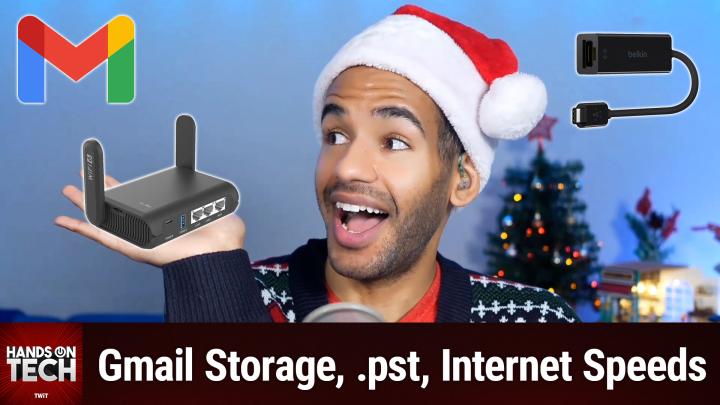
All TWiT.tv Shows (Audio)
Hands-On Tech 195: Connecting Older Tech to Modern Networks
00:39:33
Gmail Storage, .pst Files, Internet Speeds
Loading summary
Transcript8 lines
- [00:00]
Micah Sargent
Coming up on this episode of Hands On Tech, we have some follow up for questions that have been asked in the past. We also answer some Questions about using WPA3, dealing with email and also how to improve the speeds of your router. All of that plus more coming up on this episode of Hands On Tech. This is TWIT Time's almost up on holiday shopping and so are amazing deals at Amazon. You'll save so much on early holiday wireless gifts like wearables and wireless accessories. You'll have money left over for an electric guitar to take your caroling to the next level or that Bluetooth speaker to instantly add in a little extra holiday spirit. Oh what fun it is to save. Shop new deals added every day. It's better over here. After investing billions to light up our network, T Mobile is America's largest 5G network. Plus right now you can switch keep your phone and we'll pay it off up to $800. See how you can save on every plan versus Verizon and at&t@t mobile.com KeepAndSwitch.
- [01:23]
T-Mobile Ad Voice
Up to four lines via virtual prepaid card. Allow 15 days qualifying unlocked device credit service ported 90 plus days with device and eligible carri and timely redemption required card has no cash access and expires in six months.
- [01:34]
Micah Sargent
Hello and welcome to Hands On Tech. I am Micah Sargent, your host of this show and as is always the case, we are here today to answer some questions that people have sent in. I remind you Hotwit TV is the email you want to use to get your questions onto the show. I also once again thank those of you who have written in with wonderful questions. They keep pouring in and it's starting to load up so get your question in if you have one. The holiday break is just right around the corner so we will have some time soon to kind of pour through and see what people have asked. But let us get rolling here today starting with Jack. Jack has written in and has provided some follow up for a conversation that we had in the past. Jack says you gave directions to Vernon about deleting emails using the Gmail interface. So you may remember or if this is your first time tuning in, then I'll remind you that Vernon had written in. And last week I answered the question of how to get rid of old emails. Vernon had a bunch, a bunch of emails and I was helping figure out how to get rid of the ones that Vernon didn't need anymore. Jack says I used a similar technique earlier this year to delete all email messages prior to 1-1-2023 and so what Jack probably did was use some search operators to say, I want you to show me all of the emails that were from before this time. Jack says, I recorded the total space occupied in my Google account and waited for 30 plus days for the trash to be deleted permanently. So what Jack is talking about there is that Google specifically Gmail will hold on to email that you throw away for up to 30 days. Jack is saying I waited longer than 30 days and looked at the Gmail account. And Jack says as I check now Gmail occupies the same amount of space. There's been no meaningful change. How do I recover space that should have been freed by deleting all those old email messages? Alternatively, is there a way to examine the occupied space with more granularity than the Quote Drive Photos Gmail breakdown that Google provides? My account currently uses about 13 gigabytes of the 15 gigabytes of free allocation, with Gmail occupying about 8 gigabytes of that. It would be helpful to see a breakdown by label, but I don't know a way to do that. Thanks for your help. So Jack, interesting, because you've done everything upfront that one would probably presumably need to do. You have not just deleted the email, but you waited to see if the email reappeared or rather if it was completely trashed after you threw it away in the trash and it's still showing that you're taking up space now. Interestingly, Scooter X had a reaction that I also had Scooter X wrote in the chat. I rarely delete my Gmail and it is using 3.2 gigabytes. I'm the same way. I have lots and lots and lots of emails and I don't take up a whole lot of space. So it sounds like Jack, you may have a lot of attachments included with your email or something else that is causing this to be. Or maybe you just send a whole heck of a lot more email than I, I do. So I have a few things that to suggest. First and foremost, I would kind of even though you, you feel like you've done everything that you're supposed to do this far, kind of pretend, just, just let your brain float away from that and pretend like you maybe haven't done everything that you're supposed to do long enough to try this out, use the search operator size colon and type in, you know, 5 megabytes for example, so it'd be 5M and look at all of the email that appears with that actual search term. What's great is that you can also use something like larger colon and smaller colon. So you can say email that takes up, you know, more than five megabytes of space. That's what I'd like you to show me because I think that even though you in theory deleted the messages, there's a chance that something is causing them to stick around and they may be sticking around in a different place. So when you delete email, it can be the case that if you delete them in one spot, if they still have labels somewhere else, that label could be causing them to be held onto essentially. Another thing that you can do is you can sort of audit your email habits to make sure that you're not using an email program that is using POP instead of imap. So with imap you essentially are kind of getting a view into the server where the mail is being stored, whereas with pop, it's actually grabbing those email, storing them locally. And then there could be some sort of of sync thing where it is syncing them back to the server and keeping that email there. Now I did look into the Google suggestions about this as well and Google says that sometimes there is a chance that 30 days is not the way. It's not is not the extent at which Google will hold on to those emails. Sometimes it takes a little bit longer. So it is possible that Google is still holding on to the email. I doubt it, but it is possible that that's also the case. So I would wait a little bit longer and then maybe at that point you reach out to Gmail support if you can get in touch to see what in the world is going on here. But as far as kind of looking for more granularity, the only thing that you could do is try a third party mail program to actually download those emails and see just how much space is actually being taken up by Gmail specifically. And because most modern mail programs kind of integrate with Gmail precisely, it means that it will know the labels that you've used and the categories that you've used. And so you can break it down that way. Remember that there is also a search operator for using label. So you can type in label colon and then type something else out as well. So those are all possibilities for being able to check that out. And we'll include a link in the show Notes to the actual search operator page from Gmail or rather from Google. And it has all of the different options for how you can kind of filter your email by search and check it out that way. So yeah, going down the list, first and foremost, Try sorting your email by size, basically doing a search for the size to check that out. Then audit your mail habits to make sure that you aren't using a third party mail program or Google's Gmail itself somewhere else, which could be causing like a sync issue where on that device it still has all those emails and so then it looks at the fact that you deleted them there and says oh no, those are supposed to be there and then kind of puts them back. That could also be the issue. And then last but not least, using the search operator terms in a different way. I guess that's not last but not least, but the penultimate option is using those search operator terms in a different way to kind of figure out what email might be taking up a lot of space or what attachments are still being saved, and then using a third party email program to try and delete if for some reason Google still seems to be trying to hold on to those emails. Those are my suggestions for you, Jack, and do let us know how things turn out. All right, moving along, we have some feedback from Ronald. Ronald, who wrote in to ask about moving to a Mac from Windows, asked thanks. And by the way, chat open ears for this one because I want to double check. Ronald says thanks very much for your very detailed answer to my questions about moving to Mac. Still kicking the tires. And one issue occurred to me. If I format the external drive with APFS Apple protected file system, can Spinrite be used to maintain it? Now given that Spinrite can be used with the Mac, and given that Steve Gibson provides a few different ways to be able to use spinrite with drives that are used with the Mac, be it via Windows or doing other things, then you are able to use Spinrite. But just know that there are some special rules. So here's directly from GRC.com if you do not have even brief access to a Windows machine, which would allow you to use the Windows bootable application, the enclosed bootable IMG file may be written to any USB drive and booted. The Apple Mac version may be freely downloaded, installed, run, and used to safely copy the bootable image file to the USB drive of your choice. And then it also says that you can use DD to perform the copy operation as well. So you essentially are doing it from a bootable drive, like an external drive to access that hard disk drive. So that is. That is what I understand about using spinrite with that. But let me double check here as Scooter X has provided a little note. Here we go. So here's a great set of steps to follow to be able to use Spin right with your Mac. So we will include a link to this as well in the chat, I mean, in the show notes. But Ronald. Yeah, According to what I'm seeing from GRC.com there's a way to use it for Apple Mac users. And so in that case you should be able to still access the drive and kind of check it out. All righty. Let's move right along to Hasan, who writes in and says, I have an EERO router system at home and it's been working flawlessly for years. I have WPA3 enabled, as any Club Twit member would, but unfortunately recently have had to add a very old iPad to the network. The iPad cannot work on WPA3 and works fine if I turn it off. Is there any work around? I don't want to spend money on this old device, but I was thinking maybe something like using a travel router that can join my eero on WPA3 and the iPad can join it on WPA2. So Hasan, this is a great question. Occasionally you may come across a device that just doesn't work with your router. And here's the thing. The reason why enabling WPA3 means not being able to access it is, yes, because some older devices can't work with WPA3. But if you think about it, it's a little bit of a security issue. If most devices on your network are authenticating with WPA3, but you're still giving some devices the ability to use WPA2, then it means that you're not sort of wholly across the network saying, no, you've got to use this. This is the better, more robust option, right? You're saying, okay, here's just for you. You get an exception, you get to use the less secure option of WPA2, but you can do this, just as you've noted, not with the EERO itself. So if you enable WPA3 on your eero router, there's not a mixed mode of WPA3 WPA2 that is going to let you connect some devices the old way. You can of course toggle off WPA3 and then the iPad works fine, as you noted. But my suggestion for you is to get either a, as you mentioned, a travel router. Yes. Or you can just also get a non Eero wifi access point. You know, it doesn't have to be an expensive one. TP link sells a lot of them. If you get a travel router, then that means that you have A travel router that you can always take with you. The option that has been suggested a bunch of times in the chat and that also has been suggested by some of our fellow guests on the network is the GL INET portable Gigabit travel router. This little router is a great option that again you can take with you, you connect it to the hotel network and then you connect your devices to it. So this is a great option if you want to spend a little more money, but you want to be able to justify spending a little more money because you're not just getting it so that you can connect this old iPad, you're also getting it so that you've got a travel router that you can take with you when you go places. Which is nice, but very clever. Has on to think of this because yes, if you connect to the network with WPA3 and then on the router you offer the ability to connect to it with WPA2, you're good to go. I say specifically to get a non eero wifi access point because of course if you bought one of those little beacons or something else and you connected it, it's a one toggle option of turning on WPA3. So once it's on, it's on and then you're not going to be able to use it with that iPad. Another suggestion which Cole has provided. Thank you, Cole. I had not considered this. Cole says, hey, does the iPad need wireless all the time? Because if it doesn't, you could use WI fi sharing from a Mac. So yes, the Mac provides the option to sort of share your Internet connection with a connected device, in which case you would be able to provide an Internet connection to it. Now again, you wouldn't be able to do this. As Keith's512 points out. Maybe you could just remove all of your issues and future issues by just simply upgrading the old iPad. Yes, indeed. It sounds hasan like there's some reason that you need to use this iPad. Because you said, quote, unfortunately recently I have had to add a very old iPad to the network. So for some reason this old iPad needed to be added to the network. Maybe there's an app on it that comes from your company or, you know, company you work for that needs. There's some reason why you're doing that. Maybe you have a small business and the, you know, point of sale system that you're using is old school. I don't know what it is. I would love to hear that. I don't necessarily have to share it with all the listeners. But I am curious to, you know, what caused you to need to add this older iPad to the network. And you know, whatever the case, there are some options for you again, Cole, shout out Cole in the Discord Chat for that suggestion of being able to use the Mac's own Internet connection basically as an access point there. So if the iPad most of the time doesn't need to be able to connect to the network and it's just occasionally that's an option for you. If you do need that steady, steadfast connection, then yes, a travel router or just an access point that you add to your network from like TP Link can be good. All right, let me take a moment here to tell you all about the very exciting offer we have available to you right now, which is Club Twit for free. For a limited time, we are offering two weeks of Club Twit. You just head to Twit TV clubtwit. When you get there, you will be able to subscribe for two weeks as a free trial. Dip your toe in, see if you like it and then after that you can become a member of Clubtwit for just $7 a month. When you join the club, which we'd love to have you join the club, you gain access to some pretty awesome things. Every single show ad free, just content. You gain access to the Twit plus bonus feed that has extra stuff you won't find anywhere else behind the scenes before the show. After the show, special Club Twit events get published there, access to the members only Discord Server, which is a fun place to go to chat with your fellow Club Twit members and also those of us here at TWiT. And access to the video versions of our Club Twit exclusive shows. Those are hands on or rather iOS today, hands on Windows, hands on Mac and so many more. So if that sounds exciting to you, as exciting as it does to me, then consider joining the club. For those of you who are already members of the club, who are tuning in live. So you're hearing this. You wouldn't be hearing it if you're watching after the fact, because this is an ad, then I remind you that you can earn free months, not just a couple of weeks free months of Club Twit by referring your friends Twit tv Club Twit referral. So be sure to head there and learn more about our referral program. It's better over here. Now at T Mobile get four 5G phones on us and four lines for $25 a line per month when you switch with eligible trade ins, all on America's largest 5G network.
- [20:55]
T-Mobile Ad Voice
Minimum of 4 lines for $25 per line per month with autopay discount using debit or bank account $5 more per line without autopay plus taxes and fees and $10 device connection charge phones via 24 monthly bill credits for well qualified customers. Contact us before canceling entire account to continue bill credits or credit stop and balance on a required finance agreement due bill credits end devices early ct mobile.com.
- [21:13]
NativePath Ad Voice
Are you ready to move easily and independently without pain or stiffness holding you back? Do you want to look in the mirror and see a hydrated glow instead of fine lines and wrinkles? Now you can with Native Paths Collagen. This product will help improve your cartilage, bones, skin, hair, nails and gut. And it's a single ingredient formula with no fillers, heavy metals, additives or artificial sweeteners, ensuring complete purity and safety. Unlike others on the market, Nativepath's Collagen is completely flavorless and dissolves easily into anything coffee, smoothies, oatmeal, you name it. The best part? NativePath offers amazing bundle deals. You can get three or six packs at a fraction of the price of other brands with over 4 million jars sold, 1 million happy customers and a no risk guaranteed. Visit getnativepath.comradio to stock up on collagen for an incredible 45% off plus free shipping. Getnativepath.com radio Alrighty, we are back from.
- [22:16]
Micah Sargent
The break and that means it's time for our next question, which comes in from Ray. All right, Ray, this is getting a little complicated here. Ray says I use the Microsoft Outlook client from Microsoft Office Professional Plus 2021. I love the detail here, Ray. On a Windows 11 laptop, my contacts, my notes, and my calendar are stored at outlook. Com and I access those from my Outlook client with none of that information stored locally. However, my email folders are stored locally in a. PST file that goes back many years. My POP email originates from Yahoo.com and my outlook client removes email, then stores email locally from there when invoked. Is there a way to upload my. Pst file to outlook.comgmail or yahoo.com and then forward my email to one of those hosts so I can access my email folders from one of those websites and get rid of the Outlook client. So Ray, this is going to require some manual work on your part, but if you go through with the manual work, then you're going to not only get this to work, but work properly and work with what you would expect to happen, because that's the big thing here, is that it's not enough to just kind of wave your hands and use a third party mail client and hope that it all just kind of sticks. You have these very specific folders that you want to make sure are still part of the system going forward. And you're working with a local file to do this. So first and foremost, unfortunately, there's no direct upload feature for PST files into Outlook.com and Wizardling. That's so funny, because that's exactly what we're going to tell oh, I see what you're saying. You're saying what I suggest is exactly what you would do. So there's no direct upload feature for PST files into outlook.com into Gmail or into Yahoo. You have to use an email client as a go between. So pick an email client, whichever one you want to use, and then you need to do this, let's say. And here's the thing, I recommend using either Gmail or Outlook.com and not Yahoo. Yahoo, unfortunately does not handle large volumes of email very well. And especially if it's a historical email, if it's going back years and years and years, it causes a whole bunch of issues. You may lose some of your email, you may have it all, but it's dated. Like I've heard horror stories. So I'm really, really, really just suggesting that you use either Gmail or Outlook.com to do this. So again, you get the clients that you want to use and add Gmail or Outlook to that Outlook. Okay, let me restart here. Rewind a little bit because this is, like I said, a very complicated process. So you have Outlook.com, your Outlook client locally, right? You've got Outlook.com on the web, you've got your Outlook client locally, the app that you've been using in that Outlook client. Add your Gmail account to that Outlook client, but make sure that when you do it, you use imap, not pop. It needs to be imap, not pop. Then on your Gmail account, you want to create folders in that Gmail account that have the folders from your local Outlook option. And yes, POP should be disabled globally. Just don't pop. No, no, thank you. And create those matching folders in the new IMAP account. Then very easily you take all those emails and drag them over into the new IMAP folders. Give Outlook some time, the local client, to sync those messages up to the cloud servers. And then once all of the folders and the emails are in the cloud, of course, go to outlook.com or go to Gmail and check to make sure that they're all accessible via the web interface. And then once you've confirmed that they all have been transferred over, you can stop using the Outlook clients and you can rely on the services Webmail only. So again, it's relatively simple. Take your Gmail account, log into that via iMap or Exchange ActiveSync. If you're using Outlook.com make those matching folders. I'm recommending making the folders instead of just taking the folders and dragging them over because sometimes that can cause some issues. I saw a couple of instances at least, and you know, if there are a couple of instances, there are a bunch of people who didn't report this, that dragging the folder over itself caused some email loss. So create the folders that you want to use first. Take those emails, drag them over into each of the folders, and give it some time. You know, set aside a day of work to do this. A day of work. It's not a lot of work to do this, but you know what I mean. Set aside a day where you are not just dragging and dropping everything over, but you're doing it folder by folder by folder by folder with room in between. Let that first folder get completely moved over. Give it some time, then do the next folder. Give it some time, then do the next folder. Give it some time, then do the next folder. Give it some time, then. My suggestion for how to check if everything's there would be to randomly look through on your local machine. Pick a random email, then head to the web client and do a search for that email and make sure the full thing showed up. Maybe do two or three randomly chosen emails from each one pseudo random. For those of you out there who are pedantic, then you will be able to double check that that's actually there. And then if you're like me and you have anxiety about stuff not working or, you know, not everything's sinking over, give it a couple of months. Just keep it around for a couple of months. As a, as a. Okay, I've always got this. And of course you've probably got local backups and stuff too, before you decide to completely kind of ditch that local client. After that, you'll be good to go as far as forwarding your email to one of those hosts. Feel free to write in again if you want me to answer that question directly. That is all dependent on what client you end up using. But my, my suggestion for you, and it's much easier than sort of waiting for an episode of Hands On Tech to come out, is to head into the help section of whichever client you're using and read what it says. Because the good thing is you are using some of the major options out there. So almost all of the email providers have suggestions that are specifically tailored for each of these things. So if you're looking at Gmail and you're trying to get things forwarded from Yahoo, Gmail will show you exactly how to do that and have you follow along with the process. So that is my suggestion on how to take care of that. Ray, it sounds like you know what you're doing based on what you talked about leading up to this. And as always, I'd love to hear how things go and if you get everything loaded in and if, of course, you have any clarifying questions that you may have missed. But it's always good to hear in the chat too. Everybody would be following a very similar process because we've got a lot of smart folks in the chat. All right, moving right along, our last question for today comes in from Ross. Ross has written in with an interesting one. Ross says, my Internet provider here in Canada has 2.5 gigabits per second service. I used to have 1.5 gigabits per second Service and I have had around 960 megabits up and download speeds using Ethernet connected to an Apple TV 4K box. So, Ross, this is very similar to my experience. I have symmetrical fiber here that the fiber company quotes at just under a gig just to keep themselves safe. And so I'm regularly getting like 940 to 960 up and down over ethernet and something like 780 up and down over WI Fi. And you have written Ross to say now that I have the 2.5 gigabits per second package, the speed test is showing pretty much the same. Do you have any advice on how I can get close to the 2.5 gigabits per second speeds? I have a MacBook Pro M1 which doesn't have an ethernet port. Can you suggest a USB C adapter or dongle? So, Ross, this immediately sort of made me groundhog. I popped up out of the ground and started looking around going, huh? Because I have some questions for you, Ross, and this is always an opportunity for people who are thinking about writing in the things that you want to include in your questions whenever you ask them. So first and foremost I need to know would like to know, are you using everything from your isp, your Internet Service provider, are you using their. It's not technically. Technically a modem whenever you're using fiber. And I. Well, I guess I shouldn't assume it's fiber because there are now some cable options that do provide up to that speed. But if you are using a cable, then the modem. If you're not, then the. No. Whichever one you happen to be using, are you using the one provided by your Internet Service provider? And then from there, are you using a router that is provided by your Internet Service provider, or are you using one that you have added yourself? Sometimes it's, of course, one box that does both, especially if it's cable. I need to know the answer to those questions, because if it's from the isp, it is within their interest, arguably, to make sure that you have hardware that would support these faster speeds in an ideal condition, in an ideal situation. Right. And so when you decided to upgrade to the 2.5 gigabits per second package, if the hardware that you had leading up to that did not Support up to 2.5 gigabits per second, then they should have updated your hardware to make sure that you could reach those theoretical speeds. And it sounds like you're pretty reasonable, Ross, because you said, I regularly got 960 up and down, and I was fine with that. So that's the first question. Did you get. If you have ISP provided hardware, did you get new hardware or did you have. Did they not change the hardware? In both of those cases, you need to check out the tech specs for that hardware. If it's ISP provided hardware, usually you can find the model number somewhere on there. Type that in online. You can find the manual, you can learn the tech specs of it. You need to make sure that it supports those speeds, those higher speeds. And then you need to make sure that, again, if it's cable, there's so much here, Ross, if it's cable, that you're using the right Ethernet port on the back. Because Sometimes there's a 1 gigabit and then a 10 gigabit. Sometimes there's, you know, there are different options there. And then you also need to check that you are using good Ethernet cables. If you have something that's running from the NUC or the modem, rather. Yes, the NUC or the modem to the router, make sure that you're using, you know, updated Ethernet cables. Most of the modern ones are going to be fine, but that's still just something to check. And then as Wizardling has pointed out, you also want to double check that you actually did have those speeds changed for your provider. That, you know, whichever, you know, support team was supposed to do that, that they actually, you know, change that on your account. Sometimes it can take a reprovisioning of the modem to actually lock in those new speeds. And so that can also be a factor. So reach out to support for that. To make sure that you actually have those speeds. Look at your account to make sure it's reflected there. Check that the specs for the hardware provided by the ISP are up to what they should be. If they're not, reach out to the company. They need to provide you somewhere near the speeds that they're quoting, because they have to. Otherwise they can get in trouble for marketing something that isn't actually the case. And they need to. If you're using your own stuff, if you are using your own hardware, then you definitely need to check your hardware too. So that's the next thing. Make sure that the hardware that you're using, the router that you're using, is able to support those higher speeds, that the ethernet ports on the router that you're using are able to support those higher speeds. See, there's a lot of stuff here that can go wrong or that can be improperly configured, that could be wreaking havoc on things. And all of that needs to line up in order to get those faster speeds. Now, there's one other thing. If you have fiber and you are in and you're using that and you have a mesh system, this is going to be unpopular, what I'm about to say, but it is something that I had to do because it was the only way that I could get things to work how I expected. I had to settle for letting the fiber, essentially, it's a modem, but whatever you want to call it, the device that translates the fiber connection into right there on the box, like an Ethernet connection to my router, I had to let that device serve as the. The DHCP provider on my network, as opposed to what I wanted to do, which was manage my entire network using my EERO router. When EERO was in charge of everything. There's something with the configuration in the system where it would not do those faster speeds. When the NUC was in charge and the router was just kind of being a dumb router, just an access point, then I was getting the faster speed. So that could also be something that's in your kind of chain that is messing things up. Then with all of that kind of figured out and configured and solved, I will now provide you the suggestion for. Thank you. Ont. Thank you. I will now provide you the suggestion for what you should do when it comes to using ethernet with your MacBook Pro. So, yes, as you note, of course, the MacBook Pro M1 has those lovely USB C ports on the side. And there is an offering in. There's an offering. There's an option in the Apple Store. I've purchased this in the past. It works well, and I know that it works well and that it's sort of blessed by Apple. And it's just simple and just does what you need it to do. It is the belkin USB C to 2.5 gig ethernet adapter. So you know that you are supposed to be getting the fastest speeds that you possibly can with your 2.5 gig service. It's just 30 bucks. Just under 30 bucks is what I meant to say. So 2995 for that. And it will plug right in. You plug Ethernet into it, and then you're good to go. If you, if you go ahead and buy this, if you go ahead and buy this, you get it, you plug it into your MacBook Pro, you run Ethernet directly from whatever you have, the ISP provided stuff, or your own hardware, and you do a speed test and you're still getting those slower speeds. I think you've got your answer. Your account probably hasn't been updated to the faster speeds or there's something else going on weird with your network on, I would say, the ISP side, in which case you've got ammunition, evidence, receipts, whatever you want to call it, to reach out to them and say, hey, you better get this fixed up. So those are my suggestions, Ross, on what you can do to kind of troubleshoot this. And again, as always, you know, it's almost like every time I provide an answer, I am creating this little. This little tiny imaginary friend, right? And I sort of building it up and then I send it off into the world. And I love to get to check in with the little imaginary friends I send out. What I'm saying is, right back, I'd love to hear that this worked for you or didn't work for you. What needs to be done. Tell me how your imaginary friend is doing after I sent it to you. Because it's just the great thing about that is then we know going forward, okay, here's a suggestion that we can make for another person. Here's an option that another person might be able to take if they have the same problem and then also that we can confirm what's going on. So yes, I love, I love to be able to hear that things went as expected or did not go as expected so that we can kind of further dive down into it and see what's gone wrong. Because you never know, you might end up helping someone else who has a similar issue that they wouldn't have seen otherwise. So thank you Ross for writing in with your question. And as always, I'd love to remind you Hotwit TV is how you get in touch with me with your questions. And you can send video, you can send audio over email, you can just send those texts, keep sending those text based messages. But all of those are ways to get in touch. And I thank you all for your time today. Joining me here on Hands on Tech, we'll catch you again next week for another episode. But until then, it is time to say goodbye now. AT T Mobile get four 5G phones on us and four lines for $25 a line per month when you switch with eligible trade ins, all on America's largest 5G network.
- [42:17]
T-Mobile Ad Voice
Minimum of 4 lines for $25 per line per month with auto pay discount using debit or bank account, $5 more per line without autopay plus taxes and fees and $10 device connection charge phones via 24 monthly bill credits for well qualified customers. Contact us before canceling entire account to continue bill credits or credit stop and balance on a required finance agreement. Due bill credits end if you pay off devices early.
- [42:33]
Chris Gethard
CT mobile.com hi, I'm Chris Gethard and I'm very excited to tell you about Beautiful Anonymous, a podcast where I talk to random people on the phone. I tweet out a phone number. Thousands of people try to call, talk to one of them. They stay anonymous. I can't hang up. That's all the rules. I never know what's gonna happen. We get serious ones. I've talked with meth dealers on their way to prison. I've talked to people who survived mass shootings. Crazy funny ones. I talked to a guy with a goose laugh, somebody who dresses up as a pirate on the weekends. I never know what's gonna happen. It's a great show. Subscribe today. Beautiful Anonymous.