← All TWiT.tv Shows (Audio)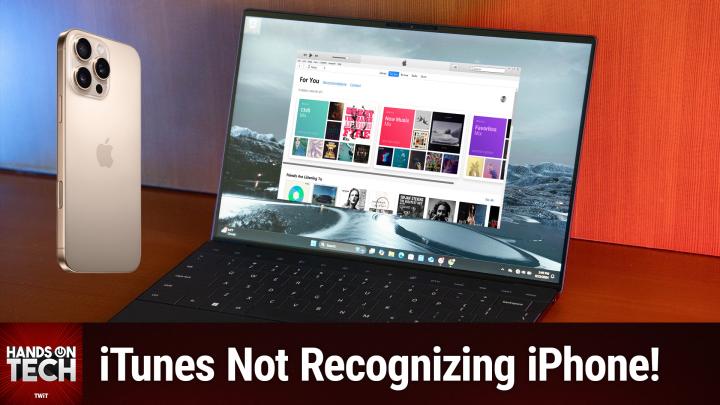
All TWiT.tv Shows (Audio)
Hands-On Tech 204: iTunes on Windows
00:12:08
iTunes Not Recognizing iPhone on Windows PC!
Loading summary
Transcript11 lines
- [00:00]
Micah Sargent
Coming up on Hands on Tech, let's take a look at troubleshooting connecting one's iPhone to their Windows PC. Stay tuned. This is TWIT.
- [00:18]
Colgate Palmolive Ad
The New Year's here. It's the perfect time to refresh those household essentials and score some cash back rewards with Colgate Palmolive. From toothpaste to dish soap, chances are you've got Colgate Palmolive products on your shopping list and in your house right now. Now we're talking brands like Colgate Soft Soap, Palmolive, Irish Spring, Fabuloso, and Tom's of Maine. And right now you can get up to a $10 digital Visa prepaid card when you buy up to $30 of Colgate Palmolive products. Here's how it Spend $20 on their products get $5 spend $30 get a $10 reward. All you do is shop your favorite brands, snap a pic of your receipt and upload it to cprewards.com it's so easy. That's cprewards.com so grab what you and get rewarded just for doing your usual shopping and start your year fresh by earning cash back rewards with Colgate Palmolive. Rewards available while supplies last. Limit Supply US only 1125 through 33125 for full terms and conditions. Visit cprewards.com when it comes to playtime.
- [01:20]
Lenovo Ad
Never let your squad down. Unlock elite gaming tech@lenovo.com Push your gameplay beyond performance with 13th gen Intel Core processors. Upgrade to smooth, high quality streaming with Intel Wi Fi 6e and maximize game performance with enhanced overclocking. Win the tech search and head to lenovo.com.
- [01:48]
Jenny Garth
This is Jenny Garth from I Do Part 2. Everyone's talking about GLP1s like Ozempic Semaglutide with Future Health you can find out if they're right for you too. Just go to tryfh.com that's trifh.com and find out if weight loss meds are right for you in just three minutes. FutureHealth is not a healthcare services provider. Meds are prescribed at provider's discretion. Results may vary. Sponsored by futurehealth.
- [02:19]
Micah Sargent
Hello and welcome to Hands On Tech. This is the show where I, Micah Sargent, take your tech questions and do my best to answer them. We have a great question this week where we are kind of bridging the gap and crossing the streams which are supposed to never do, but we're doing it. Jerry has written in. Jerry writes itunes has stopped showing my phone when I connect my iPhone 16 Pro Max on my XPS, that's a Dell XPS. I have tried restarting the laptop and phone, as well as uninstalling and reinstalling itunes, both formats the Microsoft version and Apple's latest version, and nothing seems to work for me. So there are a few things to understand when it comes to using your. Your iPhone and controlling your iPhone on the Windows machine. Firstly, Apple has been trying to slowly phase out itunes as the means of controlling and, you know, making adjustments to your iPhone on Windows. In Windows 10 and later, you can access all of this stuff using the dedicated apps. So there's an Apple Music app that you can get, the Apple Music app for Windows, there's the Apple TV app for Windows, which of course gives you access to your kind of iTunes, movie, TV show content, and then the one that I imagine, Jerry, you're trying to use or that you would want to use, which is the Apple Devices app for Windows. That is the app that lets you update, backup, restore, and manage your iPhone or your iPad and manually sync content from your PC. So before we even talk about itunes, I want to suggest that you have these apps instead of using or trying to use itunes. Here's the rub. If you download. This is according to Apple, if you download even one of these apps, the Apple Music app for Windows, the Apple TV app for Windows, the Apple Devices app for Windows, and you still have itunes for Windows on your Windows machine, and you try to use it, it will not work. It won't do the things that you expect it to do, because the app will detect that you have one of the three apps and will want to push you to those apps instead. So basically, Apple is doing everything that it can to get you to move over to these things instead of using that. But here's the thing. If your PC doesn't meet the system requirements for the Apple Music app for Windows, the Apple TV app for Windows, and the Apple Devices app for Windows, under that circumstance, you can continue to use itunes for Windows. That's the only time that you would want to. So, Jerry, if your XPS is new enough and supports those three apps, I highly recommend using them, because Apple is not going to continue to support and continue to update that original iTunes app. So I know that you know it's. It's convenient to stick with what you know and what's there, but you are putting yourself into a position where in the future that app isn't going to work at all. And so you really do want to move on to these three if you're able to. If you're not able to Jerry, though there are a few things that we can try to try to fix what's going on here. So for one, in order for Windows to be able to access and control an iPhone, the device, the Windows machine needs to have the Apple Mobile device service tool on Windows. And you need to, if you're having trouble with it, restart AMDs, as it's called again, Apple Mobile device service. So what you can do is you need to close itunes and disconnect the iPhone that's connected, go to Run, which you probably know, Windows key +R and then you type services MSC and click OK, which opens the services console. And then you find and click on Apple Mobile device service, click properties. And then where the startup type option appears, you set it to automatic and then you click stop so that it stops the service. And then you click start so that it starts the service. You click ok, you restart your computer, you open itunes and you connect the device. That can sometimes fix the issue, but sometimes that doesn't fix the issue. And so another thing that you can do is you can update or reinstall the Apple Mobile device USB driver. So this is something else that is needed in order to access and control an iPhone. And this is a tool that is part of kind of your USB drivers. You go into device manager in Windows, you find portable devices or universal serial bus controllers wherever it happens to be, find your iPhone and then look for Apple Mobile device USB driver. You want to uninstall that, restart your machine, plug in your iPhone. And what that does is it forces a reinstall and a fresh install of that driver. So what we've done so far again is we have restarted the Apple Mobile device service tool and then we have uninstalled and forced a reinstall of the Apple Mobile device USB driver. If at that point you're still having trouble getting it to show up, then the last thing I recommend is that you reset your trust settings on your iPhone.
- [08:33]
Colgate Palmolive Ad
The New Year's here. It's the perfect time to refresh those household essentials and score some cash back rewards with Colgate Palmolive. From toothpaste to dish soap, chances are you've got Colgate Palmolive products on your shopping list and in your house. Right now we're talking brands like Colgate Soft Soap, Palmolive, Irish Spring, Fabuloso and Tom's of Maine. And right now you can get up to a $10 digital Visa prepaid card when you buy up to $30 of Colgate Palmolive products. Here's how it Spend $20 on their products get $5 spend $30 get a $10 reward. All you do is shop your favorite brands, snap a pic of your receipt and upload it to cprewards.com it's so easy. That's cprewards.com so grab what you need. Or maybe try something new and get rewarded just for doing your usual shopping. And start your year fresh by earning cash back rewards with Colgate Palmolive Rewards available while supplies last. Limit supply US only 1125 through 33125 for full terms and conditions, visit cprewards.com.
- [09:33]
Lenovo Ad
When it comes to playtime, never let your squad down. Unlock elite gaming tech@lenovo.com Push your gameplay beyond performance with 13th gen Intel Core processors. Upgrade to smooth high quality streaming with Intel Wi Fi 6e and maximize game performance with enhanced overclocking. Win the tech search and head to lenovo.com.
- [10:03]
Jenny Garth
This is Jenny Garth from I Do Part 2. Everyone's talking about GLP1s like Ozempic Semaglutide. With FutureHealth you can find out if they're right for you too. Just go to trifh.com that's trifh.com and find out if weight loss meds are right for you in just three minutes. Future Health is not a healthcare services provider. Meds are prescribed at provider's discretion. Results may vary. Sponsored by Future Health and listen up.
- [10:34]
Micah Sargent
To those of you who have an iPhone. Even if you don't have a Windows machine, if you are trying to connect and you're having issues with the connection because for some reason the device isn't, the trust settings aren't working. Sometimes that can become corrupted. You can reset this. And just so you know, I'm talking about how when you plug in an iPhone to a device for the first, you will occasionally, depending on the device, see a thing pop up that says Trust this computer question mark and then you can choose trust or don't trust. And usually you only need to do that once per kind of install of the operating system. And so you plug in your iPad, you plug in your iPhone, and it asks do you trust this device? You say yes. And then you move along. Sometimes you have to type in a code, whatever, then it goes away. But if you're having issues where the device doesn't seem to be connecting properly, it could be that that trust is having some trust issues. So this is again one of those things where you learn a new thing. And I was excited to learn this, because I wouldn't guess that this was the place that you go. But to reset your trust settings, you go to Settings general, you go to transfer or reset, and in this case it's an iPhone or if it's an iPad, then it will say transfer, reset iPad. And then you tap on reset and up pops a list of options. Reset all settings, reset network settings, delete all ESIMs, reset Keyboard Dictionary reset handwriting style, reset home screen layout, reset location and privacy. You need to tap reset, location and privacy. Believe it or not, that is where Apple gives you control over those trust settings for each computer to which you've connected. Your iPhone, your iPad, whatever device it is. When you reset that, then plugging it back in will ask you once again if you want to trust this machine. So it could just be that your iPhone and your Windows machine are having trust issues. It could be that your machine is new enough that you have at some point downloaded the Apple Music app for Windows, the Apple TV app for Windows, or the Apple Devices app for Windows and itunes, has detected that, and is therefore saying, no, no, no, you need to move on to the new thing. Or it could be that one of the kind of drivers or services that are required to get the iPhone working is not working as it should, and those could be responsible. If it's none of those, Jerry, then I think that you might want to check that your core, your cable is okay, that you don't have a problem with the USB C cable that is running to the machine. You said you have a 16, so the 16 Pro. So I know you've got USB C, try a different cable at that point and see if that fixes it. So lots of different troubleshooting options there and surely, surely one of them will work. So Jerry, let us know how things go with those different settings and of course we'll have links to the different pages that I've talked about in the show notes for you so that you can solve that problem. And hopefully this is one of those times where your question is going to be helpful to lots of people who have this issue of connecting their iPhone to their Windows machine. I want to thank you all for being here this week and for sending in your wonderful questions. Hotwit TV is how you do that. Let me remind you that we have a club and it's a Fun Club. Just $7 a month and joining the club gets you ad free versions of every single one of our shows.
- [14:55]
Lenovo Ad
Woo.
- [14:55]
Micah Sargent
We love that. You also get access to the Twit plus bonus feed that has extra content you won't find anywhere else behind the scenes before the show. After the show, special Club Twit events get published there. And access to the members only Discord Server. A fun place to go to chat with your fellow Club TW members. And also those of us here at twit. We'd love to see you in the club. And we'd love it so much that we in fact offer, yes, we offer two weeks of Club Twit for free for a limited time. I know that's going to be going away at some point soon, so you want to hop on now if you can, Twit TV Club Twit for that two week free trial and then $7 a month after that. And to those of you who are tuning in live, who are members of Club twit, just a reminder. TWIT TV Club Twit referral. When you join the club and you invite your friends to join the club, you can earn months of Club Twit for free. So we'd love to see you in the club. And we thank you so much. I thank you so much for being here this week. I'll catch you again next week for another episode of Hands On Tech. Buh. Bye.