← All TWiT.tv Shows (Audio)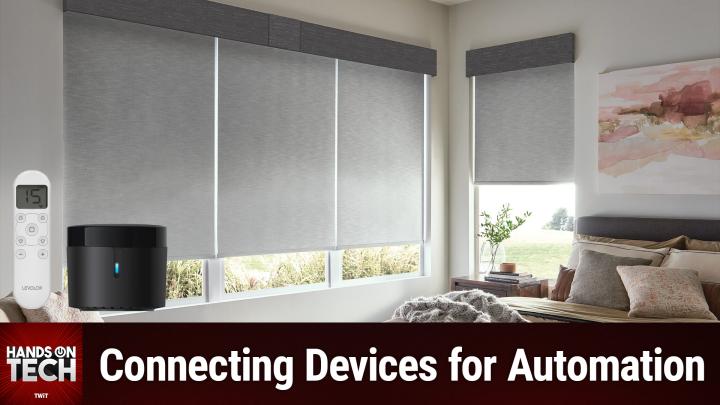
All TWiT.tv Shows (Audio)
Hands-On Tech 206: Automating Roller Shades & Connecting Printers
00:16:13
Connecting Devices for Automation
Loading summary
Transcript10 lines
- [00:00]
Leo Laporte
Coming up on Hands on Tech, let's take a look at how we can automate and sort of combine control of multiple roller shades in a home. Stay tuned. This is TWIT.
- [00:20]
NerdWallet Ad
Listeners. Are you looking for a shortcut to better auto insurance for you? Something that takes all the research off your plate. Something that's easy, Something that matches you with lower rates. Something genius. That's where NerdWallet comes in this their nerds already did the work for you. Just answer a few questions and ta da, you'll be matched with top insurance providers in your area. Find the right rate for you@nerdwallet.com after all, using NerdWallet is more than smart. It's genius. Not all applicants will qualify for the lowest monthly payments. NerdWallet Insurance Services Inc. California resident license number OK 92033 with the best All.
- [00:52]
Cheap Caribbean Vacations Ad
Inclusive Vacation Deals to Mexico and the Caribbean Booking your getaway with Cheap Caribbean Vacations means you have more freedom to do your deal. Whether you want to enjoy snorkeling, endless margaritas and more, or simply so soak up the sun and sand in a tropical paradise. Cheap Caribbean Vacations has your deal for that plan and book the exact getaway you want at exactly the right price for you by using our exclusive budget beach finder. Or find a featured adults only all inclusive package to seekers resorts and spas and do your deal@cheapcaribbean.com at Ameca Insurance.
- [01:23]
Amica Insurance Ad
We know it's more than just a car. It's the two door coupe that was there for your first drive, the hatchback that took you cross country and back, and the minivan that tackles the weekly carpool for the cars you couldn't live without. Trust Amica Auto Insurance Amica Empathy is our best policy.
- [01:51]
Leo Laporte
Hello and welcome to Hands On Tech or welcome back. If you've been here before by now, if you have been here before, you know how this works. I've got a question that I'm going to answer a question from one of you. This question comes in from Kevin who writes I am have four remotes for four shades. Can I use some sort of automation so that I can use my phone via Wi fi to talk to these four roller shades? Here are the remotes. I do not know if they use radio or IR to communicate. So Kevin has included an image showing these remotes and it looks like there's, you know, a different kind of remote for a different device and Kevin had noted that some of them are the same. This is a picture of two of the Four. And the remaining two are similar to the square one, which I'm going to assume is the one on the left, as it has a sort of square at the top of it. In any case, I do notice that the. The one, the one remote in the image on the right has a black bar across the. What looks like the top of the remote, although it's facing toward us. And that would suggest that there's some. I are. And so in that case, I do believe that these remotes are probably, probably ir. What that means is just like a standard remote control. By the way, as an aside, it turns out that before remotes were ir, before we used infrared to control a television, there was this clever, clever technology where it's almost like the clapper for lights back in the day, where you could clap and turn the lights on, clap, turn the lights off, it would listen. And this, and this is an. As another aside, if you've ever heard your grandparents, your parents, perhaps even you, maybe your great grandparents, whomever, call the remote the clicker, there's more to just it being called the clicker than it being called the clicker because it's, you know, you. You press the button. You click the button. No, there was a little listening device inside of older televisions that listened for the click of the remote. And if it was the right frequency, then it would know I'm trying to turn the channel to a different channel or I'm trying to turn off the television. And so it would actually be. There was no, no wireless communication taking place between the remote or the clicker and the television, but instead was just a sound. So cool. And Jimmy in the, in the chat, which, hello, Jimmy, says, before your time, Mr. Sergeant? Absolutely. And then says, I was amazed by them as a kid, I'm amazed by them as an adult that that is a thing that they did. Like, that's cooler to me than I are anyway. So the problem with those is if something else made a click or made a sound that was similar in frequency to that, then it would also cause the TV to do the thing, you know, change the channel or whatever it happened to be. So that's why they kind of. One reason why they switched away from the clicker to ir. Of course, IR then enabled more ability to have multiple, you know, buttons and all that kind of thing. Anyway, very cool clickers. Awesome. So let's get back to the question from Kevin. So it appears these are ir, and that suggests that you can use an IR blaster that you can connect to your WI Fi and have that kind of control your, your roller shades. So here's the thing. There's one option which is one that I have used the Aqara Hub M2. It's a little pricey, not on its own, but we're going to get into kind of the caveats here. So The Aqara Hub M2 has a, an IR blaster built into it. It's actually, I think it's nearly 360 IR blaster. And so if you have, you know, like a great room and it's got your television and it's got a fan that has an IR receiver and you've got roller shades, you've got this and that and the other, you put that hub in that room and you can suddenly program it to control everything. And then via an app, you're able to turn on the TV and hit the lights and the fan and whatever else is controlled. Wonderful. That's one way to pull this off. But my concern is these roller shades are probably not all in the same space, right? You've probably got one in a bedroom, you've got one in, you know, another bedroom, you've got one in the living room, wherever they happen to be. So an IR blaster in one room is probably not going to be able to hit all of those spots. And that is where I recommend a different device called the Broadlink RM4 Mini. So I have used one of these in the past. I don't use a tower fan anymore, but I used to use a tower fan and I got tired of this little silly remote that was connected to it that it would always get lost somewhere. So I got one of these Broadlink devices and they're sort of a little cylinder that is, I don't know, less than the height of a tube of Chapstick, but far, far larger. There we go. Thank you. And if you're just listening, then you'll just have to keep imagining but it is an IR blaster and what it does is it you can program it to do what you needed to do. This is $30. So it's much less of an investment placing one of these in each of the spaces where these roller shades are than if you were to go the way of the Akara where you've got one of those hubs in each of the spaces that's much more expensive. Now I've link the Aqara Hub M2 package. If we could go back up to the top of that page, John. So the one that I linked to is the Aqara or Excuse me, is the Broadlink RM4 Mini, but click on the one to the right there. So you see, like the two options. Yeah, you can get the device by itself for 2599. The one that I link to and we'll link to in the show notes is a little bit more expensive, but it comes with a cord that is the power cord for it, that has a humidity and temperature detector built into the cord. And so you get this extra information. So suddenly this becomes a better investment, right? Because now you know the humidity and temperature in a room. Now suddenly this cannot just be for roller shades, but it could also be for, if you do have a fan in that room that is IR connected, right. So you can say if the temperature drops below this, lift up the shades to let some sunlight in, but also run the fan or whatever it happens to be. So I think it's worth kind of that extra little bit of money. But get one of these, put them in each of the rooms, connect them and then suddenly, yes, you can control them all from your phone via wifi because these aren't Internet connected on their own. Obviously you're not going to be able to just, you know, use shortcuts to somehow pull this off. So you do need to get something like the Aqara Hub M2, which I would recommend if all of your roller shades are in one room. But again, I doubt that's the case. So that's where the Broadlink RM4 Mini, which is much less expensive, would come in handy because you can get one of these for each of the rooms that it's in, connect them all together and then do it that way. There is also another option which is a company called Switchbot. I should note both A Cara A Q A R A and Switchbot offer these things about to talk about, which are sort of individual motors for roller shades. So you would replace the. And it would depend, of course, on your roller shade situation. If it's built into the mechanism at the top, this isn't going to be doable. But if you've got something where you know the, the chain on the roller shade is being powered by some sort of little motor, it's possible that you could replace it with one of these that would do it for you. And so then it's just one step less and you're not having to worry about ir, you would connect one to each of the spots to your roller shades and then you'd be able to rock and roll from there. So a few options for you, Kevin, in terms of being able to connect all of these shades. I would love to hear what you end up doing, what you end up going with and if you need some more assistance on that. Kevin had a secondary which we'll get to in just a moment, but I want to remind everyone listening about Club twit at Twitter TV Club twit for $7 a month you can join the club and gain access to some awesome benefits Ad free content. Yes, every single one of our shows ad free. Access to the Twit plus bonus feed that has extra stuff you won't find anywhere else behind the scenes before the show. After the show, special Club Twitt events get published there and access to the members Only Discord Server. A fun place to go to chat with your fellow Club Twit members and those of us here at Twit. On of all of that, I want to invite you to join the club because we currently have a two week free trial. So if you have yet to join the club, join us for two weeks for free. See if it's for you. I think you'll find you enjoy it and we'll see you around once those two weeks are up for that $7 a month. Thank you for your support listeners.
- [11:37]
NerdWallet Ad
Are you looking for a shortcut to better auto insurance for you? Something that takes all the research off your plate. Something that's easy. Something that matches you with lower rates. Something genius. That's where NerdWallet comes in. Their nerds already did the work for you. Just answer a few questions and ta da. You'll be matched with top insurance providers in your area. Find the right rate for you@nerdwallet.com after all, using NerdWallet is more than smart, it's genius. Not all applicants will qualify for the lowest monthly payments. NerdWallet Insurance Services Inc. California resident license number OK 92033 with the best all.
- [12:08]
Cheap Caribbean Vacations Ad
Inclusive vacation deals to Mexico and the Caribbean. Booking your getaway with Cheap Caribbean Vacations means you have more freedom to do your deal. Whether you want to enjoy snorkeling, endless margaritas and more, or simp soak up the sun and sand in a tropical paradise, Cheap Caribbean Vacations has your deal for that plan and book the exact getaway you want at exactly the right price for you by using our exclusive Budget Beach Finder. Or find a featured adults only all inclusive package to secrets, resorts and spas and do your deal@cheapcaribbean.com at Ameca Insurance.
- [12:39]
Amica Insurance Ad
We know it's more than just a car. It's the two door coupe that was there for your first drive, the hatchback that took you cross country and back, and the minivan that tackles the weekly carpool for the cars you couldn't live without. Trust Amica auto insurance. Amica empathy is our best policy.
- [13:07]
Leo Laporte
All right, Kevin has written in with the second part of Kevin's question says, also, I have a token printer connected on a powerline network I need to get rid of. I have eeros throughout the house, but how do I connect this remote printer? So, Kevin, this is once again kind of a lesson for all of us in detail, because in one part you talk about it being a token printer. I can't tell if you mean token in terms of it is a, you know, everybody's got that printer sort of token printer and oh, here's mine. Or if you mean it prints some sort of token, which would be cool. I'm kind of curious about that. And you talk about it being on a powerline network and you're trying to get rid of the powerline network, but then you call it a remote printer. And that makes me go, okay, is this a printer that is outside of the home or do you just mean that it's in a part of the home that's a little bit, you know, away from other things? If it's in a part of the home that's away from other things, I would suggest considering testing it with your Eero setup. You say you have eeros throughout your house, so it should work with your Eros. Now, if you're having trouble figuring out how to access the wireless functionality of this printer, that is going to depend on the printer and the manufacturer and that kind of a thing. But here's some advice that I'll provide. If it's connected via powerline networking, then you are probably using some sort. Well, you would have to be using some sort of adapter that is providing for the powerline networking, which means that the printer is connected to your network, which means that you can look at your network information either in the EERO app or in the app that came with the powerline network adapter to figure out the IP address of that printer. Once you know the IP address of the printer, open up any computer, type in the IP address of that printer, and in almost every case you're going to be taken to the printer's sort of built in server homepage, which will give you access to all of the tools that that printer has, all the features that that printer has. Another option for you, if you are having trouble finding The IP address is if you have a Mac, on your Mac, you can go to printers. You can go to printers and scanners and pull up that specific printer and every single one of those is going to give you a button you can press that says take me to the printer homepage. And so even if it's not, for some reason, the IP address isn't taking you there, your operating system will have that direct link to the printer's homepage. From there you can go through the process of setting it up on your network. Now, if it isn't a wireless printer, if it is a wired printer, then what I would recommend in that case is getting a. Getting an EERO that is. Or let's talk about what your EERO setup looks like, right? If you have full on eeros throughout your home, as opposed to the beacons that just plug directly into the wall, then those full on EEROS devices have ethernet ports in the back of them. And so I would recommend, if you're going to go this way, taking one of those Eros that you have throughout the home, or if you, you know, want to afford to do so, buying another one, placing it close enough to the printer that you can run the ethernet from the back of the printer into the that EERO there. And it essentially serves as a local network switch to connect the printer to the wireless network, which is then connected throughout the rest of your network. So let me explain how I would do it in that situation. I would keep my EERO setup the way that it is now. And again, I'm assuming that you don't have the beacons because the beacons are very old. So you probably have multiple same looking eeros throughout your home. I would run an ethernet cord from the back of the EERO that's closest to where the printer is. Run one from the back of it and near the printer. I would have a little network switch, like a four port network switch or five port network switch. I like the TP link ones, the TP link option. There are lots of options out there and have that plugged in. I would run the printer into the switch, have the ethernet cord that's running from the nearest EERO into that switch. And then now if I want to plug any other ethernet things into it, I can. In a perfect world, you would actually be running ethernet cords from your main EERO to those other remote Eeros because that provides what's called wireless backhaul. But we're not going to get into all of that. So, Kevin, there are lots of options for you. If you're going to tell me that your remote printer is truly remote, like it's at your office or something like that, we'll have to figure that out separately. But it I think based on you saying I just want to get rid of this power line networking, which Amen. Who doesn't? That's the way to make that happen. So thank you for writing in with your question that is going to bring us to the end of this episode of Hands On Tech. If you have questions, Hotwit TV is how you get in touch. Thanks so much for tuning in to this episode of Hands On Tech. I'll catch you again next week for another episode. Bye bye.
- [19:15]
Indeed Ad
You just realized your business needed to hire someone yesterday. How can you find amazing candidates fast? Easy. Just use Indeed. Stop struggling to get your job posts seen on other job sites. With Indeed sponsored Jobs, your post jumps to the top of the page for your relevant candidates so you can reach the people you want faster. According to Indeed data, Sponsored jobs posted directly on indeed have 45% more applications than non sponsored jobs. Don't wait any longer. Speed up your hiring right now with Indeed and listeners of this show will get a $75 sponsored job credit. To get your jobs more visibility@ Indeed.com podkatz12 just go to Indeed.com podkatz12 right now and support our show by saying you heard about Indeed on this podcast. Terms and conditions apply. Hiring Indeed is all you need.