← All TWiT.tv Shows (Audio)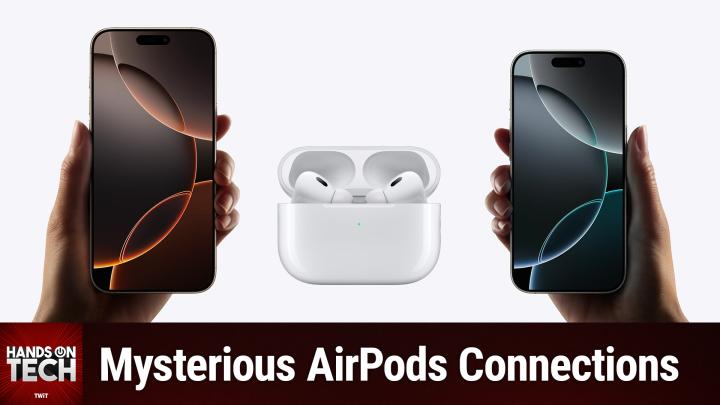
All TWiT.tv Shows (Audio)
Hands-On Tech 207: AirPods Connecting Automatically
00:16:31
Getting AirPods To Stop Connecting To Random Devices!
Loading summary
Transcript14 lines
- [00:00]
Micah Sargent
Coming up on Hands on Tech, we take a look at a pesky but maybe helpful feature where your AirPods connect automatically to different devices. Stay tuned. This is Twit.
- [00:20]
NerdWallet Ad
Listeners. Are you looking for a shortcut to better auto insurance for you? Something that takes all the research off your plate. Something that's easy. Something that matches you with lower rates. Something that Something genius. That's where NerdWallet comes in. Their nerds already did the work for you. Just answer a few questions and ta da, you'll be matched with top insurance providers in your area. Find the right rate for you@nerdwallet.com after all, using NerdWallet is more than smart. It's genius. Not all applicants will qualify for the lowest monthly payments. NerdWallet Insurance Services Incorporated, CA Resident License Number OK 92033 hey Prime Members, Are.
- [00:52]
Amazon Music Ad
You tired of ads interfering with your favorite podcasts? Good news. With Amazon Music, you have access to the largest catalog of ad free top podcasts included with your prime membership. To start listening, download the Amazon Music app for free or go to Amazon.com ADFreePodcasts that's Amazon.com ADFreeP Podcasts to catch up on the latest episodes.
- [01:14]
Warby Parker Ad
Without the ads, Every idea starts with a problem. Warby Parker's was simple. Glasses are too expensive. So they set out to change that. By designing glasses in house and selling directly to customers, they're able to offer prescription eyewear that's expertly crafted and unexpectedly affordable. Warby Parker glasses are made from premium materials like impact resistant polycarbonate and custom acetate, and they start at just $95, including prescription lenses. Get glasses made from the good stuff. Stop by a Warby Parker store near you.
- [01:45]
Micah Sargent
Hello and welcome to Hands On Tech, the show where I, Micah Sargent, take your tech questions and do my best to answer them and in many cases do Yay. Today, our question comes in from Derek. Derek writes in to say, I need your help with a weird AirPods problem. My AirPods Pro will automatically connect to my wife's phone randomly. And for those out there listening who have AirPods Pro or AirPods and who are a little bit aware of the built in features for this, you've probably already think. You've probably already decided that you figured out what's going on here like I did whenever I started to read this email. But I promise you there's more to the situation than what you might think. So continue to listen. Don't, don't tune out just yet. I've only ever paired them to my phone and never to my wife's phone. But occasionally when I try to connect to my phone, they will connect to my wife's phone instead. Then she will go into Settings and Bluetooth on her phone and tap on Forget device. At this point my phone doesn't recognize the AirPods anymore. Neither does does hers. I then have to reconnect them to my phone. I've tried Google for the problem but didn't have any luck. And then Derek Derek, you wonderful human being. You've provided more info and we love it when people provide more info. Great work Derek. Derek says other things that might help you I do have the setting on for automatic connection between devices. We are a part of the same family with our iCloud accounts. We do have a Mac studio that we share, but we have separate accounts. These are the only things I can think of that connect us somehow. So my first thought whenever it came to this is that AirPods have this great feature that gives you the ability to automatically connect to a device that you're using. And by default that is the feature that is used. When Apple first introduced this feature, which I'll talk more about in just a moment, it was was not great and over time the company made adjustments to how the automatic connection feature worked and it has honestly actually improved a little bit. I still don't use it. So what this does is this automatic connection feature is it has a little bit of behavioral analysis involved and it looks at what device you're using at a given time and what you're doing on that device to to inform whether or not it should switch the AirPod AirPods connection to the device that you're using. So for example, if I have an iPhone, a Mac and an iPad, and I have my AirPods Pro when I first set them up with my phone, not only does it set up via Bluetooth on my phone, but it also ties it to my iCloud account. Then any other device I have that is logged into my iCloud account also gets access to that device and it shows up in the Bluetooth connectivity area when I'm using my AirPods Pro on my phone. Let's say I'm I don't know, I'm listening to music and I pause the song on my phone and I move over to my computer and I start watching a YouTube video. The AirPods, if automatic connection is turned on, may switch to be connected because the Bluetooth it knows it shows in the Bluetooth menu. It's all paired that way because it had shared it via my iCloud account. Then it may connect to the Mac and start outputting the audio into my AirPods. It knows that I'm wearing them, it knows that they're on and that, you know, listening would make sense through my AirPods given that, you know, I'm currently wearing them. And then if I were to switch back to my phone, then it may switch back to that. Now I have found this to be an incredibly annoying feature that I do not like and I want to be in control of whether my AirPods are playing the sound or the speakers or whatever it happens to be. So the only way to do this is on each device where your AirPods are connected, you have to click my favorite button, click or tap my favorite button in the Bluetooth settings, which is the I button for info. And in there while you are connected to the device, you will see an option that says connect to this blank iPhone, iPad, Mac automatically or when last connected to this. Mac automatically is the thing I just talked about where it behaviorally tries to switch automatically. I have that turned off when last connected to this Mac is the is the sort of neutral one says, hey, if I was connected to this before, then go ahead and connect to this again, otherwise leave it alone. That's how I have it set on all of my devices. If I was last connected to this, keep connecting to that, don't try to switch over. Annoyingly, if I had have an iPad that has not been charged in a while and I plug that in and a new operating system has been installed and I've maybe reset my AirPods for whatever reason, then automatically connect is turned on and then iPad charges and then immediately it takes over my AirPods so I have to go in on the iPad and do the same thing there. So to be clear, this is not what Derek is. This is not an issue. This is not the issue that Derek has, because Derek does have automatically turned on. Automatically connect turned on, but not for his wife's phone and especially given that his wife's phone has never been paired with the AirPods. So what the heck is going on here? Right. Well, Derek followed up and so let me actually, let me pause here real quick just to say if that's the case that you are having issues like this and you've been wondering why does it when I start to log into my Mac, it's suddenly it's because of that automatically connected thing. So don't worry that there's, you know, something going on that is supposed to be the default behavior. But you can turn it off. Now my first thought, as Scooter X in the chat has said, is that is the wife who has a different phone. Is the wife using the same icloud account as Derek? Is the wife using using the same login as Derek? Derek did specify we are a part of the same family with our icloud accounts. And so I feel like Derek would only specify that if each of the phones is logged into their own separate account and is just shared as a family. And here's the thing that family sharing can sometimes muck about with these systems because it is meant to give more sort of shared access to things. But we don't think that's the issue whenever it comes to this because Derek has followed up with a really interesting bit of information.
- [09:05]
NerdWallet Ad
Listeners, are you looking for a shortcut to better auto insurance for you? Something that takes all the research off your plate. Something that's easy, Something that matches you with lower rates. Something genius. That's where NerdWallet comes in. Their nerds already did the work for you. Just answer a few questions and ta da, you'll be matched with top insurance providers in your area. Find the right rate for you@nerdwallet.com a After all, using NerdWallet is more than smart. It's genius. Not all applicants will qualify for the lowest monthly payments. NerdWallet Insurance Services Inc. California resident license.
- [09:33]
Warby Parker Ad
Number OK 92033 Every idea starts with a problem. Warby Parker's was glasses are too expensive, so they set out to change that. By designing glasses in house and selling directly to customers, they're able to offer prescription eyewear that's expertly crafted and unexpectedly affordable. Warby Parker glasses are made from premium materials like impact resistant polycarbonate and custom acetate, and they start at just $95, including prescription lenses. Get glasses made from the good stuff. Stop by a Warby Parker store near you.
- [10:05]
Micah Sargent
Geico's motorcycle expertise means I'm covered by people who know bikes like I do. I'm happy as a clam.
- [10:11]
Geico Ad
No conclusive scientific research has shown clams can experience happiness.
- [10:15]
Micah Sargent
I just meant that I feel really.
- [10:16]
Warby Parker Ad
Good about my coverage.
- [10:17]
Geico Ad
I mean, even if you took the climb out for the best day ever, visiting the zoo, taking a scenic ride, knowing you're insured by specialists, and sharing a strawberry ice CRE ice cream cone together, the clam would not feel happy and your strawberry cone would taste sort of clammy. Geico's motorcycle specialists who know bikes like you do assume no liability for Clammy ice cream Cones Geico expertise for your motorcycle.
- [10:36]
Micah Sargent
Derek writes. I wanted to follow up with some more info I found out about this issue. I think it is a shared Mac issue. I noticed that profiles on a Mac share all of the Bluetooth devices connected to it. That's probably how the mouse works between profiles. So when I connected my AirPods to the Mac studio, it automatically was added to Bluetooth on his account. But then it also got automatically added to Bluetooth on her Mac account, which because she is logged into icloud and he is logged into icloud on their individual accounts ended up syncing the Bluetooth list to those multiple devices. In the case it was her iPhone. So when she went into tap forget and it made her phone forget, then it also made her Mac forget which told icloud to make well actually I take back when she said forget on her phone, that made the phone forget and then told icloud hey, forget this device across everything that's logged into my icloud account, which meant that her Mac forgot. But because she is one account on the Mac then and the Bluetooth sort of profiles are shared between devices, then it caused that to drop from the list for her account, which caused it to drop from the list for Derek's account, which caused then it to tell icloud to get rid of that device across his devices to forget the device across his devices, which caused it to drop away from his iPhone. Now here's the interesting thing. Derek says we tested it. This doesn't happen with her AirPods to my account. So I'm guessing there's some kind of bug with my AirPods. The workaround I have right now is to go into settings for my AirPods on the Mac and her iPhone and change from automatically connect to this device to only when last connected. It seems to stop it from connecting automatically. So ultimately, Derek, yes, the best thing that you can do is on the iPhone, on her iPhone switch that to only connect when last connected and then on the Mac while she's logged in switch that to only while last connected. But I do think there's some sort of weird bug going on here and I think that it's on the icloud side of things because it seems like what's supposed to happen in this case is that your device, your AirPods should be telling the system, hey, this is a personal device and I only want you to connect it to me while I'm on my account. So what needs to happen I think is a full on reset of your AirPods, Derek and I Want to tell you this is a little bit involved, but long time ago I was having horrible issues with my airtags and I could not get them to work. And I've talked about it in the past. I'm not going to go into a lot of detail, but essentially it resulted in me needing to talk to actual engineers from Apple who work on the connection between iCloud and then Apple hardware specifically. And one of the things that they did was they had me go through the process of, oddly enough, forgetting my AirPods across devices. And it was not as simple as just going in and choosing to forget them in icloud. You need to, if you want to do this properly, so to speak, and see if we can't fix this bug that's making your AirPods act differently from hers, which when she connected them to her account on her device alone, didn't have this issue. You need to go into Find my and remove the AirPods from there. And then you need to go into Bluetooth on each of the devices that you have where these AirPods are showing up. Not just one, but all of them and choose forget device. Oftentimes it will happen where it syncs and it's fine. It'll, you know, you do it on one and then it makes it be it, it makes it drop from all of them. But check that each of the devices Truly has your AirPods forgotten and then force a factory reset of AirPods, which we'll include a link in the show notes for how to do that, and then reconnect them to your device at that point and see if that shakes loose whatever is causing them to appear across devices in the way that they are. Because it should not. If your wife's AirPods are able to do this without it kind of linking them between these two different profiles, yours should be able to do so too. My only other suggestion to you is to double check that when your wife's account is logged in, it is connected with her iCloud account that there is an icloud account that's signed in. Actually we call them Apple accounts now that her Apple account is logged in, not just locally as in, you know, I have a Mac account and I type in my password and I get in, but that, you know, messages and all of that stuff is logged in on that device or rather on that Mac account. Because if there's not an account attached to her Mac account, if there's not an Apple account attached to her Mac account, it could be that it's just sort of treating that as a sort of sub account to yours and then defaulting to having it any hardware devices attached to yours and vice versa. So there are some troubleshooting steps, more troubleshooting steps you can take here that don't involve kind of the workarounds that you're doing right now. Because I think ultimately the goal would be to try to get this to behave how it should be, which is that your AirPods are yours and no one else's and their, you know, her account isn't snatching your AirPods and syncing them between devices. So Derek, thank you for writing in with your question. More importantly, thank you for providing as much information as you did and then also thank you for following up to say, hey, I think I solved this and here's how I think I solved it. Because we never know when other people might be having the same issue out there. So it's always great to be able to get that. Something else that's great to get is a membership to Club Twit at Twit TV Club Twit Club Twit is an awesome place where you can hang out with your fellow Club Twit fans and pals. For $7 a month. You get access to all of our ad, to all of our stuff, all of our shows, all of our content ad free. You gain access to the Twit plus bonus feed that is extra content you won't find anywhere else behind the scenes before the show, after the show, special Club Twitt events and access to the members only Discord Server. A fun place to go to chat with your fellow Club Twit members and also those of us here at WIT is a lot of fun. You know, we're sharing animated gifs all the time we're chatting currently. The wonderful people in the chat are helping to answer questions and providing, you know, their own guidance and experiences based on what we're talking about. It's so much fun. Again, $7 a month, but still for a limited time. We promise it is limited. At some point we're going to stop offering it two week free trial. So if you've yet to try out Club Twit, now's your chance to hop on board and have some fun at Twit TV Club Twit. So be sure to tune in or rather to sign up so that you can gain access to that. Alrighty. Thank you so much for tuning in this week. Again, thank you Derek for writing in. If you out there have questions for me, I'm seeing them fly in all the time. Hot TV is how you get in touch. I'd love. I'd be honored to answer your question. Thanks for tuning in, and I'll catch you again next week.
- [19:16]
Geico Ad
Bye.