← All TWiT.tv Shows (Audio)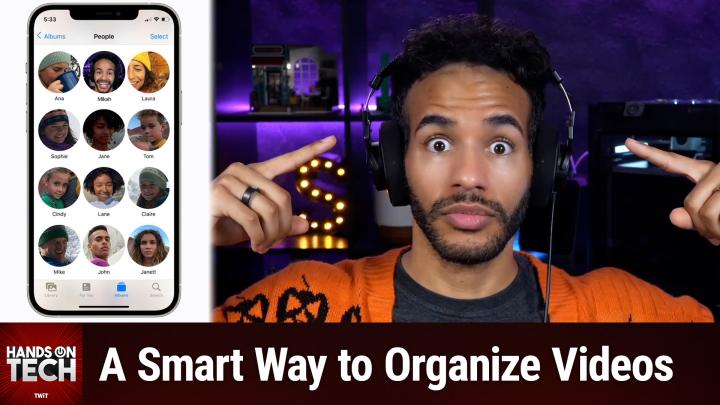
All TWiT.tv Shows (Audio)
Hands-On Tech 238: Organizing Home Videos with Facial Recognition
00:14:21
Sorting Old Videos With Modern Tech
Loading summary
Transcript19 lines
- [00:01]
Narrator
25 years ago, a small group of business and government leaders met in Washington, D.C. they envisioned the creation of an independent nonprofit organization with a mission to help people, businesses and government mitigate the growing threat of cyber attacks. Today, the center for Internet Security embodies that vision. For 25 years, it's worked with a global community of IT and cybersecurity experts to develop the CIS benchmarks and CIS critical security controls. These proven security best practices defend against common cyber threats and streamline compliance with industry frameworks, regulations and standards. Today, CIS provides cybersecurity services, threat intelligence, and critical resources to help public and private sector organizations alike strengthen their Cyber defenses. Visit cisecurity.org today. That's the letters cisecurity.org to find out how CIS can help your organization as we create confidence in the connected world.
- [01:01]
Sponsor Announcer
Today's show is brought to you by Progressive Insurance. Do you ever think about switching insurance companies to see if you could save some cash? Progressive makes it easy to see if you could save when you bundled your home and auto policies. Try it@progressive.com progressive casual insurance company and affiliates. Potential savings will vary the not available in all states this episode is brought to you by Cohesity. For security and IT professionals, resilience is not just a feature, it's a movement. Cohesity makes sure you're ready for the midnight alerts and morning reviews. With Cohesity, you can secure and protect your company's entire data estate with a single platform, reduce your risk from threat actors, and quickly respond and recover from destructive cyber attacks, strengthening your company's resilience. That's why Cohesity is trusted by 70% of the Global 500. Learn more@cohesity.com Resilience Everywhere Coming up on Hands On Tech.
- [01:57]
Micah Sargent
What do we do if we've got a bunch of old video and we want to organize it based on the people showing up in the video? Well, I plan to answer that just now. This is Twit. Hello and welcome to Hands On Tech. My name is Micah Sargent and as you know, this is is the show where I take your tech questions, I read them and then I answer them. This week's Tech question. Love this because I think anytime I always say this anytime it's a question that I feel there are at least five right other people out there who are also asking the same question. Love it. When it's even more I'm going, yes, yes, yes. Let's answer this question. So this one comes in from Mike. Mike writes, I've been a twit podcast listener since the very beginning and a longtime Twit club member. Thank you, Mike, for being a member of Club Twit and also being a Twit podcast listener. Mike says. I recently digitized into MP4s my late father's collection of Standard and Super 8 millimeter SEIN films, or scene films containing family memories going back to the 1950s. I'd like to edit them so that I get shorter videos that each have, say, the shots with this aunt or with that uncle, that cousin, and so on. Obviously I can do this manually using something like DaVinci Resolve or iMovie, but it could be much quicker if there was any facial recognition software that works with movies. Do you know of any? I do most of my video editing with DaVinci Resolve and Topaz Video on a Windows 11 PC, but I also have a Mac mini M4. Very glad to hear, Mike, that you have a Mac Mini, an M4Mac Mini, because that is going to be my primary means of. Or your primary means based on my suggestion of making this happen. First and foremost, I want you to understand that there are so many, many, many tools out there that have facial recognition built in, but they only work for photos. And so I tried finding something on Windows and every single one would be like the most powerful tool for organizing your media. The most amazing thing you've ever used for categorizing all of your digital files. And then as you got into it and you got to the part where it was talking about facial recognition, it was always about photos. So given that that is the case, I was not able to find something specific to Windows that had this facial recognition built in for video. But you said you have an M4 Mac mini, and guess what does have facial recognition for video? It's the Photos app. Yes, Apple's Photos app. Its base Photos app will find people in photos and videos. And so what you'll need to do if you want to use this tool is you'll want to add that entire library of video to the Photos app and then let the Mac sit. Let it be alive, let it be running. I would say at least a day. Let it go for the day. My Mac is hardly ever off. It's always running. It's just asleep. That is what I recommend in this case. I don't know if that's how you do things. Some people are still people who shut down their machines after they're done using them. I, for a long time have not been that. And many a power user is also not someone who's shutting down their machine. So I can't speak to your specific case, but let it run. And the reason why is because this is a background process. And so the Mac will chew through your photos and videos and process them and then recognize faces and then you'll be able to categorize them. When you're in the Photos app, there is a section for videos on the left side and you can choose Videos and you can double click to open a video. And once you have that video open, if you go up on your Mac to the menu bar and choose View. In this section there's an option that says show face names. If you have not added face names yet, what you will see is a circle that pops up on the screen and it will say unnamed. And then you give that face a name. From that point on there's a section called People and Pets. And in that section you will start to see these categories. What you can do then from there is select all of the video. You can filter it according to what is just video for each of these people and then you could put that onto a flash drive in separate folders. Or if you have some other way of going between, maybe you just have server connection between the two. However you need to, you can move those over to your Windows machine where you say you do your editing. So the Photos app can serve as the tool for organizing and finding these individual faces. And then from there you take it over to your Windows machine to do that editing as you are attempting to do. If you enjoyed this, well, there's something else you might like. If you want the big picture on what's happening in tech, subscribe to this Week in Tech. Leo Laporte and the Panel bring you the stories shaping the industry every Sunday.
- [07:44]
Aura Advertiser
Did you know data brokers are making billions selling your personal information, usually without your consent. That's how your information lands in the hands of scammers, spammers, even stalkers. It's why you get endless robocalls and why ads seem to follow you everywhere. That's where Aura comes in. Aura actively removes your data from broker sites and keeps it off. They also instantly alert you if your information shows up in a breach or on the dark web. With one app, you get a vpn, antivirus, password manager, spam, call protection, Dark web monitoring, and up to $5 million in identity theft insurance, all backed by 24. 7 US based support. Other companies might just sell credit monitoring or just a vpn. Aura gives you all of it at the same price. Competitors charge for just one service start your free trial today at aura.com hidden protect yourself now at aura.com/hidden.
- [08:43]
Micah Sargent
Now that is the least complicated means of doing facial recognition of video on your hardware that you have. But I have found that when I most need that face recognition tool to work for me, when I most need it is whenever it's usually not working or hasn't finished processing or something else and I don't have the stuff that I'm looking for. The problem with that tool is that it is a background process that Apple doesn't give you control over. And so it could be that it takes a day for all of the different faces to be recognized, but it could be that it takes a week for all the faces to be recognized. It's hard to say because you don't have direct access to that background process, which is very annoying. And that's just how it is. So if you find yourself impatient or if for some reason the facial recognition is not working how you expect. The good news is there is another far more complicated but far more specific to your use case option available. In attempting to find something for Windows or for the Mac outside of just the Photos app, I came across a free and open source tool that is very cool called Image. And I want to be clear when I'm saying that it is not image, it is image. I M M I C H Image Image is a tool that you have to self host and when you use it it is specifically for this. It literally has a whole category about face facial recognition and facial recognition in photos and videos and then the categories that it showed just seemed very perfect for what you were looking for. Mike it is a tool that you have to. You're basically running a server locally on your, on your network and then you give it your photos and videos. In this case, probably you just want to give it the videos, right? And then from there it can do this facial recognition to start to group those videos and categorize them based on whose appearance appearing in what. Now there is a lot of documentation for Image which is wonderful. It's very thorough. It's got a huge group of people who enjoy it and will give you answers on what you need to know. But again, you know that there's a lot of information available when there's a Docs subdomain for the website. So Docs Image app is available and has the documentation that you need for quick start, but also for digging in and using these different tools. Let's take a quick break so I can remind you all about the wonderful World of Club Twit, Twit TV. Club Twit is where you go to sign up $10 a month, $120 a year. When you join the club, you gain access to some awesome benefits. And that's why you want to join. Because in doing so, you will get access to ad free content. Yes, every single one of our shows. Ad free, just the show. And you will also gain access awesome stuff. Aside from that, you get access to our wonderful feeds that have our exclusive coverage of live events. So when a prep, when a tech company has a live event, well, we have commentary for those events and you will gain access to that in the feed. You'll also get our behind the scenes clips. That's kind of before the show, after the show, special stuff that happens there and access to our club shows like My Craft Corner, Stacy's Book Club, plus so much more. All of those will be there for you as well. Which means that when you join, you get access to a huge back catalog of great stuff that you didn't have up to that point. On top of that, you'll also get a key, sort of to our Discord server. You can unlock the door to our Discord server and join the fun there where you can chat with those of us here at Twit as well as your fellow Club Twit members. Lots of different places and lots of different topics to chat about. Lots of fun there in the club Twit TV Club. Twitter is where you go to sign up again. $10 a month, $120 a year. And I think what's great as well is you get to kick it off with a two week free trial. So there's no reason not to give it a go. And I look forward to seeing you in the club. Thanks so much. Let's head back to the show with image. You may think, okay, now that means I need to have network attached storage, which maybe you have, I don't know. You could have that, I don't know. But I have to have network attached storage or I've got to have a, I've got to pay for a server somewhere that can run this, right? You don't need to have a separate server. You don't need to have one of those tools. You can use Docker Desktop for your Mac to spin up an instance of Image and use this. It feels to me, Mike, like this is kind of a one time thing, right? So you can go. Docker Desktop is free for use as a personal user. So you get Docker Desktop, you run Docker Desktop. You, you install Image using the Quick Start guide and you put the videos into this thing, you let it do its work, you get the groups and then from there you don't need to use it anymore, right? Unless you choose to. So while for a short period of time it might be taking, the reason why I'm even bringing it up as sort of a temporary thing is because it's going to take up a lot of space and it's going to take up processing power and it's going to be, it's going to be rather process hungry. So don't think of it as an ongoing thing that you need to use, but as this tool to get this job done. And then once you're done with it, then no big deal. Of course again if you have network attached storage where you can run this, then even better. But it is something that you can run locally and make use of that. It is free and open source. But Image does provide the option to pay $25 as an individual user to be able to support the project. So it's just a nice way of helping to support the work that Image is doing. This is. I don't know how I had not heard of this as a photo and video management tool. It is pretty cool just how powerful it is and looks a lot like the Google Photos app. So when you see it, if you've ever used the Google Photos app, it'll be helpful to you in that way. So there is my answer for you, Mike. I would love, love, love to hear back from you on if you decided to go the Apple Photos route and that was enough for you or if you decided to go the Image route and how this tool worked for you. Of course, if you have any trouble getting Image up and running, you can also reach out Hotwit TV with that, we have reached the end of this episode of Hands On Tech. Thank you Mike for writing in. If you out there have questions for me again, Hotwit TV is how you get in touch. Would love to hear from you. Would love to answer your question as well. I'll be back next week with another episode of Hands On Tech. Bye bye.
- [17:16]
Jeff Bridges
Morning Zoe. Got donuts.
- [17:18]
Dana
Jeff Bridges, why are you still living above our garage?
- [17:21]
Jeff Bridges
Well, I dig the mattress and I want to be in a T Mobile commercial like you teach me. So Dana.
- [17:27]
Dana
Oh no, I'm not really prepared. I couldn't possibly AT T Mobile get the new iPhone 17 Pro on them. It's designed to be the most powerful iPhone yet and has the ultimate Pro camera system.
- [17:39]
Jeff Bridges
Wow, impressive. Let me try T Mobile is the best place to get iPhone 17 Pro because they've got the best network.
- [17:47]
Micah Sargent
Nice.
- [17:47]
Dana
Jeffrey, you heard them.
- [17:49]
Jeff Bridges
T Mobile is the best place to.
- [17:50]
Micah Sargent
Get the new iPhone 17 Pro on.
- [17:52]
SOFI Advertiser
Us with eligible trade in in any condition.
- [17:56]
Jeff Bridges
So what are we having for launch?
- [17:57]
Dana
Dude, my work here is done.
- [17:59]
T-Mobile Legal Announcer
The 24 month episode credit is on experience beyond for well qualified customers plus tax and $35 device connection charge credits ended balance due if you pay off earlier. Cancel Finance agreement. IPhone 17 Pro 256 gigs $1099.99 and new line minimum $100 plus a month plan with auto PayPal taxes and fees required. Best mobile network in the US based on analysis by Ooklove Speed Test Intelligence data 1H 2025 Visit T mobile.com today.
- [18:16]
SOFI Advertiser
We'Ll attempt a feat once thought impossible. Overcoming high interest credit card debt. It requires merely one thing a SOFI Boy Personal loan. With it you could save big on interest charges by consolidating into one low fixed rate monthly payment. Defy high interest debt with a SOFI personal loan. Visit sofi.com stunt to learn more. Loans originated by Sofi Bank NA member FDIC terms and conditions apply. NMLS 696891.