← All TWiT.tv Shows (Audio)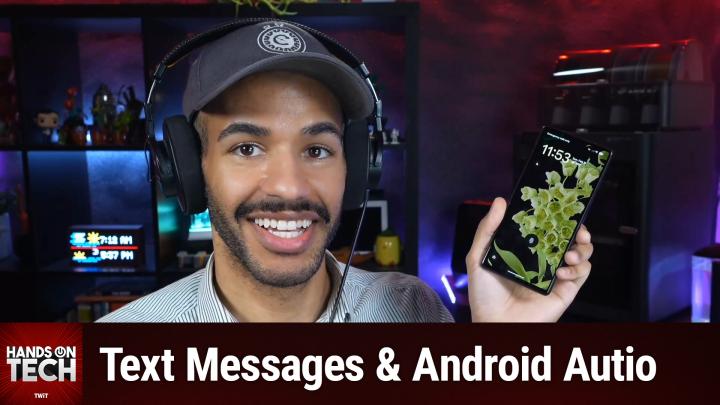
All TWiT.tv Shows (Audio)
Hands-On Tech 256: Android Auto & Google Assistant Driving Mode
00:10:27
Text Messages & Android Auto
Loading summary
Transcript1 lines
- [00:00]
A
Coming up on Hands On Tech, let's take a look at the current state of Android auto and driving mode on your Android device. Stay tuned. This is Twit. Hello and welcome to Hands On Tech. I am Micah Sargent and this is the show where I take your wonderful time tech questions and I answer them. Can you believe it? I go hands on with the tech to figure out what's going on and then I answer your question. That's why it's called Hands On Tech. If you have questions that you would like answered, you could email me. Hotwit TV is how you get in touch and I would love, love, love to hear from you. So this week's question comes in from Mike. Mike has written in to ask about Android Auto. Mike says howdy, long time Twit listener. I have an issue that I hope you can help me with. When driving and using Google Maps on my phone, after entering a destination, Google will read my text messages to me and allow me to respond all hands free. However, I can't find a way to have those texts read without having to enter a destination in maps. Often I'm taking a 30 to 40 minute drive to a known location and don't need the directions. Is there a way to to accomplish this? Thanks in advance for your help. So this is an interesting one because Mike, when it comes to Android, different people are running different versions of different flavors of Android. So depending on if you're on a Google Pixel or a Samsung device or some other device, it may be a little bit different for you. And of course Google is well known for suddenly deciding that it doesn't need a feature anymore. And if that's going on, well, that's another issue you have to deal with. And so things have changed depending on what version of Android you are running. The short answer though is yes, you can get hands free text message reading and replies without needing to have Google Maps running with a destination. This specific feature is actually part of Google Assistant's driving mode. And that's the thing is that over time Google has sort of removed this tool, added it back, taken away some features. It's really confusing and so I can understand kind of going well, what are my options here? Let's talk about whether you do have Google Assistant driving mode. You can figure that out by opening the Google app on your Android phone and then in the top right corner you'll see your profile picture. You'll tap on that and then once you get into there you'll scroll and you'll tap on settings. You'll look for Google Assistant and tap on that. Then you'll tap on transportation. And once you get there, you should see an option that says driving mode. You want to enable that? Okay, once that's enabled, you are able to use some, you're able to say a phrase, utter a phrase out loud that does not require you to, to use Google Maps. And so you would say, hey, G O O G L E. So you know the name of the company and then you say, let's drive. And this is going to launch this driving interface that will read incoming texts aloud and let you respond by voice. However, if you have a newer version of Android, you may find that this feature is not available. When you go into driving mode. And you don't see an option to, to change how driving mode works, but instead it's just asking you how and where you drive. That means that you have a newer version of Android and therefore this feature is not the same anymore. So if that's the case, we'll talk about kind of how things have changed. You can technically, if you do have this automatically have it activate. It will turn on when you connect to your car's Bluetooth. And in those transportation settings, that is something that you can set up. You say automatically start driving mode and it will do so when the car's Bluetooth is connected. So it will immediately start reading your messages out hands free and won't require that, hey, you know who, let's drive. This episode of Hands on Tech is brought to you by NetSuite. Every business is asking the same question. I know you are too. How do we make AI work for us? Well, the possibilities are endless, but guessing is too risky. Sitting on the sidelines, however, is not an option. Because one thing is almost certain, your competitors, they're already making their move. So. So no more waiting. With Netsuite by Oracle, you can put AI to work today. See, NetSuite is the number one AI cloud ERP. It's trusted by more than 43,000 businesses. It's a unified suite that brings your financials, inventory, commerce, HR and CRM into a single source of truth. That connected data is what makes your AI smarter. So it doesn't just guess, it knows. It intelligently automates routine tasks. It delivers actionable insights. It helps you cut costs and make fast AI powered decisions with confidence. Plus, you've got total flexibility. Now with NetSuite AI connector, you can use the AI of your choice to connect to your actual business data and ask every question you ever had from key customers to cash on hand to inventory trends plus automate those tiresome manual processes. Let's see your competitor do that. This isn't another bolted on tool either. It's AI built into the system that runs your business. Whether your company earns millions or even hundreds of millions, netsuite help you stay ahead of the pack if your revenues are at least in the seven figures, get NetSuite's free business guide demystifying AI at netsuite.com hot the guide is free for you at netsuite.com hot netsuite.com hot and we thank NetSuite for sponsoring this week's episode of Hands On Tech now. If you have a newer version of Android and your car also supports it, then Android Auto is going to be your best bet. That's if your car supports it, then you would run the built in infotainment system with Android Auto. Or that's the cool thing About Android that iOS sadly does not let you do, which is that you can just use your Android phone in Android Auto mode and get many of these same features. So Android Auto is meant to be an entirely hands free interaction. It'll read you text, you can reply by voice, you can handle calls, and you don't have to have navigation active. So all you would want to do is on your, you know, your phone, whichever phone you have, whether it's a Google phone or a different phone, you can just simply search Android Auto and then go into those settings and make those changes. Now with that there are a few caveats that I have you even if you don't have driving mode active, the good news is you can technically always have Google do these things. You would say your special phrase to talk to your assistant and say read my messages. You can also say send a text to wife or send a text to husband or send a text to cousin, you know, whatever contact name you want to pop in there. And that will allow you to do that regardless of whether driving mode is enabled or not enabled. So there are different methods for going about being able to hear your messages read to you and also being able to interact with those messages. It just depends on what version of Android you have and whether Google is still supporting the feature that is tied to it. And that's the hard thing about the way that this changes over time. So I do want to remind everyone sending in questions always be sure when you're talking about when you're asking about, you know, features regarding a phone or a computer that you let me know what phone or computer you have so that I'm able to figure out what version of software you might be running and how it's working that will make all the difference when it comes to that. So yes, that is a look at how to set up Android Auto and also if you have an older version, use Google Assistant's driving mode. On the Apple side of things, I have it set up so that when my car connects to my phone it it will automatically turn on Apple's iOS driving mode and will do much of the same. So it's really nice to see kind of the feature parity between the two platforms so that you are able to access these features safely when you are trying to focus on the road. Very cool set of features. And again, it's just unfortunate that things have changed over time, where you find them, how they work, but a good question nonetheless. So for those of you out there on Android, yes, yes, yes. I do also answer questions about Android as well. The Windows folks have no problems reaching out to me. They know I can answer your questions about Windows, but I don't often get Android questions. So I'm really happy to have this one from you, Mike. Maybe more people will hop in and ask their questions regarding Android because I've got my little pixel right here. So yeah, I can answer those questions too for you. Remember to reach out Hot TV is how you get in touch and I look forward to hearing about your questions soon. Thanks so much. See you next time. Bye bye.