← All TWiT.tv Shows (Audio)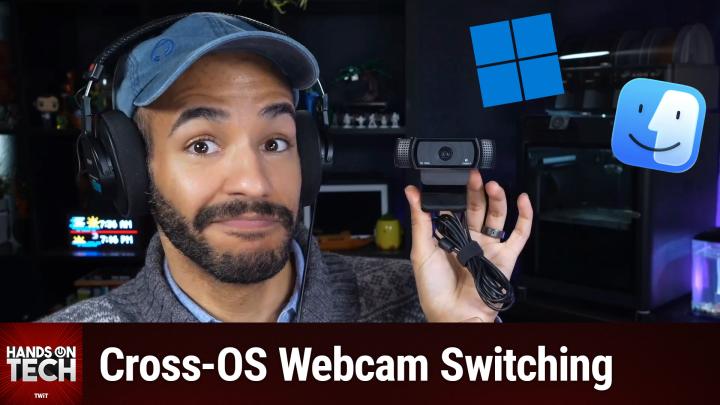
All TWiT.tv Shows (Audio)
Hands-On Tech 259: Using a Webcam on Windows & macOS
00:16:54
Switching Webcams Between Windows and Mac
Loading summary
Transcript13 lines
- [00:00]
A
Coming up on Hands on Tech, let's take a look at using a webcam while switching between Windows and macOS. Yes, it's possible. Let's take a look. Stay tuned.
- [00:16]
B
This episode is brought to you by outSystems, a leading AI development platform for the enterprise. Organizations all over the world are creating custom apps and AI agents on the Outsystems platform and with good reason. Build, run and govern apps and agents
- [00:30]
A
on one unified platform.
- [00:33]
B
Innovate at the speed of AI without compromising quality or control. Trusted by thousands of enterprises worldwide for mission critical apps, teams of any size and technical depth can use Outsystems to build, deploy and manage AI apps and agents quickly and effectively without compromising reliability and security. With Outsystems, you can accelerate ideas from concept to completion. It's the leading AI development platform that is unified, agile and enterprise proven, allowing you to build your agentic future with AI solutions deeply integrated into your architecture. Outsystems build your agentic future. Learn more@outsystems.com TWIT that's outsystems.com TWIT this is TWIT.
- [01:22]
A
Hello and welcome to Hands On Tech. I am Micah Sargent and this is the show where I take your tech questions and you guessed it, answer them. Today's question comes in from Fred. Fred has an interesting question regarding the use of a webcam on a system that requires switching between macOS and Windows. So let's dig in. Fred writes, I just purchased a 49 inch Samsung Odyssey monitor to be shared with my 2021 MacBook Pro M1 and my work Dell Windows laptop. Each of my laptops are connected with HDMI cables connected to an HDMI USB switch. The video switching is working great. However, the issue that I have is my usb. A Logitech camera is not detected on my Mac. It works great on my Windows laptop. This camera is also switched through the video switcher. I'm thinking what I need for the Mac M1 is a docking unit, but there are so many different docking units for Mac and a lot of them have less than great reviews. Currently I'm using my iPhone or iPad with a continuity connection to share my camera for my device over. I do not always have my phone close to me when I get a FaceTime call. I would rather not have a second camera connected to my Mac when I have a working camera for my Windows laptop. Do you have any good suggestions of a docking unit that would work in this case? Thank you for all that you do well. That is very sweet Fred. Happy to help. So let's figure out what the heck is going on here, because in theory, this sort of. It's not quite a full kvm, but it's an HDMI and USB switch that is supposed to work between devices so that you can switch the HDMI but also have this kind of USB kick between the two. Yeah, there's perhaps something to go forth with here, but Fred, I'm sorry to use you as an example, but when it comes up, it's always important to sort of help others. When you.
- [03:25]
B
Right.
- [03:25]
A
In hot twit tv, always be sure to include the models of any of the stuff that you're talking about. So you did a great job, Fred, with talking about the Samsung Odyssey monitor. So we know which specific monitor it is that you have. A Dell laptop would love to know which specific one, but that's okay. And we know exactly what MacBook Pro you have. What I don't know is what your HDMI USB switch is. And it would be great to know what model it is, whether it's powered or not, because that is kind of what we need to look at when it comes to this. So it seems like the core issue here is that your Logitech USB a camera works fine when it's switching over to the Windows laptop, but then it doesn't get recognized by your Mac. Now this is, don't worry. This is a really common problem with these sort of KVM style switchers and, and with Macs in particular because macOS is a little bit different about how it handles what's called device enumeration. So with, let's think of Windows in this case is sort of like a Chihuahua and macOS is sort of like a trained German Shepherd. What does that mean? Well, it means that Windows is constantly listening for and ready to bark at any usb, any USB device that gets plugged into the machine. It is hyper alert and therefore very sort of forgiving about what gets plugged in. It sees something's plugged in, it immediately goes and says, what are you? Who are you? What's going on? And lets you kind of see it on the system and interact with it. So when that, that, that KVM style switcher is switching over to Windows, boom. All of that stuff is kind of instantly enumerated by Windows. It's, it's looked at and logged and ready to be used. Whereas macOS on the other hand, as sort of a trained German shepherd, knows what it believes should be paid attention to and what should be ignored and sort of sent away. And so The German shepherd sort of rests easy knowing that the USB device is not important and so it doesn't get enumerated. Essentially, Windows is a lot more forgiving about what gets plugged in. And Mac OS can be a little bit pickier, especially when it comes to being part of an external device like this hub, Hub style device. When it gets plugged in, it's going, oh, that's not important. I'm not going to register this. It's not something I need to deal with. Right. So when you are toggling between machines, switching back and forth between machines, it's likely that macOS is not re enumerating. And this may be in part because of the specific switcher that you have. It may be doing something that's more Windows friendly in terms of signaling to the system that it needs to re enumerate, whereas macOS is not getting that signal. Oh, I need to re enumerate. Where unplug and replug would solve the problem. Right, but let's talk about a dock. A docking station might solve it, but. But frankly, it might be overkill for what your actual issue is. Before you go down the docking rabbit hole. Yeah, reviews can be all over the place. Let's talk about what's going on and what you could probably do. Again, likely it's that your HDMI USB switch isn't reinitializing the USB connection when it switches to the Mac. Okay, so it needs to kind of say, ah, Something has changed. Amos, let's talk again. And let me tell you what's new and what's updated. ADOP Dock isn't going to switch or isn't going to fix this necessarily if the camera is still being routed through the same switcher. So even if you have a dock on the Mac OS side, if it's still this switcher, that's where the camera is plugged in. That's not going to help. You're only going to benefit from a dock if you pull the camera out of the switcher entirely, connected to the Mac through the dock's USB ports. But then the problem is the camera is dedicated to one machine and not the other.
- [07:59]
B
This episode of Hands On Tech is brought to you by Shopify. If you've shopped online, chances are pretty high that you've bought from a business powered by Shopify. When you're scrolling your feeds and all of a sudden you see it, that one product that you've been looking for, you click on the link, you add it to your cart and you hit checkout. As you're filling in your address, you realize you don't have your card nearby. And that is when you see it. The purple pay button that saves all your information, making checkout as simple as a tap on your scre. That's Shopify. Shopify is the commerce platform behind millions of businesses around the world and 10% of all e commerce in the US from household names like Allbirds and Mattel to brands just getting started. With hundreds of ready to use templates, Shopify helps you build a beautiful online store that matches your brand's style. You can easily create email and social media campaigns wherever your customers are scrolling or strolling. And when I'm scrolling, I love to see Shopify knowing that I can track my order every step of the way that I've got those payment options available. It's fantastic. The best yet. Shopify is your commerce expert with world class expertise in everything from managing inventory to international shipping to processing returns and beyond. See less carts go abandoned and more sales go with Shopify and their Shop pay button. Sign up for your $1 per month trial today at shopify.comhot go to shopify.comhot that's shopify.comhot
- [09:29]
A
so let's talk about what we can do here. Again, I don't know what what USB slash HDMI switcher dock thing you have, but a powered USB A hub is going to do. It's going to potentially solve your problem because it needs to have kind of. It's almost as if it has more brains within it because it's powered, which gives it the ability to re enumer or tell macOS to re enumerate the USB devices that are plugged in. So 15 to $20 to get a USB hub that's powered and that might take care of the issue. So you'd essentially take this powered USB hub, plug that into your HDMI USB switcher, plug the camera into the powered hub and then see if that solves the problem here. If that doesn't work, look at the switcher itself. Not all KVM USB style switches will handle macOS well regardless of the sort of cheaper ones, higher quality options like those from Ugreen. There's also a company called CKL are like built for this purpose so they know what to do in terms of re enumerating USB devices for macOS and communicating with macOS. Look for specific switchers that work well with macOS. I've actually talked about my recommendations on previous episodes of Hands on Tech when it comes to KVM switches. So you can go back and check that out now if you want to dock, I have some suggestions for you. You can get extra ports, you get better display output, you get charging. And some of these docks will work across the board. So they would work with a Windows machine as much as they would work with a, with a Mac. But if we're looking at Mac first, Mac priority, you can't go wrong with the caldigit. TS4 is an option for now. Actually they make the TS5 at this point, but the TS4 is. I have one right now right in front of me. I have used Caldigit's docks since forever. I have two Caldigit Thunderbolt Station 3s that I don't use anymore because we've moved along. But just this thing is fantastic. It is powerful, it is good, and it is, I would call it, the gold standard for Mac docking. Thunderbolt 4 tons of ports, including multiple USB A ports, plays super nicely with macOS. It is expensive, 350 to $400. But you're paying for something that works every single time. And I think that's the most important thing. There's also the OWC Thunderbolt dock. OWC is really well regarded. It's not as expensive as the Caldig. OWC knows what it's doing when it comes to communicating with Mac. Anchor also makes a docking station even more budget friendly. Still has USB A ports, pretty good macOS compatibility, but not as good as Caldigit. When it comes to a dock, though, this is where it gets a little complicated because you would want to connect the Logitech camera directly to the dock's USB A port, but and not route it through the switcher. But that means then that you're going to need to unplug it from the dock, plug it into the the switcher, and then use it with Windows. Right? Or just plug it into your Windows machine, unplug it, plug it into your Mac. It's complicated. You could technically get like a USB switch and have that push to both devices, but it's so complicated to do it that way. Ultimately, I want to believe that the powered USB hub is going to be your solution to solving this or investing in a true KVM solution like those from Ugreen, which, yes, it's an investment. Yes, it costs more, but it'll be, you know, foolproof and will not give you the issues that you've experienced. That said,
- [13:42]
B
yeah, I.
- [13:42]
A
That's also true. Burke, you could also. That's so. That's a really good point. It may feel like overkill. I don't know why I didn't think of this, but you could just buy they're not expensive at this point. Another Logitech probably you've got the C920 or whatever. You could just buy another Logitech camera and plug that in to the dock that you're using for macOS. And so then when you switch between macOS has a camera and then your Windows machine has a camera that might end up costing less than buying a new powered dock or you know, a similar solution, you may feel, though that's a little silly. If that's the case, then again you've got some other options here. But here's my suggestion. Forget all of that. The Logitech C920 is an okay camera, but it's not great. And you talked about how you have used Continuity camera. Your iPhone is a much better camera than almost every USB webcam that you would have. Most of the Logitech models, if not all of the Logitech models, most if not all of the Elgato models. And if the only reason that you're not using your iPhone as your webcam and continuity camera full time is because you sometimes have your phone elsewhere, might I suggest a mag safe stand like this one from 12 south so that your phone can be near you at your desk at any time. And even better, consider a mag safe mount for your display that sits above the Samsung Galaxy right? Or Odyssey that would let you just quickly walk your phone up there and serve as your camera. If you are encouraged sort of subconsciously to bring your phone with you to your desk, then you'd always have it there and can use that instead because it is a better camera than almost every other camera that you could have. That's a webcam anyway. That's just a thought. You don't necessarily have to go that way, but that is a thought on what you might do. In any case, those are my suggestions for you. And as always, I would love, love, love to hear if this worked for you, Fred. Using a webcam between macOS and Windows with sort of a better hardware solution frankly for it. Thank you so much for your question. Hot Twitch TV again is how you get in touch and I will be back next week for another episode of Hands On Tech. Bye Bye.
- [16:55]
C
New Year New Me. Cute, but how about New Year New Money? With Experian you can actually take control of your finances, check your FICO score, find ways to save and get matched with credit card offers, giving you time to power through those new year's goals, you know you're going to crush Start the year off right. Download the Experian app Based on FICO Score 8 Model Offer approval not guaranteed. Eligibility requirements and terms apply subject to credit check, which may impact your credit scores. Offers not available in all states. See experian.com for details. Experian
- [17:27]
D
this episode is brought to you by Nespresso introducing Vertuo up, the latest in a long line of innovation from Nespresso. It's innovation you can touch, sense and taste in every single cup. With a three second start, easy open lever and dedicated brew over ice button, it's even easier to enjoy your coffee your way. Sip for yourself. Shop Vertuo up exclusively@nespresso.com Jackson Hewitt will do your taxes for $149 or less, no matter how complicated. So if you're a delivery driver, handyman, wedding DJ, you pay only 1. 49 or less. We're talking to you. Waitress, check please. Pet sitter influencer just $1.49 or less. Want your refund to work as hard as you? Hurry, don't wait. File with Jackson Hewitt today. Limited time offer for new plans on federal returns. Participating locations only. Terms at jacksonhewitt.com 149.