← All TWiT.tv Shows (Audio)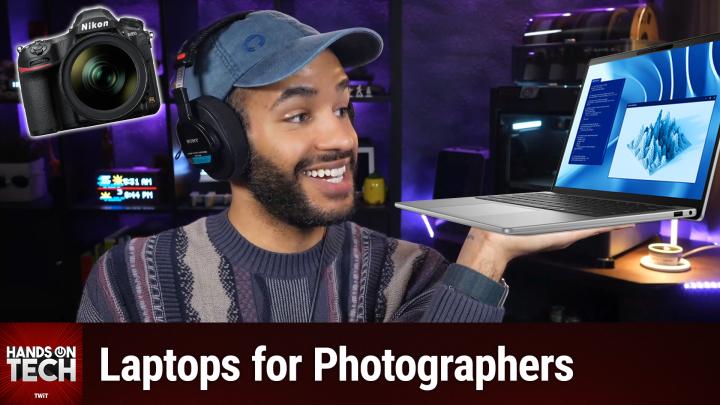
All TWiT.tv Shows (Audio)
Hands-On Tech 268: Laptop Recommendations
00:28:54
The Right Laptop For Your Photography Needs
Loading summary
Transcript7 lines
- [00:00]
Micah Sargent
Coming up on Hands On Tech, it's time to answer the question of what is the next laptop purchase someone needs to make. Stay tuned for this episode of Hands On Tech.
- [00:15]
Podcast Host/Announcer
This episode is brought to you by Outsystems, a leading agentix systems platform built for the enterprise. Organizations all over the world are building, orchestrating and governing Agentix systems on the Outsystems platform and and with good reason. Architect deliver and scale governed agentic systems with agility and trust using one open and unified platform Power secure company wide agentic orchestration for core business operations. Teams of any size and technical depth can use Outsystems to build, deploy and manage AI apps and agents quickly and cost effectively without compromising reliability and security. With Outsystems, you can rapidly launch ideas from concept to completion. It's the leading agentix systems platform that is unified, agile and enterprise proven, allowing you to accelerate growth, reduce operational friction and deliver real Enterprise impact with AI OutSystems build your agentic future. Learn more at outsystems.com TWIT that's outsystems.com
- [01:17]
Micah Sargent
TWIT this is TWIT. Hello and welcome to Hands On Tech. I am Micah Sargent and today we are once again taking the time to take your tech questions and answer them. You can reach out to me Hotwit TV is how you get in touch and in doing so we'll be able to do some research and answer your questions. Got some good ones. I actually went deep into the the grab bag for these couple of questions today to knock them off the list because they sometimes you get these questions that are modern and will answer what we or you know could could help somebody out who who is looking for a PC at the moment. So without further ado let's get into it and see what Robert has asked. So Robert writes in and says hello Maika and friends. Since my old Windows laptop just went belly up I could use help in choosing a new one. Especially since things have recently gotten more complicated due to the increasing importance of G my use case. I'm pretty heavy into photography. I take and process thousands of photos and some videos on my trips to multi day events such as Track and Field Championships. The apps I use include Photo Mechanic, Lightroom, Photoshop Video, Proc, My Leo and Topaz apps. I've recently noticed that when I do masking in Lightroom on my desktop it hits both the CPU and gpu. While I know my CPU choices include Intel AMD as well as Snapdragon and Apple via emulation and I have a pretty good idea of how much RAM I need. I'd like a laptop that goes as fast as possible without throttling. However, I'm much more confused on GPUs and their RAM needs, so any and all info and advice would really be appreciated. Many thanks in advance, he goes on to say P.S. a number of years ago I bought an imac with the intention of switching from Windows completely. What ensued was chaos. When I tried to move images and other documents to the Mac, I ran into permissions problems. I then unwillingly got dragged into finding scores of various owners. I mean, what the heck is Wheel anyway? Because I worried about losing photos, I moved all of them back to the PC, resulting in hundreds of duplicates. So if you recommend a MacBook, would you advise me how to avoid another debacle? Wow. First and foremost I want to say I'm so sorry that that happened to you. It should not have gone that way and we address it, but we can also address your overall question. So for your stack, you know, using Photo Mechanic, Lightroom, Photoshop Video Proc, My Leo and the Topaz apps, here's what you need to know and we're going to get into more depth in the rest of this, but this is sort of the TLDR you need to buy I feel a 16 inch class laptop with a discrete Nvidia RTX GPU. It needs to carry at least 12 gigabytes of VRAM 16 if you can swing it it an Intel Core Ultra processor or AMD Ryzen 9. 32 gigabytes of I hope you're taking notes. 32 gigabytes of RAM minimum 64 would be what we really want and a fast 2 terabyte NVMe SSD. Let's talk about why I've recommended that and honestly, it's driven almost entirely by one app in your stack, but we'll get to that in the moment in just a moment. I want to start by addressing what you were saying about your CPU options because you listed your choices as Intel AMD as well as Snapdragon and Apple via emulation. Something to note, Apple Silicon does not run these apps in your stack via emulation. Lightroom, Photoshop, Mylio, Photo Mechanic, the Topaz apps, they all ship native Apple Silicon builds and they all run at full speed on an M series chip. Rosetta Emulation which the functionality that Apple the translation layer that Apple has provided for the old school on that platform. Intel Apps Rosetta Emulation it's not even in the picture for your software. So not only are you running it bare native, but you don't have to worry about it running, but running sort of not in the best way. Via Rosetta. The app that would actually involve sort of a question of emulation is tied to Snapdragon through Windows on arm. And that's because it uses Microsoft's Prism translation layer. That's Prism, not Prism. Prism translation layer for anything that's not compiled for arm. And we'll talk also about why that matters for you in a moment. So believe it or not, you're concerned about Apple being or macros being the emulation area may not be true. It could be going with a Windows on ARM machine that will would result in some issues there. Now we're also going to talk about your GPU concerns, but first I want to take a quick break and then we'll get to that. All right, let's take a quick break so I can tell you about Shopify bringing you this episode of Hands On Tech. If you've shopped online, then the chances are that you've bought from a business powered by Shopify. When you're scrolling your feeds and all of a sudden you see it, that one product that you've been looking for. You click on the link, you add it to the cart, you hit check, and then as you're filling in your address, you realize, oh, darn it, you don't have your card nearby. But that, that is when you see it. Oh, the purple pay button that saves all your information, making checkout as simple as a tap on your screen. That is Shopify. Shopify is the commerce platform behind millions of businesses around the world and 10% of all e commerce in the US from household names like Allbirds and Mattel to brands that are just getting started. Every time I see that shop button, I'm very happy because I know that I've got multiple payment options. But more importantly for me, as someone who loves to be able to track my package every step of the way, I know that the integrations that are there mean that a business can let me know, okay, we see that you've ordered the thing. We're working on getting it into packaging even before it ends up making it to tracking. That's one of the things that I love about it. And then being able to track all of my stuff right there in the shop app, everything comes together to make it pretty magical for me as a consumer. And it's even better for you as someone setting up a shop with hundreds of ready to use templates, Shopify helps you build a beautiful online store that matches your brand's style. It also helps you get the word out like you have a marketing team behind you. It will easily create email and social media campaigns wherever your customers are scrolling or strolling. Best yet, Shopify is your commerce expert with world class expertise in everything from managing inventory to international shipping to processing returns and beyond. If you get stock, Shopify has award winning 24. 7 customer support. See less carts go abandoned and more sales go with Shopify and their Shop Pay button. Sign up for your $1 per month trial today at shopify.com hot go to shopify.com hot that's shopify.com hotel hot. Thank you Shopify for sponsoring this week's episode of Hands On Tech. Let's head back to the show. All right, moving along here with the rest of Robert's question. So Robert mentioned, you know, GPU being a big concern and honestly when you're sort of I came across this issue, I'm you know, looking about VRAM and GPU and what's important for your stack of apps and kind of trying to see other build outs that people have done most of these, like how much VRAM do I need? Guides are sort of like they're forgetting that for the longest time apps were architected CPU first, GPU second. And this sort of like GPU way of looking at things is a little more modern. And so what I mean is that you actually don't size the GPU for Lightroom or Photoshop because those two apps lean far more heavily on the cpu. Masking stuff, exporting stuff, preview generation aid, noise. Yeah, even an AI feature largely involve the cpu. And that is why you saw your desktop hit both that CPU and the GPU when you were doing masking. The GPU there, it's an accelerator, it's the nas. You flip the switch and things go a little faster. But you do need to size the GPU for Topaz Video AI. And that is because frankly, Topaz Video AI is in a different league. It is architected to rely on that part of your machine. So topaz photo AI 8 gigs of vram is recommended for the memory intensive generative models. It will work at 6, but it does so slowly. And then Topaz Video AI you need at least 10 gigs of Vram for and this is for Nvidia GPUs. But they also say even though it will work at that, we really, really recommend 16 or more for optimal performance and quality. So frankly, your question of where VRAM needs to be, it's set by that part of your stack. Topaz video, 10 gigs minimum, 16 gigs ideal. And so that's what you need to be looking for when you're looking for your next machine. Something that I want to point out though, if you check out the system requirements from Topaz, they will tell you that Nvidia is strongly preferred. It uses what's called Cuda and Tensor RT. So AMD and Intel GPUs, they're supported, but Nvidia is the one that you don't really need to worry about things being a little finicky or a little off. The GPU also needs Cuda Compute capability of it. This is, this is getting really nerdy, but again, sharing all these specs here, Cuda compute capability, which try saying that five times fast of at least seven, which rules out the GTX 10 series and older. So that's why we have to go with that more modern device, eGPus, that's external GPUs not supported by Topaz Photo AI. So you can't just buy this sort of thin and long light laptop and then bolt on an external GPU to solve it. The GPU needs to be inside as part of the machine. Now here's the thing, it's going to be a little bit easier because I'm going to be able to eliminate one option for you, and that is Snapdragon. Snapdragon ruled out Snapdragon 10 laptops. They're impressive in 20, 26. In fact, 93% this is from Snapdragon. So, you know, take it with a little bit of a grain of salt. 93% of the apps that people use regularly run natively. And when they're not running natively, so many more will go through that Prism emulator. And so battery life on a Snapdragon is fantastic, but they're not going to work for you. They aren't going to be good for your job. Because Snapdragon laptops have no discrete Nvidia GPU. They're using an integrated Qualcomm GPU and Topaz video AIs, CUDA and Tensor RT pipeline and requirements for at least 10 gigs of VRAM mean that you aren't. You literally cannot get that on your hardware. That's just not possible. So that's, that's that on that. Add that Video Proc and Photo Mechanic, those two apps would run under emulation and then Snapdragon becomes a poor fit despite its strength. So frankly not worth considering for this build. Let's figure out though, how do we translate what we need from VRAM into a GPU that can be used in a laptop. Because laptop GPUs tend to carry less VRAM than their desktop counterparts. And so you gotta, you gotta be looking for the model number specifically the RTX 40705070 has 8 gigs. So that does work for Topaz photo, but it is not where Topaz Video needs things to be. The RTX 40805070 for a laptop is 12. So that's kind of where you can start. This is the sensible entry point. It's above the minimum for Topaz Video, but it's not. So it's not as expensive as the other options that I'm going to mention, which are the RTX 40905080 which does sit at 16. So that's Topaz's recommended target and is probably going to be the sweet spot because it does mean just better performance for everything else as well. There is also the 5090 which has 24. That's kind of overkill for photos, but gives you some head, some headroom when you're doing 4K video work. And of course it's future proofed too. If this is, you know, the laptop that you're going to buy for many more years or you're going to use for many more years, perhaps it is time to invest in that. So my recommendation at the end of this, because I know that's a lot to go through, a lot to think about. Target 12 gigs at minimum, 16 gigs if you can swing it. So RTX 40805070 and up are going to be your best bets there. Let's talk about cpu, let's talk about ram, let's talk about storage. As far as cpu, you know, as much as I in my Mac world have moved on from intel, an Intel Core Ultra 9 and AMD Ryzen 9, if you go with the HX class parts is going to be something that will work for you because Lightroom and Photoshop are going to spend most of their time hitting the cpu. So you don't want to cheap out here. In order to fund the gpu, frankly, you need to invest in both. Both intel and AMD are fully compatible with everything that you run. As far as RAM. No less than 32 gigabytes, please. 64 would be great because you are working with thousands of RAW files. You're working with Topaz Video, you're doing multitasking. 64 gives breathing room. There's responsiveness for those, for those apps that require a lot of, you know, multitasking. There's responsiveness for the large catalogs of photos that you're doing. It's responsiveness for batch processing RAW files and of course those intensive AI features. And last but not least, people want to cheap out here and go, I'll just plug in an external hard drive. No, no. You would be surprised. You would be. Well, maybe you wouldn't, but sometimes people are shocked when they switch from a slow moving hard drive to a fast moving hard drive and go, holy cow, my machine is so much faster. Did put new RAM in it? Did you give me more ram? No, no, it's not that. It's that you need a fast SSD. I'm recommending 2 TB or larger NVME SSD. Keep your OS, you get to still use that Lightroom catalog and your active photos on the NVMe. And Topaz does note that storing models internally rather than on an external drive gives optimal performance. So again, if you can keep as much as possible there on the quote unquote bare metal, that's going to result in much better performance for you. Plus battery life will be improved if things are running in the device instead of also having to power an external hard drive to pull things from it. You can then archive older work to network attached storage or to an external drive. Let me take a quick break because I want to remind everybody out there about Club Twit at Twit TV Club Twit. When you join the club, $10 a $20 a year, you gain access to some pretty awesome benefits. First and foremost, every single one of our shows ad free, just the content. Very exciting. You also gain access to some special feeds. We have a feed that has our behind the scenes moments before the show. After the show we have a feed that has our live coverage of tech news events. Leo, Jeff and I recently covered Google IO. We're going to be doing wwdc. That's just around the corner. And so if you want to catch our our sort of commentary, that's how you do it. And then we also have a feed that has our club Twitch shows like my Crafting Corner, Stacy's Book Club, my upcoming media club that has now been announced that's gonna have its first episode in June. All of that you're only going to get our AI user group as well. Only going to get if you are in the club. So join the club. There's a QR code in the top corner there or TWIT TV Club Twit to check it out and Also, you will become a member of our Discord. If you'd like to be where you can chat with your fellow club TWITT members and those of us here at TWiT. I look forward to seeing you in the club. Now, you mentioned, Robert, in your original you wanted to go quote as fast as possible without throttling, and that is why you may have gone. Why is he saying 16 inch laptop? Is it because of the fact that I'm working with photos and so I'd want a bigger display? Well, yeah, kind of, but there's a bigger thing going on here. It's, it's a chassis and cooling decision more than the actual chip. If you go with a 16 inch or larger body, instead of going, you know, 14 inch and going slim, slim, slim, you may or may not believe it, but it is sort of the physics of the situation. More surface area, bigger fans, larger heat sinks, that means that it's going to hold up far better when you're exporting. Well, frankly, when you're doing anything that larger body, consider the fact that, yes, you get a bigger screen for better viewing photos, but the secondary benefit is better cooling. Now you're going to want to, you're probably going, okay, so where do I go to get this model? Where can I find something that fits. This fits the bill? Look at the laptops that are classed as, or categorized or tagged as creator or workstation class class. These are going to be where you want to look rather than ultrabooks or thin and light or this or that. They are built to run for hours under load and that's what you want. And then also make sure that the, this is important. Make sure that whatever laptop you go with it supports the GPU's full power draw. So look for TGP. The same RTX chip that you can use on one device can be used on another, but configured at different, different wattages across those devices. And of course, as you might imagine, if it's configured for higher wattage version, if the version is higher wattage, then it's going to sustain better performance. So that's where creator workstation class are the places that you want to look. Because you may find something that's thinner and lighter and perhaps less expensive, that features the necessary GPU and cpu. But when you go to look, the support of the RTX chip is at a lower power level. Now, that's all. If we're keeping on the Windows side of things, or maybe even the Linux side of things, if you want to go Mac, it's actually that is a harrowing tale. And it's one of those where someone who has been in tech for a while who hears this will go, go. Well, that shouldn't have happened. And I know there's nothing more frustrating than hearing that because guess what? It did happen. It happened to you. And so even though it should not have happened, it did happen. And I'm sorry that it did. Here's what we can do. First and foremost, it is a little bit easier for me to tell you what device to get on the Apple side of things. You know, I sometimes give Apple a little, you know, rasm a little bit for, for having a complicated product lineup. But then me setting out on this voyage of trying to determine Robert, what was right for you, I said, wow, on the Mac side of things, it's a little bit easier. So a MacBook Pro with an M4 Pro or M4 Max chip and of course 4864 gigabytes of unified memory, it's a strong alternative. Apple Silicon is going to run all of those apps natively. It throttles very little under sustained load when you're working with those Pro or Max chips. And, and the unified memory architecture is wonderful when it comes to working in Lightroom. That said, there is one feature that when I last checked it does is not supported locally on Macs and that's Topaz's Starlight Sharp model. It doesn't do local processing. So if you're regularly using the Starlight Sharp model, which sounds like, like either. I don't know, it sort of sounds like a one of those bears that have the. It sounds. It's a, like a, it's. It's giving Care Bear. It's also giving My little Pony. I feel like there's got to be a pony named Starlight Sharp. Anyway, my point is not yet supported there and therefore that's something to be aware of if you use that. If you do go Mac. Here is how you avoid the debacle you went through last time you mentioned you use my LEO photos. Let it do the migration. You already own it and it has, that's its whole thing is that it's a purpose built library for managing your photos across windows, across Mac, across your devices. So if you have it installed on both machines and you let it sync, then you don't need to do the drag and drop and then you don't have to worry about permission stuff getting in the way. Also, don't copy your library just by dragging folders between drives. That's why Apple provides what's called its Migration Assistant. And so when you're doing your first time transfer, use Apple's Migration Assistant. If you don't like that, well, then use a proper sync tool. There are lots of sync tools out there, syncthing is one of them. And then that way you don't have this issue of permissions getting in the way. I also suggest that after you migrate, use a dedupe tool. You know, there's Gemini 2, there's Photo Sweeper, I've talked about those in the past. That'll help catch any stragglers that have somehow duplicated in the process. And then last but not least, because you've done all of that, you can just leave permissions alone. You shouldn't have this issue. If you do get a permission prompt that appears, all you should do is right click and then choose Get Info. And then let me do this live because now I'm forgetting exactly what it looks like. But you choose right click, you choose Get Info and then in the little window that pops up, you'll see at the very bottom. I'm not showing this on screen, but I'm just reading this off. It says Sharing and Permissions. And under that section you can go in and change it if needed. But the idea is that, you know, that's something that's going to come up once or twice. But overall everything else was taken care of thanks to the use of these apps that they're purpose built to handle it. So let's wrap things up here. Dear Robert, great question that you've written in with and I had some fun sort of trying to. It's almost like one of those sorting tools where, you know, a bunch of coins go across the top and then they fall into the right space for them because of the size. It was sort of trying to figure out exactly what you needed for you. I don't want to recommend a specific brand. I want to tell you the specs that you truly need for the work that you do. And then you get to choose the laptop from there. You want one decisive answer, then I'm going to tell you a 16 inch Windows Creator laptop of some sort. Nvidia RTX 12 to 16 gigs of Vram Core Ultra 9 from intel or Ryzen 9. 64 gigabytes of RAM 2TB NVME SSD. That's the lowest friction path for your exact stack. Because it keeps Topaz on its native Cuda, it dodges every emulation and permissions question. The MacBook Pro M4 Max especially is a worthy alternative. If you're ready to give the Mac another shot. I mean we'd love to have you. And of course this time you can just let my Leo carry the photos across so that because you because you wrote at the end of your your question overwhelmed in Fairfield. You know, we don't want you to be overwhelmed. So that will help Fairfield stay un overwhelmed or perhaps even underwhelmed. Thank you Robert for writing in with your question. It is. It was a lot of fun actually to again piece everything together here and I'd love to hear from you. Let me know what laptop or PC or Mac you end up going with in the end. Folks, that is going to bring us to the end of this episode of Hands On Tech. As always, it is my absolute pleasure to bring you this and every episode of Hands On Tech. If you have questions, get in touch. Hot TV is a great place to speak with us. That is going to do it for this week's episode. I remind you all to subscribe Twitter TV Hot to learn more. Thank you and I'll catch you again next week for another episode of Hands On Tech. Bye Bye.
- [28:55]
Blinds.com Advertiser
Did you know if your windows are bare, indoor temperatures can go up 20 degrees. Turn the temperature down with blinds.com and get up to 50 off custom window treatments like solar roller shades and more during the Memorial Day Mega Sale. Whether you want to DIY it or have a pro handle everything, we've got you free samples, real design experts and zero pressure. Just help when you needed. Shop up to 50% off site wide and huge savings on doorbusters. Right now during the Memorial Day mega sale@blinds.com rules and restrictions apply.
- [29:25]
Columbia Advertiser
You can't reason with the sun. Trust us, we've tried. This summer, it's time to put that angry ball of fire on mute. Columbia's Omnishade technology is engineered to protect you from the sun's harsh rays that can burn and damage your skin. The sun is relentless, but so is our gear. Level up your summer@columbia.com to spend more time outside and less time slathering on aloe lotion. You're welcome Columbia Engineered for Whatever
- [29:56]
Micah Sargent
There's
- [29:56]
Sweetgreen Advertiser
a new way to sweetgreen meat wraps Handheld, hearty and made for life on the moon. With bold chef crafted flavors, fresh ingredients and Dover 40 grand grams of protein. They're built to satisfy without slowing you down. Try wraps today in the app or at order sweetgreen. Com available at all participating locations.