← All TWiT.tv Shows (Audio)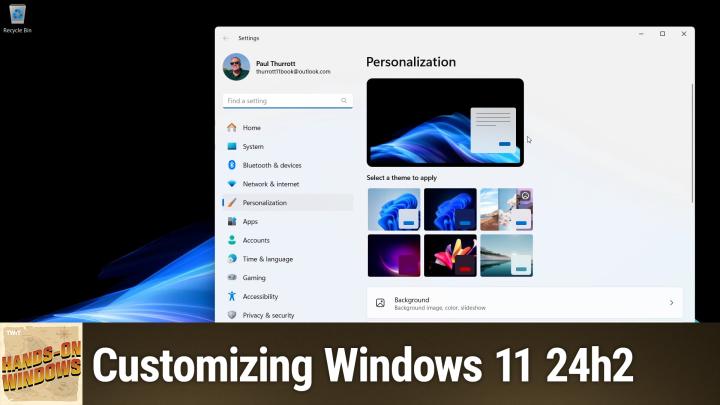
All TWiT.tv Shows (Audio)
Hands-On Windows 117: Customizing Windows 11 24h2
00:17:24
24h2 Personalization Checklist
Loading summary
Transcript12 lines
- [00:01]
Paul Thurott
Coming up next on Hands on Windows, we're going to take a look at personalizing Windows 1124H2.
- [00:07]
Sponsor Announcer
Today's show is brought to you by Progressive Insurance. Do you ever think about switching insurance companies to see if you could save some cash? Progressive makes it easy to see if you could save when you bundle your home and auto policies. Try it@progressive.com Progressive Casualty Insurance Company and affiliates. Potential savings will vary. Not available in all states.
- [00:31]
Got great ideas but no idea how to build a website? Get bluehost with their AI design tool, you can quickly generate a high quality, fast loading WordPress site instantly. Once you've nailed the look, just hit enter and your site goes live. It's really that simple. And it doesn't matter whether you're a blogger, influencer or just starting your side hustle, bluehost has you covered with built in marketing and e commerce tools to help you grow and scale your website for the long haul. And when you upgrade to Bluehost Cloud, you get 100, 100% uptime and 24. 7 support to ensure your site stays online through heavy traffic. Bluehost really makes building your dream website easier than ever. So what's stopping you? You've already got the vision. Make it real. Visit bluehost.com right now and get started today.
- [01:20]
Paul Thurott
After investing billions to light up our network, T Mobile is America's largest 5G network. Plus right now you can switch keep your phone and we'll pay it off up to $800. See how you can save on every plan versus Verizon and at and t@t.
- [01:35]
Sponsor Announcer
Mobile.Com KeepAndSwitch up to four lines via virtual prepaid card. Allow 15 days qualifying unlock device credit service ported 90 plus days with device and eligible carrier and timely redemption required Card has no cash access and expires in six months. Podcasts you love from people you trust. This is twit.
- [02:01]
Paul Thurott
Hello everybody and welcome back to Hands on Windows. I'm Paul Thrott and this week I'm going to take a look at kind of a perennial subject which is personalizing Windows 11, in this case version 24H2 and specifically after you've either purchased a new PC, upgraded an existing PC, although much of that is already done for you by that point, or you've reset an existing PC to kind of bring it back to its factory condition. And so to do this what I did was I reset this computer and I installed just a couple of apps. I tried to keep it as close to possible as what you might experience on A new computer. So you can see things here that I would get rid of immediately, like McGaffey antivirus, the whatever this background image is, which is kind of non stock and so forth. But because I install Windows so many times and I document this for the book and for my website and elsewhere, I've developed this kind of checklist of items to go through. And it doesn't have to be done in order, although I tend to kind of do the same things each time I am confronted by a new install of Windows. And so you can kind of look at this and see, well, there's things here I'm going to want to change, right? But there's a few things you should do first. Right. This happens to be correct on this system, but many times I find that the time or date is not correct or both in some cases. And so if you go into the Settings app, right click Clock and the time and clock there and choose Adjust date and Time. The thing you want to make sure here is just that the time zone and the time are both being set automatically. A lot of times one of those will not be checked off. And so if you set that, it should just autocorrect and get to the right time. So in this case it happens to be on the correct time. But that's something that I run into a lot on the new computers. New computers are often set to. Actually it's off here again as well, but do not Disturb will beyond. So you won't get any notifications, which honestly could be beneficial in many cases. But I usually like to expand this out so you can see the calendar and so forth. And I'll turn that off. I don't really use do not Disturb, so I would turn that thing off. I won't spend too much time on this stuff, but you know, a couple of icons here on the desktop. Microsoft Edge is there because of Microsoft and Chrome is there because I installed it. But get rid of that stuff and just spend some time personalizing this. Right? So I'm actually going to go to a fairly stock look and feel because that's what I try to do for this podcast and also for the book. But in this case I'll use a dark mode because that will just be better for the light shining in my face and so forth. So just a couple of minor changes that I would normally make in here related to the theme. I turn off the system sounds, for example, which for some reason is this old school control panel. And I usually don't do too, too much here, but we're going to come back to the mouse cursor at the end of the show because actually this is a new thing in Windows 1124H2, but I want to highlight that separately because it's kind of an interesting and new problem. So the other thing that you should do right away, before really doing anything else, is just make sure the display settings are correct. And this takes a lot of different forms. I have two displays here because we're doing the show recording. But in this case, I'm going to focus. Actually I'm going to focus on this one. And there are features like night light, which turns the screen orange and turns off the blue light, usually from sunset to dawn, which you can turn on on that schedule, which I like to do. Depending on the capabilities of the display in your computer, you might see different options in here just related to the qualities of the display. For example, if you go into. I went into the wrong thing. If you go into Advanced Display, if your display supports it, you will see multiple refresh rates here and possibly this dynamic refresh rate. So I always enable this. This allows the screen to just be as efficient as possible and also look as good as possible. The primary display in this system actually does support these things. So it's 120Hz and it will dynamically refresh the rate depending on what you're doing. So if you're not doing anything, it's just looking at a blank screen, it's going to be 60 hertz. But if you're scrolling through something or, you know, playing a game, it will be at a higher refresh rate. So that's always good to check on. But the thing you really. The important one here actually is scale. And I am not going to change this because it's set up for the recording. But this is often incorrect for me, at least for my eyes. So I'll kind of bump this up. This is a little bigger than I would typically make the scale. But again, for the show recording, I like to do that. And this is almost never wrong, but make sure it's on the correct native resolution. Right. So that's pretty straightforward. From here, you just go through all the UI elements that you like to configure. I heavily customize the taskbar, for example. I hide almost everything. So my default taskbar, basically all this stuff is off. I get rid of most of these icons down here for this show and for the book. I typically will leave a lot of this stuff on just because it's there. For most people, it looks more typical for others, you can customize the Start menu as well. Get rid of some of the junk that the PC maker in this case might have put in there. Some of the stuff that Microsoft puts in here. So right click uninstall or right click unpin to your. To your taste. There are other ways you can customize that as well. I hesitate to click on widgets because of whatever horribleness might be in there. But I usually go in and turn off the hover effect. So when you mouse over it, widgets comes up. I like to turn that off. I do like. If I do leave widgets running. Having that weather display is kind of nice. But I'll turn off the notifications, for example. I'm not going to mess around with that today, though. File Explorer, we're all particular here, I guess, but you can go in here. I will typically turn off the frequently used folders and recently used files because I just don't use that. But some people do. I'm not gonna. I won't mess around with that here, but I would just customize this to whatever extent. But again, for. For the stock purposes of what we're doing here, I would just leave it on, you know, the normal display. I spend time getting rid of this stuff. These are all three icons here from the PC maker. Get rid of that stuff. I don't need Outlook. I'm never gonna use that. I don't use store enough. So I kind of hone this down to this kind of effect. But the biggest thing in the taskbar to me, unfortunately, is OneDrive. And that's because OneDrive will screw around with you if you don't configure it exactly the way it wants you to. Right? We've talked about this. This is coming up with some horrible disaster for things. So I can't actually see it. There we go. That blue icon down here is related to this. Privacy settings. It's saying your privacy settings have changed. They haven't actually changed. But this is just. This comes up every single time that you first install Windows. But you want to go into settings and just make sure that sync and backup is set up correctly to your needs. In this case, folder backup specifically. So on this account, I do leave folder backup on. I was prompted for this during the initial setup. That's not always the case. So if you have Windows 11 home, you're not going to be prompted. This will be enabled automatically if you have Windows 11 Pro. It depends. Which is a really silly thing to say, but it's true. Sometimes you'll See the prompt? Sometimes you won't. So you want to go in here and make sure that this is configured to your liking. So in this case, I'm going to leave this alone. But on my personal sign in, I actually turn all this stuff off. I don't like it backing up those folders to the cloud. So same thing with search by default, of course, you get this experience, this search highlights experience with these distractions here. I like to use search for search. I'm kind of crazy like that. So. So you can go into Settings, which opens the Settings app and scroll down and you'll see. Where is it? Somewhere in here there will be content. So did they change the language? No, they did not. I'm missing it. Where is it? Somewhere in here, I swear to God is Search highlights. Let me see if I can search for it. Of course, I'm already on the page. I'm just not seeing it, I guess. But search history, it's in here somewhere. Well, I'm not seeing it. And you're probably search. Oh, there it is. There we go. I'm sorry, I got it the first time. Here we go. So it's off, right? This is just plain search, right? And so typically you would type in something and you would get search results. You don't have to look at search highlights. Don't mind my blindness there. Security. So one of the things you will see is this Windows security icon will almost always have this yellow bang on it when you first set up Windows. And so if you go and look at it, you'll find out what the problem is. It's usually one of two things, or it could be two of those things and this is one of them. And the reason is, you know, you want app and browser control on. You want your device to be as secure as possible. Why isn't this thing enabled by default? It's because it's a privacy thing. It has to send some anonymized data to Microsoft so it could do its work. It's just doing it to make sure that you're computer safe. It's not, you know, following you around the Internet or anything. They have other parts of Windows that are for that. So I always turn that on. And if there's anything else in here that is causing that kind of thing, I will enable that as well. So in this case, we just see the one thing. And when you go back to here, you can see that this is fine. Sorry, the yellow bang is gone.
- [11:32]
Sponsor Announcer
Today's show is brought to you by Progressive Insurance. Do you ever Think about switching insurance companies to see if you could save some cash. Progressive makes it easy to see if you could save when you bundle your home and auto policies. Try it@progressive.com Progressive Casualty Insurance Company and affiliates. Potential savings will vary. Not available in all states.
- [11:56]
Got great ideas but no idea how to build a website? Get bluehost with their AI design tool, you can quickly generate a high quality, fast loading WordPress site instantly. Once you've nailed the look, just hit enter and your site goes live. It's really that simple. And it doesn't matter whether you're a blogger, influencer or just starting your side hustle. Bluehost has you covered with built in marketing and e commerce tools to help you grow and scale your website for the long haul. And when you upgrade to Bluehost Cloud, you get 100% uptime and 24. 7 support to ensure your site stays online through heavy traffic. Bluehost really makes building your dream website easier than ever. So what's stopping you? You've already got the vision. Make it real. Visit bluehost.com right now and get started today.
- [12:45]
Paul Thurott
There's all kinds of other things from here I always run Windows Update. I've already actually Have I done it? I think I've done it on this computer already. But you want to go in and make sure your computer's up to date. I would do this later normally. But also be sure to go into advanced options, optional updates and see if there are any driver updates in here in particular. That's one of the big things with the new PC install that that stuff doesn't always get downloaded immediately and if it's drivers, you really do want that as soon as possible. So just check on that and then ditto for the store which I did just remove from the taskbar. Go and make sure everything is up to date. And so Windows Update and the Microsoft Store are both examples of things that will download updates and finish. Windows Update will often make you reboot the computer, which you should do, but you have to come back and check later again. So if I were to install all these updates, which I won't do right now, and then check for updates again, almost certainly there would be more updates. So I usually try to make sure this thing is up to date. And so this is, I can see from this icon here, this is actually the latest version of the store. That's one of the apps that would be updated through this app, interestingly, and I'll do that later on this computer. But that's something I would do upfront. And if this is a computer that has a utility from the PC maker, which this one actually probably does, I also try to run that. Yeah, in this case it's an HP computer. So they have HP support Assistant, which is this bright light monstrosity. Depending on the computer, depending on the PC maker, you might get driver updates through this type of app instead of through Windows Update. So I'm not going to run this again, but check for updates. This is where you could get maybe a firmware update or other driver updates as well. And so at this point, you know, you're pretty much there, you were prompted during setup to at least had a pin, right? So if you sign into Windows with any account, you're probably signing in with a Microsoft account. Microsoft forces you to add a pin. If you have Windows hello compatible camera or fingerprint reader, you'll get prompted for at least one of those. If you didn't do that during setup. And I usually just wait until later on, pretty much every time, frankly. You can go in here and see what's available. Right. And so this particular computer has both facial and fingerprint recognition. I have not set those up. But if you click on each of these, you can see it'll be prompted to do set that up. And I would do that normally if I was using this computer regularly. And then there's also the possibility that you have presence sensing capabilities. Right. That's something we did talk about in an earlier episode. If you have that in your computer, you should be printed. Not always, but you should be prompted for that during settings as well, during that privacy screen. But you can go down here and look and see if it says anything about walking away, you know, when you walk away from the computer or you know, get up or sit down, et cetera, et cetera. So this just has the standard power management settings. I'm not seeing that. But that might be because either they're not using the built in capabilities that are available in the computer, in the hardware in the system, I should say. Or because they're just, just not available. So actually, in this case, let's see. But no, it is available. There you go. So this is. And it's actually automatically set up for you. So there you go. So I must have okayed that during settings. But this is a really useful capability. It's really good for security. It's very convenient. It's something you might want to configure. You know, maybe you want it to be a little faster, a little slower, whatever. But the type of capability where it dims the screen and locks the computer when you walk away. Very useful. So if the computer gets snatched, you don't have to worry about any of your data being stolen or whatever. So it's good, good to know about. Let me see if I forgotten anything here. Privacy Settings is a big one. I'm not going to go through that today because this is too much that really deserves its own show. And we did do a show about this probably a year or two ago. It's been a while, but it's. It, it's worth going through that, especially if you kind of just stepped through it in Settings and didn't really pay attention to it. So that's something we can look at in the future. And that's pretty much it. I mean, obviously there's all kinds of ways you can, you know, configure or customize the computer. But the thing I wanted to talk about today, because it's new to 24H2, it's A. It's a strange problem and I'm not sure if I'm going to be able to demonstrate this well on video, but there's a bug in the default install of Windows 1124H2, where you're typing. Yeah, it's not doing it right now, but it's flickering. But you can see that the text insertion cursor here is white because we're in this dark mode. And it makes it very easy to see both where you're typing and then where the mouse cursor is. Sometimes when you switch to the light mode, it stays white. And so you'll hover over this and it just disappears. So it's kind of this strange problem where you've lost the mouse cursor and you don't know why and you move the mouse around and if you get out off of the window or you move over something that has enough contrast, you can see it suddenly, but it's curiously hard to find. So for now, there's a workaround to fix this. It turns out Microsoft is just loading the wrong default mouse cursor for that one thing, which is a weird setting that most people would never even really know much about or know how to find. But if you go into mouse settings and scroll down to additional mouse settings, this will bring up the old school control panel. And you go to pointers and you go to like, I think you have to select. Let's see, you select the. Let's find the text insertion in this list. Ah, here we go. So right by text, select browse and then the one you're looking for. This is. It's so bizarre is beam type of B R. This is the correct. This is supposed to be the text insertion cursor. As I think of it, that's loaded by default. They're loading a different one. I'm not sure which one it is. But if you just change that, you know, you'll notice no difference here. But that actually fixes this problem. So if you run, if you run into this where you're using your computer, why can't I see the mouse cursor? It's because of this very strange bug in Windows 24H2. And that's how you can kind of fix that problem. Okay, so not too much different, I would say from 2223 H2. There's been over the past year the addition of that presence sensing capability. There's been some display enhancements that we really can't see on this particular computer because they just don't have it. I don't have it in this display. That's just on me. And then that bizarre most cursive box. So that's the kind of the. That's what's new 20 for us too. So other than that, a lot of common sense and you know, obviously you should, you should customize this the way that you want. This is your computer. You should, it should work the way you want it to. So hopefully you found this useful and entertaining. We'll have a new episode of Hands on Windows every Thursday. You can learn more at TWiT TV. How and thank you so much for watching. Thank you especially to our Club TWIT members. I'll see you again next week.
- [20:18]
Sponsor Announcer
Today's show is brought to you by Progressive Insurance. Do you ever think about switching insurance companies to see if you could save some cash? Progressive makes it easy to see if you could save when you bundle your home and auto policies. Try it at Progressive, Progressive Casualty Insurance Company and affiliates. Potential savings will vary. Not available in all states.
- [20:44]
Paul Thurott
AT&T customers switching to T Mobile has never been easier. We'll pay off your existing phone and give you a new one free. All on America's largest 5G network. Visit t mobile.com carrierfreedom to switch today.
- [20:58]
Sponsor Announcer
Pay off up to $650 via virtual prepaid MasterCard in 15 days. Free phone up to $830 via 24 monthly bill credits plus tax. Qualifying port and trade in service on Go 5G next and credit required. Contact us before canceling entire account to continue bill credits or credit Stop and balance and required finance agreement is due. Professionals spend nearly half the work week on written communication, so focus is important. With Grammarly as your AI writing partner, focus and quickly get through your work with relevant real time suggestions. And it works across 500,000 apps and websites so you can sound more confident and persuasive wherever you write. 93% of professionals report that Grammarly helps them get more work done. Download Grammarly for free@Grammarly.com podcast that's Grammarly.com podcast.