← All TWiT.tv Shows (Audio)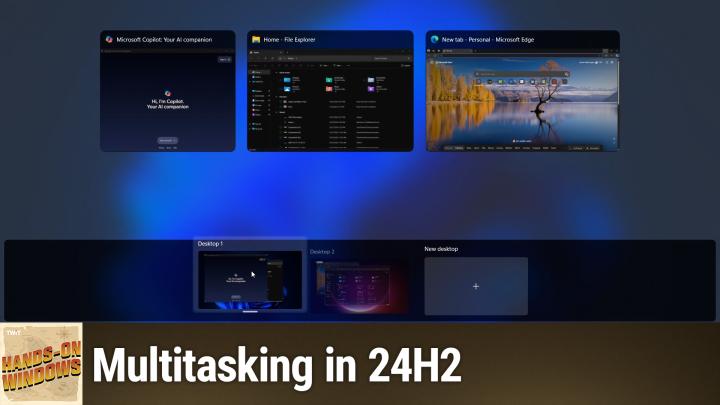
All TWiT.tv Shows (Audio)
Hands-On Windows 118: Multitasking in 24H2
00:21:44
Increase Your Productivity in Windows 11
Loading summary
Transcript13 lines
- [00:01]
Paul Thrott
Coming up next on Hands on Windows, we're going to take a look at Multitasking in Windows 11, 24H2. Everything from Alt tab to Task View.
- [00:08]
Advertiser 1
Snap Task Manager and Got great ideas but no idea how to build a website? Get bluehost with their AI design tool, you can quickly generate a high quality, fast loading WordPress site instantly. Once you've nailed the look, just hit enter and your site goes live. It's really that simple. And it doesn't matter whether you're a blogger, influencer or just starting your side hustle, bluehost has you covered with with built in marketing and e commerce tools to help you grow and scale your website for the long haul. And when you upgrade to Bluehost Cloud, you get 100% uptime and 24. 7 support to ensure your site stays online through heavy traffic. Bluehost really makes building your dream website easier than ever. So what's stopping you? You've already got the vision. Make it real. Visit bluehost.com right now and get started today.
- [00:58]
Advertiser 2
It's better over here at&T customers switching to T Mobile has never been easier. We'll pay off your existing phone and give you a new one free all on America's largest 5G network. Visit t mobile.com carrierfreedom to switch today.
- [01:15]
Advertiser 3
Pay off up to $650 via virtual prepaid MasterCard in 15 days. Free phone up to $830 via 24 monthly bill credits plus tax qualifying port in trade and service on go 5G next and credit required. Contact us before canceling entire account to continue bill credits or credit stop and balance and required finance agreement is due.
- [01:29]
Advertiser 4
Marketing is hard, but I'll tell you a little secret. It doesn't have to be. Let me point something out. You're listening to a podcast right now and it's great. You love the host. You seek it out and download it. You listen to it while driving, working out, cooking, even going to the bathroom. Podcasts are a pretty close companion and this is a podcast ad. Did I get your attention? You can reach great listeners like yourself with podcast advertising from Libsyn Ads. Choose from hundreds of top podcasts offering host endorsements or run a pre produced ad like this one across thousands of shows. To reach your target audience in their favorite podcasts with Lib ads, go to lib ads.com that's L I B S Y N ads.com today.
- [02:13]
Advertiser 2
Podcasts you love.
- [02:14]
Paul Thrott
From people you trust. This is Twit. Hello everybody and welcome back to Hands on Windows. I'm Paul Thrott and this week we're going to take another look at multitasking in Windows 11, specifically Windows 1124H2. It's been a while, no major changes, but when it comes to this sort of thing, I find that a lot of people know the broad strokes, but don't know every single feature and all the capabilities. And there is actually one new tip that I'm pretty sure I didn't have last time around, whenever that was. So it's been a while, but we'll get to that. So most people who have been using Windows for any amount of time know about, like I said, the basics. So I'll open a couple of windows just so we have something to switch around with here. And plus we have other things running in the background related to the recording which we don't need to deal with too, too much other than the fact that we will see those apps in Windows. I'll open the browser here. So Altab, right? All tab has been around since Windows 1.0. It is the basis of task switching, multitasking if you will. In Windows there is no UI for it. You literally Alt tab. So if I want to I Alt tab to something you can't see. So let me Alt tab to something you can see. If I want to go from there to there, you know we can easy, right? You can hold down tab alt rather hit tab until you get to the app you see in the display that you want to go to, choose it that way, hold down the shift key and go backwards, right? So if I alt shift tab now it's moving backwards through the queue, so to speak, right? So pretty basic. Because so few people knew about this though Microsoft starting in Windows 10 added a feature called TaskView. TaskView originally did three different things, now it does two different things. But they got rid of a Timeline feature. That was that third feature. But it's represented by this button here on the taskbar. And when you click it, what comes up is a persistent version of that Alt Tab interface, sort of. Right. So the two differences are. Well, actually three differences, sorry, aside from the fact that it's sitting here and I'm not doing anything. Whereas with Alt Tab you have to kind of hold it there on the screen. I'm only seeing the windows here that are on this display. This is a multi display system. So on the other display I can see the windows that are on that display. So actually that's kind of handy for the screen recording because you don't want to see those other windows anyway. And it also has this interface for desktops. And desktops is the Windows 11 virtual desktops feature. We'll talk about that briefly at the end of this episode. But for now, the important thing is just switching between these apps. So instead of Alt Tab, the keyboard shortcut for this is Windows Key plus Tab, right? So I use this, or I brought this up by clicking the button in the taskbar. But you can also do the Windows Key plus tab, same thing. For that reason, you might want to get rid of this button on the taskbar because it's taking up space, you can use the keyboard shortcut. The one difference is if you use desktops extensively and you want to access them with the mouse, because the keyboard shortcuts for desktops are actually a little convoluted. So you can mouse over this and it gets this little display pop up, and then you can switch between the available desktops. I've only got the one here, but that's actually pretty handy. So if you do use that feature, you might want to leave the button. But if you don't, I would say get rid of that and then the marquee multitasking feature. And again, this is. Well, there's been a basic version of Snap since probably Windows 7, certainly Windows 8, but starting with Windows 10, Snap got started getting really interesting. And now Windows 11, it's better than it's ever been. And many, many, many features related to Snap. So Snap is the Automatic Windows layout feature, right. So when you move a window around like this, you'll see this little preview comes. Pane comes up at the top. And that's. So you can drag this up there and then take advantage. Automated layouts, Right. You could also just drag it to the corner of the. Or the side of the screen, I should say. And you'll get these little pops. If I go up into the corner. Sorry, this is. Let me do it. The other corner. Because of the two displays, it makes it a little difficult, but you see this little preview of where it's going to go. So if I put it in the middle, it's going to take up half the screen. If I put it up there, it's going to take up that quarter. And then when you do drop it there, you start to get these recommendations or suggestions for other windows. You could put in those other spaces, right? This one, you only get the 4. If I click out of it, it just goes away. If I go here, you only get the two. But that's why they have this, because this has other layouts. So for example, maybe I want this layout where I do want it in the corner, but I want three windows and I want one of them to take up half the side that will allow me to do that. So I could put that there, for example, and do that kind of layout. That's actually pretty useful. That feature is Snap Assist, right? The thing that allows you to put those other things in place. And there's also this notion of Snap groups. So this is a little hard to see. In fact, maybe I should just hide everything here. But if you mouse over this, you're going to see a lot of things, unfortunately. You see a group that represents all of those things together and then you see the individual, in this case, two File Explorer windows. So I made that more difficult to myself. Actually, let me do it from here. This would be a little better. Yeah, so this is more typical. You see two things. So you see the group and then the app. Right. In this case, I have two of the same app. That's why you get the two other windows that allows you to switch just to that one thing or to the entire group. Right. So it restores the entire group. There's another feature related to this that gives you previews of video that might be playing or a screen you might be sharing through teams. I don't have that set up and I don't think very many people use it, frankly. So I'm not going to go into that too much. But there is additional functionality related to that as well, which is pretty good. So Snap is great. Snap is one of those things that, like I said, has evolved over time. So this is the new feature they added in Windows 11 where you can get some of these Snap suggestions right from the. It's the. I think we get the same, right, the Restore Maximize window button in any. In most Windows. And it will give you these suggestions. So not only can you choose a layout, but you could say, well, I'm going to put this here, but now I'm going to set it up so those other two apps will go into those two places. For example, how it chooses which apps to put in which places is black magic. From what I can tell, there's no sense to it. I have other apps running that aren't showing up in here at all and would work fine in these layouts. And I, you know, it's kind of hard to say, but most people who use Snap or Snap layouts kind of make their own layouts anyway. They aren't really interested in what Microsoft suggests. But it is a thing. If you want it.
- [09:03]
Advertiser 1
Got great ideas but no idea how to build a website? Get bluehost with their AI design tool, you can quickly generate a high quality, fast loading WordPress site instantly. Once you've nailed the look, just hit enter and your site goes live. It's really that simple. And it doesn't matter whether you're a blogger, influencer or just starting your side hustle. Bluehost has you covered with built in marketing and e commerce tools to help you grow and scale your website for the long haul. And when you upgrade to Bluehost Cloud you get 100% uptime and 24. 7 support to ensure your site stays online through heavy traffic. Bluehost really makes building your dream website easier than ever. So what's stopping you? You've already got the vision. Make it real. Visit bluehost.com right now and get started today.
- [09:52]
Advertiser 2
It's better over here at and T customers Switching to T Mobile has never been easier. We'll pay off your existing phone and give you a new one free all on America's largest 5G network. Visit t mobile.com carrier freedom to switch.
- [10:07]
Advertiser 3
Today pay off up to 650 via virtual prepaid MasterCard in 15 days free phone up to 830 via 24 monthly bill credits plus tax, qualifying port and trade and service on go 5G next and credit required. Contact us before canceling entire account to continue bill credits or credit stop and balance and required finance agreement is due.
- [10:23]
Paul Thrott
Task Manager Super Important I think I had made the comment earlier. You know, I'm not sure what this says that I am constantly running Task Manager, but I run Task Manager a lot. It's been restyled in Windows 11 to look more modern, to look like Windows 11. They don't have tabs anymore at the top. Instead they have this navigation pane on the side. The problem is it's not always clear what these icons are so you can mouse over them and find out. You can click this to expand the pane and find out, but you can't leave this expanded unfortunately. So if you use it enough like I do, you will find yourself memorizing what these things do. And the reality is you only use a few of these things, right? Performance is kind of interesting because it gives you all of the important resources of your computer and what the utilization is. We've used this to look at npus right on copilot plus PCs to see which AI tasks are firing against the NPU. There's nothing doing that right now, so it's empty here, but Day to day, there's really only a couple things you do in here. One of them is to determine which apps run at startup. And this is the tip I have where you sort it by status and you can go through the list of things that are enabled and say, nope, I don't need that. Nope, I don't need that, you know, and go through the whole list and just disable those things that you don't want running a startup, right? If you use Google Chrome or some other web browser, for example, you don't want Microsoft Edge starting up. HP for some reason has about what looks like 27 utilities running at startup here. So I would get rid of all those things so you can kind of go through that list if you're not sure Google what it is. Some of these things are important, by the way. So don't just, you know, delete everything or disable everything. But that's one of the uses here. The other big use, of course, is you're having a problem with something, right? So I'll just make this up. But we'll say I'm running Notepad and it's frozen and I don't know what's going on. So in the past you would come in here and find Notepad and say, well, I'm going to kill this thing. But the problem with doing that is that you can often lose the data if you haven't saved something you're working in a document, if you just end the task, it's gone forever. One of the things you can try, it's at least worth trying in Windows 11, is to put it into efficiency mode. And what this does is it lowers its priority, the app's priority in the cpu. And that sometimes is just enough to cause that trigger to occur. And then you can get back to the app, save the thing, close it, and then when you run it again, if I run this again, you'll see it's not in efficiency mode, it's just running normally again. Right? Certain apps, a media player is an example. This is a modern app. It's an app that basically nobody uses, but it's actually a really well written app. If you switch away from it, it usually it's not, Chris, of course it's not doing it right now. Usually what happens is this thing goes right into a power saving mode. It's not efficiency mode, but it basically pauses like it's, like it goes to sleep. And so it takes up no resources. And it's kind of just an interesting thing that you can see in this View. But of course it didn't do it this time, which is fine. One of the problems with this view is that it's dynamic, right? So this thing is live. Different apps are taking up different resources. You could sort of course by different things. You can see Google Chrome, as usual, is taking up the most memory. That's fairly standard. But you might want to do like say I'm trying to do what I just did, which was end this task. But because different apps using different resources, these things might actually move around. And so the way you get around that is you can pause this dynamic display by holding down the control key, which I just did. So what you see is nothing is moving anymore. There's no changes in the numbers. But when I let go of the key, you can see it starts animating again. So if you're, you know, trying to play whack a mole there to get to something, just hold down the control key and then you can get in there. So why would we mention Task Manager in the context of multitasking? It's not just for killing things, although that is, like I said, one of the key use cases, you can also use it to run a task. And there are multiple ways to do this, right? Everyone knows that you can start, you go to start, type in something, search, find the app and do it that way. That's fine. But what happens sometimes is that the UI has hung, Explorer has crashed, perhaps something's gone wrong, whatever it might be. And so instead of running Task Manager, normally by right clicking the taskbar like I did, or maybe by finding it and start, but you can't because that thing is hung, you can type control, alt, delete, which I'm not going to do, but it just brings up a screen and one of the choices is Task Manager. Now, when you do that, it runs outside of Explorer Axie. And that means that if the UI has hung, you can still access this app, which means you can still launch apps even though the start menu might be broken, right? So in this case, typically what you would do is run Explorer. Now, I'm not going to do that. It's running, it's fine, there's nothing wrong. But this is how you could do that thing. It's the equivalent of there's an app called Run, which you can actually find in Start. Oddly, it's just a small little window that appears in the corner. I typically launch it by doing Windows key R. And I don't use this for too many things. But if Explorer had crashed, for example, you could, I guess, Run it that way, if it comes up, I use it for winver, just to make sure whatever the build number is of Windows. But if this thing is dead, this thing being Explorer, and you control, alt, delete, get to Task Manager, you want to restart Explorer. This was always going to work. And so that's why it's just good to know, because you can run Explorer from this window and be sure it's going to work. If Explorer is crashing and things are going south, you might want to save documents, reboot, obviously. But this is kind of a way to get into this thing when it appears that everything's gone south. So it's just good to know about. Clipboard is also, you know, technically multitasking. Right. It's a way to share data between apps, rich data, too, and supports multiple formats. You know, if I were to go into Microsoft Word, which may or may not be installed in this computer, and do something complex in here after it does all its thing. Yep, there we go. No, thanks. You know, I could type in. Yeah, I'm getting all kinds of crazy messages. Sorry, but I could type in a. No, I can't, because I'm. It's not. It's not. It's not licensed, so I won't bother. But you could go in and have rich text, right? It could be graphics, could be headings, different styles, and you want to paste it into something else, that other thing, the destination app will be intelligent and will act accordingly. Right? So if it's Notepad, which is pure text, you'll get all the text, but you won't get any of the formatting. So that's kind of nice. Good to know about. Everyone knows about Copy Paste and, you know, Control C, Control V, Control V for Paste. Kind of a weird one, but that's what it is. But Windows 11 has an additional feature, which is Clipboard History, that does two things. It can hold multiple items. I think it's up to 24, 25 items, all kinds of different formats, and it can work between your different computers. So you can actually copy paste between PCs, right, using your Microsoft account. It's not enabled by default. So if you. Instead of Control V for Paste, if you do Windows V, you'll get this Clipboard History window. You can turn it on. And I've already. I guess I put this into the Clipboard. I'll just clear that up for now so you can see it's gone. But I'll open Notepad, which for some reason is not right there, and I'll just type in some Nonsense, text, whatever. But I can control C that and then I have. I'll just do numbers this time, you know, again, control. If I could select Control. See that? And then we'll do a. Let's see, new window, I guess open that again. And for this window I'll. Instead of. I could just do Control V. That will give me the last thing that's in the clipboard. But I could do Windows Key plus V and then I get this pop up, right? And I can choose between the things. Now one of those things could be an image, right? So if I go into the pictures folder, I can open this thing up in paint, take a second to download it and it's humongous. So let's zoom out. And so I could go in here and select these people. My oop. Not like that. Select these people. My wife and my daughter. And I controlled seed on that. And then I can go back to this window and Windows Key plus V will bring up the clip, which actually it's not there, so I guess I didn't do it correctly. Okay, that's a cut. Control X. Right? Control plus X. Control V. Oh, it's not coming up because of course it doesn't support. It doesn't support text or graphics rather. So it depends on what it is. If this was Microsoft Word I could Control V or Windows key V and then get that item I can't hear because it's Notepad. Close that. Do not save that. So good to know about. And then if you go into Settings and System, go down near the bottom is Clipboard. I've turned this feature on, so it's here. The one thing that's not on now is that Cross Device Sync, which is actually very useful. It's set up to automatically sync any text that you copy. Should probably leave that on. If you go manual, what you're going to get is kind of a strange interface here where if you bring over. Let's see, like this one, you can see this here. You have to manually say sync this thing to the cloud. I suppose if you're working with sensitive data, maybe that's a good idea. But I, I think most people are best served by. If they're going to use this feature, just turn it on. Right. There's also this related feature, this is on by default called Suggested Actions. I've been having mixed results with this in recent days. Let me see what it does here. It works with dates and it works with phone numbers. And that's the extent of it. So if I select this thing And Control C. There you go. Actually, it's coming up this time. That's good. So it depends on what the apps are you have installed in your PC. I have one app that's installed, Outlook, that can handle the creation of events, right? Like calendar events in this case. So if I click this, what it's going to do is run Outlook and it's going to say, hey, do you want to create an event that's going to occur at 10:30, probably tomorrow in this case, right. If I do a phone number, let's see if we can add a thousand today. Select that. Control C. What you're going to see here is again, will vary by system and the apps you have installed, but it's going to call that number using a compatible app. So it could be Skype teams and, you know, my phone link rather, which would do it through your phone connection, you know, kind of a useful feature. So on one of my other computers, this particular function has, I think, eight apps that could, you know, could be used to call. So it's pretty handy. It's weird to me, they've never expanded this feature. It launched probably a year or two ago with phone numbers and times and dates, but that's all it's ever been, so we're kind of stuck on that. And then that final feature for multitasking, the final big one anyway, is that desktops feature, right? The part. Part of the interface that you see through the Task View button. This one is. This one's interesting. So you could go in and say, I want a second desktop. It's a virtual desktop, right? You can come in here and I know maybe you want to have a different background image, for example, that will only appear on that desktop. So there's no apps running in here. I'll launch a couple. So you can kind of see them in the thumbnail and then we can go back and actually, I'm assuming you can see it in the thumbnail because we're recording the screen. So I should probably see what that looks like. So if you didn't see it, I basically just created a second desktop, changed the background, ran some apps. But from here, what you will be able to see is the thumbnails of things that are running in each of the desktops. So actually, I should probably launch some things here as well. So once those things are up, you can see them here and here, and you can, you know, you can move apps between the two, you can drag and drop between them, et cetera, et cetera. You can name these things this will survive reboots if you want it to, that kind of thing. Desktops is one of those features. It's a lot like multiple displays. You either need it and love it and use it every day, or you see it and you're like, yeah, I get it. And I just don't care. I just do not use this feature myself for whatever reason. I can't explain it. If you do close. Let me see if we close a desktop, I'm going to close the second one. Those apps will all appear in the first one or the next one over if you have multiple desktops. And it does support keyboard shortcuts, but like I said, they're a little convoluted. It's kind of hard to learn these things. So Windows Key plus tab brings up that interface. Windows Key plus Control plus an arrow key. So left or right will move it between the available desktops. I don't have any running right now, but if I wanted to move to the second one, it would be Windows Key Control right arrow, right. And you can. It will toggle through all of them. So you can use that. It's a lot like anything else in Windows where we have keyboard shortcuts for Snap. We have keyboard shortcuts for each of the task switching utilities. Alt, Tab and Task View. Desktops, of course, additional keyboard shortcuts. But you can access it all with the mouse if that's the way you want to do it. If you have a multi touch screen, you can do it with touch as well. But I actually really prefer to use keyboard shortcuts. I have to say I use desktops so infrequently that that's one where I just use the mouse because I can't remember it. So nothing wrong with that. So there you go. I think that's most of it. So yeah, hopefully there was something useful in there for you. There's a lot there. It's. Even power users, I think are just unaware of most of it. In fact, I probably. I might have missed one or two. There's. There's a bunch of stuff in there. But Windows has really rich multitasking capabilities. A lot of good stuff there. So hopefully you did learn something in there. Hopefully this was useful. We will have a new video every Thursday. You can Learn more at TWiT TV. H thank you so much for watching. Thank you especially to our Club Twit members. We love you. I'll see you again next week.
- [25:05]
Advertiser 2
After investing billions to light up our network, T Mobile is America's largest 5G network. Plus right now you can switch. Keep your phone and we'll pay it off up to $800. See how you can save on every plan vs Verizon and at&t@t mobile.com Keep.
- [25:21]
Advertiser 3
And switch up to four lines via virtual prepaid card. Allow 15 days qualifying unlocked device, credit service ported 90 plus days with device, ineligible carrier and timely redemption required. Card has no cash access and expires in six months.