← All TWiT.tv Shows (Audio)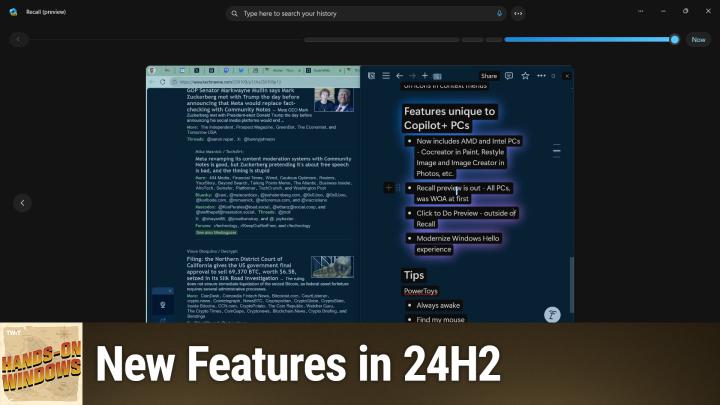
All TWiT.tv Shows (Audio)
Hands-On Windows 123: New Features in 24H2
00:17:11
New Stuff in the Latest Windows 11 Patch
Loading summary
Transcript7 lines
- [00:00]
A
Coming up next on Hands on Windows, we're going to take a look at some new features coming to Windows 1124H2.
- [00:09]
B
Podcasts you love from people you trust.
- [00:14]
A
This is Twit. Hello everybody and welcome back to Hands on Windows. I'm Paul Thurat and this week we're going to take yet another look at Windows 1124H2. I know we've talked about it a lot, but it kind of has dominated the past year. It's one of the biggest releases of Windows in recent memory. Honestly, a lot of the changes under the hood are pretty foundational and fundamental. And of course they also released it twice. Right? So there was the mid year release for Copilot Plus PCs running on Snapdragon X chips from Qualcomm and then the broad release in October, November at the end of the year. And because this is Microsoft and Windows 11, there's been new features almost every month in between as well. And go figure, there have been new features since they released 24H2. Some of them are out, some of them aren't. It depends on your computer, where you're at in the world, what the phase of the moon is. It's kind of hard to say. So I'm going to go through these. This is not a complete list, but these are things you could probably expect to see sometime between January, February 2025, depending on Microsoft and how things go. So that's the nature of this particular beast. Some of these things here in the December Patch Tuesday update, so the second Tuesday of December, and I'll just kind of go down the list. In fact, I'm going to jump into the middle of the list because one thing I noticed right before I started recording this episode is one of the features I was going to mention but didn't have yet has appeared on my computer and it's going to be super obvious when I open the Start menu. So this is my actual computer. It's got a bunch of junk on it. It's not as clean as I like, but I have it here today because it has a bunch of these new features. And you can see this kind of pane over here on the right of the menu is related to the Phone Link app and in this case my Pixel Android phone. So there's this new pane that you get, and I'm not enabling this right now, but you can access a lot of the features in Phone Link without having to launch the app. Okay, we'll get back to Phone Link in a bit. I just had to Address that because it's there and it looks weird and I'm sorry. So you may be familiar with the fact that applications in Windows support jump lists. So you right click the. The shortcut here and you get this list of recent apps in Windows 11. They've supported that in the taskbar, I think, since the initial release, but not in the Start menu. Now post 24H2, they're supporting it in the start menu as well. So I'll go back to the same app, right click. See the same list handy. So if you use jump lists, that stuff is available. So that's kind of cool. They're working on a shortened date and time display down here for the corner. This isn't it. This is the old one. But there are two changes occurring here. There's the. The shortened date and time and then the removal of that little notification bell. I have the removal of the notification bell on this PC, but not the shortened date and time. If I did have it, I could go into this interface and configure it back to the old way if that's what I wanted. If I want to configure it to always have that bell, I can do that in here somewhere. I'm not going to try. Here it is. Yeah. So I can show the bell if you want that back. So two separate interfaces for that. When this is complete, this will just be a cleaner looking area down there in the corner. So that's kind of cool. And we'll minimize that because I'm probably going to need it again. If you were paying attention last year or not paying attention, you probably would have noticed that we had about, I don't know, 17 different changes to Copilot. There's been another change since. In fact, there's been a couple of changes. So as far as the app itself goes, Copilot now is a new app. It's a native app, but it's kind of a native app, meaning it's really still a web app, but it's in a native app container. So there's going to be some stuff going on here in the near future, but for now, this looks a lot like the previous version of the app, but they made some changes that are just related to how things are going to work under the covers and for businesses. We're going to get to that in a moment. But as far as you're concerned, just as an individual, as a user, the app basically looks and works a lot like it did before. But the big change now is you can go into personalization this will take a second. I'm having settings, app issues today and text input. And once this loads, you'll see this new customized Copilot key. So there's three choices here. The default if you have Copilot installed is Copilot. Obviously that's for the Copilot key on your keyboard if you have one. If you don't have Copilot installed, it will default to search. So the Same shortcut as Windows key + Q or Windows key + S. Or there's this custom option which seems promising, but it's not. So you only get these two options. Copilot is obvious enough. And then Microsoft 365 Copilot is a new app I'm going to talk about in a second. Ideally, what you would do is either turn this thing off completely if that's what you want, or have it launch arbitrarily any app. So there are ways to fix this. I'll talk about one at the end of the show. But for now, these are the built in options that you get. Better than nothing, but not much better, right? Okay, so that new app, the other new app, if you look in the start menu here and try to ignore this weird pane over on the side, you can see this Microsoft 365 copilot app. And it looks a lot like the Copilot app, right? Same basic icon. But this M365, when you launch it, it acts like I've never launched it before. But when it comes up, what you see is what is clearly the Microsoft 365 app from before, which used to be the Microsoft Office app. So this is that all in one experience for Microsoft 365 Online, all of the documents you've accessed recently, all of the apps you have, there's been some changes over the past year or so, where in the past, if I launched Word this way, it would launch the web version, which is not great. But now if you have that app installed, it actually installs the app, which is what you want. So that's pretty good. They made this change primarily for businesses, but you'll be able to come in here and eventually what you're going to see over here on the side are Copilot experiences as well, related to like the chatbot or some of the things you can do to, you know, create things using AI. So that's not here yet, but this is the, the beginning of what will become. I'm going to call this the Microsoft 365 copilot experience, mostly for businesses, but for the consumers that are paying for Microsoft 365 Copilot Pro or Plus whatever that's called, the paid subscription, this will be the front end for that as well.
- [07:03]
B
Listeners, as we go into a new year, we all have a lot on our plates. There are backpacking trips across Europe to plan, personal best to crush in the gym and capsule wardrobes to create good thing. Our sponsor, NerdWallet is here to take one thing off your plate. Finding the best financial products, introducing NerdWallet's 2025 Best of Awards. List your shortcut to the best credit cards, savings accounts and more. The nerds have done the work for you, researching and reviewing over 1100 financial products to bring you only the best of the best. Looking for a balanced transfer credit card with 0% APR? They've got a winner for that. Or a bank account with a top rate to hit your savings goals? They've got a winner for that too. Know you're getting the best products for you without doing all the research yourself. So let NerdWallet do the heavy lifting for your finances this year and head over to their 2025 Best of Awards at NerdWallet.com awards to find the best financial products today. Nerds Listeners, as we go into a new year, we all have a lot on our plates. There are backpacking trips across Europe to plan, personal bests to crush in the gym and capsule wardrobes to create good thing. Our sponsor, NerdWallet is here to take one thing off your plate. Finding the best financial products, introducing NerdWallet's 2025 Best of Awards. List your shortcut to the best credit cards, savings accounts and more. The nerds have done the work for you, researching and reviewing over 1100 financial products to bring you only the best of the best. Looking for a balance transfer credit card with 0% APR, they've got a winner for that. Or a bank account with a top rate to hit your savings goals. They've got a winner for that too. Know you're getting the best products for you without doing all the research yourself. So let NerdWallet do the heavy lifting for your finances this year and head over to their 2025 Best of Awards at NerdWallet.com awards to find the best financial products today.
- [09:01]
A
Okay, now I mentioned that phone link has been updated. I was going to talk about some other phone link updates, but that thing got in the way so I had to. I wanted to do that one first, but there's a bunch of other updates coming. I have Two of them on this computer, both of them are related to sharing. So it has bi directional sharing now with Android phones. So from Windows you could open a File Explorer window. I'll go to my desktop, has a bunch of junk on it and I will select a, I guess a text file. And when I do share, one of the options here is nearby sharing. And now you'll see your phone here if you have an Android phone. This won't work with Android or with iPhone yet, although I believe that is coming. And you click that and it will establish a connection with the phone. Hopefully this works because I've had mixed results since I moved this computer in here. Yeah, so I think that actually didn't work, but it will work. No, it worked. Okay, good. So usually it's a little quicker than that and that's kind of cool. And if I go over to my phone and just tap the notification that pops up, it goes to the downloads folder and I can see the text file. And this doesn't help you too much, but I have. You can see it, it's on the phone. So that's kind of cool. Now on the flip side, I can also share from the phone and have that thing come to the computer. Right. So that's the bi directional part. So I think the simplest thing here I'll just do a Open up Chrome. Like most mobile apps, it has a share interface. And then I select the link to Windows app, which is the way you connect to phone link on your PC. And then I have a list of the computers I can share to. So this particular computer is a Surface laptop. So I'll select that from the list and it appeared in the wrong browser window, but I'll just bring it over. It's on the other screen, but it appeared over. It just appeared. So this is just the page I had open on my mobile web browser on the phone. So, you know, bidirectional sharing is pretty cool. There was some things you could sort of do before file system wise, et cetera, et cetera, if you connected. But this works over WI Fi, so super convenient. So that's actually really nice. All right. And then this one is a. This is a feature that's actually gone away. A couple of episodes ago I talked about multitasking and one of the kind of esoteric features in Windows 11 where you could type in a date or time or phone number and then do something with it. Right. So when you selected it like this, this is just a time, obviously it would come up with a list of apps that could do something with that. So for example, schedule a meeting at this time using the Outlook app. But that feature's going away. So Microsoft had added that a couple years ago. Never really did anything with it. I don't think anyone really even knew about it. And now it's going away. So now it is away. So actually on this computer it's gone. So it's already gone. And if it's still on your computer, don't use it like everyone else. It will go away on its own. While I have File Explorer up this See more menu, you can see it goes up off the top of the screen, which is crazy. Microsoft has fixed that internally. They're testing it with the Insider program that will be out January, February. It's not on this computer yet, but that's coming. Multiple camera support. So multiple. If you have multiple cameras, obviously you do that right now, but you can use them simultaneously sometime in the future. So that's kind of cool. And then I'm going to do this over this app. But typically you would do this over a game. You bring up the game bar and you have all these widgets you can choose from. You can move them around, resize them, pin them, et cetera, et cetera. They're adding something called the Microsoft Edge Game Game Assist, which is a pane that will appear over on whatever side you can obviously move it, resize it. And it's just a mini stripped down version of the web browser because most people who play games, or many people will browse the web and try to find out more about the game they're playing or how to get past a hard part of the game or whatever it is. And so you can put that thing on screen, it's a keyboard shortcut away. You can leave it pinned if that's what you want. So that's kind of cool. I don't have that yet, so I can't show it to you. But it's just basic little web browsers. That's kind of neat. And then there are features that are coming to Copilot PCs. So there's a bunch of this stuff. We're going to talk about this more in a later episode, but the short version is that these features were limited to Snapdragon X based computers. They've expanded now to the latest generation of intel and AMD chips that have powerful MPUs. Microsoft in September, October announced a bunch of new features that are coming. And the biggest feature of all recall is now available in preview for all of those types of computers through the Insider program. So I actually do have it installed here. I actually just the other day I'd been running this for probably a month or more, I think six weeks or so. And at some point I realized I'm really not using this. I'm just going to turn it off. And then as I started to prepare for this episode, I realized, oh wait, I actually have to show this. So I turned it back on. So I will open Recall like an idiot and hopefully I have to go through a Windows hello thing which you cannot see. It's very serious about security. And I'll bring this thing up here. And so this is what I was. These are my notes from the show. This is a web browser I've got. So this is a snapshot it took. And one of the things you can see here is this kind of purple, blue, pink highlight is called Click to Do. So in this release, the version I have on this computer I have Click to do inside of Recall, but it will be outside of Recall as well. So if I was in say Microsoft Edge looking at an article, I could, I think it's Windows Key plus click and bring up that interface. I don't have it yet, so I can't do it there, but I can do it here. And what this will do is a bunch of different things, but it depends on what the content is. And so in this case it's just text based options. So I can copy this to the clipboard, paste this into another app, that kind of thing. I can look through my history. I don't want to spend too much time in there, but I don't think I have anything super embarrassing. But anyway, this thing's up and running and I don't know what all the controversy was about. Not too big of a deal. So yeah, Recall, Click to Do are probably the biggest ones. There's a modern Windows hello experience coming. If you have an AMD or Intel computer that's brand new that from last August on you'll be getting, you know, co creator and paint and restyle image and image creator in photos and all those new, all those new AI features. So all that stuff's coming. Okay, a lot of stuff. But before I go, I wanted to just throw out a couple of tips related to PowerToys. I mentioned PowerToys. We did an episode on PowerToys a little while ago, but over the holidays I've been using a couple of other PowerToys utilities a lot more almost than anything else. And so I wanted to talk about that real quick. The first one is this Is you'll see down here in the tray, this little coffee cup. This is called powertoys Awake. What this will do is let you keep your computer on for some amount of time or indefinitely. I use this when I'm playing games, but I want to keep tabs on work and maybe do a little work between levels or whatever it might be. So I might put this on for two hours, and this computer will never go to sleep. Otherwise, I'll be over here playing the game on the Xbox or a different computer, and the screen will dim and it will kind of just turn off because, you know, it's trying to be efficient. But in those situations, I want that thing to actually stay on. And this is a really handy little utility that does that. So that's pretty cool. The other one is something called Find My Mouse. This one's going to be a little hard to demonstrate, but I think we talked about this. This bug in 24h2 where the mouse cursor kind of disappears depending on the screen. This is dark mode, so it's actually pretty good contrast. You can see everything pretty well. But sometimes in light mode especially, the cursor disappears. I find myself just scouring around looking for it. So there's a tool in PowerToys called Find My Mouse. And what you do is you double click the control key, and it does that. And then you can see it. Once I click the mouse, it goes away. I use this every single day. This was something as of two months ago I'd never used once, and now I use it every single day. I love this thing. So I use. This is fantastic. So I use that a lot. The other one is something called key remapper, and that is related to that copilot key on the keyboard I was talking about earlier. So I have to bring up the full. Actually, that's not how you do that, Paul. I have to bring up the full PowerToys interface and find it in this horrible list. I hate the way this thing works, but it's right here in the middle. Okay, so I can show you the remappings. I actually. Let me just remap a key that's a little easier to see. So what I've done is remap the copilot key to be the left arrow key. Because on this keyboard, actually on the laptop keyboard, the left arrow key is right next to the copilot key. And I always hit copilot key by mistake when I mean to go left. Right. So F23 maps to the copilot key. You can do any key remapping you want. I used it depending on the computer, I use it for a few different things. So if you have like little page up, page down buttons and those are getting in the way, you can remap those to arrow keys as well. So I did that on different computers. That's not a problem on this one. But that's how I get around that. And I find that to be better than the built in functionality that Microsoft added because I don't want to run search and I don't want to run Microsoft 365 copilot. What I'd like to do is nothing. Nothing is not a choice. So I do this instead. So there you go. I'm sure by the time we come back in a month or two we'll have a bunch of more new features. I'll probably have some of the features I don't have yet that I already know about and there'll be new ones I don't know about yet. So that's the the nature of Windows these days. So hopefully you didn't find this too confusing and hopefully it was a little helpful. And I will have a new episode of Hands On Weekly. Hands On Weekly Hands On Windows every week. Every Thursday. You can find out more at the TWIT website Twit TV H thank you so much for watching. Thank you especially to our Club TWIT members. We love you. See you next week.
- [19:10]
C
If you love your phone but not your carrier, just switch to T Mobile. You can keep your phone, keep your number and we'll help pay it off up to $800 per per line. You can also use our savings calculator to compare our plans and streaming benefits against Verizon and AT&T. So switch and keep your phone, keep your number and keep more of your moolah@t mobile.com up to 4 lines via virtual prepaid card.
- [19:32]
A
Allow 15 days qualifying unlock device, credit service port in 90 plus days with device and eligible carrier and timely redemption required. Card has no cash access and expires in six months.