← All TWiT.tv Shows (Audio)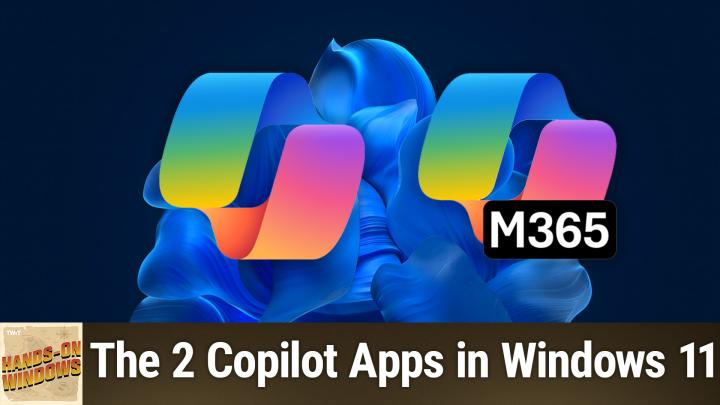
All TWiT.tv Shows (Audio)
Hands-On Windows 127: The 2 Copilot Apps in Windows 11
00:14:16
The difference Between the Original and M365 Versions of Copilot
Loading summary
Transcript10 lines
- [00:01]
Paul Thurott
Coming up next on Hands on Windows, we're going to look at the two copilot apps in Windows 11. That's right, there are two. Now, I know.
- [00:13]
Unknown
Podcasts you love from people you trust.
- [00:17]
Paul Thurott
This is Twit. Hello, everybody, and welcome back to Hands on Windows. I'm Paul Thurat and this week we're going to look at, at the two Copilot apps in Windows 11. And yeah, you. You heard that correct? There is. There are two copilot apps in Windows because one was not enough. I spent about a year between late 2023 and late 2024 freaking out because Microsoft added a copilot app to Windows 11, which wouldn't normally be a big deal, but then they spent that ensuing year changing it dramatically on a really regular basis. We'll talk about that in a moment. But in late last year, late 2024, it got even stranger because now there are two copilot apps in Windows 11. So we'll take a look at why that happened and then we'll see what each of those apps does so you can determine whether you want to use them. Okay, so the first of the two is, and I put them both down here in the taskbar because, you know, I want to make myself crazy, is the original Copilot app. Right? So you may recall if you did use this app, I'll just try to resize this so it looks normal on this little screen. This is the successor, I guess, to that app that debuted in late 2023. The original version of this app, it was actually a pain over on the side of the screen, right? And it was non resizable, but then it became resizable and then you could turn it into a floating window and used to have all these like Windows command integrations and that was going to get better, but then they took that away and then it became a native app. But it's not really a native app. It's just a. A native app wrapper around the web app that it always was. And whatever it's. It's hard to keep track of, but the app icon moved four times. It was here, it was there, it was everywhere. Microsoft tried all this different stuff. So rather than fret over that, I'll just say this is the app as it is today. So this is the native app. It's really just a native app wrap around a web app. It's a front end to Copilot on the web. So built into Windows you do all the copiloty type things that you want to do, whatever that might be. I'll give you a couple of ideas, I guess, but the way to think of this is Copilot is one of many modern AI companions that are replacements for what we used to call personal digital assistants. Things like Cortana or Siri, which is still around, or Google Assistant. Right. And so it's very similar to OpenAI's ChatGPT. In fact, it's based on that. It's similar to Gemini, which is the new Google AI Assistant. Siri is getting there. Apple is doing things on their own schedule, but they'll get there. I've already configured this, but one of the things it does is it asks you to configure a keyboard shortcut for Alt plus space to bring up what's called the Quick View version of this. I don't like that. As kind of a power user, Alt space normally does what I'm doing here, which is right click on the current window so you can move the thing around if it's off, you know, to the side of the screen or whatever. It's kind of useful for people like me that have been around for a long time and remember that, but most people don't use it. So I have actually configured it to work that way on this computer, which I'm a little unsettled by. But anyway, so Alt space, you can see this is the Quick View version. So it's kind of the small, it just appears over whatever else you're doing. So the point of this is that you're probably someone in Copilot because you're in the middle of something. Maybe you're on a website or at an app, you have a question about whatever it might be, you can ask it this question and then help space it goes away. So that's, that's, that's cool. So what might you use this silly app for? Right. Well, you could use it for things like, you know, ask it for recipes. You're looking, you know, typically it's the answer to a question. You want information about something. You know, I would like a good recipe for herb carrot cake. I probably spelled carrot wrong. Yep. So, but whatever. So it comes back pretty quick. Right? Nice. Definitely going to want to check this one, make sure it's not hallucinating about a, an ingredient in there. But I don't know. Looks, I'm going to go through that one quick. Looks pretty solid. I, I, this one's kind of weird now because actually I'm writing a book about Mexico City, but in the past I would always ask for Mexico City itineraries. You could do a travel itinerary. So maybe I'll do one for. I don't want to. I don't use AI for the book, but 5 day Paris itinerary, for example, a 10 or area if I could type. You know, we'll do a little thinking and here we go. All right. Of Paris, etc. Etc. You know, same kind of thing. You get it. So you could do budgeting with this, a workout program. You know, one of the things I'm. I'm here in Mexico City, I don't have a gym here I can go to. So you know, I need a. A body weight workout program kind of thing. Probably will come up with something reasonable. It's like Paul, you weigh a lot, so this is going to work great. It gives me different things over some number of days. Pretty cool standard if you're a developer. I use this for a lot of C programming things actually. This is built in the C Write a C method to pull the numbers out of a string, right? So you have a string that's comprised of alphanumeric characters. You just want the number parts. Here's a line of code, or not a line of code, a block of code. This is actually a function in C shop, but whatever. This is a different way to do that. And yeah, fun. So presentation's nice. By the way, you probably noticed this thing came up pretty quick, right? This stuff is much better than it used to be. So. So your use case here will vary. I don't use this type of interface myself a lot, frankly, although I do use the programming capabilities in GitHub Copilot, which is based on this inside Visual Studio. But this is just kind of your general purpose assistant.
- [06:37]
Unknown
25 years ago, a small group of business and government leaders met in Washington, D.C. they envisioned the creation of an independent nonprofit organization with a mission to help people, businesses and government mitigate the growing threat of cyber attacks. Today, the center for Internet Security embodies that vision. For 25 years, it's worked with a global community of IT and cybersecurity experts to develop the CIS benchmarks and CIS critical security controls. These proven security best practices defend against common cyber threats and streamline compliance with industry frameworks, regulations and standards. Today, CIS provides cybersecurity services, threat intelligence and critical resources to help public and private sector organizations alike strengthen their Cyber defenses. Visit cisecurity.org today. That's the letters cisecurity.org to find out how CIS can help your organization as we create confidence in the connected world.
- [07:37]
Listeners, are you looking for a shortcut to better auto insurance for you? Something that takes all the research off your plate. Something that's easy, something that matches you with lower rates. Something genius. That's where NerdWallet comes in. Their nerds already did the work for you. Just answer a few questions and ta da, you'll be matched with top insurance providers in your area. Find the right rate for you@nerdwallet.com after all, using NerdWallet is more than smart. It's genius. Not all applicants will qualify for the lowest monthly payments. NerdWallet Insurance Services Inc. California resident license number OK 92033 okay, so the second.
- [08:09]
Paul Thurott
Copilot app, which is new but not new, is called Microsoft 365 Copilot. This is the app that once upon a time was called the Office app. It's that all in one front end to your. What used to, well, is still Office.com so you're a Microsoft 365 subscriber as a consumer or you just use the web apps. You know, you have a Microsoft account, you go to office.com, you can use the web version of Word or Excel or PowerPoint or whatever. And it was okay, you know, it was kind of a. It was an okay app. They renamed it at some point to the Microsoft 365 app, which was a little confusing, but we learned to live with that. I mean, I thought Office was a pretty good brand and that had some limitations. There were links for the Office apps on the side, but they would always launch the web apps even if you had the local apps installed, which is not what most people would want. But now we have the Microsoft 365 copilot app. And this is the icon here. It looks a lot like this icon here. But when you run the app, if you have signed in as an individual with a Microsoft account, as I have here, it looks almost exactly like the old Office Microsoft 365 app. So even though the name has changed a little confusing, still works. It has those app links like I said on the side, but if I open a new document, it should open. Yep. It opens in the local version of the app.
- [09:32]
Unknown
Right.
- [09:32]
Paul Thurott
The version that's installed on my computer, not the web version. That's ideal. So that's good. But there's this new Copilot option here on the left. I think that's. And Create's actually new too. But Create is a new front end for all of the apps where you can create something new a Document, a presentation, a workbook, et cetera. But not, that's not a big, big deal. This one's coming soon. So as I record this, if you have a Microsoft 365 personal or sub subscription, in the latter case, if you're the primary account holder, you're going to gain access to what used to be, well, it's still Copilot Pro features or CO plus features, I guess one of the two, which used to be paid only, right. And so now everyone's getting a, a set of AI credits every month they can use toward these co pilot activities. So this will have a chat interface built into it. So very similar to this chat interface in the regular Copilot app. The difference is that this will work against your Microsoft 365 data, which could be very useful. You can't use it today as I record this as an individual, but if you have a corporate account, and I do have one of those as well, and you sign into this app, you'll see the reason why they renamed it. So for people that are working in a business that is using Microsoft 365 for businesses, governments, educational institutions and so forth, the primary interface for Copilot is now going to be, and it's actually, I should say Microsoft 365 copilot is going to be here. And this is the default view when you sign in with that type of a commercial or business account. So it's much like what we just did in the regular Copilot app. The difference is that your organization can, if they want to, and most will customize it so that it's not necessarily always grabbing information off the web. Or better yet, more importantly, you'll see this little green thing here says enterprise data protection is enabled. And that's why there are two apps, because Microsoft's business customers, commercial customers, needed the company to ensure that nothing that happened here was going to head out into the world and allow any private data from the company to escape. And so this app is protected. It has enterprise data protection. The consumer version does not. So that's actually the reason why there's some additional features in here related to the commercial versions of Microsoft 365. I don't think I actually have. It says I can create one. I have a very basic account. I don't think I actually get this featured, honestly. But people that are pay or companies that are paying for Microsoft 365 can also create pages. So pages are like shared chats that persist. Right. And so it's basically a shared Workspace. So it's you and one or more coworkers together brainstorming, working together with Copilot as if Copilot was a human being that worked at your company. This Create tab is just like the thing I showed you for the consumer version. It's an all up place to start new documents, presentations, work books, etc. By default you're not going to see any of the apps over here. Although I think if I were to launch a new app, I think Word will actually it's going to make me sign in so I'm just going to say no to that. But because I use my consumer account on this computer. But I believe as you start to run apps, the app icons will appear on the left as they do in the consumer version of this interface. And that way you can go directly into the app and access all that stuff as well. That's the why I don't have anything configured. I don't have pages set up or anything like that because I haven't configured this as the owner and only employee in this business that doesn't really exist. I suppose if I said make a five day Paris itinerary it I still can't say it would probably do it. So this is going to go out, I don't know if it's trying to hit my corporate data back end and say Paul, we didn't find any data related to a five day. Yeah but you see this is not happening as quickly, right? So this is probably related to the fact that a I have no data and baby, it started by trying to find my data and when it failed it went to the web and now it's giving me this itinerary. So that's cool if you need it, I don't know, whatever. But again for most people watching this, you're probably not using this in a corporate sense. And so what you're going to see is this. And this is the normal. Not normal but the default interface, the Microsoft account interface. So whether you're paying for Microsoft 365 personal or family or not, you'll see this. You will get Copilot eventually. If you're paying for the subscription, it's branded this way. It's not actually Microsoft 365 but Copilot. It's really the Copilot plus or Pro features that used to be paid only now available to everyone with a subscription. Well the primary account holder of any subscription and then the simplified interface for launching new documents. And in this case it's did sign me in because I'm signed in as a, a non business jerk. So. So there you go. If that doesn't make sense to you, I would just say, you know, wait six months because if Copilot has taught me anything, it's that nothing is ever the same and will ever stay the same. So I'm sure it's going to change again. You know, that's, that's what this past year, year and a half has been like. So there you go. I hope that made sense. I hope you found this interesting. We'll have a new episode of Hands on Windows every Thursday. You can find out more at TWiT TV. How thank you for watching. Thank you so much and especially to our Club Twit members. If you're not a member of Club Twit, it is only $7 per month for individuals. We also have family and corporate plans and you get access to all the great Club Twit content, not just Hands On Windows, but all the other podcasts as well, without ads and the video versions, etc. So it's, it's really worth it and strongly recommend. So either way, thank you so much. I'll see you next week.
- [15:48]
Unknown
Like your favorite travel guide, T Mobile's network knows all the spots because T Mobile helps keep you connected from the heart of Portland to right where you are on America's largest 5G network switch. Now keep your phone and T Mobile will pay it off up to $800 per line via prepaid card. Visit your local T Mobile location or learn more@t mobile.com KeepAndSwitch up to four lines of your virtual prepaid card. Last 15 days qualifying unlock device credit service port in 90 plus days device eligible carrier and timely redemption required Card is no cash access and expires in six months.
- [16:18]
Marketing is hard, but I'll tell you a little secret. It doesn't have to be. Let me point something out. You're listening to a podcast right now and it's great. You love the host. You seek it out and download it. You listen to it while driving, working out, cooking, even going to the bathroom. Podcasts are a pretty close companion. And this is a podcast ad. Did I get your attention? You can reach great listeners like yourself with podcast advertising from Libsyn Ads. Choose from hundreds of top podcasts offering host endorsements or run a pre produced ad like this one across thousands of shows. To reach your target audience in their favorite podcasts with Libsyn Ads, go to libsynads. Com that's L, I B S Y N Ads. Com today.