← All TWiT.tv Shows (Audio)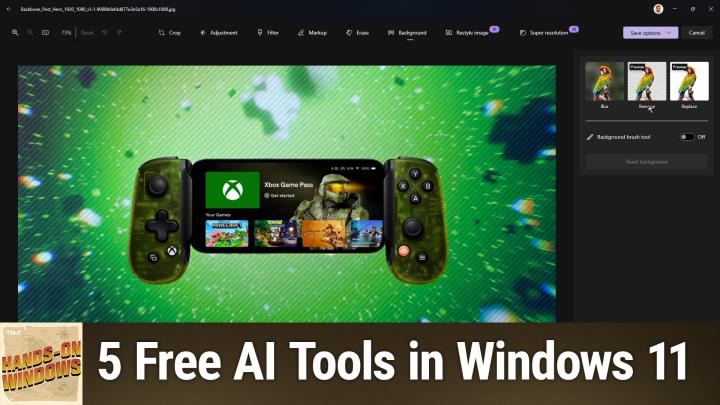
All TWiT.tv Shows (Audio)
Hands-On Windows 138: 5 Free AI Tools in Windows 11
00:18:08
Navigating the AI Landscape of Windows 11
Loading summary
Transcript5 lines
- [00:00]
Paul Thurott
Coming up next on Hands on Windows, we're going to look at the top free AI features in Windows 11.
- [00:07]
Odoo Advertisement
Imagine you're a business owner relying on a dozen different software programs, each one disconnected, more expensive and more complicated than the last. It can be incredibly stressful right now. Picture Odoo. Odoo brings all the tools your business needs into one simple CRM accounting, inventory, manufacturing, marketing, HR and more. All seamlessly connected. Everything works together, giving you the peace of mind that your business is running smoothly from every angle. Odoo's open source applications are user friendly and designed to scale with your business, saving you time and money. Say goodbye to juggling multiple platforms and hello to efficient integrated management. Stop wasting resources on complicated systems and make the switch to odoo. Today, visit odoo.com odoo.com and discover how Odoo can simplify and streamline your business operations. Odoo Modern Management made simple.
- [01:09]
Chris Gethard
Podcasts you love from people you trust.
- [01:14]
Paul Thurott
This is twit. Hello everybody and welcome back to Hands on Windows. I'm Paul Thot and this year I feel like it's been two things. New Windows 11 features and new AI features, especially Copilot. I mean, this has been. This is the world we live in now. Obviously Microsoft is doing everything it can to integrate AI into Windows and other products, but it's moving quick. It's kind of hard to keep track of. There's also this divide between what I'll call Standard PCs and Copilot Plus PCs. You know, last June when they first came out with these, a couple of interesting new features, nothing fantastic. And then later in the year we finally started to be able to test things like recall and click to do. But even some of the free AI stuff. For example, if I bring up Notepad, you will have certainly seen this addition here. And this is something I had been testing in the Insider program on Copilot Plus PCs. I thought it was for Copilot Plus PCs, but it is not. Is this kind of menu for rewrite, summarize, etc. These AI features. The thing is, these features are not actually available for free. They are actually. Let me go see if I can find this here. If you try to run this on a. I guess this here. If you try to use the AI features in Notepad to summarize some text, you're going to get this dialog box. And the point of this is that even though it's included with Windows, this feature actually requires a subscription of some kind. It could be a Microsoft 365 personal family subscription, like this says. But it could also be a Copilot Pro subscription, which is $20 per month additional on top of this. So in my case, I do have this subscription and I can use this feature. So if I did that in Notepad here, you'd see that. But this is what happens when my wife runs it. So even though she's part of my family subscription, she's not the account holder. She doesn't have access to that feature. So that's kind of a downer. The good news is, if you see that and you don't like that, you can actually get rid of the ui. You can get rid of these things in settings. You can actually just turn that off. So, you know, if you don't want that stuff, turn it off. That's fine. You don't see it. But this, again, leads to some of this confusion. You know, what are the features that are available? Like what. What could somebody use? What could anybody use? Right. Without paying a cent? And actually, there's some pretty good stuff in here. Right? And so the primary app for this, of course, is Copilot. And this is something we've talked about a bunch. We had an episode a few episodes ago about Copilot changing yet again. I like how this runs. Like it's the first time I've ever run it every time. That's hilarious. I don't definitely don't want this. I definitely don't. It's okay, so. Oh, I left that on like an idiot. But anyway, here's Copilot. So you got the idea. Not. There's no. Okay, no conversation history because I haven't signed in for some reason. I will do. Oh, wow. Well, let's do that right now. So there we go. Okay, so you can see these incredible discussions I've had with Copilot. So as far as a Windows app version of Copilot goes, what's the point of this thing? Primarily, this is a local running app version of that thing that's up in the cloud, but it's a window, you know, it's an integrated Windows feature. So you can do all the things that one would do with Copilot, but there are some advantages to it. Right? And so you can upload files. You can also take a screenshot, which is like uploading a file. You can access this deep Think deeper, sorry feature. This is something Microsoft added to Copilot for free back in February, and it uses some of the most advanced and latest open AI models that if you were a chat GPT User and not paying you could not access. Right. And so think deeper is when you want to basically do some deeper research into a topic. And so for example, I earlier today, let's see if I can bring this guy up. I asked him, I asked, I turned this on and I asked it this question. I said what can you tell me about Apple's antitrust problems around the world, specifically about the App Store and its fee structure. And it gave me this kind of detailed report which is kind of impressive actually. Right. So not bad. And I asked it a follow up question to compare it to similar App Store fee structures from other online stores. Right. And so same thing. I kind of went through this deal. I did notice one at least mistake in here. Often around 30% is not correct. I don't remember what Microsoft's fees are, but they're actually much lower than what it says here. So another example of how important it is for people to verify what you get out of AI. But still kind of an impressive presentation, an impressive volume of information, a comparative table, kind of a weird text based visualization of the dynamics of these ecosystems which is so bizarre. And then you know, some further thoughts and so forth. And so this Think deeper feature, sort of one of those new reasoning models, what Google calls a thinking model. It as it did this, you kind of saw it kind of thinking through how it does that kind of cool. Works with voice as well. So you could just talk to it. I think one of the coolest uses of AI is when you're out in the world walking around talking to it on your phone. You're not going to do that too too much on a PC. But if you are more comfortable speaking than typing, obviously you can do that as well. So that's great. It also does all the other things like Copilot or ChatGPT or Gemini or whatever it does you can like I asked. So I asked an encoding question related to C sharp. Just a simple question, how to do something that's really neat. Just, you know, explain something. Why are apples red? It explains why red apples are red, but then also told me that not all apples are red and why and okay, that's fun. Bunch of questions about the moon. You know, when's the next full moon, when's the next waxing and waning moon, when you know, et cetera, you can get the idea. So kind of a different way of, you know, an alternative I guess to traditional search. The other thing I did that I thought was kind of fun was I asked it, this was not the think Deeper feature. But it is the 50th anniversary of Microsoft this year, something I've been thinking a lot about. And so I said, well, maybe you could help in my voice, describe this. It didn't do any of that, but it did list some of their big events over the years. And then I thought, well, this is kind of interesting. I wonder if I could use this AI to generate images. You can. So that works really well too. And this is kind of a fun photo depicting the Microsoft campus, as if it might have looked in 1985, where apparently there are CRT computers everywhere and people are all working outside, because that's exactly what it was like in the 1980s. And I had just a separate version in 16 by 9, which this is not 16 by 9, but it is a different image. So kind of interesting. So that stuff to me is like, basically, you know, the same thing you might go to the web for. We also talked in that recent episode about there being. Oops, no, no. I had the screen copilot365, like this thing, which I don't have. Do I not have this app on here? I must. Yes, the Microsoft 365 copilot app, right. Which also has this chat interface which is very similar to what we just looked at, except it has these kind of sample prompts. And one of the things I actually really like about this because I think a lot of people stare at these screens and don't know where to go, is they have a prompt gallery, right? And so you can look at specific tasks, like maybe you want to learn something. And it has this list of just. It just filters a list basically to those tasks that are related to creation. Like I want to, you know, maybe I have a document that I want to open and get feedback on my writing or, you know, I create a limerick which is not super useful, but, you know, just kind of getting started. Type links, which for some reason is not in the other. The normal, you know, the original Copilot app. But both these apps are in Windows 11. Both work for free. You don't have to have a Microsoft 365 subscription to do what I just did. Although obviously you get more things if you do have that. The second free AI feature is part of Microsoft Edge. Right. And it's Copilot again, but it's Copilot in a web specific context. Right. And so I have this article that I wrote. It's a pretty long article and this is a good example. I can see someone looking at this and being like, oh, man, I don't really have time for this. Like what's he trying to say here? And so you could do this, create a summary. Now you could just do this from the Copilot app or from Copilot on the web. But this is a little more seamless because it's side by side with whatever you have your happen. I happen to be reading at the time. And so it goes through, it gives you this kind of numbered list of what I guess I wrote here. It's kind of hard for me to go back, but this is an AI thing that I hope goes away. But there's always this kind of follow up at the bottom. So let me know if you want any more. Do you want some more insight on any of these points? If I do, I'll read the article. But yeah, so that's useful I guess. Right? It also has that Copilot Daily feature that's missing for now at least in the new version of the Copilot app for Windows 11. And this is that kind podcast. You're listening to the co pilot daily for Thursday, March 27th. I'll just turn that off but hopefully you heard that. But it's just a an AI generated podcast like summary of what's going on in the news today. So there's additional stuff in here. It does all the co pilot stuff. You can upload images and all that. But I would use this in a side by side way. It's kind of a neat way to kind of do this thing. The other things that are free are the generative AI related. These actually are some things we've talked about recently, so I'll just gloss over them very quickly. But if you look at something like Microsoft Paint, which actually look at it, make that small so you don't have to deal with that. Actually I should probably load a an image that has a background like this thing I keep using and threatening to get rid of. But you know, we've done this before on the show. But you can use this background erase tool. But also in the Copilot menu you get all of the tools that are generative AI related. The top one is something you'll only see in a Copilot plus PC. But these others are available to everyone. Right. So we've gone over this. I don't want to spend too much time on this. But you can remove this background, Generative erase, et cetera. Those features are free to everyone. Very, very cool. Like very, very useful to have that just kind of built in and then same thing in Paint. Although the list here is it's actually the same features. It's kind of strange. So if I open up this image edit, on a Copilot PC, you're going to see these things over here, but on a normal PC you're only going to see these first two. So you're going to get generative erase and background removal, also blur and replace. So if I want to just do straight up removal again, it works pretty well, but same thing as in paint. So maybe you're more comfortable using this tool or maybe you're just using it because you're dealing with photos, not with little graphics or whatever. This stuff requires a Copilot plus PC, so technically you do have to pay for that. Okay, what else we got? Clip Champ. So Clip Champ is close. This too is of course the video editor that is built into Windows 11. And this is a great app. It's a web app. It's gotten a lot more sophisticated over the years or over the months anyway, bordering on years, that has been part of Windows 11. I'll just go find some little goofy video that I made recently. And there's actually a bunch of things in here. This is not. I can't do this as an example because there's no one talking in this video. But you could use AI to generate captions automatically for the video, right? I don't know what this will do. Yeah, you choose English, it will transcribe it, et cetera. So there's nothing here for it to hear. But if there was, if there were people speaking, it would generate those captions and then it gives you the opportunity to go back and edit them after the fact. So super powerful, super useful. And there's also just actually, let me go to the beginning here. There's this option here. Create a video with AI. So in this case, the idea is you have some media, a bunch of photos, videos, whatever it might be, drag them in, drop them, say, and then you can choose styles which are templates, the rough length you're looking for, and then it will output this video. Now at the end of that, let me go back into this thing just so you can see the templates at the end of that. What you're going to get is a project like this. And so you could then after the fact go back and say, okay, this is pretty cool. But I, you know, I want this, you know, one of these styles or whatever. I want to apply this style to the video instead of the template that maybe it chose in the beginning. So like the auto captions, it's not. You don't just get it and you're stuck with it. You can change any of that after the fact. So super useful. There's more than that, but those are the kind of the big ones. I think auto. Auto Captioning is just an awesome feature, so that's really, really cool. And then the final and fifth feature is one I think a lot of people don't know about. It's called Smart App Control. It's something that's buried in the Windows security app, which is why you can search for it. So like I did, I just typed in just do Smart search. You can get to it this way. It's the easiest way to do it. When you get a new computer or you install or Upgrade to Windows 11. This feature is enabled by default, but in evaluation mode. And what it does is it uses AI on the fly to determine whether any of the apps you're running or installing might be malicious. And if it is determined to be malicious, it will block that thing. Right. And so it's one of many, many features related to apps and security and safety that are really useful in Windows. Right. And so one of the things we would have looked at in the past is, where can I get apps from? So you can choose the Microsoft Store, only you can choose to be prompted just in case, if anything's wrong. Maybe this is not the best place to buy or to download an app or whatever. So this one runs in the background. It's not something most people will ever see or use directly. But my recommendation is, honestly, I'm not going to do it here because I would have to do some things afterwards and reboot. But see if you can turn it on. Because one of the interesting things about it is most people tend to install most of the apps they use right away when they first get a new computer or upgrade or whatever. And so it goes into evaluation mode, and if it doesn't find any problems, it. It will just switch to off. And once it switches to off, you can't enable it. I mean, you really can. There are registry changes you can make, but in the ui, it's just grayed out. I feel like this is something that should be on all the time, and it is something that will be on all the time. And so in Windows 1124H2, Microsoft originally was going to just enable this by default, but I think they wanted to get some more feedback or rather some more testing data. You know, have enough computers out in the world that have tested this against enough different apps that they can get this kind of heuristic feel for what's going on with these apps. Can they be trusted or not, et cetera. So for now, it's the way it's been since this feature was first introduced. It's evaluation mode only. If you've been using Windows 11 for a while, chances are pretty good, actually, this thing will be off and then you can't do anything until you upgrade to another version of Windows 11 or whatever, just reset the computer. But if it is like this, I mean, I would consider there's no harm in turning it on. You can bypass its blocks if you want to. I think having that extra layer of protection is. Is a good idea. But it does use AI to make that happen. So. And it is free. It's for everybody. It's not just for copilot plus PCs. And then beyond these things, I mean, obviously it's. It's Windows, right? So you could install the Chat GPT app, you could run Gemini in the web. You can do whatever you want. But these are the things that are built in to Windows that are available to everyone. It's a subset of the total tool set for AI. And of course, as we go forward, as you've been seeing over the past many episodes, they'll introduce more features. So we'll have to kind of sort through those as we go because some will be free for everybody, some will be for everybody if you pay for Microsoft 365. And then some will be Copilot Plus PC. It's confusing, but that's. That's why we're doing this. It's confusing. So hopefully you found this useful. Thank you so much for watching. We'll have a new episode of Hands on Windows every Thursday. Thursday you can find out more at TWiT TV. Thank you to our Club Twit members for subscribing. We love you for that. If you are watching us on YouTube, consider subscribing. It would help us a lot. And you can get to watch these and other videos without any ads. Alrighty. And you can learn, I should say we can learn more about that at Twit TV Club Twit. Thank you. I'll see you next week.
- [19:08]
Chris Gethard
Hi, I'm Chris Gethard and I'm very excited to tell you about Beautiful Anonymous, a podcast where I talk to random people on the phone. I tweet out a phone number, thousands of people try to call you talk to one of them, they stay anonymous. I can't hang up. That's all the rules. I never know what's going to happen. We get serious ones. I've talked with meth dealers on their way to prison. I've talked to people who survived mass shootings, crazy funny ones. I talked to a guy with a goose laugh, somebody who dresses up as a pirate on the weekends. I never know what's going to happen. It's a great show. Subscribe today. Beautiful. Anonymous.