← All TWiT.tv Shows (Audio)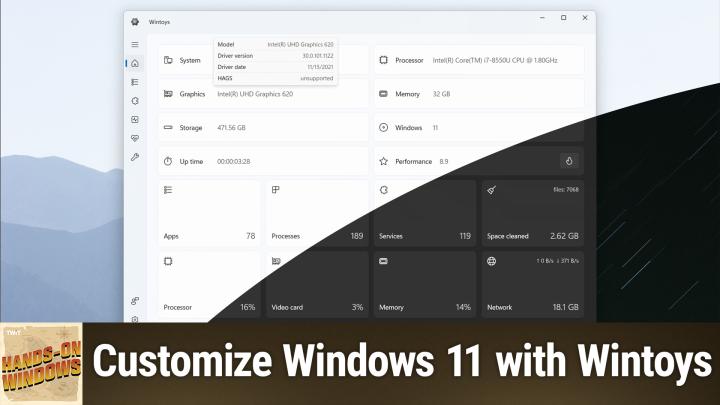
All TWiT.tv Shows (Audio)
Hands-On Windows 139: Customize Windows 11 with Wintoys
00:11:45
A Free Windows 11 Customization Tool
Loading summary
Transcript9 lines
- [00:00]
Paul Throt
Coming up next on Hands on Windows. I've spent much of the past year looking for the ultimate Windows utility, and I might have just found it.
- [00:08]
LinkedIn Ad Voice
Does it ever feel like you're a marketing professional just speaking into the boyd well, with LinkedIn ads, you can know you're reaching the right decision makers. You can even target buyers by job title, industry, company seniority skills. Wait, did I say job title yet? Get started today and see how you can avoid the void and reach the right buyers with LinkedIn ads. We we'll even give you a $100 credit on your next campaign. Get started at LinkedIn.com results terms and conditions apply.
- [00:38]
MITI Health Voice
It's true that some things change as we get older. But if you're a woman over 40 and you're dealing with insomnia, brain fog, moodiness and weight gain, you don't have to accept it as just another part of aging. And with MITI Health, you can get help and stop pushing through it alone. The experts at MITI understand that all these symptoms can be connected to the hormonal changes that happen around menopause, and MIDI can help you feel more like yourself again. Many healthcare providers aren't trained to treat or even recognize menopause symptoms. MIDI clinicians are menopause experts. They're dedicated to providing safe, effective, FDA approved solutions for dozens of hormonal symptoms, not just hot flashes. Most importantly, they're covered by insurance. 91% of midi patients get relief from symptoms within just two months. You deserve to feel great. Book your virtual visit today@joinmidi.com that's join M I D I.com.
- [01:40]
LinkedIn Ad Voice
Podcasts you love.
- [01:42]
MITI Health Voice
From people you trust.
- [01:45]
Paul Throt
This is TWIT. Hello everybody and welcome back to Hands on Witness. I'm Paul Throt and the this week we're going to look at a third party utility, kind of a Windows 11 tweak utility, if you will. That I feel is not perfect, but is as close as I've seen so far to something close to perfect for this purpose. So if you've been watching the show for a while, you know we've spent some time over the past year looking at various Microsoft and third party utilities that help make Windows work more the way you want it to work. This is a. Well, it's not a new one. It's new to us. It's new to me called wintoys. It's available for free in the Microsoft Store. So if you if I could figure out how to launch the Microsoft Store, you can search for it there. And I believe this is Actually the only way you can get this, but I have already installed it, so it is available. And if you run this app, you'll see something that looks very much like a modern Windows 11 style app. Right. This, to me fits in very nicely with PowerToys, which is a set of utilities from Microsoft that we've talked about in the past. There's not a lot of overlap, honestly. This is more along the lines of that, you know, tweak the ui, tweak the way things work in the background, you know, make Windows work the way you want it to work. I'm using dark mode here because it's just easier on the eyes when we're recording video. Normally I'd be in kind of a light mode, but if you, if you look at this app, you can see it's. It looks like a modern app, so it's nice. It looks like something, honestly that Microsoft might include with Windows. I. I wish. So a lot of this is honestly collections of capabilities that are available in Windows, but are available all over the place in Windows. Right. And so this Apps tab, for example, allows you to do a lot of the things you would do from within the Settings app in Windows. If you go into the Apps interface, ditto for the Services tab, which is the type of thing we would typically access through Task Manager. Right. So there's a Services. Services are available action processes. So they're. Oh, I'm sorry, there's a Services tab. So same functionality again. Right. Performance again, very similar to some of the stuff you see in Task Manager, but also some of the things you see across the Settings app, which is one of the big points of this app. It's not. I've kind of gone through every screen. I don't necessarily feel that you have to make little changes everywhere in this ui, but as we step through this quickly, because I want to get to the last section, you'll just see things that will seem familiar for the most part. You'll look and see. Okay, I've seen that before. I've seen that somewhere. And it's not always clear where these things are. And so I think that alone is something of a benefit. But the real benefit to that, this app occurs here in this tweaks area. And this is where I spent the most time. So there's a lot of stuff in here. It's worth going through all of it. And so the only thing in here that to me is completely unique that I don't think I've seen anywhere. I'm sure this is available in the registry somewhere, but it's this wallpaper quality slider by default. This is somewhere in the middle. I don't remember where it was, but I actually bumped this up to 100%. So whatever images you're displaying in the background, obviously they take up a little bit of resource system resources, the system has to draw the image in the background, et cetera. But if you have a decently powerful computer, as you would in 2025, not a big deal. So why not make that look as good as it can look? Some start menu tweaks here. I've done some things in here and specifically I've disabled everything. Right. This is something you should look at one by one and you know, as you think about this kind of stuff. But I don't like the little spurious account notifications you see down in the corner where it tells you, oh, you should back up now, or you should do whatever you want to do with whatever it is they want you to do with your Microsoft account. So I turn all this stuff off. That's nice. And then The File Explorer 1, this. This might be the biggest one. I've almost done individual episodes on File Explorer alternatives. I've looked at a lot of them. I don't like most of them. Some of them are pretty, but they move really slowly, the performance is bad, etc. Etc. One of the things that's in here, and I actually use a Registry script to do this manually normally, is the ability to use the classic version of File Explorer. So I've actually enabled that. And what classic means is this interface you see here. So this is not the modern Windows 11 style UI. It doesn't have that WinUI 3 kind of front end. This is the version that you would have seen in the very first version of Windows 11. Right. When it first shipped in 2021 or in Windows 10. Right. So it doesn't have any of the kind of cruft that is around, usually around the borders of this thing. I have made other changes here. I take off some of the stuff from the, from the home screen here. But the point of this is that when you get rid of that UI layer, this thing comes up really quick. This doesn't help with file transfers or anything like that. But I'm hitting File Explorer all day long and there are so many times where I've gone. I just wanted to go in and go somewhere and it's sitting there drawing the app. It's very strange. So I've actually enabled it. I've been running this for about three weeks reliably. It's been working great. So that for me has been kind of a game changer. I really, really appreciate that one this.
- [07:33]
Talkspace Ad Voice
Podcast is sponsored by Talkspace. May is Mental Health Awareness Month, and Talkspace, the leading virtual therapy provider, is telling everyone let's face it in therapy, by talking or texting with a supportive licensed therapist at Talkspace, you can face whatever is holding you back. Whether it's mental health symptoms, relationship drama, past trauma, bad habits, or another challenge that you need support to work through. It's easy to sign up. Just go to talkspace.com and you'll be paired with a provider, typically within 48 hours. And because you'll meet your therapist online, you don't have to take time off work or arrange childcare. You'll meet on your schedule. Plus, Talkspace is in network with most major insurers and most insured members have a $0 copay. Make your mental health a priority and start today. If you're not covered by Insurance, get $80 off your first month with Talkspace. When you go to talkspace.com you can and enter promo code SPACE80. That's S P A C E 80 to match with a licensed therapist today, go to talkspace.com and enter promo code SPACE80.
- [08:34]
Paul Throt
Privacy is also a big one, so there's a lot here. If you think back to the privacy episode we would have done a million years ago, or if you've read the Windows 11 field guide, one thing you may know is that these settings are actually in the Settings app for the most part, all but one. But they're all over the place and you have to know where to dive in and out to find these things. It's nice to have this right here where it is right. So I always do enable location tracking, I disable optional telemetry, but this allows you to actually turn it off. And that's the unique feature that's in here. So this is worth looking at. This is a night just for this one area alone. This is super nice because this is an area where Microsoft purposely makes it hard to find these options. They're all over the place. So this is a really nice one. And then ads. You know, again, this is not as convoluted, but these are all for the most part features that you can go into settings and disable as well. And so typically the way I do something like this is a pop up will appear and it'll say hey, this there's a suggested app and I'll say hey, time to turn off that notification. But this gives you a one stop shop for that, right? I've left this homepage in Settings on and that's just because it's kind of a nice front end. This is the homepage here. So if you disable this, it will default to the system view instead. But I actually don't mind the homepage and settings. One of the issues here is there are little bits of ad type things occurring in here. It wants you to back up, et cetera. You might get a, a banner up here at the top, but I don't find this objectionable. So I leave that on. But that's, you know, something that you should look at for sure. And then in Settings, this, this is an option that Microsoft added to Windows 11 recently, but it's not enabled by default. It's somewhere in Settings. It's in there. But now what you. So if I ran an app like Notepad, for example, and I right click this, there's a new option here for End task and this gives you the same functionality you would typically get if you went into, you know, maybe this app is crashed and it's. But it's not going away. It's still sitting there. So you open task, manage, you find it right click End task, right? This is just a quicker way to get to that. I find that useful. It says something negative, I think about how reliable Windows apps are, but I think this is kind of a nice thing. And then you could look again, as always, look through whatever else is there. But to me that's the big one there. And the last thing, this is one actually it might be in system. Is this in system? Where is this? I don't see it right now, but there's an option in here. It is. Sorry, it is in system. So there's an option in here called Digital Markets Act. And Microsoft has made a series of changes to Windows 11 available to people who live within the EU or the European economic area. And some of those capabilities are things that they don't give to people in the rest of the world. So for example, you could uninstall Microsoft Edge. If you absolutely never want to run this thing, you want your own browser to actually appear, God forbid, when you run, you know, something from widgets or from search or whatever, you can enable this. So I've actually enabled it originally I went back and disabled it. I don't want to inadvertently do something that screws around too much with the system. But that is one of the things that this app gives you a capability that gives you the capability to do even if you don't live with the in the eu. So I think that's pretty cool. So again, just for this Tweaks page and all of the subpages that appear here, this app to me is pretty amazing. There's more stuff going on. You can see down here Spotlight images. So I don't have those on the desktop. I'm pretty sure I must have them enabled on the lock screen. But this allows you to actually get those images and download them to your computer. We can use them for wallpaper, right this stuff like that. So it's absolutely worth going through this entire app. But again, for me, the point of this is this Tweaks UI user interface, I should say. And there's just an incredible range of stuff in there from, you know, the privacy to the File Explorer change that I made, etc. So this is. This has been kind of a game changer for me. I would say. The only thing that this app is missing is a way for it to monitor your system and prompt you if you install an update that changes one of those things back. So every once in a while you kind of want to go in and take a look, make sure things are the way you wanted them to be, or maybe it's something you'll see in the ui, then you can go back in and make that change again. But so far, so good. Like I said, at this point, I think I've been running this about three weeks and I. It's. It looks like it's all set up exactly the way it was when I first configured it, or whatever changes I've made since. So I don't think. I don't think Windows has screwed with it yet. So that's good news. So there you go. This is something to check out if you want Windows to work the way you want it to work. And I certainly do definitely look for Wintoys in the Microsoft Store. Hopefully you found this interesting or entertaining. We will have a new episode of Hands on Windows every Thursday. You can learn more at TWiT TV. H O W thank you to everyone for watching, but thank you especially to our club Twitter members. We love you. If you are not a subscriber, please consider subscribing and you can find out more about that at TWIT TV Club. Twit. Thanks. See you next week.
- [14:16]
Talkspace Ad Voice
This podcast is sponsored by Talkspace. May is Mental Health Awareness Month, and Talkspace, the leading virtual therapy provider, is telling everyone, let's face it, in therapy by by talking or texting with a supportive licensed therapist at Talkspace, you can face whatever is holding you back, whether it's mental health symptoms, relationship drama, past trauma, bad habits, or another challenge that you need support to work through. It's easy to sign up. Just go to talkspace.com and you'll be paired with a provider, typically within 48 hours. And because you'll meet your therapist online, you don't have to take time off work or arrange childcare. You'll meet on your schedule. Plus, Talkspace is in network with most major insurers, and most insured members have a $0 copay. Make your mental health a priority and start today. If you're not covered by insurance, get $80 off your first month with Talkspace when you go to talkspace.com and enter promo code space80. That's S P A CE 80 to match with a licensed therapist today, go to talkspace.com and Enter promo code space80.