← All TWiT.tv Shows (Audio)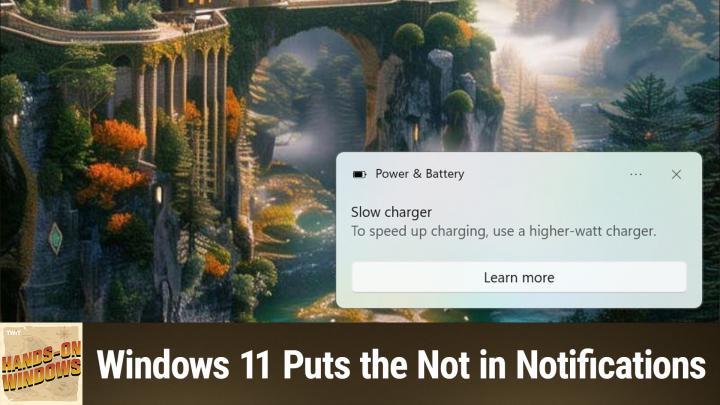
All TWiT.tv Shows (Audio)
Hands-On Windows 146: Windows 11 Puts the Not in Notifications
00:12:51
Taking Control of Windows 11 Alerts
Loading summary
Transcript11 lines
- [00:00]
Paul Thurott
Coming up next on Hands on Windows, we're going to take a Look at Windows 11 notifications and find out why they're so terrible and what you can do about it.
- [00:11]
Unknown
Podcasts you love from people you trust.
- [00:15]
Paul Thurott
This is Twit. Hello, everybody, and welcome back to Hands on Windows. I'm Paul Thurat, and this week I'm going to take a Look at Windows 11 notifications. This was inspired by the fact that I recently saw a notification I'd never seen before, and I was confused by it and I tried to disable it because it was unnecessary and I had to Google search it to figure out how because Windows 11 notifications are terrible. So let me use some examples to explain why that. So if you're familiar with the Android or the iPhone iOS, you probably know that most notifications are terrible, right? When I set up a new phone or a new PC, I spend a lot of time just turning off notifications as they occur. But maybe there is a better way. So first let me show you the the notification I saw, because this one just blew my mind. I had a laptop. I have a laptop that requires or works better if you have a 100 watt charger. It came with a 100 watt charger. Most laptops have a 65 watt charger these days. And it works fine. There's absolutely no reason not to use says it works a little more slowly, but in my experience, it works fine. I don't understand what this thing's all about. And if you know how notifications work in Windows, I'll bring up something here because they sit up here in the notification center. You know that it has this settings button with the three dots and you click it and there are two choices. Turn off all notifications for whatever that app is. In this case it's for apps, but in that case it would have been for, I think it said power and performance or whatever it was. Power and whatever. You don't want that because you might have other problems that you actually want to be notified about. Right? That's a. That's a terrible choice. It's not turn off this kind of notification. It's turn off all notifications from this app or service. In that case, that's a bad choice. But then there's also this go to notification settings, and when you click on that, it goes into notification settings, obviously, but also apps. So to get to this, you go to system, and if I can find it, there it is notifications. And then they have these individual apps, right? So this is your general notifications interface, you might be tempted to just turn the whole thing off. I mean, you could do that. Don't recommend that necessarily, because again, there are some things you actually do want to be notified by. So we're going to come back to this. That's a. That's a terrible one. The other one, there are a couple of others that most people see pretty regularly. So I just showed you something that was kind of an outlier. That's a weird one. It confused me. I feel like I know a little bit about Windows. That one was confusing. I did solve it. We're going to get to that. But you've almost definitely seen this one. So this is a notification from OneDrive. And so every day, if you have all your photos are in OneDrive, you'll get this kind of thing. So in this case, on May 12, some year in the past, I obviously. Well, I know it's obvious you don't know what this is, but this is the Emmaus Farmer's Market. We went there in the rain and I took some pictures for some reason. And it wants me to enjoy my memories on my computer, which is not where I do that kind of a thing. And again, if I clicked on those options that it provided and went to that interface, there's nothing there to help me turn that thing off. I could turn off all OneDrive notifications. I absolutely do not want to do that because you might have a sync error or something. Like, I want to see that stuff. I don't want to see that thing. Like, that's something I might want on my phone. It's something I definitely don't want on my computer. The other one everyone has seen, I don't have this one to show you, but you've seen the weekly notification from Windows Security. That's this app here. It will basically say, hey, buddy, it's been a week, Nothing happened, everything's fine. Just letting you know. Now, in this case, it actually does have a link. One of the buttons lets you go and turn that notification off. And it's not all security notifications, it's just that one. So that's the one example of an app that's properly written. But if you want to find it yourself, go into Settings, go to Notifications, manage notifications. And this is the thing here, it's the informational notifications. You actually have to go through a user account control to do this. Um, like this. I hate this inter. I. I hate it. I turn it off. It just makes me crazy. But that one, at least that's the one example. That one's well written. So good for them.
- [04:43]
Unknown
This episode brought to you by Red Canary. When cybersecurity threats hit fast, you need an MDR partner that moves faster. Red Canary delivers 24.7expert MDR support, total visibility and actionable insights. Plus, it helps you detect four times more threats so you can stay ahead more without burning out. Red Canary clears the noise and has your back every hour, every incident. Get the backup you deserve. Visit redcanary.com difference to learn more.
- [05:14]
Paul Thurott
Race the rudders. Race the sails. Race the sails. Captain, an unidentified ship is approaching.
- [05:21]
Unknown
Over.
- [05:21]
Paul Thurott
Roger, wait. Is that an enterprise sales solution?
- [05:26]
Unknown
Reach sales professionals, not professional sailors. With LinkedIn ads, you can target the right people by industry, job title and more. We'll even give you a $100 credit on your next campaign. Get started today at LinkedIn.com results, terms and conditions apply. Ryan Reynolds here from Mint Mobile. With the price of just about everything going up, we thought we'd bring our prices down. So to help us, we brought in a reverse auctioneer, which is apparently a.
- [05:53]
Paul Thurott
Thing Mint Mobile Unlimited Premium Wireless. I better get 30, 30. Better get 30, better get 20, 20, 20 better get 20, 20 every 15. 15. Just 15 bucks a month. Sold.
- [06:02]
Unknown
Give it a try@mintmobile.com Switch upfront payment.
- [06:06]
Paul Thurott
Of $45 for a three month plan equivalent to $15 per month. Required new customer offer for first three months only. Speed slow after 35 gigabytes of network's busy. Taxes and fees extra. See mintmobile.com so here's the problem. The way that notifications work in Windows 11 is very similar to how it works on mobile. We've all seen this. There's an interface for notifications and then there are per app notification settings which you see down here at the bottom. But when you go in, there's nothing in here about Slack. In this case, customizing this interface to show it the types of notifications it can display, they're not here. What you can do is determine whether these things pop up as banners, make sounds, whether it's a high priority notification. Every one of the apps that's in this list has exactly the same options. They're all the same. There's nothing specific to the app. So it kind of begs the question, I mean, how do you find, how do you find those? How do you find that place? There must be a place to turn off this memories thing. And there is. So they're all app specific. So in the case of OneDrive, you have to go open OneDrive. That makes sense. Go into Settings and there's a notification here. Now, I've already turned this off on this computer, but here it is. This is the thing I hate so much. Notify me when on this day, memories are available. So I've turned that off. I've left the other ones on because I might want to know about those things, right? In fact, I always do. So this is important. I made a mistake and I deleted a bunch of stuff out of OneDrive and it's going to be removed from the Recycle Bin at some point in the future. I want to know about that. So that's good to leave on. And from there, you have to just basically figure out each one of these things. So I showed you in Windows Security how you can go into that app's settings and find the notification interface. Good. But the Slow charger one was kind of weird and let me go back to it. You see, it says power and battery is the name of this thing. It's a slow charger. So naturally, what I did was the first time I looked this thing up because, you know, just common sense, I went into Settings. I know where this is in Settings. It's in System Power and Battery. And I look through all of the options that are here. There is nothing here about notifications. Nothing. And this is an example of Microsoft doing a really horrible job of communicating because, yes, the. The power that you're using to charge the laptop is power and battery. And there are lots of settings here for that thing. But really, this is a USB problem. The problem is USB because the. The charger is usb. It's a USB C charger. So if you go into Bluetooth and devices, scroll all the way to the bottom, you'll see this USB settings interface. And in here you will see show a notification if this PC is charging slowly over usb. So in my case, I turned that off. I didn't want that. That's not what I want. And the reason I turned it off is because every single time I plugged it in, it popped up that thing. There was. There's no way from that banner notification for me to say, stop showing me this. You know, I could just turn it off or I can go to notification settings. So what's my suggestion here? My suggestion is not to turn off notifications, although I've done that, by the way. If you want to just do this for some ongoing period, turn on, do not disturb, that will turn off notifications. Right. It does a few other things, but that's the big one. That's fine. And that could be temporary if you want. It's a nice little toggle. It's easy to, to access. But the better thing to do is, you know, spend 60 seconds, go into notification settings, take a look at the general settings that apply to everything, but more specifically look at the apps that are listed here on your computer and just give it a second of thought. I just, I just showed you a notification from apps. Do I want notifications from apps? I do not. Do I ever need notifications from Dolby Access? I do not. So you can kind of go through these choices and just disable the ones you know you're never going to want. There are messaging apps like Slack, not the Authenticator but, but phone link itself where stuff is being pushed through from my phone, where I actually do probably want to get those. The ones that you leave on. You should go and take a look at the app and see what the settings are there. You know, Discord, Slack teams, all, most apps all have interfaces for notifications that will give you that thing that you want. So, and you know, you may want pop up notifications from Discord but not sounds or only. Well, actually you could do that in here as it turns out, but you might want to only have notifications from certain people, certain group, whatever the settings are. Right. It's going to be very app specific. So honestly you could do this pretty quickly. Just go through, do it one time, you know, leave notifications on, but curate it to the list that you want. Take a couple minutes, whatever it might be, just do it once you're good. The problem is you can't save the configuration and bring it back later. That will be a. I'm sure there'll be a Windows 12 feature or something in the future, but for now you have this interface and then you have the per app interfaces. So it's just something that's good to know about. And that notification I saw, which was confusing to me, was a reminder. Maybe I need to think about this a little bit more and then maybe talk about it so other people can do the right thing for themselves. Right? Okay, so actually let me give you one tip before we go. It's also been a while since we've talked about all the little naggy things in Windows. I have done shows this year about various utilities that help you turn that stuff up. But if you're using Windows 11 and don't want to be nagged all the time, there are two things you should look at in here and there's more than two, but the big ones are Suggestions and recommendations which express themselves in this unholy trinity right here. Turn off suggested. No, not that one. Sorry, sorry, sorry. Suggestions in the recommend. Sorry, my mouse is all glitchy here. If you click this. Oh, that's for start. I'm sorry, let me actually go back. Let me show you where this is. So if you go to system notifications, I showed you that app list. What I didn't show you is at the very bottom is this additional settings. And there are three things down here. Strongly recommend turning each one of these things off. Show the Windows welcome screen after you update. Right? It's going to try to force you to do file backup and all that stuff. Again, just leave it off. Suggested ways to get the most out of Windows, which is really about the most of using Microsoft's products and services more and giving them more money. Turn that off. And then same thing with tips and suggestions. Just turn this off. Right, that note of the I mentioned recommendations that was in personalization. Start this one. I think I probably turned off on this computer because I always turn these off. But show recommendation recommended. Sorry files and start recent files and explore and items in jump list. Now these are not files and those kind of things. These are recommendations. In other words, it has these ideas about what you might want. Don't do that. And especially this stuff. Recommendations for tips, app promotions. More terrible. Just turn that stuff off. There's more. But that's kind of like the low hanging fruit, right? So suggestions, recommendations. Turn it off and you'll be a happier, saner person. And hopefully Windows 11 won't bug you as much. So don't let notifications get in your way. You can make them work for you. It's a little bit of work, but it's a one time thing and you should be pretty good going forward. Okay. Hopefully this was of use and interesting. We will have a new episode of Hands on Windows every Thursday. You can find out more at TWiT TV. H thank you so much for watching. Thank you as always to our Club Twit members. Especially if you're not a member. Please do check it out. You can learn more about that at TWIT TV Club Twit. But you get ad free versions of all the videos, get all the content across all the different shows that we have. Good karma, all the usual reasons. Definitely consider it. Thank you very much and I'll see you next week.