← All TWiT.tv Shows (Audio)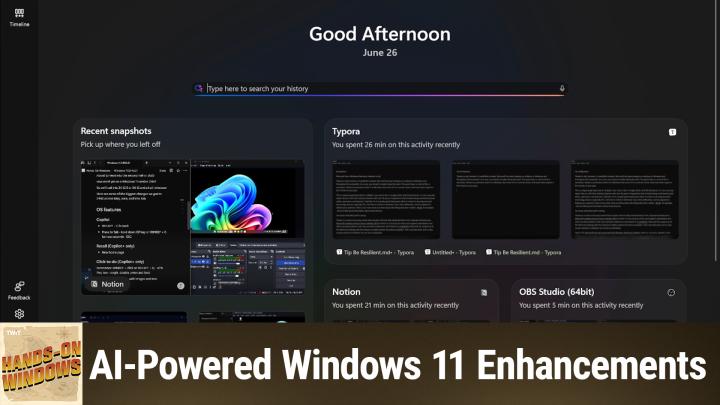
All TWiT.tv Shows (Audio)
Hands-On Windows 147: AI-Powered Windows 11 Enhancements
00:16:29
Feature Upgrades for 24H2
Loading summary
Transcript3 lines
- [00:01]
Paul Thurott
Coming up next on Hands on Windows, we're going to take a look at some more new features in Windows. Of course we are.
- [00:07]
Unknown Sponsor Voice
This episode brought to you by Red Canary. When cybersecurity threats hit fast, you need an MDR partner that moves faster. Red Canary delivers 24.7expert MDR support, total visibility, and actionable insights. Plus it helps you detect four times more threats so you can stay ahead without burning out. Red Canary clears the noise and has your back every hour, every incident. Get the backup you deserve. Visit redcanary.com difference to learn more. Today's show is brought to you by Progressive Insurance. Do you ever think about switching insurance companies to see if you could save some cash? Progressive makes it easy to see if you could save when you bundle your home and auto policies. Try it@progressive.com Progressive Casualty Insurance Company and affiliates. Potential savings will vary. Not available in all states. Podcasts you love from people you trust. This is TWIT.
- [01:13]
Paul Thurott
Everybody. And welcome back to Hands on Windows. I'm Paul Thurat and this week we're going to look at a bunch of new features in Windows 11. I know that's shocking, but this year has been really busy with new updates. I would say as we past the middle part of the year, we still haven't heard anything about a 25H2 release, but 24H2, the current release, is just getting new features every month. So I would say these are mostly May, June and part of July. You know, new features that have been added to the operating system or are being added as I record this, these are going to be just OS features. There's also app features which will look at in a coming episode. Right? Because there's so much so 24h 2.5, 24h 2 and a half, whatever you want to call this. Here are some of the biggest changes coming into 24h2 as we head into the second half of the year. Now this is going to be a mix of normal Windows 11 features, some copilot plus PC features. I'll try to call those out as we go, but the big one of course is, well, the big one I don't know, of course, but is Copilot. And so Microsoft's AI chatbot, you know, AI companion, whatever we're calling it this week, continues to evolve. I'm going to try to get it on screen here so it doesn't look ridiculous. You may recall, I don't know how you would remember everything. I have a hard time myself. But when this first debuted it was using the Windows Key plus C keyboard shortcut. And then they got rid of that, and then they eventually added a copilot key to a lot of new keyboards. But people have older computers, and so we've changed a lot of things. But Windows key plus C is back. So if I close that, you won't see me doing this. But I hit Windows key +C. It brings up the app, just like hitting the copilot key would do so as well, if you configure it, you can also bring it or configure it to bring up copilot in that streamline mode by hitting Alt plus space. But I don't do that because I use that for other. Other things. But okay, Copilot. So Windows Key plus C. Oh, I said copilot. That was silly. So there's also a new feature called press to talk. And so you can either hold down the copilot key on your keyboard. If you have that, you can hit Windows key +C for 2 seconds. If you configure that Alt + space, you can also do it that way. I also have a Copilot voice feature enabled. So when I say copilot, it gets excited and starts talking. But I will close this and I'm going to hold down Windows key plus C in this case for two seconds. And it comes up, hey, copilot, PayPal. All right. And it has some annoying voice. Can I hear your voice a little bit more, please? Absolutely. I'm here for you. Okay, thank you. All right. Oh, enough of that. Obviously, you can go in and configure all the voices. Unfortunately, in the Windows version, I think I covered this earlier, but they don't actually let you preview the voices. That's something you can do on mobile. I think you might be able to do on the web as well. But if you go into settings in the app, there's actually a bunch of stuff going on here. Now, that wasn't the case just a few months ago, but the voice you just heard is called alder. These are all tree names. No, they aren't. They're all kind of wildlife names. But you could just try one, test it again. You have to actually exit settings, so I'm not going to bother with that right now. But this is the hey, copilot, start a conversation shortcut. I have enabled. This is all plus space, which I've disabled. But mostly I have. I have most things turned on, just not that quick view thing. Okay, Copilot, recall everyone's favorite feature. I enabled this today on this computer. Just So I could show it to you today. But if you click on the Recall icon in the system tray, it acts as before. If you open Recall, which it is doing on a different screen, it's asking me to do my Windows hello, in this case Fingerprint Reader. So let me just get that over here where you can see it. There's a new home screen and I actually have to say this is pretty useful. So if you think about what Copilot or sorry, what Recall does, it takes screenshots of the screen as you do things during the day and it collects these things over time, does OCR and also image recognition both at local AI features to understand what's happening on screen. So it can do a semantic search later. Now the traditional interface was this or the original interface was this Timeline view. And so this is what we're doing here. You can see my notes for the show, etc. Back in time. And this is what we were doing earlier. Earlier. And that's fun. But the new home view is a friendly looking. But it also gives you these different views of apps. And so there are apps that I have been using a lot. In this case Typoro, which is Markdown Editor, Notion, which is the Note app, and then Obs Studio, which we're using for screen recording. And this is kind of neat because when you think about why you might use this feature Recall, it's because you're trying to find something that you did in the past and you may think of a. Maybe you were shopping and said, well, I was on Amazon. And so, you know, that might be in the web browser. If the web browser was one of those things here you could bring that up here you could also just search for the web browser. Right? But if you know what the app is, you can go right to the app and that kind of shrinks down the search profile that for the thing you're looking for. So this is kind of a nice. This is actually a pretty nice feature. I do not use Recall, but if I did, I would have to say this is. This is pretty good. I think this is. You can almost see Microsoft kind of figuring it out as they go along. So they've been working on that. Okay. Related to Recall somewhat is a feature called Click to Do. I should say Recall and Click to do are both Copilot plus PC only features. This one I'll have to bring up something on screen. I guess I'll just bring up like a. This has images and text and whatnot. So let's bring up this game listing Here. So we have some text. The way this works is you can hold down the Windows key and click, or you can hold on the Windows key and plus Q. That was a shortcut that used to be associated with Windows Search. Now it's for Click to Do. So I'll do the I'll just hold down the Windows key and click. And you get that kind of AI animation. You've got this new toolbar for Click to Do. And what you get are actions that you can do on the things that you see on screen. In this case, text. And so what's changed is two things on text and images. You get this Ask Copilot option, which I have, to be honest, isn't that exciting, at least in its current form. All it does for now is open the Copilot window and then paste in whatever might be there. So if it's an image, you'll see the image. If it's text, you'll see the text. It's not really an interactive interface quite yet. Maybe it will be at some point. And then we have these text options and they've added to these. So summarize, I believe was there before. I'm having trouble remembering what was added when. But create a bulleted list is pretty new. So we'll see what that looks like for this little bit of text. And it gives you. Basically it's a summary in bulleted list form, right? And then you can copy the clipboard, bring it somewhere else. That's pretty cool. And you know, same deal with this time, I guess this I said Windows key +Q. Same thing I did this time I used just the keyboard. Click the image, you can see Ask Copilot is there again. And I'll just go through with that because it's pointless. But you can just let it sit there. And I think eventually Copilot will actually kind of prompt you, say, oh, did you want me to do something with the school image of something that looks like Roblox or whatever? But no need to wake the demon on that one. So Windows Search is another area that's been improving month to month, it seems in Windows 11. Some features that are only on copilot plus PC, some features that are across Windows. But if I go into this search box or just the search interface like you see here, or into the Settings app, I could do it from there as well. You can actually search for settings with natural language search. So for example, I could type in something like Enable Dark mode. And the first thing that comes up is actually a setting right in The Settings app. And so if I go there, it will go to that place. Allegedly. Although. Yes, no, it did. Usually it selects it and so here I can change from dark to light or whatever. So that kind of thing works. It's. There is nothing in Settings where it actually says Enable light mode or Enable dark mode, but it's using that kind of on device AI natural language search. That's cool. It's pretty good. But Microsoft is also working on a feature and this one will be unique to copilot plus PCs where it won't just take you to the place, it will actually just make the change for you. So that's something you can look forward to. Excuse me, look forward to in the second half of the year. But for now at least we've got this ability to go find that thing, right? Makes text bigger, you know, whatever it might be, Change the resolution, etc. Etc. So that's pretty good. So those are, those were kind of the AI features that have improved recently. And then there's a bunch of non AI features as well. I can't actually do this one live, but I did, I should have checked for this. I did take some screenshots earlier. Hopefully they are here. They may not be here. Let me see what I have here. I didn't save it. I'm sorry. But if you are working in an Office document on your phone in the OneDrive app, typically this would be through the Word App, Excel or PowerPoint or I suppose the Microsoft 365 copilot app. And then you go to your computer and within 5 minutes sign in right or unlock the screen. You'll actually get a pop up in the corner that will say would you like to continue working on that document? I've actually done this. I'm surprised that this worked at all. But it opens that document. Even though I have Word installed on my computer, it opens it in the web version of Word. Of course, you know, so. But you know, pretty good. Kind of a Apple continuity type feature, right? That's, you know, they're trying, I give them credit for that. There's some taskbus, tax task bar stuff going on. This stuff is very subtle. So this little indicator here at the bottom is called a pill that tells you what the selected window is, is a little wider, a little bigger. They're trying to a little more visible. I think it's still pretty subtle frankly, but they're making that change. Some of the better changes though are to window share, which is one of those things that keeps changing as well. So If I want to share this from the right click menu, we now have this share with menu. Right. Before this was just share and just like this thing up here is just share. So now if there are apps that can share or accept the share contract from this type of thing, which in this case is an image, you'll see them listed here and if you don't see the option you want, just go to more options and you'll bring up the traditional Windows share sheet or the Share interface, share pane or whatever, that's fine. But there's actually some changes here as well. So this is an image. This is actually. Let me go to one that's maybe a little better. I can edit it somewhat like this is a screenshot, right? And so if I were to share this, there's some new things here related for images. So when you click edit, you actually get this new type of window that's not been here before with a bunch of edit controls. Very similar to what you see in the Photos app. Right. In fact, I'm sure that's where this is from. So if I want to come in here and say, crop out the taskbar in this image, apply it. What I share now will be a version of that screenshot that doesn't have that part of the image in it without changing what the original file. Kind of interesting. The other really good one here is this little drop down here. So you can save it in its original size and resolution or you can change the compression. So it's not going to actually change the resolution, I should say, but it changes the compression. So what I found is if you look at the size of this thing, it's about 300 kilobytes, not really huge actually. If you change it to high, it's about two thirds the size file size. But the image quality to me is indiscernible. So I've looked at a bunch of shared images. The higher compression rates that you get with low and medium are noticeable, but high to me is not. It could save a bunch of space when you're sharing over a network maybe or email or whatever it might be. This is actually pretty important. So these are two kind of cool features to me. I think that's, that's pretty cool. And then if you. I won't do this, but if you share a link, like a web link or a web, some web content now, which you would do typically through Edge or whatever browser you have, it will actually show you a thumbnail in that share sheet of the thing you're sharing. Just to make sure you're doing the right thing. So lots of changes to share as well. And then Settings is a bunch of stuff. Only one of these is really big to me. If you go into Bluetooth devices, this is a laptop I'm doing this on. So I have a touchpad settings area, but I also have one for mouse and there's some overlapping features there. Obviously in the past, to get to all of the mouse features, you would click this additional mouse settings thing and you would get this old mouse properties control panel. Right. Which just dates back probably 20 years or more. Now all, or at least most of those features are available in Accessibility and then mouse, which is right down the bottom here. So as part of the phasing out of the Control Panel over time, they're starting to bring more and more features that were Control Panel specific into Settings. And this is actually a pretty big one. So we're chipping away. You know, it's not perfect yet. There's other things in here. Most of them aren't super important. One that's a little strange is when you go into Settings about or Settings System about. We have these cards up here. We talked about this previously. But there's also a FAQ area or there should be. I don't actually, I'm not seeing it on this computer. So some of these features are coming in over time. So in this area where the support areas, you'll see a fact with questions about your computer and then answers. And it's a way to find out more about your computer, which I think is kind of interesting. Oh, I'm sorry, It's right here. Here it is, right in the middle. There's some HDR changes just to make that interface a little more obvious. There's that when you rename a printer, which is something we all do about once every 10 years. The interface is kind of a native Windows 10 interface, but not a big deal. I don't. I mean, we could, we could go do that if you want, but you could even do something like change the name of, you know, Microsoft Print to PDF, which is kind of a goofy thing to do. But if you go into Settings, rename the interface. This interface here is native to Windows 11, right? It looks normal, the interface that it used to show. Like when, I think when you change the machine name, I think it still shows you the old one. Let me see if this pops up. No, they changed this one too. But these used to be old Windows 8 style UIs. They kind of looked off a little bit in Windows 11, but they're working through that as well. So I'm sure they'll get to all of it by the time we get to Windows 12. But they're baby steps. It's only been like seven years or whatever. So they're working on all that. So that's most of it. I mean, there's more, right? There's May, June and July. There's a lot more new features, fixes, all kinds of other stuff. But this is kind of the big stuff. Like I said. Next week in the next episode, I'll take a look at some of the major app changes across notepad and paint and snipping tool, which seems, you know, to get touched a lot these days. So we'll be back soon. Hopefully you found this useful. We'll be back every Thursday with a new episode. You can find out more@twit tv.h thank you so much for watching. Thank you especially to our Club Twit members. If you're not a member, please do consider joining. It supports us. We love you guys. If you are a member. Thank you. You can learn more about Club Twit at Twit tv. Club Twit. Thank you. I'll see you next week.