← All TWiT.tv Shows (Audio)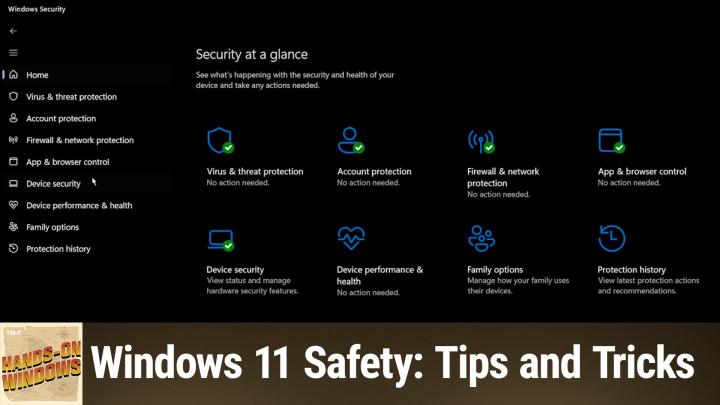
All TWiT.tv Shows (Audio)
Hands-On Windows 149: Enhancing Windows 11 Security
00:22:42
Windows 11 Safety: Tips and Tricks
Loading summary
Transcript30 lines
- [00:00]
Paul Thurrott
Coming up next on Hands on Windows, we're going to go through a sort of security CheckUp for Windows 11. The types of things you can do to make Windows 11 more secure.
- [00:10]
Amazon Music Ad Voice
Hey, prime members, are you tired of ads interfering with your favorite podcasts? Good news. With Amazon Music, you have access to the largest catalog of ad free top podcasts included with your prime membership. To start listening, download the Amazon Music app for free or go to Amazon.com adfreepodcasts that's Amazon.com adfreepodcast to catch up on the latest episodes without the ads. Podcasts you love from people you trust.
- [00:43]
Paul Thurrott
This is Twit. Hello everybody, and welcome back to Hands on Windows. I'm Paul Thurrott. We in the Windows world have been dealing with security problems since Windows existed. I guess you know Microsoft, what are you going to do? But most people are probably familiar with the CrowdStrike incident that occurred last year. Microsoft already had this initiative in place called the Secure Future. Secure Future Initiative. Kind of the new trustworthy computing that became all the more important when this happened. Last November at Ignite, they announced something called the Windows Resiliency Initiative, which is Windows 11 specific. What can we do to harden Windows further? As I record this, they've just had kind of a milestone update. There isn't really much in there for individuals or certainly not much that you can do. The one that has come out of it so far, and I believe it is on this computer, is if you go to recovery tools, which are available in a couple of different places actually. Yeah, you should see this quick Machine recovery choice now. So if you're familiar with reset this PC, there's a refresh option, there's the fresh start option that's in Windows Security. The advanced startup will bring you to the Windows recovery environment. I believe. In a previous episode, fairly recently, we talked about how you can fix problems through Windows Update without resetting the computer. So if you're having problems with the computer, you don't want to start over from scratch. You can try that stuff. Quick Machine Recovery is actually something that will occur automatically assuming it's enabled. It is enabled by default. I'm in the Insider program on this particular computer, so you might not see it yet when you watch this episode if you're just in a normal, stable version of Windows. But it is coming over the summer. And the way this works is you can turn it on or off. There is this other option here. Okay, which I suppose I could turn that on as well and it will give you this. Actually, I Want to turn that off? That sounds terrible. But the point of this is something's wrong. So you're rebooting your computer. Maybe you installed some updates or whatever. Maybe the computer's off, you're just turning it on and for some reason it cannot successfully boot. In the past, you had to hold down keys on your keyboard and figure out how to get into the Windows recovery environment. Maybe start in safe mode, go and look at. If you do system recovery still, you could kind of look and see is there. Or system restore point rather, is there a something I did that I could reverse or whatever. It was kind of on you. And so what this does is do that for you. It's just automated. And so depending if you walk away while this is happening, you might not even notice it. So that is available in the Insider program. Like I said, now it is available or will be available in Windows 11 just in stable very soon. They are going to make the UI nicer. They are also changing the blue screen to match. So it's going to be more of a Windows 11 style, black screen, white text, et cetera, et cetera. But just one of the, like a lot of security features in Windows, it's just something. It's good to know it's there, but you don't really have to do much with it. You let it do its thing if you're lucky. If everything's good, you'll never see it. There are other features coming to Windows this year, including administrative protection. And this is a way that most people who run Windows are administrators, right? We want people to use standard accounts. I find this excruciating personally. And so what this is going to do is lower the privilege level for almost everything an admin does and force you to kind of go through user account control to approve things that require elevation, which used to happen or does now happen seamlessly without you doing anything. So that's going to be good for everybody. And it's going to be a little, you know, a little annoying in some cases, but it's going to make Windows more resilient, I guess to use that word. And then there's. There's all this other stuff that's just been in Windows for a long time. You know, Windows hello, newer computers like this one, Windows hello, ESS enhanced sign in security, smart app control, which actually we will look at in a moment. Lots and lots of stuff. But as an individual, you know, when you think about, I'm going to use this computer, what are the things I can do? What are the things I should do. What are the things I should just leave alone? You know, we've touched on some of this over the last year or two maybe, but I think it's important just to kind of step back and be like, all right, so what does it look like to use Windows 11 securely? One of the first things you should always do with Windows is go down here and look for this Windows security icon. A lot of times when you bring this computer up for the first time, maybe, or even after you install some updates, you might see it has a little yellow bang on it. And what that means is that some feature that would make the computer more secure is not enabled. A lot of times that's on purpose because maybe it requires sharing a little bit of data anonymously with Microsoft and they're trying to preserve your privacy or whatever it might be. But you can come in here and correct all of that. I'm going to skip ahead a little bit and go to account protection first. Just because I am signed in with a Microsoft account and that gives me a lot of things.
- [05:47]
Co-host
Right.
- [05:48]
Paul Thurrott
It auto encrypts the drive. That's something we talked about recently, the bitlocker non Controversy. Controversy.
- [05:55]
Co-host
Right.
- [05:56]
Paul Thurrott
It does some sync setting stuff that you get in there, pass through with security and authentication, creates a passkey. There's all these awesome benefits to using a Microsoft account or if you. A corporate or school environment, a Microsoft work or school account. But you get all this stuff, use Windows hello.
- [06:13]
Co-host
Right.
- [06:14]
Paul Thurrott
And then Dynamic lock, which I actually don't recommend. It's. It's kind of a bulky system. The point of this is that you link Windows to a device like your phone and when you step away, it loses the Bluetooth connection and it will just log you out. Actually locks the screen, but same effect. The idea is that your computer might be sitting there and someone could walk up and start using it. It's not a great feature because Bluetooth actually works pretty far away. Right. So you could be like 10, 20ft away and it's still working and someone could still walk up and use a computer. A better feature if you have it, and this is only available on modern PCs, is something called presence sensing. And this one I think it is in here, but let me type. I probably turn it off on this computer because I actually find it a little bit annoying. But yeah, you can just turn it on here. Yeah. So yeah, it's off on this computer. But the way presence sensing is three basic features. It's dim the screen when you look away. So if you turn your Head, the screen will dim so that other people who would then maybe look at your screen can't see what's on there. If you get up and walk away, it senses that you're gone. It has sensors built in to see that. And it locks the screen. And when you approach the computer, the laptop, typically with the screen open, it senses you're coming, wakes it up and then the camera can work and you can use Windows slow. So that's much, much better than dynamic lock. But there's that. Okay, Windows Defender, which is. Let me go back to the Windows Security app there. I closed that, didn't I? Windows Defender is built in. You do not need third party antivirus, anti malware, et cetera. It's all kind of built in. That's good. It should be enabled by default. There is ransomware protection in Windows and this is not enabled by default. This is one of those features where Microsoft just feels that because, well, there's a couple things. It uses your Microsoft account, it stores the data in Microsoft's cloud. You may not want that, but what this will do, it's a feature called Control Folder Access. So it's ransomware protection. If you're already storing your data in OneDrive, you get ransomware protection through OneDrive. But this is for the local computer. So if someone runs away with a computer, they try to get into one of the folders that's protected by this, it can prevent that from happening on a folder by folder basis. And if you look at, you can see a list of the protected folders, which you have to go through Windows Load to see, or through User Account Control. So it's all your, you know, your primary user account folders, plus the ones for the public account that nobody ever uses. But. And you can arbitrarily add your own. This is also important for apps because there are apps like Photoshop does this. Games do this a lot. Like Call of Duty does this. A lot of Microsoft games do this where it actually writes configuration data to your documents folder. So this will actually prompt when it tries to do that and prevent it from happening. You can create exclusions. So if you want that app to do that, it might need it, you know, might need that to work properly. You can do that. Okay, so sign in with a Microsoft account. You get the automatic Defender stuff, firewalls on by default. Fantastic. And then there's the app control stuff. So this one, I already know what this is going to say, but this is something you should also look at. Smart app Control is something that is not Enabled by default. If you go in here, you'll probably see on your computer it's in evaluation mode. And that means it's just kind of sitting there, just checking to see what's going on with apps and things. If you turn this on and this is suspicious app or suspicious activity caused by an app, it will actually block it for. So it's a good way to prevent malware from doing bad things on your computer. I have to turn this off because I write software and I use Visual Studio and my apps are malware, or at least the system thinks they are. It's like you're doing something a little dicey there. We're not going to allow it. So I actually have to turn it off. Otherwise I can't debug my apps. But normally, and most people would be able to leave that on. If you are familiar with app protections other than that that are built into Windows, you might be familiar with this option here in App Settings, Advanced App Settings, where by default you can install apps from anywhere. You could be super strict and be like, no, I'm only going to install apps from the Microsoft Store. But you could also just say, look, I'm going to. I want to install apps from anywhere. But if there's an app that I'm trying to get from the web and it is in the store, that's actually a better. By which I mean safer and more easily managed version of the app. So prompt me and then I'll just go get that version instead. Like, this is actually. This is something I bet nobody configures, but it's actually a really smart thing to do. So you can see I hadn't done it, but it is. That's a smart option to think about. And then beyond this are just all the things you just get from having a modern PC.
- [11:00]
Co-host
Right.
- [11:00]
Paul Thurrott
This is a. What's called a Secure Core PC, a Copilot plus PC. So it has Microsoft Security, Microsoft Pluton Security processor, which is a type of tpm. Essentially every computer has a TPM these days. But all these features you see here will be enabled. This is just going to be basically all enabled by default. The one exception would be data encryption if you didn't sign in with a Microsoft account.
- [11:24]
Co-host
Right.
- [11:24]
Paul Thurrott
As we talked about previously. And I think that's most of what.
- [11:28]
Co-host
You have to worry about in there.
- [11:29]
Paul Thurrott
Yeah. So it's just a good idea to go through the Windows Security app, because those two features. Right. So the Controlled Access, the ransomware protection feature, and then Smart App Control, I recommend turning those on if smart app control works out where you just run this app and for some reason you know it's fine, but it keeps throwing up a warning or a block actually you can disable it right?
- [11:54]
JJ Harris
But this is one of the most spectacular venues with all kinds of character and hospitality scenery. These people in this Gita Task Valley, they love when you come to see what they have to offer.
- [12:06]
I'm JJ Harris, Ellensburg Rodeo Clown, and I want to invite you to the rodeo. Come hang out with us in Ellensburg. Great rodeo, great time. Two performances on Saturday. One is the Extreme Bulls of the Year event. Do not miss the Ellensburg Rodeo August 29th through September 1st. We'll see you there.
- [12:25]
Paul Thurrott
It's worth giving that one a shot. Okay, now, hopefully you're signing with a Microsoft account. We've talked about this a couple of times, different episodes, but if you are, be sure that you enable all of the available Windows hello protections which you do in Settings accounts, sign in options.
- [12:43]
Co-host
Right.
- [12:44]
Paul Thurrott
This particular computer has both facial and fingerprint recognition. There's something you should do in each of these beyond just enrolling in this for facial recognition. It says make your sign in more personal. It's kind of interesting, which means improve recognition, but you want to enhance it too. And this is going to make it less easy to use. It's not going to be quite as quick, but it's also going to be more secure. So if you have someone who looks a little bit like you or a lot like you, they're not going to get through. If you enable this option, this is worth doing. And then in both cases there's they don't call it the same thing, which is ridiculous, but improve recognition. This is good for face if you wear glasses sometimes, but not other times with both. In this case it says add a finger, which you can absolutely do, but I also find it gets more accurate if you add the same finger twice. Right. But there's different ways you could. You could do both, right? Two fingers plus one finger twice. Whatever. However you want to do that, you're definitely going to have a pin. You have to A PIN is required in Windows when you sign up with a online account. Down here are options you probably don't have to change, but it's good to look at this to make sure it's correct. This top one, if you enable this, you lose Windows hello enhanced sign in protection. So don't do that unless you absolutely, absolutely have to. But the built in webcam in your computer is more secure and is more secure for the entire system, not just for that sign in. Otherwise you lose all of the other protections from Windows hello enhanced signage security. And then this one is enabled by default. But only allow Windows hello sign ins for Microsoft accounts. In other words, don't let someone come in and type in your username and password. It's only going to be Windows hello, which is going to be a pin, fingerprint or facial recognition. That's it. Don't, don't let someone get in. Otherwise that's a way for someone who has your credentials to get in without being you.
- [14:42]
Co-host
Right.
- [14:42]
Paul Thurrott
So this is enabled by default. My recommendation is to leave that alone. All right. And moving past that, you know, secure web browser. I, I, I've actually been using Microsoft Edge a lot this year. I don't typically recommend it, but if you are going to use it, a couple of things. 2, 1 third party password manager, I use proton pass but one password bit warden Dashlane are all fantastic. And then the right extensions, which is, I know something we probably have talked about. The two big ones for me are Privacy Badger and adblock. Plus these two things combined block all of the trackers and the ads as well. But really it is about ads too. But from a security perspective, a lot of images are just there for tracking purposes, right? And so it gets rid of all that stuff. I know UBlock origin has been slightly detuned because of the manifest 3 stuff that Google did. That's true on Edge as well, but I'm not even sure why it's there. To be honest, I don't need it. But Privacy Badger and AdBlock plus to me, those are the big ones. Better yet, don't use Edge. Brave is the most secure browser you could use. But any browser almost would be better than Edge except for Chrome which is as bad. But again, install the right extensions, you'll.
- [16:02]
Co-host
Do pretty well there.
- [16:03]
Paul Thurrott
Just be sure to protect yourself there. But other browsers, Firefox, DuckDuckGo, Opera, Vivaldi, whatever, any of those would be a better choice. Okay, so let's see. We got the account stuff, we got the basic security stuff and then just data wise we just did an episode on this. But and actually let me bring this thing up. So I believe this is in data privacy and security device encryption. Right. And so because I signed into this computer with a Microsoft account, it automatically encrypted the disk. We did an episode just about this. People, there are people out there recommending do not enable this. It's the craziest thing I've ever heard in my life. I Don't know if this is. Yeah, this one is home windows 11 home. So I don't have BitLocker, but I do just have this basic Interact. Actually, no, excuse me, I do have BitLocker. Oh, no, I do not. It's telling me I can upgrade. All right, I'm not going to do that, but that's fine. That's all you really need.
- [16:59]
Co-host
Right.
- [17:00]
Paul Thurrott
The idea here is that if someone were somehow able to get the disk off of this computer, which in this case is actually a chip and it's soldered onto the motherboard, but I'm sure there's a way they wouldn't be able to access any of the content on there or get to your personal information. Because the disk is encrypted. You want to leave that as it is. If for some reason this is not enabled, you can enable it. Now, we talked about that in a previous episode, how you can do that. If you are syncing to OneDrive, you get ransomware protection error. Like I said earlier, let me bring up OneDrive. So by default, OneDrive has this folder backup feature which is just really sync, but I disable it on my computers. But by default it wants to sync documents, pictures and desktop with the cloud. Not a bad idea for most people. In fact, it's a really good idea for most people because if you wake up one day, turn on the computer doesn't come on, something's wrong, hardware failure, whatever. If your computer's stolen or whatever might happen, this is a way to ensure that anything you were working on, no matter where it was, is safe in the cloud somewhere. And if you have other computers, maybe it's syncing there as well. I use multiple computers, so I do sync folders in OneDrive and actually in other services too. But across computers and to the cloud, it's kind of like. It's sort of like off site backup. It's really off site sync, but it's just a disaster recovery thing in addition to the ransomware stuff.
- [18:24]
Co-host
Right?
- [18:25]
Paul Thurrott
Not a bad idea for most people. But you could just go into OneDrive. So my OneDrive, I've kind of stripped down a little bit. I put all the stuff that I need in my folder instead of out in those other folders. But there is a desktop folder. These are always going to be there. You can actually get rid of them. You can see here this is what I was talking about. Like Call of Duty is this game that syncs to the Documents folder. So on computers where I am syncing this folder, I'm syncing that to the cloud and God knows I need my Call of Duty configuration synced everywhere. But there's other stuff there, right? And that's fine. You can also arbitrarily, you can do it with a file, but you would more typically go into a folder and say always keep on this device. And that will ensure that there's always an offline copy available. And that means you can access it when your computer's online. So if you're on a plane or whatever, you can edit dockets to whatever you're doing, save new documents there. And then when you get back online, it syncs them back up. So smart. There is this feature in OneDrive that is. It's actually fairly unique, but it's called Personal Vault. The first time you set it up or the first time you try to get in here, it takes a little while. I did it earlier today, so it should be pretty quick. But what you get is a wait. I have to look at my, I guess the camera on the laptop or the fingerprint reader, I guess because I didn't look like me. So I can use my Windows hello authentication. And that's the thing that it adds. And so what that is is a. An additional layer of protection on top of the already encrypted disk. I can't just get in there without it knowing that I am me and what I use in here. Typically what's in here for me is things you can see, recovery keys for a lot of different services.
- [20:01]
Co-host
Right.
- [20:02]
Paul Thurrott
This other stuff but you know, personal information of whatever kind. This is just a really nice thing to have. You can access this from the web, you can access it from phone, so it's on other devices. Again, it can it sync. I don't actually sync it locally typically I don't use it that much. But it's there for that very specific bit of functionality. So useful. Okay, so that's five things. I think I did five things in there. I probably did them a little bit out of order, but it's basically don't screw with the default security settings for the most part while enabling those couple of features that are not enabled. Securing your account, right? You're going to sign in with an online account. There's certain things you should do in there. Preventing apps from hacking you. This is where you install apps from. And then the Smart app control, which is one of those features that's not automatically enabled. Data protection right through disk encryption, ransomware protection Both in Windows 11 and in OneDrive with the sync feature as well. Private vault, etcetera but kind of a bonus tip, you know, this came up recently because, you know, we had done that episode about bitlocker where I see a lot of really bad advice out in the Internet about this or before that, recall. People were freaking out about recall. You know, it's taking screenshots. This is your personal data. What if it has credit card information? You know, there are all these protections built in on disk, protections for recall and for other local AI features. I'm not saying it's perfectly safe, but it's just. It was just really dramatized, especially by people had never even used the thing and had no idea how the security behind it works. So kind of a bonus tip, I guess, is like, you're in charge of you, right? Don't believe everything that you read or see online. The problem with the Internet, which is fairly obvious, is everyone has ideas. Everyone can publish those ideas. Some of them are not good ideas and some of them are alarmist, you know, so, you know, sica, I'm not a security expert. Look, you should verify everything I've said here. But for the most part, Windows is more secure than I think people give it credit for, right out of the box. It can become even more secure with a couple of checkboxes, you know, a couple of additional features you can just turn on, which they don't turn on, mostly for privacy reasons, which is amazing for all the criticism that we give Microsoft. And then modern PCs are more secure, especially if you get a copilot plus PC, right? You get that Pluton processor, Windows, hello, Enhanced signage security. It's absolutely the way to go. You don't have to use recall if you don't want to use it, but everything you do will be more secure because you have that modern computer. All right, I'm sure I forgot something. There's a lot of stuff there. Sorry if this was a little dense, but hopefully this was interesting and useful. Let me know. Otherwise, for sure. I definitely want feedback on the security stuff. I want to get this right. But we do have a new episode of Hands on Windows every Thursday. You can find out more at Twitter TV HO W thank you so much for watching. Thank you, especially to our Club Twit members. I say this a lot, but we love you and I say it a lot because we do. So we really appreciate your support. If you're not a member, please do check it out. Twit tv Club Twit. Thanks. I'll see you next week.