← All TWiT.tv Shows (Audio)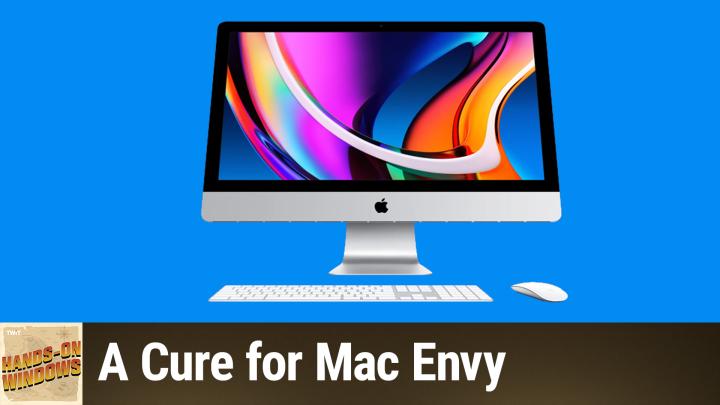
All TWiT.tv Shows (Audio)
Hands-On Windows 155: A Cure for Mac Envy
00:10:02
Making Windows 11 Feel Like a Mac
Loading summary
Transcript13 lines
- [00:00]
A
Coming up next on Hands on Windows, we're going to take a look at the Mac, but not really. We're going to take a look at Mac envy and what you can do about it in Windows 11.
- [00:10]
B
From Unsolved Mysteries to unexplained phenomena, from comedy gold to relationship fails, Amazon Music's got the most ad free top podcasts included with prime. Because the only thing that should interrupt your listening is, well, nothing. Download the Amazon music app today.
- [00:33]
A
This is one of the most spectacular venues with all kinds of character and hospitality scenery. These people in this Kitas Valley, they love when you come to see what they have to offer. I'm J.J. harris, an Ellensburg rodeo clown and I want to invite you to the rodeo. Come hang out with us in Ellensburg. Great rodeo, great time. Two performances on Saturday. One is the Extreme Bulls of the Year event. Do not miss The Ellensburg Rodeo, August 29th through September 1st. We'll see you there.
- [01:06]
C
Podcasts you love from people you trust.
- [01:10]
A
This is Twit. Hello everybody and welcome back to Hands on Windows. I'm Paul Thurat and this week we're going to look at a semi controversial topic. This is something that has kind of dogged Windows users, I mean honestly from the beginning. But it really picked up Steam. In the early 2000s, Steve Jobs came back to Apple. They were pushing Mac OS X with all its graphical effects. Later they released the MacBook Air which especially the second gen version, iconic we've always felt on the Windows side like second class citizens. In some ways it's gotten better over time. Windows Vista and then Windows 7 especially kind of picked up those graphical effects like we saw on the Mac. And with Windows 11 we have this interface that's simple and mobile like and it's not too horrible. But now Apple is pushing forward with this thing called Liquid Glass, which you can see here. This is the Mac rendition. So the Mac desktop, you have a transparent menu bar by default. Now at the top you've got these transparent widgets on the desktop and you have a transparent dock down here at the bottom. So this has triggered kind of a second round of, or maybe a third or fifth round or whatever the number is, of Mac Envy. So what can we do on the Windows side to alleviate this envy? Right, so the first step, which has nothing to do with software, would be to get a Snapdragon x based Windows 11 on ARM PC like the Surface Laptop that I use and love. But there are many choices. A lot of them are under $1,000. So that will give you the kind of Mac hardware like look and feel, but also the performance, efficiency, battery life, et cetera, over and above what we typically get on an x64 Windows PC. But from a software perspective, one of the big features in the Mac that I love is this thing here, Spotlight Search. And so Spotlight Search on the Mac is it's the Command key on the Mac keyboard, but Command key plus space. So similar to Alt plus space or maybe Windows key plus space on Windows. And they're improving this feature dramatically in the latest version of Mac OS X or Mac os. Sorry, they don't call it that anymore. So as it turns out, we've actually had this feature on Windows. It's not in Windows, it's not part of Windows. But Microsoft makes this free suite of utilities. We've talked about a bunch called PowerToys. And PowerToys is available for free. Get it in the store. And one of its many utilities is something called PowerToys Run, which has recently been replaced by something called Command Palette. And so by default, both of those utilities, depending on what you choose, you probably go forward to Command Palette at this point. Use the Alt plus space bar keyboard shortcut. I don't like that because I use that for something else. So I remap that in the utility itself to Windows Key plus Space. So when I do that here, you will see an interface very much like that thing I just showed on the Mac, the Spotlight search feature. So it works the same way. You can search for apps, of course, that would be the most common thing. Or other commands. Search for files. It's extensible. So apps can plug into this and so forth. You can search the web. And in many ways this is kind of a start menu replacement, frankly, if you don't mind typing a little bit. Right. And so if I wanted to run something like notepad, I could just type Notepad and hit Enter. I could click on it here and eventually Notepad will run because nothing works on this computer. So there you go. So that is very much like Spotlight and Spotlight. And the new version is also breaking it out into different UIs for different types of search results. And it's extensible. And they're really kind of paralleling each other at this point. So that's kind of interesting. Let's map out this week's amazing destinations and travel tips.
- [05:01]
C
Honestly, Will, I didn't plan any trips, but I did switch to T Mobile with their new Family Freedom offer.
- [05:09]
A
That's not the itinerary we're following.
- [05:12]
C
Well, I'm departing from AT&T and embarking on a new journey with T Mobile. They paid off my family's four phones up to $3200 and gave us four new phones on the house.
- [05:25]
A
Bon voyage.
- [05:27]
B
Introducing family freedom. Our lowest cost will switch our biggest family savings all on America's largest 5G network. Visit your local T Mobile location or learn more@t mobile.com FamilyFreedom up to $800 per line via virtual prepaid card typically takes 15 days. Free phones via 24 monthly bill credits with finance agreement eg Apple iPhone16128Gigabyte8 2999 Eligible trade in eg iPhone11 Pro for well qualified credits end and balance due if you pay off early or cancel.
- [05:52]
C
Contact T Mobile so when I ask what is Odoo? What comes to mind? Well, Odoo is a bit of everything. Odoo is a suite of business management software that some people say is like fertilizer because of the way it promotes growth. But you know, some people also say Odoo is like a magic beanstalk because it grows with your company and is also magically affordable. But then again, you could look at Odoo in terms of how its individual software programs are a lot like building blocks. I mean, whatever your business needs, manufacturing, accounting, HR programs, you can build a custom software suite that's perfect for your company. So what does Odoo? Well, I guess Odoo is a bit of everything. Odoo is a fertilizer Magic beanstalk building blocks for business. Yeah, that's it. Which means that Odoo is exactly what every business needs. Learn more and sign up now@odoo.com that's o d o o dot com.
- [06:53]
B
From Unsolved Mysteries to unexplained phenomena, from comedy goal to relationship fails. Amazon Music's got the most ad free Top podcasts included with prime because the only thing that should interrupt your listening is, well, nothing. Download the Amazon Music app today.
- [07:16]
A
So the Mac also has a full screen mode that I love and we don't really have that in Windows anymore. We kind of used to Remember in Windows 8, but we don't anymore with the exception of some apps like if I bring up any web browser really, but in this case Microsoft Edge, you can see it kind of runs. You know, it does. It runs in this full screen mode, but by and large we don't have full screen mode. So there are workarounds for this. So for example, if I go to taskbar settings and go down into behaviors, I can automatically Hide the taskbar. And when I do that, what if the window is maximized, which isn't typically the same thing as full screen? It essentially becomes full screen in the sense that it is taking up the entire screen. And that could be any window. So if I bring up store, it will do the same thing. And when you mouse down to the bottom, obviously the taskbar comes and goes. And honestly, ever since the first beta of Mac OS 26 came out, I've been using Windows like this just to try it. And I've actually really started to like it. There's just a couple of problems. So the big one for me is you don't realize how much you miss something until it's gone. And in this case, what I missed was I was looking to see the time in the corner here, right? Which in the taskbar a lot, which I now know, because when it's gone, I look down there and there's nothing there. So I started researching whether there would be some kind of utility that might make up for that. And what I found, there's not much, oddly. But what I found was something called DSclock. And DSclock is a utility that. It's right here. I'll put it up here. I usually leave it on the bottom, but. And you can configure how it looks however you want. But as you can see, it has the date and the time. I've turned off a bunch of features. I've also really changed how this thing is formatted. By default. You can. This can look like anything. It doesn't have to be transparent, doesn't have to be these colors, etc. I did set it to be always on top. So if I bring up like, say, Microsoft Edge, you can see that it is sitting there over there. So I'll always see the time and the date. No matter what I'm doing. I usually actually leave it down here. I've kind of played with this a bunch, but if. Let me bring up the taskbar, it's hard to do that at the same time, but once it gets a little grab handle here, you can bring it up like that. So this is a little rough, but it's usually right about there. So. Okay, that's fine. That's not something that's on the Mac per se, but on the Mac, of course, they have that menu at the top. And now it's transparent. And the dock has always or has offered transparency of some kind for a long time. And we don't really have that here. So the taskbar, I'M hiding it, but it's also opaque. So as it turns out, there is a utility for that as well. And this is free and it's in the store. It's called Translucent TB for Taskbar. And when you run this, I'm hiding the taskbar here, so it's hard to see, obviously, but when I mouse down, you can see the icons here. You can't see this very well, but that's because of a display issue. If you reboot or just log in, log out, or log out, login, this will become clear again, where you can see all the elements very clearly. But this is kind of nice because this mimics in some ways the way that the Mac OS dock works, right? So again, if I bring up a full screen app, which is really a maximized app, and I mouse down now, it kind of gives you that effect. You don't get the, you know, the animations and so forth. But, you know, that's not horrible. If you want to go further than this, you can go to other utilities. Starbuck Star Dock makes a paid utility called Windows Blinds which has been around for over 20 years. And one of the things that it does is allow you to have this kind of Windows 7 style Transparent glass effect or translucent, depending how you want to configure it. I didn't install that on this computer, as you can probably tell. I'm already having enough problems with this thing today. But this is. It's not super expensive. If you love this interface and you want that kind of glass effect, definitely give this a try. But I find that I actually like the kind of opaque style that we have here today in Windows 11. But I do also kind of, you know, I've gotten very used to hiding the taskbar. I do like that kind of maximize Window is now sort of a full screen window effect. I like having the clock down here. So it's not exactly right. But again, with these utilities, most of which are free, all the ones I'm using here are free. So dsclock, which you can Google and find pretty easily. Translucent taskbar, translucent TB available in the store, and then PowerToys with the command palette, also free. And in the store it's pretty much the big bucket stuff. And then you have the advantage of using Windows and I find it to be much more logical and have better and more consistent multitasking and so forth. And so I don't personally suffer from Mac envy, but if you do, maybe this can help. So I hope this was helpful and instructive and possibly entertaining. Watching me flail around a little bit today. But thank you so much for watching. We will have a new episode of Hands on Windows every Thursday. You can find out more at TWiT TV. H thank you especially to our Club Twit members. We love you. If you don't support Club Twit yet, please consider doing so. You can find out more about this program at TWIT tv. Club Twit. Thanks. I'll see you next week.