← All TWiT.tv Shows (Audio)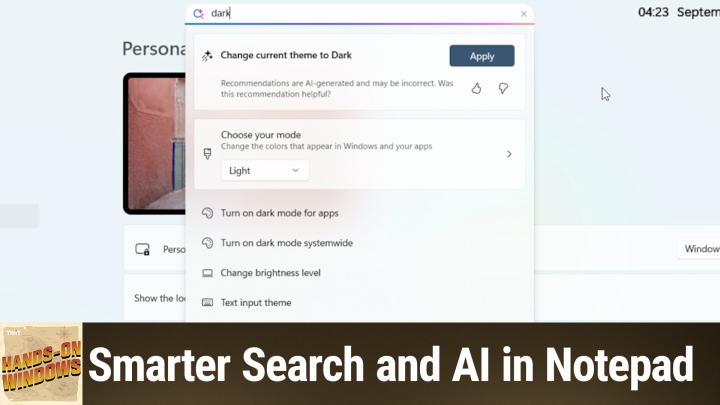
All TWiT.tv Shows (Audio)
Hands-On Windows 160: Smarter Search and AI in Notepad
00:14:53
Inside Microsoft's Newest AI Upgrades
Loading summary
Transcript22 lines
- [00:00]
Progressive Insurance Announcer
This episode is brought to you by Progressive Insurance. Do you ever think about switching insurance companies to see if you could save some cash? Progressive makes it easy to see if you could save when you bundle your home and auto policies. Try it@progressive.com Progressive Casualty Insurance Company and affiliates. Potential savings will vary. Not available in all states.
- [00:20]
Goldbelly Advertiser
Hey guys, have you heard of Goldbelly? It's this amazing site where they ship the most iconic famous foods from restaurants across the country and anywhere nationwide. I've never found a more perfect gift than food. Gold Belly Ship Chicago deep dish pizza, New York bagels, Maine lobster rolls and even Ina Garden's famous cakes. So if you're looking for a gift for the food lover in your life, head to goldbelly.com and get 20% off your first order with promo code GIFT. That's goldbelly.com, promo code GIFT.
- [00:50]
Paul Thurrott
Coming up next on Hands on Windows. It's a day that ends in Y. So we've got some more new Windows 11 feature.
- [01:00]
T-Mobile Commercial Actor
You love from people you trust.
- [01:03]
Paul Thurrott
This is TWiT. Hello everybody and welcome back to Hands on Windows. I'm Paul Thurad and this week we are going to look at some new features coming to 25H2. As I record this, we're kind of late in the game. Microsoft has acknowledged the name. We talked about that in our earlier episode. They've released it to release Preview. It should be going into kind of like stable preview, if that makes sense through a preview update. I would say in September. Nope, actually in October 2025 and then probably broadly to everybody by November. So you'll be able to get it soon. Actually you could get it now if you don't mind putting a PC in the release preview. But since they announced the name was official and since they pushed it into release Preview, they've actually started releasing more new features. So these are things that will just go out to everybody on a supported version of Windows 11. So if you have 24H or 25H2 when that comes out, you should be getting these Also. I should just qualify this by saying the unfortunate reality of Windows 11 is that these things don't go out the same time to all computers. So I worked on this list on a different computer, came here and some of the features aren't on here, of course. So I have screenshots for at least some of these and then we can kind of get through it that way. But that's, you know, that's the nature of Windows. So the first one is lock screen customization Now, I know that one's not here, but I'm going to check just in case. And so over time, Microsoft has been allowing people to customers to customize this lock screen in different ways. This one is just the old system. This is if you have widgets, you can have them all, you can have none. These are your two options. So it says weather and more, but I do have a set of screenshots showing the new interface for this. And so. And that is not it. So let me find that. Oh, here we go. So this is what it's going to look like soon, if you don't see this already. And what you get here is the ability to determine which widgets are here, which order they're in. You can only have four. You can add a widget, and if you add a widget, it will replace the thing that's on the bottom. And you can see actually these two options here are kind of oddball ones because those aren't the default items. Usually it's weather, today's moment, whatever that is, finances and sports. Right. And so I did two ads and it's much like the widgets interface. That's right. On the Windows 11 desktop where you see a list of available widgets, there'll be more soon, hopefully from third parties, et cetera. But this is kind of a nice thing. So you can turn it on or off as before, but now you can also determine which ones appear and the order they appear in. Or you will be able to soon if you don't see that. Yeah, there you go. There's also another suggestion thing down here. I recommend turning that off, but I'll leave that one up to you. Okay, so there's that and then this one I don't have a shot for, unfortunately, but they are also changing the widgets interface that's on the desktop. And so basically what you're going to see here soon is a side rail or a nav bar where you get a choice between a widget view or a widget view with a Discover feed. When you go into this settings interface, which is about to be much more streamlined than you see here, you'll be able to select other feeds to add those to the widget board as well as other widgets. Of course, I checked that today, there are still no third party feeds. So this is more theory than reality at this point. But that is coming, so we'll get there. And that's actually a really nice update. So unfortunately I can't show that to you. So over time, Microsoft has Been improving various parts of Windows for people with copilot plus PCs. We talked about semantic search in an earlier episode, Copilot Vision, obviously recall and Click to do and all the other features that are there. But one of the best ones to me is just the way they're improving search kind of across the board. So semantic search, which is available in the file system and File Explorer, it's available through Start Search, et cetera. But also now we have this kind of setting search. And so this one is interesting because there's two components. There's the natural language part. So if I type in, say, something like dark, it understands that maybe, or tries to understand that maybe I'm looking for this kind of thing. Or I can type in like Taskbar. And then what we're starting to see are these AI recommendations at the top. Now this one, I guess it's a reasonable recommendation. That's kind of interesting. But better still than this is a feature that's not yet on this particular computer, which is inline AI based. I think of this as like a do it. You know, instead of clicking on a link to go to a page in Settings where you can look for the setting that does the change, you can actually just do it right here in line. Right. And so this is a. They call this a settings agent for some reason. This uses a small language model that's running on the computer. It's literally customized and optimized just for settings and all of the options that are in Settings. That's all it does. So you'll be updating that thing every month for the rest of your life. But useful, right? This is useful. This is a Byzantine app. You shouldn't have to know where things are. It's. It's not a. It's actually kind of a decent idea. More. It's got a better view here for a little while. More changes to File Explorer. So if you have this default home page on, I'm getting a recommended file. This is because it's something I've been looking at a lot. Apparently this was a feature that was in File Explorer about a year ago, but only for people who sign in with a work or school account. Now it's coming to consumers as well. If I go into the Pictures folder and right click a photo, there's a lot of changes coming to this context menu as well, which you also get on the desktop, right, this style of context menu. But there's more stuff if you do this with a file so subtly. They've changed this a couple times. Remember this Used to just be these icons which were kind of like hieroglyphics. And then they added the words so you understand what they are. Now there's a little line between them. So that's cute, but that's not really all that exciting. They're starting to change the icons over here so that they match the way the icons look over here, meaning they're not square. So actually you do see that here on the other system I was using today, these are still square. And that's what it's looked like since Windows 11 came out. I don't know why, but anyway, they're updating that visually. That's not a big deal. The bigger deal is that actually, let me go back to this right here. What we have is a share item. That's the same thing as this share up here. One of the other updates brings a share with and then you get a submenu with all of the applications that are compatible with that thing. And you might ask, well, I could do open with what's share with? What's the difference? And the difference is that the item that could be in here could not. It doesn't have to be the name of just the app. It could literally be a feature in an app. So if it just says the app's name, you'll actually go to the thing that makes most sense in that app for whatever that thing is, for whatever it is you're trying to do.
- [08:23]
Bluehost Advertiser
I'm no tech genius, but I knew if I wanted my business to crush it, I needed a website. Now, thankfully, bluehost made it easy. I customized, optimized and monetized everything exactly how I wanted with AI. In minutes, my site was up. I couldn't believe it. The search engine tools even helped me get more site visitors. Whatever your passion project is, you can set it up with Bluehost with their 30 day money back guarantee. What do you got to lose? Head to bluehost.com, that's B-L-U-E-H-O-S-T.com to start now.
- [08:53]
Goldbelly Advertiser (Alternate)
Hey guys. Finding the perfect gift for the food lover in your life is easy thanks to Goldbelly. Goldbelly ships America's most iconic foods straight from world famous restaurants right to your door. So if you want to treat someone to Joe's Stone Crab from Miami, Franklin BBQ from Texas, or desserts from famous foodies like Ina Garten or Martha Stewart, Goldbelly has you covered. Just go to goldbelly.com and for a limited time get 20% off your first order with promo code gift. That's promo code gift.
- [09:21]
Leo Laporte
Hey everybody. Leo Laporte here and I'm going to bug you one more time to join Club Twit. If you're not already a member. I want to encourage you to support what we do here at Twit. You know, 25% of our operating costs comes from membership in the club. That's a huge portion and it's growing all the time. That means we can do more, we can have more fun. You get a lot of benefits ad free versions of all the shows. You get access to the Club Twit discord and special programming like the keynotes from Apple and Google and Microsoft and others that we don't stream otherwise in public. Please join the club. If you haven't done it yet, we'd love to have you find out more at TWIT tv Club Twit. And thank you so much.
- [10:09]
Paul Thurrott
The other thing that's going to be happening a lot is this menu, which used to be delightfully small, is about to be horrifically long. And it's going to be because of the things you see down here. And so these look like standard shortcuts. You know, edit this thing in Notepad, which doesn't make sense for an image, but edit and paint, you see some that actually have a sub menu because there are multiple options that's tied to that thing. I noted above about diving into the actual features, but as we add more and more AI functionality to Windows, you're going to start seeing more and more of those things appear. Third party apps are going to do this. And so this is. I don't know how we're going to handle this. This is already almost too big for the screen. So this is going to be an interesting problem. But on this particular computer we don't see that quite yet. If you are familiar with what they still call the Notification center for some reason, even though it's not a center. It's two floating windows now, but they're tied together. So one is this calendar view, which is collapsed by default, actually, but I expanded it and then the notification pane up here and they appear like they did in Windows 10. You know, you click the time and date, but there's functionality missing from here that was in Windows 10, including the ability to integrate with your schedule in here. So they're not actually adding that. But interestingly, if you go into adjust date and time, there's now an option to show time in Notification Center. And what that does is bring this thing back, right? And so this is what this looked like or still does look like in Windows 10. So there were a lot of people who, you know, said, look, I kind of like, you know, I kind of rely on having the time there. Why can't I have the time there? So now you can have the time there. So that's pretty cool. The, the Inbox apps have been getting a lot of. Oh, actually do it. Let me go back to this real quick. I guess I did take a screenshot of this. So actually going back to that right click context menu, you can see in this version, those are all squared up. So this is the old style icon. You can also see that this thing has more of these options down below on a similar file and the Share with menu that I was talking about. So there's a whole, you know, this is going to be this convoluted mess of things. And so that's going to be fun for all of us, I guess, at some point. But the Inbox apps in Windows 11 have been getting a lot of attention, especially Notepad paint and snipping tool, which is kind of interesting. Today I'm just going to show you some stuff that's in Notepad because this app is. Amazes me how much they've changed it and yet it's still really, really good. So I'll just put in some fake text here just so it can do something. So if you're familiar with the Notepad today, you know that it does has this markdown menu. It's got different options before than it had before and so forth. And it has this copilot integration. So write is actually fairly new. In fact, let me clear that out. If you go here with nothing there, write will be the only option. And you could say something like write a blog post about all the changes coming in Windows 11 version 25H2. And if this was working correctly, would be this page intentionally left blank. But it's going to try to write something which is taking like, oh, there it goes. And so I will keep that. And yeah, I mean, I don't know, whatever. But now that we have this, we have these other options, rewrite, summarize, et cetera, et cetera. So the way this works today is you have to have a copilot or I'll call it a Microsoft 365 subscription of some kind, right? So if you're a consumer, you have Microsoft 365 family. If you're the account holder, you'll get all of this stuff. If you are not paying for the subscription. You will not. Now what they're doing is if you have a Copilot plus PC, which is a good mpu, where they can do a lot of this stuff locally, most of these options will just be available even if you're disconnected from the Internet. They'll work off the MPU and you'll have some kind of a choice in here where it will say do you want to do this locally or do you want to use the cloud based version? The cloud based version will always give you better results, but also, you know, it goes against the credit you get every month with your account. So kind of an interesting thing, they're, they're bringing some of this AI functionality to people who don't have a Copilot or do have a Copilot plus PC computer and they can run it locally. So that's kind of cool. The other big change in Notepad is this context menu. So just like the version we saw in File Explorer or the desktop, you've got these icons now at the top with a little dividers, right. So that's consistent. You've got access to some of these AI based tools as well. And so this is just this used to just look the way it had for many, many years. Kind of a non Windows 11 style context menu. But this has been nicely updated. So it's good. So this is good. To me, this is good. Like I said, there are other changes coming to paint and to snipping tool. We'll look at those in a later episode. But I would say, as is the case with Notepad, these are interesting examples of Microsoft throwing AI at something and it actually seems to be working like it's, it's these, these are pretty good features. You can turn all this stuff off, by the way. I mean, if you don't like these things, you can turn off Copilot. You can turn off everything, really. I mean it's pretty much anything. And so if you go back here, you get rid of this and then you know, you don't have to use it if you don't want it, but you should try it. It's not that bad. Okay. There's probably a lot more. It's really hard to keep track of this stuff. But like I said, between the time that this hit release preview and the time when it's going to go out to the public, they just start throwing features at it again. So there's always going to be more. So I'm sure in the next, I don't know, four or five episodes. We'll be back and we'll be doing something very much like this because that's what our life is like these days with Windows 11. So hopefully you found this reasonably useful. We'll have a new episode of Hands on Windows every Thursday. You can find out more at TWiT TV. H O W thank you for watching. Thank you. Especially if you're a Club Twit member. We love you. If you're not, please do check out the club and consider joining. You can learn more about that at TWIT tv. Club Twit. Thank you. I'll see you next week.
- [16:42]
T-Mobile Commercial Actor (Alternate)
Morning Zoe. Got donuts.
- [16:44]
T-Mobile Commercial Actor
Jeff Bridges why are you still living above our garage?
- [16:47]
T-Mobile Commercial Actor (Alternate)
Well, I dig the mattress and I want to be in a T Mobile commercial like you. Teach me.
- [16:53]
T-Mobile Commercial Actor
So Dana oh no, I'm not really prepared. I couldn't possibly at t mobile get the new iPhone 17 Pro on them. It's designed to be the most powerful iPhone yet and has the ultimate pro camera system.
- [17:06]
T-Mobile Commercial Actor (Alternate)
Wow, impressive. Let me try. T Mobile is the best place to get iPhone 17 Pro because they've got the best network.
- [17:13]
Goldbelly Advertiser
Nice.
- [17:14]
T-Mobile Commercial Actor
Jeffrey, you heard them.
- [17:15]
T-Mobile Commercial Actor (Alternate)
T Mobile is the best place to.
- [17:17]
Paul Thurrott
Get the new iPhone 17 Pro on us with eligible trade in in any condition.
- [17:22]
T-Mobile Commercial Actor (Alternate)
So what are we having for launch?
- [17:24]
T-Mobile Commercial Actor
Dude, my work here is done.
- [17:26]
T-Mobile Legal Disclaimer Announcer
24 monthly bill credit is on experience beyond for well qualified customers plus tax and $35 device connection charge. Credits ended balance due if you pay off earlier. Cancel Finance agreement. IPhone 17 Pro 256 gigs $1099.99 and new line minimum $100 plus a month plan with auto PayPal, taxes and fees required. Best mobile network in the US based on analysis by Ooklab Speedtest Intelligence data 1H 2025 visit t mobile.com hey guys.
- [17:43]
Goldbelly Advertiser (Alternate)
Finding the perfect gift for the food lover in your life is easy thanks to Goldbelly. Goldbelly ships America's most iconic foods straight from world famous restaurants right to your door. So if you want to treat someone to Joe's Stone Crab from Miami, Franklin Barbecue from Texas or desserts from famous foodies like Ina Garten or Martha Stewart, Goldbelly has you covered. Just go to goldbelly.com and for a limited time get 20% off your first order with promo code gift. That's promo code gift.