← All TWiT.tv Shows (Audio)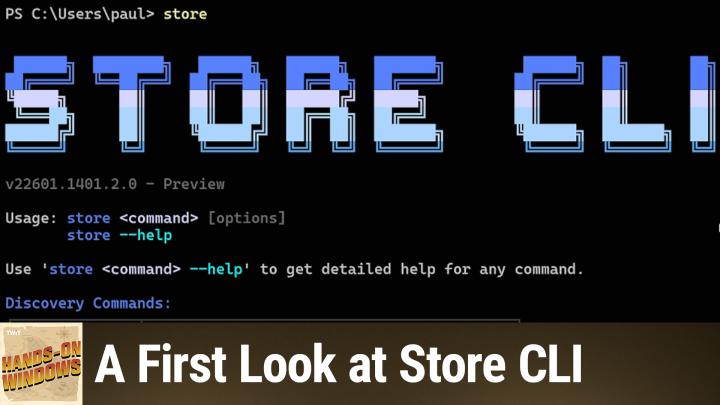
All TWiT.tv Shows (Audio)
Hands-On Windows 181: A First Look at Store CLI
00:17:35
Why Did Microsoft Introduce Another Command Line?
Loading summary
Transcript6 lines
- [00:01]
Paul Thurrott
Coming up next on Hands on Windows, we're going to take a look at a new command line interface for Windows that I did not see coming. It's called Store CLI this episode is
- [00:11]
Leo Laporte
brought to you by outSystems, a leading AI development platform for the enterprise. Organizations all over the world are creating custom apps and AI agents on the Outsystems platform and with good reason. Build, run and govern apps and agents on one unified platform. Innovate at the speed of AI without compromising quality or control. Outsystems is trusted by thousands of enterprises worldwide for mission critical apps. Teams of any size and technical depth can use Outsystems to build, deploy and manage AI apps and agents quickly and effectively without compromising reliability and security. With Outsystems, you can accelerate ideas from concept to completion. It's the leading AI development platform that is unified, agile and enterprise proven, allowing you to build your agentic future with AI solutions deeply integrated into your architecture. Outsystems build your agentic future. Learn more@outsystems.com TWiT that's outsystems.com TWiT podcasts you love from people you trust. This is Twit.
- [01:28]
Paul Thurrott
Hello everybody and welcome back to Hands on Windows. I'm Paul Throt and in this episode I'm going to look at a new command line interface for the Microsoft Store that's built into Windows 11 called Storecli. Now, you may have heard of the Windows Package Manager or winget, so let me bring up a terminal window and you may know, and I'm going to make that a little bigger so you can see it too. So you know probably how Winget works. But winget or the Windows Package Manager is basically a set of repositories. One is the store repository for apps, the other one is the web, not the whole web, but some curated apps from the web. And you can go into the winget interface and install apps, update apps, etc. And I use this as a, in a batch file to kind of batch install all the apps I need every time, you know, I run Windows. So I like it because it's store and web. But now there's a new cli, a new command line interface for Windows called storecli or Store. The command line is Store and so I'm not really sure why we need both. It's not clear yet. Microsoft hasn't said. But it does have some interesting, unique features and it's worth knowing about. Right? So just as a quick refresher, Winget, right? You run the command line, it gives you all of the possible options and some of the parameters you can add there at the end. If you want to find an app, you know you can do Winget Search. If you do that without anything, it's not going to do do much. It will tell you what you can do. But, you know, for example, you might want to do one Git search Chrome, right? You want to find Google Chrome. Winget should find Google Chrome. It's finding a bunch of stuff, including a lot of different versions of Chrome. But right here at the top you can see google.chrome. and so if I wanted to install that app using winget, I would use this command. Now, I already have Chrome installed in this PC. Well, actually it's not going to hurt to run it, but it's not going to do anything, I would imagine. Oh, it's downloading anyway, so let me cancel that. You can also. Now, when you see that kind of syntax which said Google Chrome, that's a web repository. If I search for something, say like Chrome or Brave, which I happen to, I think is in both places, it's in the store and on the web. You can see that here. So this strange kind of alphanumeric code is the version that's in the store and then Brave. Brave is the version that's on the web. And I also, I have Brave installed as well. So I'm not going to do that. But the way that you would do that is to, well, just do what I did before. Right. So it's Winget install, but this time using the code. Right. If you wanted to do it from the store. So pretty straightforward. You can update with this thing as well. So if I just run Winget update, it will show me which apps are available to be updated. I run a command line. I'm not going to do this now, obviously, but you could just do like this silent's not going to work because I didn't do this as an admin console, but I typically would. And that will just update these all and I don't have to deal with it. Pretty straightforward. And let's take a pause there and we'll be right back.
- [04:31]
Leo Laporte
This episode of Hands on Windows is brought to you by. Oh, I love them. Bit Warden, the trusted leader in password, passkey and secrets management, Bitwarden is consistently ranked number one in user satisfaction by G2 and software reviews. With over 10 million users across 180 countries and more than 50,000 businesses. You know who uses beautiful Bitwarden? I do. Steve Gibson does. We love it. Whether you're protecting one account or thousands at your business, Bitwarden keeps you secure all year long with consistent updates. They're always adding new features like the new bits Bit Warden Access Intelligence. Organizations can use it to detect weak, reused or exposed credentials and then immediately guide remediation with your employees, helping them replace risky passwords as strong, unique ones. And that closes a major security gap. Credentials remain a top cause of breaches, but with Access Intelligence, those bad passwords become visible, prioritized and corrected before exploitation can occur. Oh, they have something else I think some of you will like. Bitwarden Lite Bitwarden Lite delivers a lightweight self hosted password manager. This is great for home labs, personal projects, any environment where you want quick setup, minimal overhead and total control. Bitwarden is now enhanced with real time vault health alerts for everybody. They have those password coaching features I mentioned that's in everybody's Bitwarden. So it helps you and your family identify weak, reused or exposed credentials and immediately take action to strengthen your security. Oh, another great thing about Bit Warden, it now supports direct import from your browser from Chrome, Edge, Brave, Opera and Vivaldi browsers. Direct import means that you copy it directly from the browser's password store into the Bit Warden encrypted vault. Not only does it simplify migration, it eliminates the exposure associated with having that plain text export right there on your hard drive. Don't forget to delete it. Right. Well now it just goes directly into Bitwarden. No middle step. G2 Winter 2025 reports Bitwarden continues to hold strong. Number one in every enterprise category. That's now six straight quarters. They've been number one. Bitwarden setup is so easy and it supports importing from most password management solutions, so migrating over is not a headache. It couldn't be easier. When Steve and I did, it took us a few minutes and I don't think we ever looked back. We're so happy. Bitwarden is open source. That's to me very important. GPL licensed. You can see the source code on GitHub and it's regularly audited by third party exper experts. Bitwarden also meets SoC2 type 2 GDPR HIPAA CCPA compliance. It's ISO 27001:2002 certified, so it's very secure. I think you knew that. Get started today with Bitwarden's free trial of a teams or enterprise plan for your business. Or get started for free forever across all devices. Unlimited passwords, passkeys, even hardware keys. As an individual user on all your devices. Bitwarden.com TWIT that's bitwarden.com TWIT we thank them so much for supporting Hands on Windows. Now back to Paul.
- [07:42]
Paul Thurrott
Okay, so that's Winget. And that's been around for, you know, two, three years. It works really well. There's been more and more apps added to the store, et cetera, et cetera. But recently Microsoft announced something called Store cli. And the way that they explained it is that this is a tool for developers, end users. It provides app discovery, install and update capabilities. So it sounds a lot like winget, but that discovery bit is actually most of the new stuff. So we'll do that one last. But it only works with Windows Store apps. It only works in Windows 11 if you have the Windows Store installed, which of course you do. And the way that you get to it is with the Store command. Right now, it got cut off there at the top, but it's got kind of a function, semi graphical or, you know, text mode, graphics kind of display here. My theory is that Store CLI is probably about AI agents, frankly, because there's a lot of stuff going on here. And as we'll see toward the end, because you can ask it questions about what's in the store, it seems like the type of thing that AI would want to know, where you could say something like, hey, is there a free app like Photoshop or something? So we'll do that, we'll do that example later on. But like winget, you get a nice list of the commands and the options and so forth that you have available to you. It's got a nicer display, right. It's kind of formatted a little more nicely than winget is. So, okay, what are we going to do with this one? So same thing. It works a lot like Winget, right? So we can do store search. And here again, they're going to give you options that you can use. Again, nicer presentation, still text mode, obviously. Right. So I'll just do. I'll do the thing we just did. I know this is. Well, see what it does actually. So store search, Google Chrome. Well, actually, I probably have to put that in quotes. Let me just do Chrome. I'll just do it like that. It'll be easy. And this thing will search the store. And this is interesting too, right? So Google Chrome is not in the store, but what it gave us was apps that are like Google Chrome that are in the store. So Firefox, Opera, Brave, DuckDuckGo, et cetera. So that's actually. That's interesting. That is different. We could do something. I used Brave before, I'll do that one again. So store search, Brave should come up with Brave, right? And then the other apps. And it's the same code because this is the identifier, the product ID that we use in the store. And so it's the same thing. If I wanted to install this, I think we do install. And you can see you're. We're supposed to give it the name and I could do Brave and I'm not going to do that. But, you know, again, it works very much like winget does in this capacity. Updating, same thing. Well, similar, I should say. So Update. And the way that this works is this lets you update an individual app. So I could say something like, let's see if that's actually not going to work. I don't have the code. So let me grab a code for an app. I think this is Brave, in fact, and it will look for updates for this particular app. It's already up to date. There's nothing to do. But if there was an update, it would do that. But what if you want to do what I would want to do, which is update everything? There's actually a separate command. So if we go back to Store. Let me scroll up. Well, actually, I don't have to scroll up. I can see it right here. It says update, but there's also updates. And this is going to check for updates for all apps. Right. And the way this works is actually really interesting. So type in store updates. It's going to check for updates depending on when I've done this. This sometimes does take a little bit of time, so we will wait. But eventually what you're going to see here is it will tell you. It'll tell me which updates are available and it will actually offer just to update them all and it will give you a yes, no choice. Sorry. Nope. There it goes. Okay. So similar to winget, but a much nicer interface and you get this option just yes or no to run the update across all those things. I'm going to say no. But if you do say yes, it's interesting. It actually goes right back to the command line. You can type another command and it runs the updates in the background. So actually pretty nice. So yes, nicer. Looking slightly different in some ways. If we go back and look at the interface again, you can see there's some additional stuff, though. And I want to talk about this browse stuff, because I think this is what makes me believe that this might have something to do with AI agents, you know, kind of controlling the store. Right. So they have these different ways to look at what's in the store. So if I. I'm just going to copy that to the clipboard. So browse apps. So if I say store, browse apps. Not much there, but it gives me some help. I need something additional here. There's a lot of options for filtering, category, subcategories, page, etc. But just to keep it simple, I will say top free. And what this is going to do is give me this, you know, nice presentation of the top. I don't know what that is. 20 or so free apps that are available in the store and it's going to change every day, I would imagine. But today as we record this, you can see which ones are at the top of the list. Slowly, WhatsApp, Spotify, iTunes, which is insane, by the way, But Discord chat, GPT, Windows Scan, which is a Windows 8 level or era app, which is kind of interesting. You can also look for categories, right? And so I could just say store and I think it's just app categories. There's different commands like this for games too. I'll stick to apps for this. But this gives you a list of the available categories. So let's back scroll here so you can see what those look like and the subcategories. Interesting. And then you could say something like and I'll just copy paste this and because, because make this a little easier but the wrong place and you know, store, browse apps, top free, but only in the category of music. And now you can see it's Spotify, itunes, Apple Music, Pandora, Amazon Music, et cetera, et cetera. So that's interesting. I also like this one. There's. There's something called similar, right? And so if you just type in similar, it's going to. It tells you you need to find similar things like this. Now we saw this sort of for web browsers earlier because Chrome wasn't in the store. But I'll just try something a little different, you know, Chrome or a store similar and then say Photoshop, right? So Photoshop is obviously an image editing application. And this is interesting too because it's giving me choices. So I typed Photoshop. It wasn't sure which Photoshop I meant. There were four things called Photoshop that are available to it from the store. There's the straight up Photoshop, Photoshop or Photo. Well, Photoshop Express, which I apparently now is a different name, but Also Photoshop Elements and then the version of Photoshop Elements that's bundled with Premiere Elements. So you can actually use the arrow keys to choose which one you mean. So I'll keep it on the first one. I mean Photoshop, I guess. So it's going to find apps in the store that are similar to Photoshop. Now, the first couple are literally Photoshop, but. Well, actually not. But not the one I chose. Right. So it's the other Adobe apps that are like Photoshop Cap Cut, Creative Cloud, which does include Photoshop, Pixar, Canva, et cetera. And you can see over here on the side, it's also. It's not sorted by, but it shows you which are free and which are paid. Because one of the other filters I'm not going to do it here, but one of the other filters you could do is say, well, I want this thing again, but I only want the free, you know, free alternatives or something like that. So there's some cool functionality here. I It's not clear to me why Microsoft didn't just update Winget to do this. I don't know if this means anything about the future of Winget. There's a lot of overlap, but there's also unique functionality here that I think is kind of cool. So maybe as 2026 goes on, we'll learn more about this. This just happened as I recorded this. It was announced in a blog post aimed at developers, but as Microsoft said, it's for users and developers and anyone could use this. You could write a batch file just to install store apps similar to the one I use for Winget. But I need web apps too, so that's not going to help too, too much, but at least for me. But it's something, something to keep your eye on. We're starting to see some interesting updates to Windows 11 this year that aren't necessarily superfluous or kind of fun UI things or AI or whatever. It's just. Just, you know, kind of bread and butter, you know, actual useful productivity things. And so this is kind of interesting. I this came out of nowhere, but I think it's pretty cool. So hopefully, hopefully you found this interesting. We will have a new episode of Hands on Windows every Thursday. You can find out more about that at TWIT tv. H O W thank you for watching. Thank you especially to our Club Twit members. We love you. If you're not a member, please do consider joining. You can learn more about that at TWIT TV Club twit. Thank you. See you next week.
- [16:52]
Leo Laporte
Hey, everybody, it's Leo laporte. Are you trying to keep up with the world of Microsoft? It's moving fast, but we have two of the best experts in the world, Paul Thorat and Richard Campbell. They join me every Wednesday to talk about the latest from Microsoft on Windows Weekly. It's not a lot more than just Windows. I hope you'll listen to the show every Wednesday. Easy enough. Just subscribe in your favorite podcast client to Windows Weekly or visit our website at TWiT TV www. Microsoft's moving fast, but there's a way to stay ahead. That's Windows Weekly every Wednesday on Twitter.