← All TWiT.tv Shows (Audio)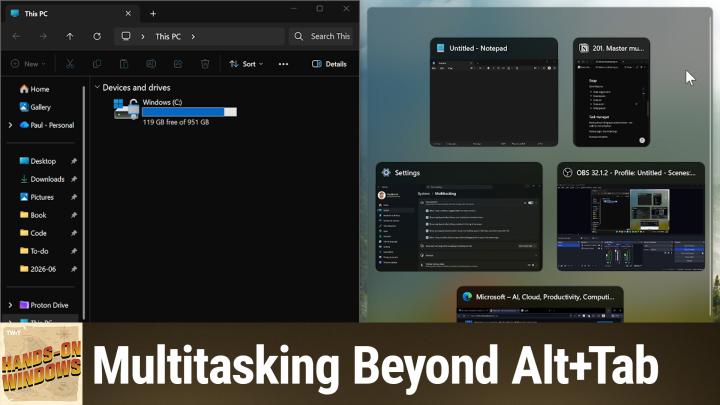
All TWiT.tv Shows (Audio)
Hands-On Windows 201: Unlocking Windows 11 Multitasking
00:24:26
Make Windows 11 Work Smarter With These Hidden Power Features
Loading summary
Transcript22 lines
- [00:01]
Accenture Sponsor
This episode is brought to you by Accenture. When your advertising operations fall out of sync, everything else follows. Spotify and Accenture are working together to reinvent the rhythm of ad sales using automation, analytics and smarter workflows to simplify campaign delivery and access better data across the business. The result? Less time spent on operations, more time connecting brands with the moments and fandoms that matter most. Learn more@accenture.com Spotify you know those tiny
- [00:31]
Uber Eats Sponsor
back to school emergencies that somehow become your problem? That's why I love Uber Eats. You can order school supplies, snacks and lunchbox essentials for $5 or less. So when your kid casually drops I don't like peanut butter anymore or I need five green highlighters for a project due tomorrow, Uber Eats has you covered. Get everything you need for Back to School today from your favorite brands like Aldi and Staples on Uber Eats. Order now ends 97. $5 or less before taxes and fees. Sleep select items only. Availability varies. See app for details.
- [01:01]
American Express Sponsor
Membership means more with American Express Business Gold earn four times Membership Rewards points in your top two eligible spending categories every month, including eligible U.S. advertising purchases in select media and U.S. purchases at restaurants, including takeout and delivery. What are you waiting for? Get the card that flexes with your spending every month. Terms and points cap apply. Learn more@americanexpress.com Business Gold AmEx Business Gold Card built for business by American Express
- [01:30]
Paul Thurrott
Coming up next on Hands on Windows, we're going to take a look at multitasking in Windows 11
- [01:38]
Leo Laporte
podcasts you love
- [01:40]
Paul Thurrott
from people you trust.
- [01:43]
American Express Sponsor
This is TWiT.
- [01:48]
Paul Thurrott
Hello everybody and welcome back to Hands on Windows. I'm Paul3, and this week I'm going to take a look at the many multitasking features available in Windows 11. Some of this is pretty basic, you know, I think most people understand how to use things like alt, tab, etc. But I was updating the book recently and I came across these this part of the book and there's a lot of little things in here and I feel like there are certain little features buried in here that a lot of people just don't know about. So I thought, you know, it's been a while, I think this will be useful, so let's take a look. So the first way for me to do this is going to be I'm going to bring up two notepad windows here just so I can do kind of a basic copy and paste thing. Everyone's familiar with the clipboard probably just type in some nonsense here. Select it. I would normally use A keyboard shortcut, but I can copy that to Clipboard this way and then paste it over here and you kind of get this right this. Now, this happens to be the same app, but this was. This came out of some technology work in the 1990s where Microsoft was trying to figure out ever better ways for apps to communicate with each other. So the clipboard in Windows 11 is actually really sophisticated. Depending on the types of apps you're using and the types of content you're copying and pasting, it actually does intelligent things with that. So if you have a Word document, for example, that has a bunch of graphics and formatted text, etc. And you paste that into Notepad, it's not going to say no, it's just going to give you the text. So, like, that's actually pretty great. But there is also a hidden feature related to the clipboard in Windows 11 that's not enabled by default. It's called Clipboard History. And you can bring it up by finding it, right? Which I don't think is the way most people would do this, but if you go into Settings System Clipboard, you can see there's a Clipboard History option here. But the other way to do it is just to use the keyboard shortcut that you would use with this feature when it is enabled. So, for example, instead of. In this case, I'll cut it. Instead of just pasting this normally here, which would be Control V, right. With the keyboard, I'm going to use Windows key plus V. And it brings up this. It's part of the emoji more panel, but it brings up this Clipboard History interface and it gives you an opportunity to turn it on here. So turn it on and it gives you. There's only one item in the history. It's the one thing we've done since it's been enabled. But you click that and it pastes, right? And so if we keep adding things to the Clipboard, So let's type a bunch of nonsense here, gibberish, whatever, I'll just cut that, cut that, cut that, and then cut that. If I go to Paste now and I'm going to Windows key plus V again, right, you can see all of those items are in here in order, reverse order, right? It can store graphics, it can store formatted text, plain text, all kinds of things. I'm just going to use text to make this easy. You can move this thing around if you want. And the idea behind this is that when you go to Paste, you just select the one that you want Right. So I'll go to the third one, not the most recent thing, which is pretty cool. Some of the other good stuff in here is that you can pin things. So if you find yourself pinning, sorry, pinning, copy and pasting the same thing a lot, you could just pin that inside here. And then it will always just be available right at the top of the interface, which is kind of nice. You can if this is not formatted text, but if it was, you could do paste as plain text. And of course you can also get rid of things and clear it out, et cetera, et cetera. So that's super useful. But there's another related feature. Right now I have to go back to that interface again. But if I go back to Clipboard Settings, you can see now this is enabled, but I can enable this feature as well. And this lets me use Clipboard History and thus copy and paste across multiple computers. For this to work, you have to be signed in with a Microsoft account, and it has to be the same Microsoft account on both those computers, or however many computers you have. But two would be the normal. And the idea here, of course, is that when you go here and you know, copy or cut that, I could then go to the other computer and paste it normally. Or actually I would do a Windows key plus V, right. The Clipboard History version and that thing would be in there, as well as whatever is in the local clipboard, commingle those things. So that's super useful. There's a manual option here. Don't ever enable that. You want to do that automatically. The Manual sync. If you do this manually, it's a couple of extra steps. I don't even understand why that's a thing, but I just leave it that way. So I'm going to turn that off. I don't actually use this feature all that much, but can be very useful for the next couple of ones. I need to bring up a couple of Windows here, so I will do that. I don't know why that's still running. I'll get rid of you. All right. And there we go. Okay, now let me just make sure this is configured correctly, because this is semi unique or I guess literally unique to Windows 11, which is by default. It is configured that when you use Alt tab, it will show you the three most recent tabs you've accessed in Microsoft Edge, in addition to to whatever apps and open Windows are on your system. So Alt tab, I'm holding down Alt and hitting Tab. I'm holding Alt down to keep this interface here, but you can see here are all the apps running, but also these three tabs. So it's not the Edge application, it's the three most recent tabs discreetly called out in here. So if I wanted to switch not just to Edge but to this other tab, you can do that from All Tab, if that's what you want. I don't want that personally, but I turned this off. But still a very interesting kind of feature. Another one that's unique to Windows. Anyway, then now in Windows 11 is Task View. Task View is kind of a more persistent version of Alt Tab, but it also offers access to these virtual desktops, which is another Windows 11 multitasking feature. So if you click this, what you get is something that's much like the the Alt Tab interface we just looked at, except I'm not touching the keyboard, it's still there. I just click the button or do the keyboard shortcut, which is Windows Key plus Tab. And it stays on the screen. So I can select things, I can use the keyboard to kind of move around and then hit Enter a space or whatever to go to those things. I can go into Virtual Desktops, which you're going to look at in one second. But the big. Well, not the big. One of the big other differences is that you don't get Edge tabs. So even though this Edge window had three tabs and we saw them discreetly in Alt Tab, that doesn't happen in Task View. It's not because I turned off the feature. It just does not work. It's just not a feature of it for whatever reason. So that's not there. Virtual Desktops, though, is very interesting. And this gives you a way to move, you know, projects into their own kind of virtual space. And then you can switch between those things, right? There are keyboard shortcuts for this. You can use this pop up interface here. You can just go into, you know, task view, etc. So I can just create a new desktop. I can do things like give this thing a name. I'm going to say, you know, fun stuff, whatever. And I could also change the background, which is kind of cool. And it seems like a weird thing to do first, but I'm going to, I'll just go to this. For this to work, by the way, you have to be using pictures. You can't do this with any other background types. You can't do it with, you know, Windows Spotlight or a slideshow or whatever. And now when I bring that interface up again, let me just mouse over it. You can see the Original desktop, still called Desktop one, has that old wallpaper. This has the new wallpaper. That's kind of cool. Go back to the beginning here, open some windows, because these things will appear in that little thumbnail, right? If they're open and visible. So now when I bring that thing up again, you can see those things are there. And if I go into this interface, you can do other interesting things. Like I'm going to move this into this desktop now, right? I'll move this one into there as well. So you can do that kind of stuff. So you can interact between these things. But this is kind of a neat way to, you know, if you're, if you, depending on how you work, if you do these kind of project based things during the day, this is kind of an interesting approach. And then if you'd use this a lot, you're going to want to learn the keyboard shortcuts. And there are a bunch of them and they're very similar to the Snap feature we're going to look at later. You can. Sorry, let me mouse over that again. Sorry. I can close a desktop when I do that. Whatever apps and windows, you know, come over to the existing desktop. I can add multiple desktops. I don't, I don't actually use this feature too, too much, but it is interesting because it's persistent. Your multiple desktops will be available if you reboot. So if you set these things up and have your little customizations with names and backgrounds, that's all gonna be available when you reboot. So super useful if you need that kind of feature. All right, there's a bunch more. But first, let's take a break.
- [10:41]
Accenture Sponsor
This episode is brought to you by Accenture. When your advertising operations fall out of sync, everything else follows. Spotify and Accenture are working together to reinvent the rhythm of ad sales using automation, analytics and smarter workflows to simplify campaign delivery and access better data across the business. The result? Less time spent on operations, more time connecting brands with the moments and fandoms that matter most. Learn more@accenture.com Spotify you know those tiny
- [11:11]
Uber Eats Sponsor
back to school emergencies that somehow become your problem? That's why I love Uber Eats. You can order school supplies, snacks and lunchbox essentials for $5 or less. So when your kid casually drops, I don't like peanut butter anymore or I need five green highlighters for a project due tomorrow, Uber Eats has you covered. Get everything you need for back to school today from your favorite brands like Aldi and st staples. On UberEats, order now ends 97. $5 or less before taxes and fees. Select items only. Availability varies. See app for details.
- [11:40]
American Express Business Platinum Sponsor
Experience a membership that backs what you're building with American Express Business Platinum. Enjoy complimentary access to the American Express Global Lounge Collection and apply to find out your welcome offer, which could be as high as 300,000 Membership Rewards points. American Express Business Platinum. There's nothing like it. Terms apply, welcome offers vary, and you may not be eligible for an offer. Learn more@americanexpress.com Business Platinum Alrighty.
- [12:12]
Paul Thurrott
Now, you probably are familiar to some degree with a feature called Snap. This is one of those rare instances of Microsoft doing something and it became so popular. You basically see this feature in every operating system. So Linux, iPads, Macs, you know, whatever, it's everywhere. And it's been enhanced over the years too. So if we go into multitasking settings, there's the Snap window, so you can turn the whole thing off if you want. I actually use this feature pretty extensively, so I leave it on. I do turn off some of these features. Normally I'm going to go through these in a bit, but these are just various ways to access the many features that are part of Snap. Because Snap is not a feature, it's really kind of a set of features. Features, right? It's a way to lay out windows on screen in ways that are useful to you. Right. The most obvious being like a side by side view. So if this, these are not great examples, you know, for this type of work. But if for some reason I wanted to put these things side by side on screen, I could drag this over here. You get this kind of preview where it's going to go. I let go over here, I get Snap suggestions. So these are the other apps that are running that could fit into this space. And so I will choose the one I was going to choose originally. And now they're running side by side. Right. That's kind of cool. We get these thumbnails in the taskbar, right? When there are running apps. So if there's just the one window, you just see a single thumbnail. If you have an app that has multiple windows windows, you'll see multiple windows and thumbnails. But when you have one that's in a Snap group, which both File Explorer and Notepad are in this case, you will see a group thumbnail as well as an app thumbnail. And that's a way for you to choose which of those things you want to switch back to. So for example, if I just minimize the screen, I'm like Well, I want to bring up just this one window. I could just choose that and just that thing comes back. But if I want to bring up the Snap group again, I can go here and bring up the Snap group. So that's actually pretty useful. You can drag things out of there and they go back to the way they were before, right? Keyboard shortcuts all over the place. So Windows key plus left will do what I just did. Windows key up will maximize. Restore is, you know, Windows key down. Windows key down again to minimize. Right? Windows key up, restore, maximize. You get the idea. There's all that kind of stuff. You can have fun with that. That works across multiple screens. It's kind of cool. You also have different layouts now. We don't have too many good layouts on this computer unfortunately. I'm sorry, it's low res, that's kind of scaled high. But if I. Let me see if a way I can show you this. If I drag it up into the corner, it's just hard to show. You'll get the preview there indicating that this is going to be like a four way grid, right? So if I drop that there, I now have these options. I can start over here and kind of build that out that way. I'm not going to do that, but that's one way to do that. Also you get these. Let me just bring back my notes here so I don't forget anything. You also get a Snap bar when you drag a window. So that little bar at the top there, if you bring it all the way up to it, it's going to do a couple of different things. I could just drop this now and maximize it, right? But I have in here different Snap layouts I can choose from, right? They're not all 50, 50 splits, but you know, this will depend on the screen resolution, etc. There are also these kind of. It's like a Snap assist kind of a feature where if there are a bunch of apps that might fit well in whatever the, the layouts are that are presented, you might see more versions of that. I only see the one app here unfortunately, but you kind of get the idea there. So if I could do this, kind of like a three way split would be something you could do here. I'll just click out of that, but that's pretty useful. I find that app bar, that Snap bar thing to be annoying actually. I do turn that one off normally, but I just don't need it. But you can also access Snap layouts from this flyover. So if you go over this Maximize Restore button, you can see different options that are available here. So if I choose this one, it's going to put Notepad in that left side of the screen and then put the other two apps, whatever those are, you know, in the, in the grid on the side of the screen. So pretty cool. You know, that's some, some useful features. Good, good to know about. And then the final one that's built into Windows that I'm going to discuss today anyways called Task Manager. You probably know about Task Manager, bunch of different ways to launch this thing. It's available on the right click from the Taskbar. You can right click the Start button and get the quick list here, quick link menu. And it is in here somewhere. Yeah, it tasks me. I'm already running it. But you get the idea. You can find it in Start Search, Control, Alt, Delete. I think it's like Windows Control Escape brings it up, etc. There's many, many different ways. Back when Windows was a lot less reliable than it is today, we would have to go into here a lot and you don't really use it as much. I would say the top reason to go in here is something is not working right. There's an app that is either completely hung or it's just not responding well. And you can go into this default processes view and there's a reason it's the default and try to fix that. Right now I don't have an example of that happening here, but if for some reason, for example, I gotta pick something, I don't care about killing too much. Like the thing I'm using to record the screen if I wanted to, I'll just kill Edge. It doesn't matter. If this wasn't already running in Efficiency mode, which is what that little leaf thing there indicates, I could right click this and choose Efficiency Mode. What that does is it reduces the resource usage of that app or process, depending on what we're looking at. And sometimes that does a job, right? It actually fixes it. So it just kind of eases the breaks mostly in the cpu, but on other things as well. So if that works great, you're in good shape. If it doesn't work, you could just end the task, right? And when you do that from here, it just kills it. Right. And that is unfortunately often what you want. You don't actually need that for a lot of apps. Obviously if it's a background processes, it's a different story. But there's a new feature that is new to this year actually in Windows 11. So if you go into Settings and then System and Advanced, wherever that is. Too many places in here I already turned it on. But this, this, this first option at the top is called End Task. And what this does is allow you to do this End Task thing but not having to bring up Task Manager first. So I'll do this to poor little Notepad, which isn't doing anything wrong, but we'll just pretend something went wrong here. So instead of bringing up Task Manager, I could just right click this and then choose End Task from the list and bam, it's just gone right? So useful. Hopefully you don't need to use Task Manager that much, but there are other reasons. This is one of two major places in the Windows UI where you can determine which apps start when you sign into your account. I think the version and the Settings app is probably the better interface for most people, but you can use either one. And this is the other version is sorry, Settings, Apps and then startup. And so same interface, you can sort by status. This will put all the ones that are going to Auto Start at the top and you can say, well, no, I don't want that thing to start, or whatever. However you want to do that. That's the same interface as this. The other one that I use sometimes is there's a run dialog in Windows that most people don't know about, but I use this often to kind of look at the build number because I'm usually testing some version of Windows and inside of Preview like I am on this computer and I want to just make sure maybe it's the right version of the right build or whatever it might be, and you need to know the exact command for that thing to work. The reason Windows Search exists is because you don't need to know the exact name, but in this case you have to know the exact name. You can also do this from Taskman Task Manager. And the benefit here, you don't need it for this particular task is I could run winver like I did before, but I could also run it as an admin, right? And I'll just try that because I'm sure it's. I didn't even do a. I thought it was going to do a Windows or a User Account control dialog, but no big deal. So there are other things in here you want to see if your MPU is actually being used for anything. It isn't. There's different views, but to me this is mostly about processes and startup apps. And then also, you know, the ability this is the ability to search across all of these views and this run new task thing, which by the way works everywhere, like is available from every view. So for example, I'm not going to do this, but if I. If you were to crash the Explorer UI and nothing comes back, you know, there's your app Windows there, but File Explorer is gone, the taskbar is gone, etc. You can go into this and run Explorer which actually, if I just do this now, probably just runs a File Explorer window, I would think. Yeah, just you could just bring it back that way. Right. Which if you're a developer and you're screwing around with your app is, you know, messing the system up, that might be something that you run into from time to time. Okay, so a pretty complete set of features in there. I mean there are some other small ones, but that's kind of the major stuff. But if you really like the Snap functionality in particular, there's something else that you should look at and that is PowerToys, right. Which is this thing the comes up from time to time because they keep adding new utilities to it and improving existing utilities and it's pretty frickin incredible frankly. If you go into this windowing and layouts group, there are a couple of things going on here, including some I think we've looked at in the past. So like always on top, I actually use this fairly often. Is a way to, you know, select a window or have some window at the front, use the keyboard shortcut and then that thing will always be on top, like a picture in picture type window. Super useful if you need that kind of thing. Not necessarily related to multitasking per se. Crop and lock basically kind of a screenshotting type tool, but it's a way to, you know, capture a window or capture this part, like a crop part of the window, etc. Okay. Grab and move is very interesting. This I believe dates back to the Unix days. I kind of remember using early Unix UIs and having to navigate around with the keyboard, etc. And this to me feels a little bit like that. But if you know how Windows works, you may know that sometimes you get this. I can't demonstrate this. Well, yeah, actually demonstrate it. Let's say this thing is. I'll try to demonstrate it, you know, use that kind of hidden menu. It's off the screen right now. Of course it just grabs it. It's gonna. It doesn't want to do that, but sometimes it happens. Right. So that's one of the ways you could get it back. But when this feature is enabled. You can click and hold down the alt key, and you can do it anywhere in a window and move it. So in other words, even though I'm not at the title bar when I do this, I can move that from anywhere. So if this thing were off the screen, like up here, I could use that to bring it back into focus. Right? Like, this is actually very useful. I know the keyboard shortcut, but the problem is sometimes the keyboard shortcut version gets overridden by other apps, or if it's a modern app, it might not have that little menu. So this is a way that should work for, you know, for every application or window. So useful. This is good to know. But as far as Snap pipe functionality, you definitely want to look at fancy zones. I can't demonstrate this effectively for a couple of reasons, but what this allows you to do is create layouts like Snap layouts, right? Except that they can be more sophisticated, right? So if I open the editor, you get this kind of set. Oh, I have two screens. That's why you get this set of templates that are mostly a lot like what you see in Snap, right? So you could have columns here, you could have rows, etc. But you can also do custom layouts that have what they call like a canvas kind of a layout. And what that means is that instead of these things being actually in a grid, like a perfect grid, you can arrange them however you want. They can be overlapping. Right. If you've ever used Snap, you might have noticed, depending on your screen and the apps and so forth, certain apps just don't work well with Snap because they don't fit into those little areas. They just don't resize that way. And in this case, this might be a better option for those kind of apps, if you don't mind them overlapping, etc. So it's kind of an interesting feature. And then workspaces is another one I can't really show easily. But this is sort of like desktops, except that the it remembers sets of apps and their relative positions so that you can relaunch them as a group. So, for example, you come into Windows, you sign in, and then, you know, you get down here, you're like, all right, I'm going to run Edge, I'm going to run this, I'm going to run this. You click on these things, they'll open wherever they open, and then maybe you spend time arranging them or whatever. There's nothing you can do in Snap to have them remember their window positions and whatever. Sometimes Apps do and sometimes they don't, you know, this kind of lousy. So with workspaces, what you can do. I'll try to. I don't think I can get too far into this because of the recording stuff, but you can. What you do basically is create a workspace. I don't want to capture this because I don't want to screw this up because I have all these things running. But you capture the screen and you do this after you've laid things out the way you want them. And then you can save this as a. Whatever you know as a name. It remembers the apps and their positions. You can save it as a shortcut. So you can have a shortcut in your desktop. So instead of signing into Windows and clicking all these icons and moving things around, you sign into Windows and just double click the shortcut or even put it in your startup group and then it just does it automatically. So whatever those apps are and wherever they were positioned on screen will be re established. It's actually very useful. So if you love Snap, use it all the time. You feel like you know it needs a little bit more. Definitely look at workspaces and fancy zones, some combination of those or one or the other. I think we'll put that over the top for you. Thank you so much for watching. I hope you found this interesting or useful. We will have a new episode of Hands on Windows every Thursday. You can find out more about that at Twitt tv. Ho. Thank you so much for watching. Thank you especially to our Club Twit members. Always. We love you. If you're not a member, do consider joining and you can find out more about that at Twitter TV Club Twit. Thank you. I'll see you next week.
- [26:46]
Leo Laporte
Hi there. Leo Laporte here. I just wanted to let you know about some of the other shows we do on this network you probably already know about. This Week on Tech. Every Sunday I bring together some of the top journalists in the tech field to talk about the tech stories. It's a wonderful chance for you to keep up on what's going on with tech, plus be entertained by some very bright and fun minds. I hope you'll tune in every Sunday for this Week in Tech. Just go to your favorite podcast client and subscribe. This Week in Tech from the Twit Network.
- [27:27]
Uber Eats Sponsor
You know those tiny back to school emergencies that somehow become your problem. That's why I love Uber eats. You can order school supplies, snacks and lunchbox essentials for $5 or less. So when your kid casually drops I don't like peanut butter anymore or I need five green highlighters for a project due tomorrow. Uber Eats has you covered. Get everything you need for back to school today from your favorite brands like aldi and Staples. UN Uber Eats order now ends 97. $5 or less before taxes and fees. Select items only. Availability varies. See app for details.
- [27:58]
Paul Thurrott
Hello. Look what T.J. maxx dragged in.
- [28:01]
Disney Plus Hulu Promo
The Devil Wears Prada 2 is now streaming on Disney plus and Hulu.
- [28:05]
Paul Thurrott
We are digital. We are downloadable. We are streamable.
- [28:09]
Disney Plus Hulu Promo
The fashion event of the year is certified fresh.
- [28:12]
Paul Thurrott
Pull yourself together. We have work to do.
- [28:14]
Disney Plus Hulu Promo
Critics say it's small, dark and witty and the perfect sequel.
- [28:18]
Uber Eats Sponsor
That's all.
- [28:20]
Disney Plus Hulu Promo
Get Runway ready for the Devil Wears Prada 2 on Disney plus and Hulu. Rated PG 13.