← All TWiT.tv Shows (Audio)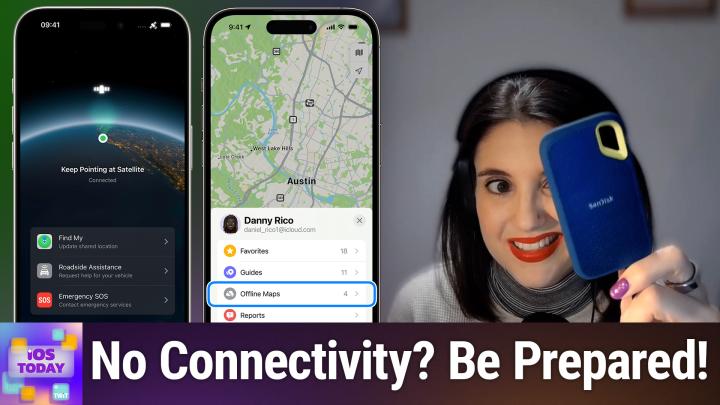
All TWiT.tv Shows (Audio)
iOS Today 730: Taking Your Devices On the Road and Offline
00:36:08
Don't get caught unprepared!
Loading summary
Transcript41 lines
- [00:00]
Micah Sargent
Coming up on iOS today, Rosemary Orchard and I Micah Sargent talk about when you might find yourself in a situation where you're just without Internet and what you do during those times. Stay tuned for this important tip filled episode of iOS today.
- [00:19]
Advertisement
Got great ideas but no idea how to build a website? Get bluehost with their AI design tool, you can quickly generate a high quality, fast loading WordPress site instantly. Once you've nailed the look, just hit enter and your site goes live. It's really that simple. And it doesn't matter whether you're a blogger, influencer or just starting your side hustle. Bluehost has you covered with built in marketing and e commerce tools to help you grow and scale your website for the long haul. And when you upgrade to Bluehost Cloud, you get 100% uptime and 24. 7 support to ensure your site stays online through heavy traffic. Bluehost really makes building your dream website easier than ever. So what's stopping you? You've already got the VIS vision. Make it real. Visit bluehost.com right now and get started today.
- [01:07]
Micah Sargent
It's better over here now.
- [01:09]
Advertisement
AT T Mobile get four 5G phones on us and four lines for $25 a line per month when you switch with eligible trade ins. All on America's largest 5G network.
- [01:20]
Minimum of 4 lines for 25 per line per month with auto pay discount using debit or bank account. $5 more per line without auto pay plus taxes and fees and $10 device connection charge phones via 24 monthly bill credits for well qualified customers. Contact us before canceling entire account to continue bill credits or credit stop and balance on required finance agreement Due bill credits end if you pay off devices early.
- [01:36]
CT mobile.com attention parents and grandparents. Are you searching for the perfect gift for your kids this holiday season? Give the gift of adventure that will last all year long. A Guardian Bike the easiest, safest and quickest bikes for kids to learn on Kids are learning to ride in just one day. No training wheels needed. What sets Guardian Bikes apart? Designed especially for stability, they're low to the ground with a wide wheelbase and ultra lightweight frames. Offering superior control and balance, this design gives young riders the ability to learn in just one day without tears or frustration. Guardian Bikes are the only kids bikes designed and assembled in a USA factory, ensuring top notch quality and durability. They were also featured on Shark Tank under the New York Times Wirecutter. Top Kids bike pick for 2024 join the hundreds of thousands of happy families by getting a Guardian bike today. Their holiday season sales have begun offering the biggest deal of the year. Save up to 25% on bikes, no code needed plus get free shipping and a free bike lock and pump with your first purchase. After signing up with their newsletter, visit guardianbikes.com to take advantage of these deals and secure your holiday season gifts today. Happy RID.
- [02:40]
Micah Sargent
Podcasts you love from people you trust. This is twit this is iOS today episode 730 with Rosemary Orchard and me, Micah Sargent. Recorded Tuesday, November 26, 2024 for Thursday, December 5, 2024 taking your devices on the road and offline. Hello and welcome to iOS Today, the show where we talk all things iOS, iPados, TVOs, WatchOS, VisionOS and future OSes that Apple might have in store. This is a time for us to get together and help you make the most of your devices. I am one of your hosts, My.
- [03:25]
Rosemary Orchard
Name is Micah Sargent and I am Rosemary Orchard. And as always, very excited to be here with this episode for everybody.
- [03:33]
Micah Sargent
Yes, very pleased to have you here, Rosemary. And of course our listeners are always thrilled for us to gather together and help them with their devices. So let's talk about this because you know, there are times they're few and far between as the world continues to grow and evolve that we are without service of some sort, that we don't have cellular connectivity or we don't have wifi. But there are people who live in rural places, there are people who drive into rural places, there are people who live in very crowded places and because they live in very crowded places, their service sometimes cuts out. There are people who are on planes who aren't paying for the in flight wifi. I mean there are all of these different types of maybe you're in a submarine, I don't know where you are, but you don't have connectivity for whatever reason. And so this is a time to kind of figure out what the heck we can do whenever we aren't connected. And I think more importantly how to prepare for times when we aren't connected. So let's. Wow, let's talk about it.
- [04:42]
Rosemary Orchard
Yeah, so I mean obviously we've had a couple of natural disasters in various places around the world recently, which is one of the things that made me think of this because sometimes even if you usually have great connectivity, you might not have it for a period of time, but you still need your devices to work. And while some, you know, we'll be focusing more on some of the entertainment based things today, you know, there are things like having maps available offline, which is just really useful to have. And one of the things that I'm actually just going to recommend to start with is if you've got a whole bunch of data that you've, you know, you've paid for or you just, you know, you've ripped DVDs and stuff. Over time, hard drives are getting smaller and smaller. This right here is a SanDisk 4 terabyte SSD. Okay. And it fits in the palm of my hand. It is super tiny and it's USB C. And especially with the new iPhones, you know, you don't have to have a Mac or whatever to plug this in. This will plug straight into an iPhone with a USB C cable that it comes with. And so, you know, it can actually be worth thinking about picking up one of these, you know, Black Friday Cyber Monday sales are happening sort of around this time and general holiday sales. So, you know, it can be worth just having a good old fashioned hard drive of some kind. I mean, I'd recommend solid state discs over our hard drives just because less moving parts means less things to break. And this can literally fit in your pocket to take with you. But yeah, having some things offline as entertainment, but also just, you know, so that you don't have to rely on redownloading things is quite useful. And so I have my entire ebook library on here, I've got my entire audiobook library on here and I've got some good old films that I are my go tos as well as some television shows which are also go tos. So if I'm going to go and get on a plane or something, then, you know, I take this with me because as I mentioned, literally fits in my pocket. And then if I don't like what's on the in flight entertainment or there is no inflight entertainment, the in flight wifi is down, et cetera. I've got something to keep me going for quite a while.
- [06:43]
Micah Sargent
How often do you audit what's on the device? Do you, do you just kind of before the trip is kicking off, you plug it in and see what you have there? Do you keep a list of what's on there or do you just kind of go, I'm picking the things that I know I will always be interested in and so they're there when I need them.
- [07:03]
Rosemary Orchard
Yes. So this device tends to be the I'm always going to carry these with me type things. So it'll be things like the Back to the Future series which you know, is always a great one to watch for me. I really enjoy it. Things like that. And it's. I don't exactly have a list of what's on here. I just kind of know and like my entire ebook library is on here. Because e books don't take up a lot of space at all. They're very cheap, storage wise, as a form of entertainment. So I just have all of them on there because it's easier than just picking out a subset. But what I tend to do before, if I know I'm going to be offline for a period of time, is I will just plug this in and see if there's anything in particular that I do want to add to my constant collection that I always take with me. But for things that I'm kind of in the process of watching, like for example, I'm currently rewatching Once Upon a Time, I will download like the next however many episodes of that onto my iPad or whatever it is that I'm taking with me to watch directly because that will then automatically remove them once I've watched them instead of trying to keep, you know, the next X episodes of something on a hard drive which is offline. You know, it's quite nice to do that on a device where it can automatically download the next five episodes or something, you know, as you've watched them, which can be really useful, especially if you're going on a trip because, you know, you watch five episodes on the plane, for example, then you get there, it connects to the hotel wifi and it downloads five new ones for you to watch on the way home.
- [08:33]
Micah Sargent
Yes, exactly. Now, when it comes to taking these trips, especially if you're going overseas or if you are again entering an area that you think might have trouble with connectivity, there's a great tip that Rosemary you've brought up before and it's something that you use. Something that I do anytime I'm going to be in a place is I go into my Maps app. And if you're in iOS 17 or later, you can use offline maps that will work even if you're not connected. So what this does is it will let you kind of be aware of your surrounding area and give you the ability to access that full map, including in many cases, directions while you are offline. Now, there are some different options for whenever you use this feature. You can kind of choose when, if the maps get updated whenever you're connected to WI fi or if you want it to not do that. You can also optimize your storage space. So if you haven't used a downloaded map in a while Then the system will go ahead and remove it from your device and you can make it so that the map size is smaller or larger, depending on what you need. So it's a great way to make sure that wherever you're going, you can look around and know what in the world is going on. And, Rosemary, I think you can talk a little bit about the effectiveness of this, given that this is something you use regularly. I think you travel more than I do.
- [10:16]
Rosemary Orchard
Yeah. But honestly, even when I'm not traveling, there are just times when especially 5G seems like a really great invention because it's super fast. But the problem with 5G is it's also a really short wave, which means that it's fabulous when you're standing underneath the mast or like immediately around the mast, but you go a little bit further away and your signal drops off massively and it gets really, really slow and it's really difficult to use. And unfortunately, at least over here in the UK and in my experience in Europe, as we've got more 5G, we've got less 3G and 4G, which means that those slower, longer waves, which were designed to work over a bigger distance, don't really exist anymore. So having offline maps, if you're going somewhere is great. And also if you're going to be taking something like, oh, I don't know, the Tube in London, which it does kind of have WI fi in some places and, like, they're adding, you know, signal to more of it as you go, but it's quite nice to be able to just be like, oh, right, yes. So I know that when I get to Baker Street, I want to go to X, you know, and start planning out your directions. So, yeah, in maps, if you look at, for example, a city or you're looking at an area, then it will give you the option to download and then it will. It will tell you actually how much space it's going to take up and then you can tap on that download option. And for me, I find this works really well. And I do tend to have a couple of cities that I visit fairly frequently downloaded just all the time, because that's just useful for me. And you can also, if you tap on your profile and then you go to offline maps, then you can see what offline maps you have and you can also delete them there and so on. And if something, for example, this download just failed because I've been obviously sharing my screen and everything, then you can see that and you can turn on and off automatic updates Whether or not the maps sync to your Apple Watch, which can also be really handy just so that you do get those directions on your wrist and so on, which, you know, just makes a little bit of a difference when you're traveling and you want to have these offline. And also if you're going on a long drive and I know the holiday season's coming up, so more folks are going to be traveling longer distances, I would recommend please download the maps of the route that you're going to be driving over before you go. Because there at some point may or may not be a signal dead spot in the middle. And you do not want that to be like the time where you've got signal dead spot and maps just doesn't cache that bit yet, or you end up having to take a diversion due to unexpected inclement weather like the flooding here in the UK that we've currently got and things like that. So, yeah, download a map before making a long journey is definitely my recommendation. If you're going to go visit a city, why not download the map just to save yourself some battery life and data on your device as well? You know, data people tend to worry about a little less now, but battery life. I don't know about you, Micah, but I always want to make sure that I've got as much battery life as possible. And maps will definitely eat up your battery life if you're constantly downloading new information.
- [13:20]
Micah Sargent
Yes, it is a huge battery hog, a huge data hog because of the fact if you're using it in that way, it is regularly updating for traffic. And yeah, it can be a huge hog on kind of all of your systems. All right, moving along, there may be a time when you want something to read and you are hoping to do that on your device. So maybe it's not your Kindle or your, your Kindle app on your iPad, but instead that you are reading through an article while you're at the airport and you're about to get on the plane. You know that you're going to be without WI fi for a while at least. And you want to make sure that you can continue to read that article. You can use the reading list to keep that in place. And so it's as simple as while you're on a page, a webpage that you know you're reading the latest wire cutter review, you tap the share button while you're on that page and tap add to reading list and then it's going to save it there. And what's great about it Is by default you can read the webpage later even if you're offline. Now what you want to do to check if you have turned this on or off is launch the Settings app and then you're going to go into Safari. Now if you're on iOS 18, you will need to in the Settings app, scroll all the way down to the bottom and choose Apps and then go to Safari. You could also just use, there's a search bar. But let's pretend we're doing it the long way. We go to Safari and we scroll down to the section that is marked and now I'm losing it. Here it is in Reading list and then you tap on Reading list and you say to save them offline. So that is how you take care of that and make sure that those pages will be saved in your reading list. And yeah, so there's a simple setting called automatically save offline and mine is toggled on. So I know that if I'm not connected I will be able to continue to read whatever article I was reading before I got on the plane.
- [15:46]
Rosemary Orchard
Yeah, this can be really great if you, you are looking at like a webpage that's got like a short story or longer story on it, for example and just having you know, the, the, the reading list saved offline. I also use this if I'm going to be for example, I don't know, troubleshooting family tech, particularly if say they've got issues with their wifi. And I know that, yeah, I'm going to be, I'm going to be the one that's fixing that. I will add these pages to my reading list before I go to their house. A, I'm doing a little bit of research beforehand and I'm gathering my links so it's a good, a good spot to just be able to come back to. And B, it means that you know, if their wifi is down, which, you know, if they're asking me to help fix their wifi, it's probably because it's down right? Then I have those saved offline ready for me to access to help with the troubleshooting which can be just very useful to have.
- [16:40]
Advertisement
Got great ideas but no idea how to build a website. Get bluehost. With their AI design tool, you can quickly generate a high quality, fast loading WordPress site instantly. Once you've nailed the look, just hit enter and your site goes live. It's really that simple. And it doesn't matter whether you're a blogger, influencer or just starting your side hustle bluehost has you covered with built in marketing and e commerce tools to help you grow and scale your website for the long haul. And when you upgrade to Bluehost Cloud, you get 100% uptime and 24. 7 support to ensure your site stays online through heavy traffic. Bluehost really makes building your dream website easier than ever. So what's stopping you? You've already got the vision. Make it real. Visit bluehost.com right now and get started today.
- [17:29]
Micah Sargent
It's better over here.
- [17:30]
Advertisement
Now at T Mobile get four 5G phones on us and four lines for $25 a line per month when you switch with eligible trade ins all on America's largest 5G network.
- [17:42]
Minimum of 4 lines for $25 per line per month with auto pay discount using debit or bank account, $5 more per line with without autopay plus taxes and fees and $10 device connection charge phones via 24 monthly bill credits for well qualified customers. Contact us before canceling entire account to continue bill credits or credit stop and balance on a required finance agreement due bill credits end if you pay off devices early. CT mobile.com indeed.
- [18:01]
Micah Sargent
All right, let's see what's next. What if I want to jam out and also maybe watch some shows and I don't have one of those handy dandy external hard drives? How do I go about accessing media after the fact?
- [18:19]
Rosemary Orchard
That is a really good question and it depends. So the music app works in one particular way and I'm going to start actually with the TV app from Apple. Now I am going to say pretty much every streaming app, depending on the plan that you pay for, has the option to download media offline, including of all things, TikTok. Now some of these will let you choose what you're going to download and some of them TikTok will just be like I'm going to download the next X videos for you and that's, that's it, that's all you got. Um, but for example in the TV app, so I've just got Ted Lasso open here and I have a little download button towards the top, right? So in the absolute top right I've got a share button and then next to that I have a download button and if I tap on download then it gives me all three seasons of Ted Lasso here and I can, if I tap on a season at the top I've got the option to download the whole season or underneath then I have the option to download individual episodes. So if I just know that I want you know, episode six of season two, for example, I don't know why I picked that one, but that's on my screen, then I can download that. And this is really nice just that you've got these offline. Now, in some apps, when you go to download an episode, it will give you the choice. The Apple TV app doesn't necessarily do this, but they will give you a choice of like, what fidelity resolution you want to download the video in. And especially if you're going to be watching something on an iPhone, consider how great your eyesight is and the position of where your device is going to be relative to your eyeballs. Because 4K is something that your iPhone is more than capable of rendering for sure. But are you really going to notice the difference between that and just say 1080p? Maybe not. And if you're trying to cram a lot of stuff onto a smaller device where you don't have as much storage space, it is worth considering. Do you need the full resolution version or could you maybe maybe download a lower resolution one? Now I get. Depending. Yeah, depending on what you're gonna be doing. You know, if you're planning on plugging this in to like a TV and playing it back on a TV or airplaying it to an Apple TV at another location, then, you know, 4K absolutely, go for it by all means. But if you're planning on watching it on a device, especially one with a smaller screen, then do. Do you really need the full resolution? Maybe, maybe not. And then in Apple Music, it's a very similar story. And so I'm just going to. I'll just go into my favorite songs here. And so I'm in a playlist here. It works the same way for albums. And at the top, in the right, first of all, bar top right, you've got the Micah's favorite button, aside from the info bubble. And then next to that there is a little download. And if I tap on that, then this will download the whole playlist. Now if I just want to download one particular song, there was. There's some songs currently unavailable. Interesting. Then I can tap on the three dots and then in this case it's showing me room move for, you know, this one because I've got it downloaded. But if I maybe find something that I don't have downloaded on my device, I suspect I have most of my music downloaded on my device. So I'm going to find Wicked, the soundtrack, the newest one, and then use this as an example. And so if I wanted to download Popular by Ariana Grande. I tap on Micah's button. I'm giving you the button now, Micah. And then first of all, you'll need to add it to your library if you've not already done so. And then once you've added it to your library, then it should give you the option for downloading it or not downloading it. I have mine set up to automatically download, which. That works for me. But if you have, for example, added the whole album, then you can then go ahead and download individual tracks and have those offline, which again, going back to what I said earlier about maps for really long journeys. Download some music as well, because you do not want to be in a signal dead spot on like a really lonely stretch of road, just going, oh, okay, and now I'm out of music. Great.
- [22:33]
Micah Sargent
Yeah. Especially because there are times where I want music and times where I feel like watching a show and times where I want to read it. It all depends. And if I kind of put all of my eggs in one media basket, I end up sitting there going, ah, why, why didn't I think about doing this instead? So it's really nice to be able to say, no, I want to make this switch right now and try this out. All right, one last thing we want to cover here, which is being able to connect even when everything else is working against you to conspire to make it so that you don't have connectivity. This is a time when there's no cellular service, there's no W WI fi, not even on an airplane where, you know, you may be able to network to the WI fi there, but you're. You're out in the wilderness, you are hiking, you are far away from. From civilization and or your mouse is.
- [23:39]
Rosemary Orchard
Just down because there was an unexpected.
- [23:41]
Micah Sargent
Surge in the river also possible as well. And in all of those cases, modern smartphones, an iPhone being one of them, are able to make use of satellite connectivity. This was a feature that first came about as a means of emergency access to say, I'm in a situation where I need help. Here are a couple of messages I can send and I am able to have those routed to a nearby emergency kind area. Right. That's not the case now. It's. It's more powerful than it was before. Apple kind of put. Dipped their toe in the water a little bit or should they dipped its toe in the water a little bit with whether this would be something that could. Could become more. And now you can use it to also just send messages. You do need to be in a place where there is no connectivity for this to work. It's not like when you are in a place where there's connectivity that the satellite option is going to be available. But Apple does provide a little demo that you can do to figure out kind of how it works to be prepared for it when that comes. And the way that you can do it very easily is by on your iPhone, swiping down from the top right corner of the screen and moving down to the connectivity section, also called the mobile data button. And that's the one that has an antenna with little waves going out from it. So we'll tap on that and from here we want to tap on satellite. And then you'll see an option that pops up that says try demo. When you do that, it will show you how this works. So it says try connecting to satellite. And so it's going to turn off my cellular connectivity and then it is going to try to connect to a satellite. Now I don't have a clear view of the sky from where I am, so it's very unlikely that I'm going to be able to get conn. Terrain, buildings, trees can all block the connection. And so you need to be in a place where there is satellite connectivity. But at that point you are able to use it to send messages to update your Find my to get roadside assistance. So this is actually integrated with AAA and will give AAA the information necessary to help them find you. And then also emergency sos, which we talked about before, that's for contacting emergency services. So at any can give this a go. And I really recommend doing this because you don't want to be in an emergency situation and not know how this works. Be using it for the first time at that point. So try it beforehand and then go use it.
- [26:37]
Rosemary Orchard
Yeah, yeah. The intention of the messages via satellite is very much more of a I'm sending micro a message to let him know that I'm going like the hike is going fine and it's all good. Not hey look, here's a really cute picture of a flower that I just took. You know, these are very much intended for, you know, not exactly emergency situations, but avoiding emergency situations. Right. Because this is what a lot of these things are about. It's about not having to deal with unexpected issues because you have done the proper preparation, which everybody who's done scouts or guides or whatever it is always knows. You know, preparation is pretty key. And so yeah, knowing how satellite works. And also this is also tied into the crash detection feature that's on the iPhone and Apple Watch as well. So if your device detects a crash, then it will use the satellite connectivity if regular connectivity is not available to automatically alert people, which I think is pretty darn cool. And I definitely appreciate the fact that these features exist so that hopefully I can never need to use them, but if I do, then they're there for me.
- [27:48]
Micah Sargent
All right, so those are some tips and tricks for being able to take your devices on the road and to use your devices while you're offline. If you have tips that you make use of while you're on the road, you can always let us know. You email us iostodayatwit TV is how you get in touch and we'd love to hear about your methods of doing so. Moving along, we've got some feedback. Rhonda has written in and asked the following Good morning. Can you please provide clear direction on how to access the video version of iOS today? I am a paid subscriber, thank you. I have tried multiple times to follow instructions and it's hit or miss. My preference is to view via YouTube, but I'm open to viewing through a podcast app. I use iOS native podcasts and Overcast. Thank you. So Rhonda, you are able to access this via the podcasts app and I have some good news for you. I created three videos. One for people who are using an Android device, one for people who are using an iOS device like yourself, and one for people who are using a PC of some sort, be that a Mac or a Windows PC or a Linux device, because it's signing up via the browser. Now here's the thing, because the videos are kind of entitled in a way that suggests that they are going to show you how to sign up for Club Twit. You may not realize that the videos I created also walk you through the steps of accessing each and every one of your benefits. So Rhonda, if you you check out the video that we'll link in the show notes it is entitled let me see exactly what the name is here it is how our Club Twit sign up walkthrough for iOS devices and in it and I believe we have bookmarks. Even so you can look at the bottom of the bookmarks and click on the part where it talks about how to access your feeds. Essentially what you're going to do do is in your specific membership feed you will find a link to iOS today in parenthesis video and that will be the version that you want to use in your podcasts app. So again I walk through the whole process including like how you tap where you tap that kind of a thing to figure out how to access it. So let us in know if after following that video you're still having trouble, at which point we'll be able to work with you directly to get that working for you. So Rhonda, thank you for being a subscriber and we will definitely get that resolved for you. All righty. Up next we are headed into Shortcuts Corner.
- [30:39]
Advertisement
Got great ideas but no idea how to build a website. Get bluehost with their AI design tool tool you can quickly generate a high quality, fast loading WordPress site instantly. Once you've nailed the look, just hit enter and your site goes live. It's really that simple. And it doesn't matter whether you're a blogger, influencer or just starting your side hustle, bluehost has you covered with built in marketing and e commerce tools to help you grow and scale your website for the long haul. And when you upgrade to Bluehost Cloud, you get 100% uptime and 24. 7 support to ensure your site stays online through heavy traffic. Bluehost really makes building building your dream website easier than ever. So what's stopping you? You've already got the vision. Make it real. Visit bluehost.com right now and get started today.
- [31:28]
Now at T Mobile get four 5G phones on us and four lines for $25 a line per month when you switch with eligible trade ins all on America's largest 5G network.
- [31:40]
Minimum of 4 lines for $25 per line per month with autopay discount using debit or bank account. $5 more per line without autopay plus taxes and fees and $10 device connection charge phones via 24 monthly bill credits for well qualified customers. Contact us before canceling entire account to continue bill credits or credit stop and balance on a required finance agreement due bill credits end if you pay off devices early.
- [31:56]
Micah Sargent
CT mobile.com I can hear the music. It's time for Shortcuts. Welcome to Shortcuts Corner, the part of the show where you write in with your shortcuts requests. And Rosemary Orchard, our Shortcuts expert, provides a response. The first Shortcuts Corner request comes in from Adam. Adam writes hi Rosemary and Micah. Thanks for all that you do. Thank you Adam. I have a problem with the Reminders app that I'm hoping Rosemary can help me with. My biggest frustration with the iOS reminder app, particularly on the iPhone, is that the option to reschedule all overdue tasks is missing. I'VE tried to solve the problem with the shortcut, but I keep running into the same problem. I am able to identify all overdue tasks and change the due date using edit reminder and set due date in shortcuts. However, that action ends up overwriting the time of day I want the tasks to have. Instead, all of the overdue tasks end up being due at the same time of day the shortcut is run. For example, if I apply the shortcut at 1:30pm to an overdue recurring task that is scheduled for 8am every morning, the task will end up being rescheduled for tomorrow at 1:30pm rather than at 8am thanks in advance, Adam. Ooh. Okay, Rosemary, take it away.
- [33:29]
Rosemary Orchard
All righty. Well, for this, I have prepped with an overdue reminder in reminders. Dun dun. So we've got an overdue reminder. It was due yesterday at 6pm and then what we need to do in shortcuts is we need to use the reminders action to find our reminders. So if we look at reminders, there's one called find reminders, and that's what I've added. So I've already filtered it to just the right list because I have lots of reminders and I don't want to clog up the demo with those. But then I'm also going to add another filter. And I know, Scott, you already figured this out, but I'm just going to show everybody else how to do this. So what I'm going to do is I'm going to say the deadline and at the moment it says is on, and if I tap that, then I can say is before. And if I tap and hold on the date, then I can use the current date and time. So now if I run this, then it's actually come back with a whole bunch of things, which is not what I was after. But that's okay. I will just see if I can perhaps pop this on a different list just to make it a little bit easier to demo. And yeah, there we go. I'll just pop it on, delete these. And then we can use that just to make it a little bit cleaner so that we don't have too many things. There we go. Just the one. So now what I'm going to do is I'm going to ask for some input. And what I'm going to do here is I'll ask for the input. And I'm just going to be asking for a date, not time. But the thing to know about when you get a date, ensure cuts is it has an implicit time attached to it, as you have discovered, Adam, with your action here, because you are finding that the current time is being used. And so if I get asked for a date and I just say now, then oh, look at that, it says 1752. Okay? So that's eight minutes to six in the evening. Well, that's because that's already got that date on it. But now what I'm going to do is I'm going to use a repeat with each action to go over each of the reminders that we have. And then I am going to get a property from the reminder and I'm going to get the due date of the reminder. So I'm going to use get details of the reminder. And so I'm going to get the. Not the list. I'm going to get the deadline from this. And then what I need to do do is I need to put together a little date action. Okay. And this seems a little bit silly, okay. But there's a reason for it, I promise. So what I'm going to do is I'm going to say specified date. Okay. And so in the specified date, I'm going to start with my ask for input date. And then really important, you need to swipe this up a little bit and turn the time format. Okay? So we're just using the date from what we asked for. But then I'm just gonna add a little space and then I'm gonna use the deadline, but instead of having the time set to none, I'm gonna set the date to none. And then this is going to change this to whatever date and time was requested. So now if it pops up, okay, so I'm gonna say, okay, this is, I wanna set this to the 27th, okay? And if we remember reminders, this was set to 6p, okay. And it's now currently six minutes to six. So if I tap done here, then it's changed it. Ah, look at that. It says the 27th at 6. And then if I just scroll down to this then I need to go back and I need to use that date to update the reminder. So I'm just going to go back to find my reminders action and I'm going to use edit reminder and we are just going to set our our deadline of our repeat item two. And then this lovely new date that we've created right there. And that should be it. Okay, so I'm gonna cheat now. I guess it's to Friday. Okay. Because I really don't want to do this overdue Reminder. But look at that. It's now set for Friday at 6pm despite the fact that six minutes is six right now. So I think this is gonna solve your problem, Adam, and I'm hoping it does. Fingers crossed.
- [37:49]
Micah Sargent
Crossed fingers crossed. And let us know, of course. Iostodaywit tv. The next thing comes in and it's just some feedback from Scott who says the schedule shortcut works perfectly. It works so well that my wife told me to stop adding my schedule so many times. Scott, do you want to remind everyone what this is about? That's hilarious.
- [38:14]
Rosemary Orchard
Yeah. Yes. So in episode 728, Scott wrote in asking for help with guessing the schedule out of the app that his work uses. I believe it was Disney. And if you take a screenshot of it, then you can work with that. And so we work through getting the screenshot, cropping it down and everything, all using shortcuts, getting the text out of it, and figuring out exactly what the schedule was going to be for all the working days in that screenshot. And I'm really glad to hear that it works. Works.
- [38:48]
Micah Sargent
Yay. Me too. That's wonderful. And with that, we have reached the end of this episode of iOS today. If you are looking to get in touch with us to ask your shortcuts corner requests, email us iostodayit tv. That's the best way to get in touch. If you would like to get, as Rhonda does, the video version of this iOS today show, well, consider joining club. Right now you can join for a limited time for free at TWiT TV. Club TWiT when you join the club for $7 a month. In the future, after you've tried it out two weeks for free, you will gain access to ad free versions of all of our shows. The Twit plus bonus feed that has extra content you won't find anywhere else behind the scenes before the show. After the show, special club Twitter events get published there. Access to the members only. Discord Server. A fun place to go to chat with your fellow Club Twit members and also those of us here at TW&Access, as we mentioned, to the video versions of all of our Club Twit shows. So Twit TV Club Twit two weeks free for a limited time. $7 a month after that. And for those of you who are members of the Club Twit tv, Club Twit referral will let you earn free months of Club Twit. So consider that as well. Rosemary Orchard. If people would like to follow you online and check out all the great work you're doing. Where should they go to do that?
- [40:15]
Rosemary Orchard
The best place to go is rosemaryosha.com which has got links to apps, books, this podcast, and of course all the social media sites. But you can also find me hanging out in the club Twitter Discord, where people love to join us to chat during the show, but also to share their favorite bits of the show after it gets posted. Where can Fox find you?
- [40:32]
Micah Sargent
Micah if you're looking to follow me online, I could be found at MicahSargent on many a social media network. Or you can head to Chi Hua Hua Coffee wherever. Got links to the places I'm most active online? Thank you so much for tuning in today to this episode of iOS today. We will catch you again next week for another episode.
- [40:51]
Rosemary Orchard
Buh bye.
- [41:06]
Micah Sargent
Now.
- [41:06]
Advertisement
AT T Mobile get four 5G phones on us and four lines for $25 a line per month when you switch with eligible trade ins. All on America's largest 5G network.
- [41:17]
Minimum of 4 lines for $25 per line per month with auto pay discount using debit or bank account, $5 more per line without autopay plus taxes and fees and $10 device connection charge phones via 24 monthly bill credits for well qualified customers. Contact us before canceling entire account to continue bill credits or credit stop and balance on a required finance agreement due bill credits end if you pay off devices early. CT mobile dot com.