← All TWiT.tv Shows (Audio)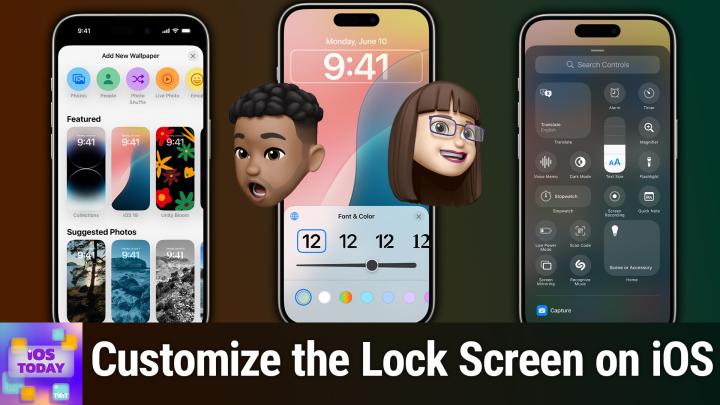
All TWiT.tv Shows (Audio)
iOS Today 735: Level Up Your Lock Screen
00:37:01
Wallpaper styles, placing widgets, & linking a Focus
Loading summary
Transcript38 lines
- [00:00]
Micah Sargent
Coming up on iOS today, Rosemary Orchard and I, Micah Sargent, talk about customizing your lock screen. Stay tuned. Podcasts you love from people you trust.
- [00:14]
TWiT Network
This is twit.
- [00:18]
Micah Sargent
This is iOS Today with Rosemary Orchard and me, Micah Sargent. Episode 735, recorded Tuesday, January 7, 2025. Four for Thursday, January 16, 2025. Level up your lock screen. Hello and welcome to iOS Today, the show where we talk all things iOS, iPados, Vision, OS, TVOs, WatchOS, and all the OSes Apple has to offer. I am one of your hosts, Micah.
- [00:47]
Rosemary Orchard
Sargent, and I am Rosemary Orchard. And I'm really happy to be here to help people customize the window to their life in many ways, because if you think about it, your phone has a heck of a lot of information about you. And so it's quite nice of it, you know, showed something appropriate on the lock screen, depending on what you're doing. Like right now, mine's very plain and simple. Because I'm podcasting, I don't want too much information around, but, you know, you can customize it, and I thought it would be a really nice idea to talk about that today.
- [01:19]
Micah Sargent
Absolutely, yes. The lock screen is a great place on modern smartphones to provide little bits of information when you are, you know, doing other things and you just want to simply look down really quickly at what's on your screen. This is a great place to make that happen, right? It is an opportunity to just say, oh, I know now that it is a Tuesday. I know what time it is, I can see the weather. And the. The cool thing is lock screens on iOS and iPados to an extent, have become incredibly customizable and autom matable. And I don't know about you, but I've had a lot of fun creating custom iPhone lock screens. If somebody wanted to try out a custom iPhone lock screen, how do they get started with that?
- [02:18]
Rosemary Orchard
Well, the easiest thing to do, Micah, for most folks, is going to be to, first of all, make sure your device is actually unlocked. And then from your home screen, you can actually just tap and hold, just like you would if you were trying to rearrange your home screen. So from the lock screen, you can tap and hold, and then there's a whole bunch of options. If you've got multiple lock screens already, that's okay, you can add a new one and change between them. But I'm going to start by creating a new one because I like to. I like looking at these options, so I can see that there are some featured ones. So there's astronomy, there's Some color ones, there's some emoji ones, there's iOS 18, there's some suggested photos, including a picture of my dad being very silly in a shop the other day. And I can see some weather and astronomy combinations, which are really nice. Kaleidoscope, which are just very pretty and sensible in many ways, but also a little whimsical. And then if you scroll down, there's options like the more details of the emoji ones, the unity ones, pride ones, which are really gorgeous. Look at that purple there. I love it. Obviously, if I was doing pride, I go for rainbow, personally, but, you know, there's. There's choices, um, and then there's some other options as well. And what I really like, if you scroll down to the cuddle ones, it's really obvious some of the other things that you can do in your lock screen that stand out a little bit more here. So, for example, if I look at the color options at the bottom, I can see that there's three different font faces being used on the time, which is quite nice. And I can also see the information about the time changes. So I am going be true to myself. And I'm gonna tap on the purple one to create a purple one. And this has now popped up my lock screen. So there's a bunch of different things that I can do here. Uh, first of all, I'm gonna be just swiping back and forth left and right to find the right color combination for me. So there is just solid color. There's bright, there's vapor, deep tone and vibrant. And as well as this, I can also adjust the color myself to be something a little different if I want to. Now, depending on of screen you've picked, it is going to offer different options. So, like, for example, the emoji screen, you'd need to pick your emoji and then there's options for like, doing a swirl effect and things like that. So having chosen our background, which is, you know, the biggest option, I'll start at the top and work down. So right at the top we've got widgets. And I don't know about you, Maika, but I love a good widget on my lock screen because I can just have the right information there. So at the moment, this is showing me the date and the weather. So it says It's Tuesday the 7th, which is the day we're recording this. There's a little moon with some stars because it's pretty open sky tonight. And it's 2 degrees. That is Celsius for clarity. But it's pretty chilly, it's not yet freezing. But I can choose to change this. So I can change it to use carrot weather, I can use calendar and I can have it show me the date or my next event, which is quite nice. And I personally do quite like having the next event show up because that way, you know, I can see how long I've got until the next thing. I've got an option to create a new contact with card hop and then I've got some more carrot options. I've got cheat sheet, so if I want a little note to myself there, I can have a clock so I can see what the time is, a particular city, my alarms. I've got dark noise, drafts, all sorts of options. I can even put flighty here. So if you're making a travel home screen so that you can have different information like on your lock screen at a glance, then you have that. So I am going to start by. I'm just going to scroll back up a little bit. I'm just going to choose my next event here. So I can see now it's the 7th of January and I've got ballet at 7.55pm Underneath that we have our clock. Now starting in the top left, if you tap on that, then you can actually choose what kind of numbers you want. And so there's Western Arabic, which is what most people traditionally know as the numbers. And there's all of the options from Urdu to Burmese and many more, some of which I probably can't pronounce without doing somebody a grave disservice. So I will steer away from that. And then underneath it is, we have our fonts and then we also have colors. So I can make this rainbow, which is really nice. It doesn't work super well with this background, but maybe if I make it a little bolder or something, or I think I'm going to stick with the rainbow. And there we go. Let's try to make this stand out a little bit more perfect. So maybe made that a bit bolder. There we go. So now I have a rainbow clock because everyone likes a rainbow on their lock screen. And again, you can choose from all the colors. You can increase the thickness or make it super thin if you want to, so, you know, make it work for you and for your eyes and your brain so that you can, you know, easily see it. And then underneath this we have space for four small square widgets or two long rectangular widgets, so you can put a whole bunch of things here. I quite Often pop a little battery one there, and once you've added a widget, you can tap on it and then you've got some control. So I can customize this so I can specify that. Hey, I want to know what the battery level of my Apple watches, thank you very much. I don't want you changing automatically to the AirPods that I'm currently wearing. I want the Apple Watch. I would like to know what the time is, but maybe not in Cupertino. Can I find Portland so that I can keep track of Mica? There we go. Now, I have the time in Portland, and there's all sorts of options here, and it depends on what apps you've got installed. But if you're looking for a way to, oh, I don't know, customize your widgets, perhaps, I have to say widgetsmith is a nice option because you can create your own widgets and they're really pretty and they've just had an AI assistant too, so definitely recommend that. And then from there, down at the bottom of your screen, there's controls. Do you want to talk about those, Micah? And customizing controls on your lock screen?
- [08:30]
Micah Sargent
So I've actually just set up and let me get it unlocked first. There we go. I have just set up a new face with. This is a photo I recently took with the ultra wide camera with the latest iPhone. And in this face, you'll see that down at the bottom. Well, actually, you can't see it very well. Can we hide my name for a second there, Kevin? Just so I can show people what's there. We go down at the bottom, you'll notice that on the left, if you're watching. Everything looks fine. Right? It's the. What is it? What am I trying to say? The flashlight, because I wanted to say Torch for some reason. Wow, Rose, Ray, thanks a lot.
- [09:09]
Rosemary Orchard
Torch is the UK version. You're getting it right, Micah. Congratulations.
- [09:13]
Micah Sargent
The FL Flashlight or Torch shortcut, but on the right, you're probably used to seeing the camera shortcut there. That is not what I currently have on this face. That instead is the home app. And yes, that is because Apple has added the ability to change the shortcut button that you have here. The. The. The. The kind of quick access button. So when you go to customize your watch face. And you'll notice here, too, that I've chosen to have the time displayed Right. And if you look in the bottom left corner of the time, Henry's ear is actually overlapping with that time, depending on what face you choose and what. What Exactly. Your, your lock screen looks like it will let you kind of do that sort of magazine depth effect where things are layered over other things. That's why I don't have widgets turned on for this because if I turned on those widgets I would no longer be able to have this kind of cool magazine style layered effect. So I like to use that whenever I can. Of course, in doing so you are giving up some functionality. Now back to the bottom here I can subtract something. Let's say I don't care about accessing the home app and instead I want to add something else. So I hit the minus button to remove the home app shortcut. I'm going to tap in the bottom right corner on that circle to and I'm calling them shortcut. They're called controls by the system. What control appears. Now there are capture controls so I can access the built in camera. I've got a camera button so I don't need to use that. I can use it to scan a QR code to access the magnifier. And then third party apps that offer capture like Instagram and Snapchat also show up here. Carrot has its own options so I can easily access the weather or maps from here. ChatGPT has its own options like opening ChatGPT Claude the same or you can open Claude the clock to open directly to a timer, a stopwatch and alarm and so on and so forth. I want to mention another one of the built in options. If we scroll past all of this, we get down to the accessibilities accessibility options and we have things like music haptics which we've talked about before and live captions or eye tracking or Apple watch mirroring, all of those are accessible via this. Even vision accessibility controls like dimming flashing lights or being able to reduce the white point which is a feature that I use regularly, reduce motion. All of those can be accessed with this control button there on the screen. Now I'm going to change that back to the home button because it is something that I use pretty frequently. And so I've got my torch on one side, my flashlight on one side and my home control on the other side. And then of course I can just use the capture button on the side of the phone to be able to actually access my my camera. I don't need to have it there on the the lock screen. And then I simply tap done after the fact and that will save this face so that when I select it there is the home app and I'm able to tap on that. And if the phone were unlocked, then it would go ahead and pop me into the home app very easily. So that's the control that I like to use.
- [12:40]
Rosemary Orchard
Yeah, it's really nice to be able to change those. And especially if you do have the latest iPhone with that camera capture button on the side, you probably don' camera button on your lock screen. And it is worth mentioning that there are other options. They're not under the accessibility settings, but for example, under the watch app option there's a ping my watch option which maybe you want on your lock screen or maybe you want it in Control Center. And that's the magic of these buttons. Any of the buttons you see here you can actually put in the Control center, which is from the top right ear of the iPhone. So you can have the option to scan QR codes, open the magnifier, do voice memos, translate things. Of course. Course, you know, third party apps have got a whole bunch of things as well. There's a type to Siri option under Siri and then of course little shout out to perhaps two of my favorite Control center lock screen options from shortcuts, Run a shortcut or just open any specific app of your choosing. There are two actions, but because of run shortcuts you can, you can do basically anything with that. So once you've tapped on that, then you can choose which shortcut you would like to run and you can get on with it. And of course, if you haven't created shortcuts, maybe you're not a shortcuts corner fanatic. That's okay. I will forgive you. There are a whole bunch of shortcuts from your apps. Your apps have made them and created them and they're right here. So I can see I've got actions from or I've got shortcuts from one blocker, Amazon Audible bills to budget carrot cheat sheet, check in the clock app code scanner. Even apps like Crouton for managing my recipes and drafts for saving my text have got their own shortcuts which they've pre created. So for example, if I tap on drafts, then I can see that there's the option to create a new draft or to dictate a draft. So perhaps I want a dictation to drafts button on my lock screen. Why not? It's pretty cool.
- [14:32]
Micah Sargent
Absolutely. Now Rosemary showed you that to customize your screen while the phone is on the lock screen and unlocked, you can tap and hold to access that. This is also the way that you can swipe between different lock screens. So swiping left and right lets you change what lock screen you have set up and of course to add a new lock screen if you'd like. This is the way that you customize a lock screen that you already have. So if I have this iOS 18 version here and I tap on customize, that's going to let me make changes to this specific version, whether I'm just changing the wallpaper or I'm actually changing the app itself. And then of course, as Rosemary showed, swiping between different styles that are available to make those changes, you don't need to swipe to the end of your lock screens in order to create a new lock screen. You can also just hit the blue plus button in the bottom right corner of the screen to do that as well. Now I know Rosemary, you like focus modes. I also like focus modes. Tell us about how lock screens and focus modes can interact with one another.
- [15:44]
T-Mobile Ad
AT T Mobile we'll give you four free 5G phones and four lines for only $25 per line per month with eligible trade ins. And no, it's not a contest. It's every day. For a limited time, everyone's a winner on America's largest 5G network.
- [15:57]
TWiT Network
Minimum of 4 lines for $25 per line per month with autopay discount using debit or bank account. $5 more per line without autopay. Up to $830 off each phone via 24 monthly bill, credit credits plus taxes, fees and $10 device connection charge for well qualified customers. Contact us before canceling entire account to continue build credits or credit. Stop and balance on required finance agreement too bill credits and if you pay off devices early.
- [16:13]
Bluehost Ad
CT mobile.com I'm no tech genius, but I know if I want my business to crush it, I need a website. Now. Thankfully, bluehost makes it easy. I customized, optimized and monetized everything exactly how I wanted with AI. Within minutes my site was up. I couldn't believe it. Plus, Bluehost keeps me protected 24. 7. No more worrying about hackers. I just relax and focus on my customers. So whatever your hustle may be, secure your online presence in 2025 with Bluehost. Head to bluehost.com to start now.
- [16:49]
Rosemary Orchard
Yes, so this is an optional feature, I should be clear, but it can be very useful. Say for example, you take your phone to work and while you're at work, maybe you don't want pictures of your family and your friends and your pets and kids popping up because it invites conversation from that person. You can't get away from over there. That one. Like we all know one of those people, right? And so you prefer to just have it be like, you know, solid blocks of color or similar. So for things like that, or maybe you just want to have a dark home screen for sleep time. Then if you open up the settings app on your iPhone and then you pop into Focus, then you can choose your focus mode and I am going to pop into the driving one for the time being. And then I can choose here to customize screens. So you can also change your watch face here, which is quite nice. Now if I choose my lock screen, I can also create a new one. Then I can scroll around and I can see I've got a bunch of different ones. Now if I am looking at these, you might notice at the bottom above the check, check circle. It's definitely a circle rather than checkbox, there are some little icons. These associate with focus modes that are already using this. So you can have multiple focus modes use a lock screen, that's fine. But you can also find out which ones are being used by them here. So now I can say for my driving focus mode, I would like this Astronomy one. Or actually, no, I'm gonna go with the Clownfish. Love clownfish. They're really cute. And now, now when my driving focus mode turns on, it's going to use Clownfish. And I can tap to minus that if I want and go back and say, oh, no, actually I want this Astronomy one instead. And this is just going to automatically customize your lock screen. Now what is important to note is that your lock screen and your home screen are friends. So for example, if I were to from here, change my lock screen to a different one, you can also tap on the little focus link at the bottom and choose a focus mode from there. Now if I were to change this one. Oh, my home screen's changed. What? What happened there? That's because I changed my lock screen. And when you have different layouts set up for your lock screen and your home screen, then you can then it'll automatically switch between them. So what you can also do here, if I am tapping on, customize. Oops, not customize. Sorry. If I tap and hold on my home screen rather than my lock screen, then I can edit the pages and I can choose which pages are going to show up for that. And because I'm in a focus mode and I've got a limited number of pages available, it pops me over to settings to customize that. But that means that if you have different home screens, you want different widgets showing up for when you're working, when you're driving, things like that, or when you're, maybe you've got a travel focus mode. So you want, you know, like your, your flighty widget, loud and proud on the home screen and on the lock screen so that wherever you are, it's just a quick swipe away, then you can do that. This is how home screens and lock screens are tied together.
- [20:11]
Micah Sargent
Yes, it is. The, the, the feature. I like the feature in terms of when I turn on a focus mode or a focus mode automatically turns on that that lock screen will come with it. I'm not super keen on it working in the reverse, where if I choose a lock screen, then it also turns on that focus mode. Because there are a few focus modes that have beautiful wallpapers that I really like and I just want to show, you know, I just want to use those, but I don't want it to be tied to. And of course the way that then just create a new lock screen that's not linked but that's involved. And so I just am kind of. I wish that it wasn't linked on both sides, but it makes sense why it is that way. But you do this and you've suddenly got linking across the board because you know, your Apple watch and everything can follow along too, which is pretty cool that they can all work together. Now, depending on your device and whether you've got the always on technology, these screens can change to show less or more. Now, unfortunately, because of the way that Apple's screen sharing features work, we're not able to show you the lock screen when it's locked and it has that on there. So earlier whenever we. Yeah, exactly. We have to show it to you on camera. But you can see that for Rosemary, the screen that shows when the phone's display is on technically is different from how it looks now, which I'll kind of describe for people who are listening. Almost all of the screen is black and it just has the text on there showing the weather and the time and then her two widgets that are there as well. Plus down at the bottom, the current focus mode that she has turned on and then when she taps it or whenever she hits the little side button to actually wake it up, then of course it shows the full display with the color in the background and everything else. So you can make a change to that now. Now the interesting thing with that is there's an option for what happens if you have an always on display and so I want to show you that in your iPhone settings, you go into settings, you go into display and brightness. And if you have the always on display, you tap on that and here you have the option of whether wallpaper and notifications appear and you're always on display. So I found, and many people found this was originally not an option to hide or show the wallpaper. I found, and many people found that they couldn't quite from a glance tell the difference between when the phone was sort of in its battery saving mode versus when the phone was was not actually kind of locked and asleep. And so people were hitting their side button a lot thinking that, oh, my phone hasn't actually been put to sleep yet by toggling off show wallpaper. That's what makes the screen go black, the wallpaper go black, as opposed to just showing a dimmed version of the wallpaper. So I like to use that because it has helped me differentiate between when the always on display is just displaying in always on mode versus when my phone has the lock screen visible, but it has not yet gone into that kind of always on less battery power mode. So I toggle off show wallpaper. Completely up to you whether you use that. I just have found that it helps me kind of know the difference and not have that little bit of anxiety of oh no, I'm wasting battery, when in fact I was not wasting battery. So there's a little extra tip for you about using the iPhone lock screen and you're always on display. Rosemary, why don't you round us out here on this topic?
- [24:11]
Rosemary Orchard
Well, I mean, I'm not quite sure what else there is to say, Micah, other than people should have a play with these things. And because you can create multiple lock screens, go nuts. There is a limit. I've forgotten what that number is, but it's pretty darn high. But go ahead and create new lock screens to play with them because it means that you're not going to be messing up any configurations that you've got. And don't forget if you're adding widgets, lock screen, home screen complications on Apple, watch all of that. That tap it and, and look at the configuration options for it because there are so many things that you can do, like for example, tweaking the battery widget to show you the battery of a specific device instead of just automatically showing you whatever it thinks is most useful, which may or may not be true. And so, yeah, go have some fun. Play with the options, play with it.
- [25:02]
Micah Sargent
See what it's like. You'll Enjoy it. Yeah, there's, there's a lot there and I have found that where some of the automation stuff that exists in iOS is exciting to me. A lot of it feels overwhelming or like there, it's, it's choice paralysis. Right. But there's enough of just kind of the aesthetic part of this that I am able to really, you know, play around with these a lot and, and set it up just how I like. And then I also regularly like to just check what featured wallpapers or suggested wallpapers the, the system provides. Like that one that I took of Henry, which was not available before and popped up as a suggestion. That's always a lot of fun to check out. If you have things that you do with your lock screen that you want to tell us about, you can email us. Iostodaywit tv. We've got Shortcuts Corner coming up. But I do want to tell all of you out there that we are running our annual audience survey. It is time, yes, once again for the Twitter survey. Now for 2025. Our annual survey helps us understand our audience so we can improve your listening experience. And many of us have taken the survey to test it out to make sure it's working. And so that means we all are very aware of how long it takes. And that's not very long at all. It takes just a few minutes. Go to TWiT TV Survey 25 to take it. And please don't wait. You don't have much time. We're just running it for this month, so it'll be closed by the end of the month. And thank you to those of you who hopped on the train early and filled out that survey. We're looking forward to hearing from more of you. TWiT TV survey 25 to help us make Twit even better. Alrighty, I can hear the music. It's time for Shortcuts Corner.
- [27:09]
T-Mobile Ad
At T Mobile. We'll give you four free 5G phones and four lines for only $25 per line per month with eligible trade ins. And no, it's not a contest. It's every day for a limited time. Everyone's a winner on America's largest 5G network.
- [27:22]
TWiT Network
Minimum of 4 lines for $25 per line per month with a auto pay discount using debit or bank account. $5 more per line without autopay. Up to 830 off each phone via 24 monthly bill credits plus taxes, fees and $10 device connection charge for well qualified customers. Contact us before canceling entire account to continue bill credits or credit stop and balance on required finance agreement to bill credits and if you pay off devices.
- [27:38]
Talkspace Ad
Early ct mobile.com this podcast is sponsored by Talkspace. You know when you're really stressed or not feeling so great about your life or about yourself, talking to someone who understands can really help. But who is that person? How do you find them? Where do you even start? Talkspace Talkspace makes it easy to get the support you need. With Talkspace, you can go online, answer a few questions about your preferences, and be matched with a therapist. And because you'll meet your therapist online, you don't have to take time off work or arrange childcare. You'll meet on your schedule wherever you feel most at ease. If you're depressed, stressed, struggling with a relationship, or if you want some counseling for you and your partner or just need a little extra one on one support, Talkspace is here for you. Plus Talkspace works with most major insurers and most insured members have a zero dollar copay. No insurance, no problem. Now get $80 off of your first month with promo code space80 when you go to talkspace.com match with a licensed therapist today at talkspace.com save $80 with code space80@talkspace.com this is Shortcuts Corner, the.
- [28:41]
Micah Sargent
Part of the show where you write in with your shortcuts requests, and Rosemary Orchard, our shortcuts expert, provides a response. This week's Shortcuts Corner request comes in from Kenny, who writes hi Micah and Rosemary. I have what I hope is a simple question. While I don't do a lot of automation, I did recently purchase Keyboard Maestro awesome and set up a trigger to run an Apple script which ejects my time machine hard drive. I do this so that I can more quickly unplug my laptop when I leave in the morning. Ideally, I would like to figure out a way to trigger a shortcut from my phone that runs this Keyboard Maestro scri on my computer so that by the time I walk over to my computer I can just unplug one cable and go. Do you know of a way to do this? I have included a picture of the Keyboard Maestro script. And as for the pet tax, we recently added a new puppy to our family. Congratulations, Kenny. This is Lassie and her big brother Bernie. They're both Australian labradoodles, so Australian lab and poodles together and Happy Holidays, Kenny. Thank you so much for the happy holidays. Oh my goodness.
- [29:55]
Rosemary Orchard
Look at that. So precious.
- [29:58]
Micah Sargent
Almost blends in. I just want to pet them.
- [30:04]
Rosemary Orchard
I'm not allowed to steal dogs, like temporarily. You'll get them back. I just. I need the cuddles. So far. A week.
- [30:11]
Micah Sargent
It'll be fine.
- [30:12]
Rosemary Orchard
Add an hour. Will do. An arrow.
- [30:14]
Micah Sargent
Oh, now. Okay. That was fair. They're so cute. So, yeah, this sounds evolved because we are mixing between macOS and iOS and automations on iOS and keyboard maestro and it feels like it's something that you, Rosemary, have figured out in some way.
- [30:39]
Rosemary Orchard
Yeah. So there are a few options here and I'm going to start with the simplest one. Work away it. Because Keyboard Maestro on the Mac has a number of different ways that you can trigger it. So I am assuming that your keyboard, that the Mac that the Time Machine drive is plugged into is awake. If your device is not awake, write back in and we'll help you out next week with waking it up because it's going to need to be awake for us to be able to talk to it. To run the automation, what I am going to start with is the public web trigger. A web trigger for Keyboard Maestro is basically when you call URL a particular URL, it's very specific to your machine and the macro that you're running and so on and so forth. Then it will run that macro for you. We would use get contents of URL in shortcuts for this. So get contentsofurl. It's kind of like opening a webpage, but instead it is being a little more specific. And so I'm going to paste in a URL which I have prepared for this. So this is not a Keyboard Maestro URL. Okay. I'm just going to show folks how getting the contents of the URL works. So this is cat fact, ninja fact. Now this is an API that returns cat facts. That's it. That's all it does. So I'm going to run this automation which has got one action get contest of URL and it's got that. That URL in it. And the fact is, the first cartoon cat was Felix the Cat in 1919. In 1940, Tom and Jerry starred in the first theatrical cartoon Plus Gets the Boot. In 1981, Andrew Lloyd Webber created the musical Cats based on T.S. eliot's Old Possums Book of Practical Cats. So that is the fact that was returned. So this is what get contents of URL does. Basically it goes off and it just, it's sending a technical kind of message. Instead of opening a webpage and saying, hey, show me the things it's saying. Just give me the data, please, please. So what we have there is this and we can use this with Keyboard Maestro as well. So Keyboard Maestro will let us use a public web trigger and it has a public web trigger and a remote trigger. So the public web trigger is going to give us a public URL and it will then basically what happens is you call the URL, it goes to Keyboard Maestro. Keyboard Maestro, go. Okay, I know which Mac to send this to, sends it to your Mac, then your Mac gets it and goes, ah, I know which of the different macros to send this to. And it sends it off to that. So it can do that. Now, Public web trigger is basically only available over your local network, because as public as it is, it's, it's a local network version. So the one I'm actually meaning to talk about is the remote trigger. So the remote trigger is going to be easier because that way, even if, for example, your phone hops off of the WI fi for some reason, then you can call this. So what we will do is we will get the URL from Keyboard Maestro. So in Keyboard Maestro you add a remote trigger and then you get a URL that looks something like this trigger.keyvertmystro.comt and then there's two unique IDs and then you can also give it a trigger value. Okay. And then when you call this, it is going to go off and it will run that on that Mac for you. Now in this case it's telling me 404 because I haven't put the unique IDs in place. You get these from your Mac. There's a little copy button once you've added the macro. But I didn't want to create a macro and run it on my Mac repeatedly whilst demoing the show. So that is the easiest way to do it. This is one action assure shortcuts. You turn on the remote trigger in that Keyboard Maestro macro and you're done. That's it. Very simple. Now there is another option which is a little more complex because you're going to have to control your Mac via a script. So what you would do is run a script via ssh. So for example, if I were talking to my Mac, I know it's Mac Studio local and you would need to get the host, so it'll probably be the IP address. Then you need to pop in the user and your password to authenticate and then you can run a script over your over SSH to your Mac. So this way you could say Keyboard Maestro and there is a whole documentation page on the Keyboard Maestro website. But then I can just pop in the name of my macro macro, which would be eject time machine, for example. Or you can use the ID of the macro and then you can actually run this script via ssh, which is another option. This will only however, work on your local network. So you have to be on the same WI FI or local area network as your Mac and it's a little bit more complicated, but being able to run this via your, via your phone is pretty nice. Now, there are some other options on the Keyboard Maestro website about running shortcuts. Running Keyboard Maestro actions through shortcuts and it will talk about those. But Keyboard Maestro, the app that it's talking about, is not available on your iPhone. So you'll need to, you know, obviously take that into account when looking at those solutions. However, there are a number of ways to do it. You could use lfru, for example. Alfred has a remote application for your iPhone and it runs a little web server on your Mac. So you could add a button. But personally I would go with the remote trigger, the get contents of URL action and shortcuts. And you could even tie it into an automation with your morning alarm which checks to see if today is not some kind of holiday for you. So if you're not on vacation, you're you're working and therefore you'll need to take your Mac with you and then it automatically just runs it and maybe add a little notification to say, hey, I ran that and I ejected your time machine drive.
- [36:53]
Micah Sargent
Wow. First of all, I love Keyboard Maestro.
- [36:58]
Rosemary Orchard
So good.
- [36:59]
Micah Sargent
It is very good. It is very good. Kenny, thank you for writing in with your request. We got a little bit of Mac action into the show. That is just about the end of this episode. I do want to remind everyone that they can email us. Iostodayt TV is how you get in touch with your shortcuts, corner or requests and your topic suggestions, etc. If you would like to experience more of Twit, if you would like to see the the extras we have to offer you, well, might I invite you to join Club Twit at Twit tv. Club Twit. We have a limited time promotion going on right now where you can get two weeks of Club Twit for free. So if you've been curious about it, now's the time to check it out. Twit TV Club Twit after the fact. It'll be $7 a month. Month. And when you join the club, you gain access to some pretty awesome things. All of our shows ad free. Just the content you Gain access to the Twit plus bonus feed that has extra stuff you won't find anywhere else behind the scenes before the show. After the show, special Club Twit events get published there. Access to the Members Only Discord Server A fun place to go to chat with your fellow Club Twit members and also those of us here at Twit and access to the video versions of our Club Twitch shows like this iOS today. Thank you to those of you who are members who are watching live. If you are a member then please consider heading to Twitter TV Club Twit Slash Referral to earn free months of Club Twit by referring your friends, family, enemies, whomever Twit TV Club Twit is how you check that out. Rosemary Orchard if people would like to keep up with what you're doing, where should they go to do that?
- [38:40]
Rosemary Orchard
Well, the best place to go is rosemarychwit.com, which has links to apps, books, podcasts and all the social media sites where you can find me. Plus you can find me hanging out in the Club Twit Discord. There is a live chat whilst we're recording and after the show there is a thread for every episode as well as a general iOS today discussion area. Where can folks find you?
- [38:57]
Micah Sargent
Micah if you are looking to find me online, I'm ikasargent on many a social media network where you can head to Chihuahua Copying, that's C h I H U A h where I've got links to the places I'm most active online. Be sure to check out my other shows on the network including Hands On Mac, Hands On Tech and Tech News Weekly and we will catch you again for another episode of iOS today next week. Thanks so much.
- [39:23]
Rosemary Orchard
Bye bye bye.
- [39:37]
T-Mobile Ad
If you love your phone but not your carrier, just switch to T Mobile. You can keep your phone, keep your number and we'll help pay it off up to $800 per line. You can also use our savings calculator to compare our plans and streaming benefits against Verizon and AT&T. So switch and keep your phone, keep your number and keep more of your moolah@t mobile.com up to 4 lines via virtual prepaid card.
- [39:59]
TWiT Network
Allow 15 days qualifying unlock device, credit service port in 90 plus days with device and eligible carrier and timely redemption required. Card has no cash access and expires in six months.
- [40:07]
Talkspace Ad
This podcast is sponsored by Talkspace. You know when you're really stressed or not feeling so great about your life or about yourself, talking to someone who understands can really help. But who is that person? How do you find them? Where do you even start? Talkspace Talkspace makes it easy to get the support you need. With Talkspace you can go online, answer a few questions about your preferences and be matched with a therapist. And because you'll meet your therapist therapist online, you don't have to take time off work or arrange childcare. You'll meet on your schedule wherever you feel most at ease. If you're depressed, stressed, struggling with a relationship, or if you want some counseling for you and your partner or just need a little extra one on one support, Talkspace is here for you. Plus Talkspace works with most major insurers and most insured members have a zero dollar copay. No insurance, no problem. Now get $80 off of your first month with promo code SPACE80 when you go to talkspace.com match with a licensed therapist today at talk. Com. Save $80 with code SPACE80@talkspace.com.