← All TWiT.tv Shows (Audio)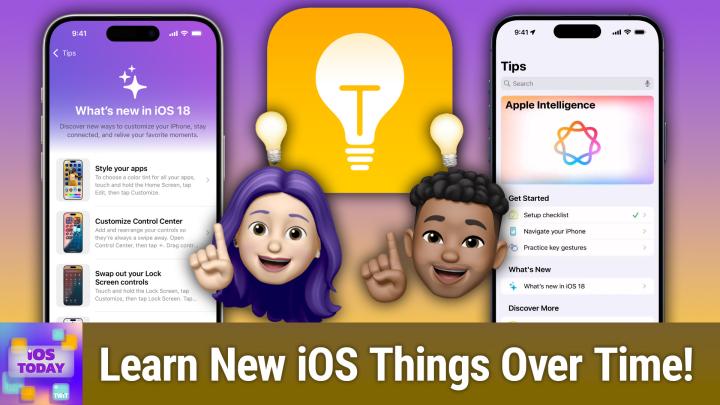
All TWiT.tv Shows (Audio)
iOS Today 737: A Tour of the Tips App
00:40:57
Setup checklist, Genius Picks, & more!
Loading summary
Transcript17 lines
- [00:00]
Micah Sargent
Coming up on iOS today, Rosemary Orchard and I, Micah Sargent, talk about the Tips App, that very important, very helpful app you all have on your Apple devices. Stay tuned. Podcasts you love from people you trust. This is Twit. This is iOS Today with Rosemary Orchard and me, Micah Sargent. Episode 737, recorded Tuesday, January 21st, 2025. For Thursday, January 30th, 2025, a tour of the tips app. Hello and welcome to iOS Today, the show where we talk all things iOS, iPados, WatchOS, TVOS, HomePod, OS. And look, there are a bunch of operating systems and services that Apple provides, and we are aware of them and want to help you with that and want to help you understand how to use your stuff, your Apple Stu stuff, if you will. I am one of your hosts. My name is Micah Sargent and I am Rosary Orchard.
- [01:11]
Rosemary Orchard
I'm very excited to be here because I kind of suggested this in the last episode, Micah. But maybe, maybe we were planning this in advance, maybe a little bit, but a little, a little bonus. I always have the tips app on my home screen when I'm recording iOS today because it's in my podcasting focus mode. And there is a widget for the Tips app, which I think a lot of people don't realize.
- [01:31]
Micah Sargent
Yes. And we'll have to talk about that. The Tips app used to be this thing that I avoided because I thought, oh, this is for the people who have no idea how to use their phones and there's not going to be anything that's of importance in there. No, that is not the case, people. The Tips app is a very powerful app that has lots of information in it. And over time, Apple has actually added a special system to iOS, a framework that involves sort of a TIPS system. Really, that's the best word for it, where apps can display helpful information in the way that the Tips app works. And what's great about this app is that it helps you get your phone, your iPad, whatever it happens to be set up in the first place, and then you can go from there. And so that's actually what I want to talk about first is the get started section of this app. So in the get started section of the Tips app, I've launched the Tips app, you can access it by swiping down on your phone and started to type in the word tips or going into your app catalog, or if you don't have the app, going to the App Store and re enabling it from there, which is the same as downloading, but it's an Apple app. And so under get started, you'll notice the first thing here is a setup checklist, which for me has a checkbox next to it, but let's tap into that and see. So if during the setup of your phone, you skip any of the steps that are involved in your setup checklist, you may see a notification in the operating system and in the Settings app, but if you don't, this is a great place to go to make sure you have everything set up. It talks about face id, it talks about your Apple account. So signing into your Apple account that used to be called Apple id, whether or not you have icloud backup turned on. Find my iPhone a recovery contact. So that if you lose access to your device, having a friend, family member, someone you trust available to help you recover your account. Your medical id, which is part of the health app, which gives you the ability, if you're ever in an emergency, to have information about you displayed like medical medicine, allergies and other medical conditions. And then your legacy contact, in the event that you pass that you die, someone available to gain access to your accounts, to your photos, that kind of thing. So you're passing on that information to a person from there. That's just the first thing. The setup checklist. What's great about this app is that it always displays new content when it comes around, or new features when they come around. Like you'll see the big old Apple intelligence banner at the top of the page. But I'm not going to talk about that just yet because I want to show you the other two that are in the get started section. And these are helpful for someone who is just Getting started with iOS. Navigate your iPhone gives you a bunch of information about how to move around your iPhone. So for example, how you go to the home screen. So swiping up from the bottom edge to go to the home screen when apps are active in the dynamic island, when you are trying to switch between apps by swiping up a little bit, not all the way up to access different apps, but then also just grabbing that little swipey bar at the bottom and moving it to the left or the right. How you open Control center, how you access other controls in Control center and see more controls within them. This is essentially taking the many, many, many, many back episodes of iOS today and sort of grouping it together in a really easy to understand format so you can see these beautiful illustrations. And what's great about this is at any time in the top right corner I can bookmark a specific tip and I can also Share tips. So if you have a friend or family member who's going, how do I do this? Sending them this specific page that says here is how you can silence calls and notifications on your device. And. And having actual animations that appear there is really handy. The other thing that I'll talk about is the practicing Key gestures feature in that get started. And so here it talks about what you can do to zoom. So pinch to zoom, place two fingers on the screen, pinch open to zoom in, or pinch close to zoom out. And it even has a demo you can use to try it out and make sure and look. It even gives me a little great job. I feel so good. I got my little cookies. And it also has a little haptic feedback that plays while I'm doing that as well. Selecting and editing text by tapping to select a portion of it and dragging the blue pointers. This is a quick little boot camp, if you will, for the key gestures that you use in iOS. Tap, of course, and then being able to touch and hold to reveal more actions, which used to be force press, are also available as well. And I think that those are great ways to give a person who is switching to iOS for the first time, or who is switching to a smartphone for the first time the ability to know what's going on. Now, this isn't the only set of options that you have. One place I like to go first and foremost whenever I download a new OS. So the latest version of iOS is this what's new in iOS 18 feature. We're going to come back to that though, because I just want to show you this main this is the tour of the tips app, after all. Discover More is going to contain a section of apps and settings that you might want to know about. So photos and camera, for example, how to take photos, like expanding the frame, finding group photos, hiding or showing screenshots, pinning important albums and collections, using portrait mode, personalizing your iPhone. So how you choose the lock screen, how you can kind of refresh your lock screen with a dynamic set of photos if you need to make text bigger or smaller on your device. And then also setting customized sounds and haptics so you can change the sounds your iPhone makes. When you get a call, a message, an email, and more, tap sounds and haptics, then tap an item to pick the vibration and the tone. And what's great is there's a little link here. It's a deep link into settings to give me access to that area. And then last but not least is Genius Picks and these are my favorite little tidbits of deliciousness, because these have been picked by the experts at Apple who cover this stuff regularly and who get these questions regularly that tells you, here's what you might not know about or what you might know about. So, for example, this is a feature that I use in iOS now all the time, and it's called Enjoy the Ride. And, well, that's the name of the tip. But the actual feature is Vehicle motion cues. And so it says when you're a passenger, you can turn on on screen cues that may help reduce the feeling of motion sickness. Go to Settings Accessibility Motion, then tap show Vehicle motion cues. I can confirm whether it's placebo or it's actually working, or whether it's. Whether it's placebo or there's an actual physiological effect. This works for me. Vehicle motion cues, in the rare occasion when I'm a passenger and not driving will sort of use your phone's internal sensors to display little dots on your screen that tell your brain that what you're looking at is moving at the same speed and the same direction as the things around you. Because if you didn't know, motion sickness in almost every case is caused by your brain noticing a difference between what you're viewing in front of you and the motion that it feels. With the proprioception abilities that you have, it's essentially a mechanism for combating poisoning. So if you eat a food that caused you to hallucinate, your brain tells your body you need to get sick and throw that up or it's going to hurt you, and so you would dispose of it. So now, in the modern world, where we're less likely to eat things that are harmless or harmful to us, our brain still has that. Hey, you. Something's going weird here. You probably ate something you shouldn't have. That's why you start to feel nauseated. This tells your brain no. What you're feeling and what you're seeing are the same thing. So chill out. Everything's fine. You don't need to get sick. I know that is, like a long thing, but that's. That's an explanation of that. And then last but not least, I just wanted to mention that depending on the devices that you have connected to this phone, it will also display information for that. So I have an Apple Watch. So I see an Apple Watch section that talks about the Apple Watch. And then also If I have AirPods in this case, I do. It also gives you information about AirPods and all of the stuff that you can do like using AirPods Pro 2, which I have as a hearing aid. Then last but not least are the straight up full on user guides for iPhone, Apple Watch, HomePod, Apple TV and AirPods. So the full on user guide that has all of the information that you need for using those specific devices.
- [11:28]
NerdWallet Ad
Nerds Listeners as we go into a new year, we all have a lot on our plates. There are backpacking trips across Europe to plan, personal best to crush in the gym, and capsule wardrobes to create Good thing. Our sponsor, NerdWallet is here to take one thing off your plate. Finding the best financial products, introducing NerdWallet's 2025 Best of Awards. List your shortcut to the best credit cards, savings accounts and more. The nerds have done the work for you, researching and reviewing over 1100 financial products to bring you only the best of the best. Looking for a balanced transfer credit card with 0% APR? They've got a winner for that. Or a bank account with a top rate to hit your savings goals? They've got a winner for that too. Know you're getting the best products for you without doing all the research yourself. So let NerdWallet do the heavy lifting for your finances this year and head over to their 2025 Best of Awards at NerdWallet.com awards to find the best financial products today.
- [12:27]
Micah Sargent
If you love your phone but not your carrier, just switch to T Mobile. You can keep your phone, keep your number and we'll help pay it off up to $800 per line. You can also use our savings calculator to compare our plans and streaming benefits against Verizon and AT&T. So switch and keep your phone, keep your number and keep more of your moolah. @t mobile.com up to 4 lines via virtual prepaid card. Allow 15 days qualifying unlock device, credit service port in 90 plus days with device and eligible carrier and timely redemption required. Card has no cash access and expires in six months. Lastly, I will actually Rosemary, I want to let you you cut in here if there's anything that you want to mention about those. Before we continue on here, I did.
- [13:06]
Rosemary Orchard
Just want to go back to the motion sickness thing. Getting motion sick is basically it's, it's a bug between your brain with like your eyes are seeing one thing and your ears are saying something else and your brain just can't link it up. And there are weird glasses that you can get which have got liquid in them which basically help reset the fact that your eyes are not getting the same input as Your ears for your brain. And the dots on the iPhone are so much better if you're using an iPhone than the wear glasses. From personal experience, I've tried both. Both work. But the dots on the iPhone are my much preferred way of doing it. But one of the things I do really love about the tips app is I can just search for something. So for example, if I wanted to see, okay, screenshots, like screenshots, right now they're bugging me in in my photos view. I don't want to see them. So I search for screenshot and I see hey, look, hide or show screenshots and I see hey. I can hide screenshots from my library to reduce clutter, swipe down, then press the up down arrow button, tap view options and tap screenshots which will turn it off. You can also bookmark tips and of course there's a share button as well. So as well as saying, hey, you know, like this is really useful, I can look for a tip that explains what it is that my mom's asked me to tell her how to do or my grandmother's asked me and I can send them the tip and then it shows them themselves with the screenshot, which is also much better than me taking a screenshot of a tip and sending it somebody for accessibility purposes because their iPhone can read this out to them if they are using, for example, text to speech as an accessibility option or just to help them. So yeah, I personally find the tips up. It's one of those things. It got a little bit of a bad rep to start with, but it's really useful now and especially with the full integration of the guides from the Apple website. It is the content that you can find on apple.com or support.apple.com where they've got all those guides if you want, you can even search for shortcuts and you will find how to add shortcuts. You can even learn how to customize voiceover gestures and keyboard shortcuts on your phone. Or use the back tap, such as double back tap or triple back tap to trigger a shortcut on your iPhone, which fortunately I've successfully tapped my iPhone there, maika, without triggering that action, which.
- [15:30]
Micah Sargent
Is that is very good. With the tips app, I find that we had our notifications episode last time. In it I said there are lots of apps that don't get the ability to send me information. The tips app does not count because the tips app comes out with new fun stuff that I get to check out that I wouldn't otherwise have access to I wouldn't otherwise have in such a. It's the condensed format of it, right? We talk about discoverability, what we can access, what we can find. And I think that that is something that the TIPS app helps do is make sure that those features are actually kind of popped up for us, that we know what they are and how they work. So going Back to the Tips app, we've got the what's new in iOS 18 feature and everything that's there, basically giving a person that first stop on the way to knowing what all they can do now that the new version of iOS is out. And I think this is very important when it comes to kind of teaching people about those updates. And so many of you who listen to this show know a bit about iOS, right? And it also means that you're probably the person that people reach out to when they need help. And that's why I'm trying to show you this TIPS app because someone messages you and says, wait, how did you get the that emoji to appear on my message? Because I thought I could only do a ha ha, thumbs up, a thumbs down. Now all you have to do is tap into the TIPS app, hit the share sheet button, the share icon, and be able to send this directly to them. And it's this beautiful again animation that shows you exactly how to send a heart eyes emoji as a tap back in the in the messages app. So nice to be able to do that. And then lastly here with Apple Intelligence, if I tap on this, then you get to see the features like Genmoji and how Genmoji works, how you can use Image Playground, how you can use the feature in photos which lets you kind of clean, they call it cleanup, which will give you the ability to remove things from a photo that you don't want there. The writing tools, which we've talked about before, how you summarize text, how you summarize an audio transcript, which is really nice, being able to just type to Siri instead of actually having to talk to Siri, asking follow up questions. And then also one of my favorite new features, which is the ability to say I need help with this thing, so how do I unsend a message or how do I change the color of my app icons and then Siri will provide that information to you as part of that support feature. So I love Rosemary's kind of pro tip there, being able to just do a quick search and find those things that you're looking for. But I really think that it's worth anyone and everyone hopping in here and checking out what Apple is featuring as things you might need to know. Because I have a feeling you might find something in here that you didn't know was a feature. And that is exactly, I think, the magic of the Tips app. Now, if I wanted to always have those tips available to me, of course we talked about doing the notifications. You said that you have it set to a specific to your podcast focus. Is that the extent of when you have it available and people being able to display it as a widget and can they, for example, see that widget and then tap on it to have that specific tip pop up for them?
- [19:39]
Rosemary Orchard
So here on my podcasting focus mode, where I have chosen to have a different home screen, I have the Tips app sort of front and center, literally at the top. And this is showing me at the moment how to hide screenshots. This is quite a nice way of just becoming aware of all of the different new features and functionalities available with a new version of iOS and also just things that you've forgotten existed over time. And so I like to just have the widget. You can put it in a stack, you can put it wherever you want if you want to have a widget. But then when I tap on this one, it will open up this particular one. And also because there is this little bookmark here, so something where you're like, oh, that's interesting. You see it on the widget, you don't really have time to look into it. Now tap on it. Tap on the little bookmark in the top right hand corner. And then the next time that you open the Tips app, you'll see your saved tips across the top, which can be really nice for the. Oh, interesting. I would like to learn about this, but I don't have time to do this now. Or I want to show this to my mum next time I see her. And I kind of want to go through it with her in person because maybe it's like, you know how to take photos in a particular way with the camera. So it's quite nice to have it open on my phone and then she's playing with the camera on her phone and she can look at my phone with the Tips app for the referencing. Um, so that's how you can save those. Um, but yeah, the, the Tips app just has a nice widget. Um, and if you tap edit on your home, or if you tap and hold on your home screen and enter jiggle mode, um, and then tap edit in the top left Then you can add a widget and then if you scroll down, and in my case, it's quite a long way because I do have quite a few apps installed and a lot of those have got widgets. Then I can see tips, and I can see there is a small, there is a medium and there's a large widget. Um, and so if I add the large widget, for example, then it does give me the option then to resize it. Um, and these will all show the same tip. They're not going to show different tips in the same widget. Um, so if you add multiples to your home screen, you're just gonna see it in different places. So I have how tight screenshots twice on my home screen right now, which is maybe not the most productive use of my screen. So I'll just expand that to be a nice full size one which includes an image. Uh, but yeah, it is quite a nice way I found. So I always have a widget on my iPad home screen, because my iPad home screen is mostly empty with most of the apps in the the app library and open through Spotlight. So I do always have it displayed on my iPad and when I'm podcasting, I always have it on my iPhone because often it gives me a little idea which can inspire a new episode for iOS today.
- [22:13]
Micah Sargent
Yes, indeed. And that's what I love about. That's what I personally love about the TIPS app, is that it provides that inspiration there. The Tips app, again, very powerful, very cool tool that will help you do what we aim to do here on the show. Make the most of your devices. If there's a tip that you've seen in the TIPS app that you think could make for a great episode, give us a shout. Iostodaywit TV is how you get in touch with us. And of course, you can also send your questions, comments, concerns, et cetera, to that email as well. Alrighty, we have some feedback coming in and so we will read about that now. Steve writes. Hi, simple question for the show. Where in Settings do I stop my iPhone from prompting me with directions home or to work? Every single time I plug into CarPlay, I know where I'm going most of the time. Steve. So what Steve is talking about is how in CarPlay, if you have your device plugged in or wireless, depending on which version of CarPlay you have while you're on the home screen. And by the home screen, I mean the home view that has multiple tiles on it versus the home screen that has the app tiles on it. You will see sometimes pop up in the top right corner of CarPlay a little prompt that has maybe your home location and your work location. And then the Maps app will start to display, because the Maps app will be in the big square to the left, will start to display your current route and your way home. And yes, if you know how to make it home just fine, you may be annoyed by this or you know that you just don't want it to be there. And so basically Steve is wondering, can I stop it from doing this? And the answer is yes.
- [24:09]
Rosemary Orchard
Yes. So essentially what this is is it will also, for example, if you are just in the Maps app, it will also just pop it up as home and it'll start, it'll show the route and it won't start navigating until you actually tap and say, okay, go home or go to work or whatever. But it's popping that up because it's using Siri to learn. Now, this is a Siri suggestion, not to be confused with Apple Intelligence, but if you have Apple Intelligence turned on, it is under the Apple Intelligence and Sir header. This is a series suggestion. So this will apply even if you are not using Apple Intelligence. So in the Settings app, go to Maps and then inside of the Map section, inside of Settings. So we're in Settings, not in Maps. And I know this is confusing because you could go into Maps and look for Settings, but no, we need to go to Settings and then Apps Maps. Yes, I'm aware that that sounds very similar and I'm sorry. But then once you're in Settings, Apps, Maps, Apple Intelligence and Siri, or if you don't have Apple Intelligence, it's just Siri, it's the one underneath location. And then what you can do here is you can turn on and off, learn from this app and then also suggestions show an app, show on home screen and suggest app. Now, I'm guessing that what we probably want to do for you here, and this is not something that I have been able to go out and test myself because I've not been particularly well in the last few weeks, as some folks may be able to tell from my voice. So I was not about to go and sit in a very cold car and drive somewhere and then sit there and see if it pops up the home suggestion. But you're probably going to want to turn off show suggestions in the app for this. Now if you do this, you're almost certainly not going to get things like it popping up your next calendar event with a weird with, you know, a location that you rarely go to and so on. That's probably not going to show up there. But that will still show up on the home screen of CarPlay if you have Siri suggestions enabled in CarPlay. So the other thing you can do is under the in settings where you have everything, you can also look for the CarPlay option, which I'm currently not finding. So I'm just going to use the settings in search to find CarPlay. There we go. It's under Settings and then general. Then you can turn on and off Siri suggestions for car as for CarPlay as well. So that that goes away and that's actually into the series section, which is slightly frustrating. But yes, you need to turn off Siri suggestions for CarPlay as well to completely hide everything. But if you turn off the suggestion to show it in the app, then at least if you just got the Maps app open in CarPlay, you're not going to see home and work popping up all the time.
- [26:55]
Micah Sargent
There you go. Beautiful, beautiful. And now that we've got that answered, Steve, which I totally understand that complaint, I believe I can hear the music. It's time for Shortcuts Corner.
- [27:19]
NerdWallet Ad
Attention taxpayers. The IRS is intensifying collections in 2025. If you owe $10,000 or more or have unfiled tax returns, it's time to take action. Tax Network USA's experienced lawyers have saved clients over a billion dollars. They're ready to negotiate with the IRS on your behalf. Don't risk wage garnishment, property seizure or losing your home. Call 1-800-958-1000 today. Get the help you need at 1-800-958-10000 or visit tnusa.com listeners as we go into a new year, we all have a lot on our plates. There are backpacking trips across Europe to plan personal bests to crush in the gym and capsule wardrobes to create Good thing. Our sponsor, NerdWallet, is here to take one thing off your plate. Finding the best financial products. Introducing NerdWallet's 2025 Best of Awards. List your shortcut to the best credit cards, savings accounts and more. The nerds have done the work for you, researching and reviewing over 1100 financial products to bring you only the best of the best. Looking for a balance transfer credit card with 0% APR? They've got a winner for that. Or a bank account with a top rate to hit your savings goals? They've got a winner for that too. Know you're getting the best products for you without doing all the research yourself. So let NerdWallet do the heavy lifting for your finances this year and head over to their 2025 Best of Awards at NerdWallet.com awards to find the best financial products. Today.
- [28:48]
Micah Sargent
It's time for Shortcuts Corner, the part of the show where you write in with your shortcuts requests, and Rosemary Orchard, our shortcuts expert, provides a response. This week's Shortcuts Corner request comes in from James, who writes, how can I export from iOS or the browser my Apple Health data for sleep, HRV, et cetera, et cetera? As I only see the option to export as a PDF all medical info but not the app data as above, I want to add oh, interesting, James. I want to add it to Notebook LLM for analysis. So James is saying, hey, it seems like I can export my health records, but what I want to export is my health data. The stuff that's coming from multiple apps and different wearables that I might have. How do I export that information? I do this, I feel I would be remiss if I didn't say to people, I'm going to assume that James knows what James is doing and that James is fully aware of the implications therein. If you hear what I have just said and you aren't aware of the implications there, and you might try this, and I just want you to know that Notebook LLM is a way to use AI to analyze certain information and then give you answers to that. And on the face of it, it sounds kind of cool, right? I put in my information and my own personal information, and then the system, which is smart, kind of looks at all of it and provides feedback. So I could say, does it seem like there's any trend between when I have a high blood pressure and what else I'm doing in the day, for example? And then it could pop out and say, well, it seems like based on the fact that you've listed your food intake anytime you have high sodium foods, your blood pressure seems to be higher the next couple of days or whatever. But just be aware that in handing this information over to an AI system, you may be training that system with your data. And health data is some of the most personal data that we have. So there's my little caveat.
- [31:20]
Rosemary Orchard
I've said it check the privacy policy, make sure it's not going to share that data. Especially like it's not going to store that data, which could then be shared with somebody that they're not currently saying that they share information with. Because I Suspect the last kind of information or the last person that you want this information ending up with, especially if you're in America and you're looking at your health data to see if there's any problems would be your insurance provider. So please be very careful with this data. By all means, export it, play with it, put it in numbers if you would like and see if you can see anything yourself, share it with your doctor, etc. But yes, do be careful when you are sharing this data because I would not want anybody to end up with any kind of problems that they weren't foreseeing with the. But we are assuming of course that James knows what James is doing here. And so I am going to show folks how you can export this data because it could be useful as well to put this into another application that maybe doesn't integrate with Apple Health or just to be able to export it and put it in numbers for your own personal records. Just to see, you know, year over year. Maybe you're doing your health year reps for 2024 and you want to see how on average per month, how much did you sleep, etc. So what you can do inside of shortcuts is the health app has a number of shortcut sections. So it's got things like being able to log a workout, logging health samples, opening the various sections of the health app. But it's also got find health samples and this is probably what we're going to want. So what we need to do, we need to find health samples and we're going to look for a particular type. I'm going to just leave this as steps for the time being and start date is in the last X number of days. So for example, in this case I'm just gonna get my steps for the last seven days. So if I run this action then I'm gonna see I have 1590 records of my steps over the last seven days. Now I can see there's like 30, 41, 29, 20 and yeah there's, there's a lot of data here so I'm probably gonna need to export that as something that is a little different um, now but depending on what type of data you choose to export, you're going to have different options. So I could export this as unit of count or percentage. Now I don't personally understand how percentage is going to help we with steps. That seems a little bit of a weird unit option. But anyway, moving on, there is also a group by so I can choose to group it by minute, hour, day, Week, month, three months, or a year. And then I can also sort it, and then I can also limit it so I can say, hey, I only get the last five samples before you limit it. I would say just maybe have a look when and run just this single action and just see how many records you get back. Because if you limit it to 5 and there are 15, 90 records, you are not going to be giving yourself accurate data to do any kind of analysis with. Um, so that, with that little piece of advice said, now what we need to do is we're going to need to repeat with each. Now, I'm not going to share the shortcuts for this because unfortunately it is very much going to depend on what kind of data it is that you're looking to export as to what exactly you need to do to get all of that data out. So I've got a repeat with each, and then inside the repeat with each, I'm going to use a text action. And so here in my text action, I need to insert my repeat item. And then we have the more complicated part. So it's not just the repeat item, okay? Because the repeat item is just going to give me 30, 42, 29. It's just going to give me a number of steps. It gives me no other useful information with this. So I'm going to start with my start date, okay? And then I am just going to add a little comma by tapping out of the repeat item option and using the keyboard. Then add my repeat item again and I'm going to add my value. Okay? And then I'll just comma, insert my repeat item once more type, let's put the type in there, comma, insert my repeat item again. And this is why it's going to have to be specific source. We need to know the source. Because, for example, I have an iPhone, I have an Apple watch, I have an Ura ring. All of these grab data and they put it onto my phone and they store it in Apple Health and Apple Health figures out what the correct thing to do with this data is. But that means that I also need to know the source of the data because I'm just getting all of these results here back. Now, I could theoretically filter and say, hey, I would like my source to be something. But the problem is I don't have the source options to choose from here, which makes it kind of tricky in shortcuts. Like I, I would have to come up with a way to select the source type. And that's not something you can do in shortcuts. So having the source there as an option is not great. Either way, I've got my start date, I've got the value, I've got the type of the value or the type of the, the, the data and the source of the data. And so I'm just gonna run this now or actually tell you what, for the purposes of demoing this, I am going to limit this to just five results because if I try and run it for 1600 results, it's gonna take a while. So now I can see 14th of January at 8:03 30 steps and then Oora. Okay, so my start date, I'm just gonna tap back on that. Okay. And if I scroll down then I can see at the bottom that my date format is medium. My time format is none. I'm just gonna Change this to ISO 8Date 601, which if you're doing any kind of data analysis is the kind of date format I would recommend. It is a standardized, easy to parse by computer date format. And then as well as the date. Oops, I didn't want to insert the word. No, let's just scroll down and I'm just going to toggle on the time there as well. Okay. Because this will mean that, for example, if I put this into Excel or numbers, I can easily sort on that date column and everything's going to go into the right place. So I can see now I've got a whole bunch of data. I've got. Most of these are from my ring, my ring, which has previously been a sponsor of Twit, I should note. And then I've got one log for my iPhone as well. So now I've got some results. What I need to do is I need to combine this text. I'm going to combine it with new lines and then I am going to set the name of the file to health data.CSV and CSV is, separated values. So what I've done here is I did start date, comma value, comma type, comma source. And because I put the commas in between that is separating the data in this file. So it's a comma separated value which can be opened easily by things like number and Excel. And I'm presuming that the LLM notebook LLM is going to have the ability to import that as well. If it doesn't, then I'm sure somebody has got a way to convert CSV into something it can parse and import. Also, if you're getting really nerdy and Doing something like using Python. Python can handle CSV files very well. So we're just need to set the name and then I'm just going to pop in a little share action at the end so I could then share this file. And so there we go. I'm going to always allow that. And then, ta da. That has combined that into a CSV file which is now just one singular file that can be imported and handled by anything else. Now if you've got sleep data, you're going to have more fields that you're going to need to get. So for example, sleep data, you will need the start time and the end time, for example, you need both those times so that you've got the, the whole period you need the kind of sleep it is, not just the kind of data it is, and so on and so forth. Um, and so for every different kind of data that you want, you're gonna have to get a little picky about how you set this up within shortcuts so that you get the actually useful data. Which is why I'm not gonna share the shortcut because I do want you to like go through and look at the options. But inside that, repeat with each and your text, tap on the repeat item after you've inserted it and just select the kind of value that you want before adding your comma and then proceeding to your next column. Because each of the commas separates the column of data from the next one. So that is how you can export that, which can also be very useful. For example, if your doctor has asked you to keep a track of your blood oxygen readings for a while because maybe you've been very congested and they're a little bit concerned and they would just like to export that, they'd like to receive that data themselves so they could import that into their system. You can then export your, your blood oxygen levels and send that over to your doctor, for example, or in my case, I just showed them the chart on my iPhone and the doctor said, yeah, that's, that's not great. We're going to give you a nice new inhaler which you can also track in Apple Health. So there we go. But it's useful to be able to export this data. But do please be careful what you're doing with it because I don't want anybody to do anything they regret. And don't forget, if you put it on the Internet, you would have to be okay with your grandparents, your grandchildren and your employer seeing this information at any point in the future and potentially using that against you.
- [40:53]
Micah Sargent
Indubitably. So there you go. That is wonderful. And yeah, the for for people who are considering using NotebookLM, of course it's a Google property and so it's very easy to import from Google Sheets. So James would have no problem getting that those CSV that CSV file or multiple CSV files into Google Sheets which can then be linked to the Notebook LM to do that analysis. So thank you James for writing in. And that brings us to the end of this episode of iOS today. I want to remind those listening out there you can join the club and see the video version of this show. It is TWiT TV Club TWiT. We are offering a two week free trial. So if you have not yet checked out Club Twit, now's the time to do so. While we've got that trial available to you afterward, it's just $7 a month to join the club. And when you do, you gain access to some pretty awesome things. You get the video versions of all of our Club Twitch shows. You gain access to ad free versions of all of the shows. You also get the Twit plus bonus feed that has extra content you wouldn't find anywhere else by the scenes before the show. After the show, special club Twitter events get published there and access to the members only Discord server, a fun place to go to chat with your fellow Club Twit members and also those of us here at TWiT. If you're watching live as a Club Twit member, then you are aware hopefully of our referral program Twitter TV Club Twit slash referral. When you get your friends, your family and others to join the show, well then you get months of Club Twit for free. You can earn months of Club Twit for free, so be sure to check that out. And thank you for being a member of Club Twit or for considering joining Club Twit. We appreciate it. All right, Rosemary Orchard, if people would like to follow you online, where should they go to do that?
- [42:48]
Rosemary Orchard
Well, the best place to go is rosemary orchard.com which has got links to apps, books and all the things I'm involved with around the Internet. Or you can find me in the club Tour Discord where people post fun things including there's a general discussion for iOS today and there's also threads for every episode where if you've got individual questions, you can pop in there and ask Micah. Where can folks find you?
- [43:09]
Micah Sargent
If you're looking to follow me online, you can find me Ikasargent on many a social media network. Or head to Chihuahua Coffee that's C H I H U A H u a Coffee where I've got links to the places I'm most active online. Thanks so much for tuning in. Be sure to catch my other shows including Hands On Mac, Hands On Tech and Tech News Weekly, plus my Club show which I continue to enjoy. Bringing to those of you in the club, my Mica's Crafting Corner. So check all of that out and we'll catch you again next time for another episode of iOS today. Bye bye at T Mobile we'll give you four free 5G phones and four lines for only $25 per line per month with eligible trade ins. And no, it's not a contest, it's every day for a limited time. Everyone's a winner on America's largest 5G network. Minimum of 4 lines for $25 per line per month with autopay discount using debit or bank account. $5 more per line without autopay. Up to $830 off each phone via 24 monthly bill credit plus taxes, fees and $10 device connection charge for well qualified customers. Contact us before canceling entire account to continue bill credits or credit stop and balance on required finance agreement to bill credits and if you pay off devices early. CT mobile dot com.