← All TWiT.tv Shows (Audio)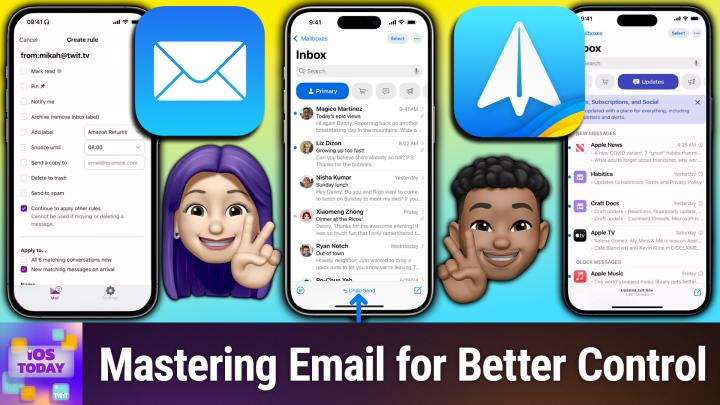
Loading summary
Transcript42 lines
- [00:00]
Micah Sargent
Coming up on iOS today, Rosemary Orchard and I, Micah Sargent, talk about email. Yeah, that's right. Have you checked yours today? From unsolved mysteries to unexplained phenomena. From comedy gold to relationship fails. Amazon Music's got the most ad free top podcasts included with Prime. Because the only thing that should interrupt your listening is, well, nothing. Download the Amazon Music app today. Let's map out this week's amazing destinations and travel tips.
- [00:37]
Will
Honestly, Will, I didn't plan any trips, but I did switch to T Mobile with their new Family Freedom offer.
- [00:45]
Micah Sargent
That's not the itinerary we're following.
- [00:47]
Will
Well, I'm departing from AT&T and embarking on a new journey with T Mobile. They paid off my family's four phones up to $3200 and gave us new phones on the house.
- [01:01]
Micah Sargent
Bon voyage.
- [01:02]
T-Mobile Announcer
Introducing Family Freedom. Our lowest cost will switch our biggest family savings all on America's largest 5G network. Visit your local T Mobile location or learn more@t mobile.com familyfreedom. Up to $800 per line via virtual prepaid card typically takes 15 days. Free phones via 24 monthly bill credits with finance agreement. EG Apple iPhone 16, 128 gigabyte $829.99 eligible trade in EG iPhone 11 Pro for well qualified credits end and balance due if you pay off early or cancel contact T Mobile.
- [01:28]
Rosemary Orchard
So when I ask, what does O what comes to mind? Well, Odoo is a bit of everything. Odoo is a suite of business management software that some people say is like fertilizer because of the way it promotes growth. But you know, some people also say Odoo is like a magic beanstalk because it grows with your company and is also magically affordable. But then again, you could look at Odoo in terms of how its individual software programs are a lot like building blocks. I mean, whatever your business needs, manufacturing, accounting, HR programs, you can build a custom software suite that's perfect for your company. So what is Odoo? Well, I guess Odoo is a bit of everything. Odoo is a fertilizer. Magic beanstalk, Building blocks for business. Yeah, that's it. Which means that Odoo is exactly what every business needs. Learn more and sign up now@odoo.com that's O D O O.com.
- [02:31]
Micah Sargent
Podcasts you love.
- [02:33]
Rosemary Orchard
From people you trust.
- [02:35]
Micah Sargent
This is TWIT. This is iOS Today, episode 767 with Rosemary Orchard and me, Micah Sargent. Recorded Tuesday, August 19, 2025 for Thursday August 28, 2025 Mastering Mail hello and welcome to iOS Today, the show where we talk all things iOS, iPados, WatchOS, HomePod, OS and more. This is the show where we help you make the most of your Apple devices by talking about the apps, the settings, the gadgets, the gizmos that you should be using or changing or updating or whatever to help you have a better experience on those devices. I am one of your hosts. My name is Micah Sargent.
- [03:24]
Rosemary Orchard
My name is Rosemary Orchard, and I'm hoping that we can help you manage your email, whether that be on a macro or a micro scale.
- [03:32]
Micah Sargent
Indeed, yes. So you know it's not an incredibly popular topic. In fact, on a recent episode of my podcast, Clockwise, one of our guests asked us, what is something that exists on the web that should go away? It was sort of in honor of dial up ending in the US and people had sort of jokey answers about, well, the whole thing should go away, etcetera, etcetera. I said email should die. And that was not a popular, controversial opinion. I was very controversial. So I don't, I Email, for me, is almost always an exercise in just trying to get rid of stuff that I don't need and then having anxiety about getting rid of things that I should be keeping, even though I've not looked at these messages in, you know, months and months and months, if not years. I thought it'd be a great time though, to talk about email because there are many options out there, and one of the base options, of course, is the mail app on iOS. So when you first get your phone, you will or should, should find installed the mail app on iOS. And over time the Mail app has gotten, some would argue, more powerful, others would argue more feature packed. Others would argue it's gotten crowded over time, however you see things. This is the mail app for iOS and there's now a categories feature that for those of you who use Gmail, will probably be relatively familiar with. So up here at the top, you can see that in this inbox I have a primary section, I've got a transactions section, I've got an updates section, and I've got a promotions section. Then at the end I've got the all mail. So these are the different categories that are available. And sorting the mail by these categories is helpful because it can tell you what's important and what's not. The thing that I find complicated about using categories is they sometimes result in me not paying attention to the stuff that I need to get rid of. Right. Because I've got that primary category already right there for me and it has the stuff that I need to pay attention to so that I don't act on the other stuff. So you may find that categories aren't for you. But what's cool about Mail is that on top of being able to sort by these different categories, there's a filter icon in the bottom left hand corner. Tapping on that will help us filter by unread. We can filter by flag if we flagged mail, if it's addressed to me or if it's cc'd to me, if I only want to look at mail with attachments, if I only want to look at mail from VIPs or if I only want to look at mail that has been sent today. So you can act on that mail that's sent today. Tapping on a message like this one from Apple News shows me a little bit of information about it. And here's what's cool is that up at the top I can see that this has stuff that Apple says includes time sensitive information. So it's looking at the mail, looking for indicators of it being time sensitive and then providing sort of sorting based on that. Now, I would argue there's nothing time sensitive in this Apple News article, but that's something that you can change and update and kind of adjust over time. But what I love is that right below that, and this is one way that you can help kind of cut back on email is by making use of this wonderful unsubscribe option. So it shows you that this message is from a mailing list and gives you the ability to tap to unsubscribe to this mailing address. And so very easily you can go in and do that. Now in the top right corner I've got up and down arrows that let me kind of go through my mail really quickly. I can see the next message act on that as well. And of course, as I mentioned, this is working through the primary category, but I am able to make changes between categories and list view. And then I can also choose to show or hide those contacts there or excuse me, contact photos there to get a little bit more information. The Mail app of course has your standard composer, so I could send this to whomever. You can see that it's from my little work account here. I can set up a subject, let's see reminder, we'll call it. And I can set up a notification here that says when anyone replies to this email thread, send me a notification. It's already got my signature in there. I Could get rid of that if I don't want to have it there and then put my message. Now, the composer is a lot like any composer. You're going to be able to do some basic formatting. Bold, italics, underline, strikethrough, change the typeface. If you want to enlarge or make small the text, you can change the indentation. So basic formatting options. You can also, as is the case with most mail options, attach things to it and use the built in markdown options to add. And by markdown I do not mean classic markdown of text, but instead being able to write things as needed. The mail has some functionality that I talked about, the VIP option where you can set certain contacts to be VIP and then sort the mail according to that. So those VIP mailers will be able to hop into that section again. Another way to kind of not pay attention to mail that you don't need or want, and only pay attention to mail that you need or want. It may be something that for you is a great way of kind of getting at what you like, or it may result in, as is the case with Burke and Anthony both of TWiT, you are left with 14,207 unread email emails or 7,817 emails respectively, because you're only paying attention to the stuff that you need. But the mail app, still for a basic app I think is quite powerful. Now you can go into the settings and check out a little bit more about the mail app by going into the apps and let's look for mail in the M's of course. And here you can add new accounts as you need to. You can change the default mail apps if you use a third party mail app, this is where you go about saying hey, I don't want to use the default mail app. It also has some of the other settings that you saw within the app here as well. How much of a preview is shown whenever you use that delete or move message action. So whenever you delete or move message, does it automatically select a new message or not? And then what swiping does? Swiping left flags the message. Swiping right will mark as read asking before deleting. Doing some privacy protection stuff. So this has the ability to hide your IP address and also load remote content privately. So when you open the message it doesn't let someone who's putting a little tracking pixel in the email get information about you and then also follow up suggestions. So over time as you were sending messages with a person, maybe you send something and they don't respond for a while. Mail can automatically show you, hey, it's been a week or so since this person has responded. Do you want to follow up with them again? A lot like Gmail threads options are here as well as well as the final composing options including something that I have turned off which is load remote images. I keep that turned off so that the mess or the images that are from out on the web do not automatically load when I am working in a message. So that is kind of a basic look at the mail app, but I just wanted to show that there's a lot that you can do right there in the app that comes free on the phone. Before you get into something more complicated and more interesting, let's map out this week's amazing destinations and travel tips.
- [12:30]
Will
Honestly Will, I didn't plan any trips, but I did switch to T Mobile with their new Family Freedom offer.
- [12:37]
Micah Sargent
That's not the itinerary we're following.
- [12:40]
Will
Well, I'm departing from AT&T and embarking on a new journey with T Mobile. They paid off my family's four phones up to $3200 and gave us four new phones on the house.
- [12:53]
Micah Sargent
Bon voyage.
- [12:55]
T-Mobile Announcer
Introducing Family Freedom. Our lowest cost will switch our biggest family savings all on America's largest 5G network. Visit your local T Mobile location or learn more@t mobile.com FamilyFreedom up to $800 per line via virtual prepaid card typically takes 15 days. Free phones via 24 monthly bill credits with finance agreement eg Apple iPhone16128Gigabyte $8,229.99 Eligible trade in eg iPhone credits end and balance due if you pay off early or cancel contact T Mobile.
- [13:21]
Rosemary Orchard
Ever notice how ads always pop up.
- [13:24]
Will
At the worst moments when the killer's identity is about to be revealed during that perfect meditation flow On Amazon Music.
- [13:34]
Rosemary Orchard
We believe in keeping you in the moment.
- [13:37]
Will
That's why we've got millions of ad free podcast episodes so you can stay completely immersed in every story, every reveal, every breath. Download the Amazon music app and start listening to your favorite podcasts. Ad free included with Prime.
- [13:56]
Rosemary Orchard
Yes, and one of the things that you can also do with this, which I feel like it's a really important feature to remind people this exists. Undo send I don't know about you Micah, but I frequently will type something like please see the attached blah blah blah hit send. What did Rose forget to do? Attack blah blah blah. And I only realize it does not matter how many times I proofread. It does not matter how many times I add automation for this. I only realize it once I've hit send. But Undo send is a feature in mail on iPhone. It's been there for a little while, but you can turn this on under Settings Apps, Mail and then there is an undo send delay which basically when you hit send will then not immediately send the email. It will then pop up a little bar at the bottom. It looks like it's sent, but then there's a little bar and then you can go, ah, no, I messed up and I don't want that for however long that delay is. So by default it's 10 seconds. And you know what, I have never needed to send an email faster than 10 seconds from now. Like I can always wait those 10 seconds to send an email. But yeah, there's a lot of things that you can do in mail and we're going to link everyone to the mail settings in Apple's documentation because there's a lot of stuff there that is worth going through and having a little play with, like the flagging, having reminders for emails. You know, I always try to make a point of talking to parents through some of the new features in iOS every single year. And my mum the other day was like, oh, I can't find the setting to add a reminder about an email here. Like I can I see it on my iPhone but I don't see it on the Mac. And I realized that obviously it's a different place on the Mac. So I had to show her how to do that and she decided that that was too complicated because she only uses her Mac like once a week for 30 minutes. So decided that it was easier just to pick up her phone that was next to her and do it on her phone. Whatever works for her, whatever works for her systems, that's great. But yeah, there's all sorts of things you can do in mail and it's worth exploring. But sometimes mail may not be the best option for everybody. Like personally I do use mail but I don't get notifications from it. One of the reasons why I use mail still, or I have it configured to fetch from my email specifically is because this way it can do the auto fill for the email. Like when something says hey, so we're going to email you a one time code to confirm it's really you for logging in. Not super secure, but you know what, I'll take it. That's usually the only option there is, but then it pops up as an autofill option and when I tap that and auto fill it, it will then delete the email for me. So it's worth, even if you decide that you're going to try another app to configure your email. But I use Fast Mail. Um, and one of the things that I really love about fast mail on iOS and indeed fast mail everywhere are those mail rules that you can set up. So I have false mail set up with, oh my gosh, I don't even know how many rules. Yeah, like, seriously, there's a really, really, really long list of rules here.
- [17:11]
Micah Sargent
But before you mention that though, just a quick cut in. Fast Mail has been a sponsor on the network. Just want to say that.
- [17:17]
Rosemary Orchard
Yes, good point. Yeah, I'm not talking about them because they were a sponsor, I'm talking about them because I genuinely love them. But yes, you can create your own rules. So you can do rules based on the addresses to, from cc, bcc, etc, subject, body, anywhere, if senders are contacts, if something has an attachment, if there's a particular mail header, which by the way is really great for like filtering out a whole bunch of like, oh, this is definitely going to be a newsletter. So I'm just going to tag this with feed and like, or like newsletter and market as read. So I can still see it in my inbox and but it's not going to pop up and notify me. And these rules then run on the email server rather than running when the email gets to your inbox. Which means that wherever you look at the email, it's going to have had whatever this is applied. Um, and so if I say that whenever I get an email from Micah at TWiT TV, then I can create a rule, I'll do a little preview and then I can choose what to do. I can say, hey, market is red, pin it, notify me, archive it, add a label, snooze it automatically. Because yes, snoozing an email is great. Send copies to. That's how we get all of our iOS today feedback automatically filtered and managed and handled. It gets copied over to an automation system that I have running. You can automatically delete emails and send them to spam. And one of the things I really love is you can say, hey, like when this rule is done, I want you to go through all of the other rules too. Or no, I don't want you to go through all the other rules because that for me makes a big difference when it comes to my email handling. And then you can also say, hey, apply this to everything already. Or just new emails now and then give it a name. And mail rules make my email management so much easier. I have exactly two unread emails in my inbox right now. That's it. I'm not kidding now. Now I have seen in the chat, some people have 14,207 and some other people may have 7,817. Anthony. And maybe I'm just saying mail rules exist in Gmail too. Take a look, see if you can handle something. One of my favorite things to do in any email app, and this is a free tip regardless of mail app, is search by the sender of the email that you're currently looking at. Especially if you are about to unsubscribe from something or you're there going, oh, this person's annoying. Before you mark that one email as spam, just search for the sender and then select all, mark a spam, select all, delete, etc. Yeah, so that's one of my bonus tips there. Micah, do you have a mail client that you would like to suggest as a possible alternative to mail?
- [20:02]
Micah Sargent
Yeah, I do. I have one. It is the mail client that I use every single day and it's an app called Spark. Now I have used many mail clients over time and I used to use an app called Airmail. And Airmail was pretty great at the time. I think it was like email for nerds is how I always saw it because it had so many options that kind of got at the technology behind, behind email. The problem with it was it was never designed as an iOS first app. And given that it was not designed as an iOS first app, meaning that it was like built from the ground up for the platform, it ended up being kind of a web view into the app and that resulted in issues all the time. I would have trouble with email, not rendering, etc. Etc. I say that because, I say all of that because it took me a long time to then find one that I wanted to stick with after that and ended up going with Spark. Now, Spark is interesting and to some a little bit controversial because of the way that it works. Spark does a lot of the processing server side and then sends you email from the server. So what does that mean? Well, it means that when you, you have to create an account to use Spark in the first place, and when you do so, it kind of sets up this little instance for you where all of your email accounts are logged in. And then if you go onto another platform, if you're on Mac OS or an iPad or Wherever logging in with your account will then pull down all of those other email addresses and give you access to them. And the reason that it does this is because a lot of the snooze features and other kind of do this later or don't act on this right now. Features require some level of server smarts and syncing them between devices is a lot harder if each of those devices can kind of act independently. So I think it works well for that. The other reason is because Spark is very much about a team based mentality. If you choose to use that part of it, what that means is you can essentially bring in your team to all be able to act on an email inbox altogether. And that's where the server really comes in handy. But one of the features that I like about Spark is I can essentially create a viewable link to a page of any email that I get. And that has been helpful in the past when I do get an email as a member of the Twitch team that I need to show to other people. And yes, I could forward them that message, but then they're all seeing kind of an independent copy of it. Do they get it? Does it go in the right place, blah blah, blah, or do I just share a link in Slack? They can click on it and they're all viewing that page. Uneditable, unchangeable. Just the page that has the email on it. That's one of the features I like. But at this point I think mostly the reason why is it's muscle memory. I've figured out how to use Spark. I know how Spark works and I'm actually a classic Spark user. So Spark has two versions on the Mac, the Classic Spark and then the Spark that has a bunch of AI stuff built in. I don't use that version, I don't need it or want it. And so I have kind of classic Spark. Spark over time has added new features like smart sorting. I don't use those for the reasons that I mentioned before, but it has snooze features built in. It has spam stuff built in. It has a built in calendar, so you can do your calendar. I don't use this feature either, but it does have a built in calendar to do that there as well. I like Spark's composing options. I like the way that I can log in on any device and just count on my email being where I need it to be. And I think that more than anything else is what makes Spark my email application of choice. But it also has some great features for getting rid of messages that come in that are part of a subscription so easily being able to unsubscribe, do that kind of a thing. Ultimately, as is always the case, I think it boils down to what you're looking for and getting used to a system that you. That you go. That you. That you decide to try. I think with an email application, almost always you can do what you want in any of these email applications that are more powerful, I would say, than the default mail app. So it doesn't really matter which one you're using. Almost all of them have feature parity. And so it's just about what works for you and what you stick with. So find one and give it a real try. If you're deciding to go past the basic mail app, give it a real try, stick with it for a while, and then kind of go from there. Spark ended up being the one that I've stuck with and I use it across my devices, but I very easily could have been using any of the others. I love Fast Mail as well. I have a Fast Mail account where most of my email is done and so I also use the filtering feature that fast Mail has. I also use the filtering feature that Gmail has. And Spark is just the thing that gets my email in the end. But I like going into each of the individual mail applications and handling the filtering stuff there. And then what comes through in the end comes through to me via Spark. The only place where I don't like doing that management is my icloud account because it's just not as good. So, yeah, the rules that you can set up there I have found to be less than satisfactory in comparison to what I've been able to achieve with Fast Mail in particular and secondarily with Gmail. So, yeah, those are some applications, as always. Would love to hear the options that you're using as well. You can email us iostodaywit TV to tell us, hey, hey, this is my mail application of choice and here's why. It's better than all of yours and would beat it in a fight. We'd love to hear about it. All right, let's move on to our feedback. It's time for our feedback segment. Tony has written in with the following. I have a question about itunes. Most of the music in my library does not play at the same volume. And before you ask, yes, I have soundcheck turned on and that does not help. Is there any way to fix this? Thanks. Best regards, Tony. Tony. I understand because I too thought and hoped that Soundcheck was going to provide the actual change in audio so that all the songs were at the same volume. But here's the problem with soundcheck. So soundcheck is a normalization feature, and what it does is it bases audio levels, on average, across your music library and normalizes those audio levels across your music library. But when people hear normalization, they often think that what's going to be output is an exact. Just if you were to look at the waveform, it's just like. Like all of the audio is all at the same, like frequency, not frequency, but at the same what amplitude, I guess, and is sort of hard, limited to a certain level. So everything's just kind of going at you same volume all the way through. And that's not how normalization works. You can get normalization to get toward that scale by really ramping up and ramping down some of the features or some of the settings. But Apple is also a company that's not interested in making music sound terrible by applying such a hard compression and limiter to what the audio is outputting. And I imagine that artists, too, would be a little upset if their music sounded horrible because of that. And so if or when you're using Soundcheck, be aware that what it's trying to do is make it so that all of the loudest parts and the quietest parts of all of your music are the same. That doesn't mean that the middle parts are going to match the middle parts of other songs. And therefore, that normalization is not going to be as powerful or it's not going to be probably what you're looking for. This is where I recommend, Tony. If you. You say itunes, which already is kind of like, huh, because it's Apple Music now. But then I'm like, are you using itunes somehow? And if you are, are you using your own music? Because if you're using your own music, you could make copies of all of your music and run them through a more powerful normalization filter to then output songs that do come out at the same volume. There are also, in some cases, depending on the head unit in your vehicle or the app that you're using to listen to music, there are settings there as well that can do more powerful normalization across your audio than what Apple is comfortable doing to the music that you have in your tracks. Now, this is harder if you're using Apple music, and these are songs that are made available to you via subscription because you don't have access to those audio files in the same way. But in that case, using an output device that has its own filtering built in would be something that you could do to kind of of apply on top of soundcheck a few more settings to give you what you're looking for.
- [30:45]
Rosemary Orchard
Yes, one of the other things that may be worth doing is looking at your equalizer settings, because equalizer settings could be making or breaking the problem. So if you don't have an equalizer turned on, maybe try turning it on and having a little play and just seeing if two songs that you know, sound really different volume wise sound more similar. But if you do have an equalizer, turning it off is definitely something I would recommend trying. Similarly, even if the check for sound check is on, like that toggle is turned on, try turning it off, reboot, turn it back on just in case because every so often these things get a little bit stuck and maybe it looks like it's turned on and there is part of a bit or a bit that's flipped and it shows you that it's on but it's not actually turned on. And so that would be worth considering as well because that could definitely be messing things up for you. You don't want to be, you know, stuck thinking it is definitely turned on when maybe, maybe it's not. So yeah, try turning it off and then rebooting and then turning it back on again.
- [31:53]
Will
Emoji moment from Tara, who writes for years all my doctor said was eat less and move more, which never worked. But you know what does? The simple eating tips from my nutritionist at Mochi. And after losing over 30 pounds, I can say you're not just another GLP1 source. You're a life source. Thanks, Tara. I'm Mayra Amit, founder of Mochi Health. To find your mochi moment, visit joinmochi.com.
- [32:19]
Rosemary Orchard
Tara is a mochi member, compensated for her story.
- [32:23]
Micah Sargent
From unsolved mysteries to unexplained phenomena. From comedy goal to relationship fails, Amazon Music's got the most ad free top podcasts included with prime because the only thing that should interrupt your listening is, well, nothing. Download the Amazon Music app today. Let's map out this week's amazing destinations and travel tips.
- [32:50]
Will
Honestly, Will, I didn't plan any trips, but I did switch to T Mobile with their new family freedom offer.
- [32:58]
Micah Sargent
That's not the itinerary we're following.
- [33:01]
Will
Well, I'm departing from AT&T and embarking on a new journey with T Mobile. They paid off my family's four phones up to $3200 and gave us four new phones on the house.
- [33:14]
Micah Sargent
Bon voyage.
- [33:16]
T-Mobile Announcer
Introducing Family Freedom Our lowest cost will switch our biggest family savings all on America's largest 5G network. Visit your local T Mobile location or learn more@t mobile.com FamilyFreedom up to $800 per line via virtual prepaid card typically takes 15 days. Free phones via 24 monthly bill credits with finance agreement eg Apple iPhone16128 gigabyte $8,029.99 Eligible trade in eg iPhone 11 Pro for well qualified credits end and balance due if you pay off early or cancel contact T Mobile all right.
- [33:44]
Micah Sargent
I believe I can hear the music. It's time for Shortcuts Corner. This is Shortcuts Corner, the part of the show where you write in with your shortcuts requests, and Rosemary Orchard, our shortcuts expert, provides a response. This week's Shortcuts Corner request comes in from Marcos, who writes I dream of the day I will be able to stick an NFC tag on my pill bottles and log whether I took it or not, just by approximating my phone to the cap. I have a similar shortcut that adds a reminder to buy a refill. But there has never been an action to log a medication, as action could be as simple as log select medicine as taken or skipped. However, I heard that in the last WWDC Apple added support for medications to the health kit API, but since there isn't an action on shortcuts, I am unaware of how to do it yet. Does Rosemary Orchard know how to do this? By the way, I don't want to influence the show's agenda, but if this gets solved, I swear that I will use purple NFC stickers on my pill bottles. Thank you, Marcos. Well, let's see.
- [34:53]
Rosemary Orchard
Okay, well, first of all, homework for you. Marcos. Where are you getting these purple NFC stickers? Because mine are boring white. I need purple. Upgrade me. Please upgrade me. You don't have to buy them and sell them to me, just send me a link. That's all I care about. But yeah, so sticking an NSC tag on a thing like could be an ebook reader. In this case it could be your glass of water. Maybe don't do that because they don't go through the dishwasher super well on your glasses case or a contact lens case or things like that, that can be a great way to automate all sorts of things including logging, taking medications. Now I would say as much as these stickers look super cool and I've just realized that I moved the wrong thing out of the way what I would actually recommend is not using stickers on your pill bottles because then you're gonna have to buy new ones. When your pill bottle is empty and you get a new one. I would recommend buying coin discs instead because these you can just use a little bit of tape or something to stick them on top, like masking tape, whatever, and then you can pick them up and move them to the next. Just plastic on both sides, but it has a little chip inside of it that can do NFC. Now, Health Kit and Apple's APIs do not allow you to log or indeed interact with medications through shortcuts. That is the bad news. There are some new healthcare APIs that are coming this year with iOS 26. They look interesting. They are not going to do what you want and they're not going to do what any medication tracking application would like them to do because all they allow is like a global import and a global export and it's not that automated. Sadly, however, this is very self promotion. But my app development company recently released a little medication tracking application called Capsule and you can download it and use it for free, don't worry. But it has the ability to do everything via shortcuts. And when I say everything, I mean pretty much everything. So what I'm going to do here, I'm going to fire up my iPhone and I am in the shortcuts automations tab. So I'm going to tap plus and I'm going to scroll down and say when I tap an NFC tag. Now for the folks that don't know, the NFC reader on your iPhone is approximately next to the camera. Now it says tap. You don't need to tap. What you do need to do is make sure that this runs immediately. And then you tap scan and you just hold that tag by the top of your phone. I didn't touch that to my phone, I promise. And then, well, apparently I'm calling this one Ned. Let's call it mid. That seems a little bit better. And I'm gonna tap next and then it's gonna think about things for a little while because it likes to do that. Sometimes tapping in the search works a little better. And then I'm gonna create a new shortcut. I'm gonna scroll down, go use Capsule and then I'm going to tap mark medication as taken. And then I can pick a medication and I can mark it as taken. If I expand the options, I can even like specify a particular date and time. I could say, hey, whenever I scan this NFC tag, I want doses of this. And I want to add a note, NFC tag, which I can't spell nfc. Apparently this is what happens when you type one handed. But yeah, and then you can just do that. And then every time you tap your phone to the NFC tag, it will mark that medication as taken for you in capsule. Which, personally, I think it's a pretty cool app worth downloading, giving a try, because it's free for two medications but. But, you know, entirely up to you. But hopefully that gives you an idea. And there are loads of things that you can do with a roll of NFC tags. You can get them pretty cheap off of Amazon. You don't need to write to them or anything. Like you. If you want to use it to connect to a WI FI network, then, yeah, you probably need to write to it, but you don't need to. So you can just buy cheap NFC tags or if you've got like, I don't know, a bank card that has a chip in it and you can like tap to pay with your bank card, then you can also tap that to your phone to trigger an automation because it's just reading the ID of the tag. That's the thing that's important for shortcuts. So you can do all sorts of really cool things with that.
- [39:03]
Micah Sargent
Love it. There you go. I went the sort of classic route. I have these, they're called timer bottles. And when you unscrew it, it just resets the timer. And then the next time you go to it, the timer has been counting up from there. So you can see how many hours or days it's been since you last opened the bottle. But that's because I was in the same boat, Marcos, where at one point I wanted to do the magic. And I never got around to or never got the system, never got around to it doing that. And so now that the system is more ready, I think that, yeah, that's something that is within my future as well. All right, with that, it is time for our final segment of the show, the segment that caps off our episode. Yes, appcaps. These are the apps, gadgets or whatever it happens to be that we're using now or have been using for some time that we want to share with all of you. And my app cap this week, by the way, shout out to 9 to 5 Mac who wrote about this first. And I ended up seeing it on 9 to 5 Mac and said, oh, this is awesome. This is an app called Notify website monitoring and believe it or not, a free app. Now what Notify does is it lets you keep track of changes to a website and I'm not quite sure how to help you with that. It lets you keep track of changes to a website. There we go. And when you set it up you can have it look at this website every once in a while, log what's there and if there are any changes let you know about it. What's cool about this is a lot of times you have to use some sort of online service to be able to make use of a feature like this. You have to go and find a server or you find a service and what it's doing is kind of visiting a website on a server somewhere and it ends up costing you money. This does not have that problem because it can do it locally right on your device. So I just because set up one for the Tech News Weekly webpage and I specifically set it up so that if the show date ever changes on the Tech News Weekly page it will let me know. Now I can tap check now to check right now nothing has changed. But I could of course set it to something that I would see change and be able to update it from there. Why would you want something like this? Well, there are many reasons why you might want something like this. Occasionally there are websites that have, that have. Maybe you're waiting for tickets to be available for a show. This is one way of going about looking at that webpage and seeing if it changes. Maybe you want to know if the price for an item changes over time and it doesn't happen. A built in ability for you to do so or there's not a better service like for Amazon. If it's a third party site that you want to track the change there that you can do. Maybe you know that something is going to change on a site like Apple's site. You're waiting for a specific page to change or you want to look at a page and be aware of Apple updating that page to include new information that you didn't have before. For example, you're looking to see if Apple updates the documentation for the HealthKit API in your developer. Those are different things where being able to watch a page is something that you would want to do. Now with this app you can set up watches that are specific so the URL and then it'll automatically populate a title for that page. But then you can set things like tags and more importantly CSS filters so you are able to say the ID or the class for that specific portion of the page. And that way it doesn't need to look at the whole page to see if the whole page changes and notify you of that. There are some pages that are going to change every day and you're not looking for that specific information, you're looking at a specific part of the page that can help you get to that specific part. So believe it or not, free to use, free to download, no in app purchase, notify, website monitoring. Kind of a power user app, but still very cool. And so I wanted to mention it. Rosemary, what about you?
- [43:44]
Rosemary Orchard
All right. Mine is an oldie but a goodie because I use this all the time. And as I was thinking what should I talk about as my app cap on today's episode, I realized there's an app. I've used it multiple times today. I use it multiple times every day because this is how I get my news. And that is with Net Newswire. So Net Newswire is an entirely free application where you can paste in the URL of a website and if they have a feed, which they often do, then you can grab that and it will then just pull in the updates automatically every single time there is a new post, for example on that website. So here in my Net Newswire I have Feedbin set up. So what you can do is you can configure different accounts so you can just use it entirely loose locally on your device or you can sync via icloud so you don't need to pay for another service if you don't want to. And then it's got integrations with things like Bazookux. I have no idea how to pronounce that. Feedbin, Feedly, inner reader, newsblue, the old reader. And you can also self host your own fresh RSS install. And you can see I've got a few things set up I've deactivated on my iPhone because I don't want things purely on one device, I want them on multiple devices. But now I can see I could go into just the post from today, which could be really useful if I was looking for something to share on iOS today. Like for example, their new Apple Watch with touch ID code has been leaked. Interesting. Not sure that'll actually come to anything. And then at the top I can filter to just the unread ones. So that can be really helpful for being like okay, what's new? I can just see unread posts generally and I can also see by source. So in this case I could pop into 9 to 5 mech and have a look. And I can see that they the Apple Watchers Regained an edge over whoop in one key way according to zach hall at 9 to 5 Mac. And you know, there's all sorts of things that have got RSS feeds, Podcasts have RSS feeds. Podcasting is built on the backbone of RSS feeds, which is pretty awesome. Reddit subreddits have RSS feeds, so every time somebody posts in the Camping UK subreddit, I get to see that here so I don't have to go and keep looking at it. Job adverts do. I added this one earlier for demonstration purposes. Pretty much every single blog out there does. You can even add folders. So I have like all of my newsletters because I use feedbin as my backbone, which means I have a special feedbin email address that I can just forward emails to going back to my custom email rule with fast mail and then it just automatically appears here and you gets sorted really nicely. And I just really love this. I find it's just a really great app to track my news in without having to go to all the websites. You don't see the ads. Okay. You don't necessarily see all of the post from everything, but if I decide it's an article I want to read, then I can tap on it and open it in Safari and then I'm having a great time. Uh, it's got starring. So you can say, oh, this is an interesting article. I'd like to, you know, come back and read this later and star something and yeah, all sorts. So yeah, I highly recommend Net Newswire. It's free and if you're interested in coding and you're curious and you want to learn some more, it's open source so you can go read the entire code on GitHub and download it and give a play, have a play with it all by yourself.
- [47:03]
Micah Sargent
All right. With that, we've reached the end of this episode of iOS today. All that's left is to remind you to join our club, Twitter TV Club TWIT. For $12 a month, 120. Wait, $10 a month, $120 a year, you can join the club and when you do, you get access to every single one of our shows ad free, just the content. You also gain access to the Twit plus feeds that include our wonderful behind the scenes moments as well as our special events. Our news events get published there and our club shows as well. So the made by Google events tomorrow with Leah Laporte and yours truly will be in the club. You should Jo. I want to remind you all to join the club because you will gain access to the members only Discord Server. A fun place to go to chat with your fellow Club Twit members and those of us here at TWiT. So be sure to join the club TWiT TV club TWiT. We would love, love love to have you Rosemary Orchard if people would like to follow you online and check out all the great work you're doing, where should they go to do so?
- [48:06]
Rosemary Orchard
Well, the best place is rosemaryorship.com, which has got links to apps, books, podcasts and all the social media sites. Or you can find me in the Club Twit Discord where we get to n out during the show. Leo's just mentioned that he loves to use Tapestry for reading all of his news on his iPad. It's made it his main machine. Plus there are threads and discussions for every single show as it gets published. So if you've got questions or feedback, you can post in there. It's just a great way to chat with fellow Club Twit members. Maika where can folks find you?
- [48:36]
Micah Sargent
If you're looking to find me online, I'm ikasargent on many social media network. Or you can head to chihuahua.com coffee that's C H I H u A H u a coffee where I've got links to the places I'm most active online. Be sure to check out the rest of my shows including Hands On Apple, Hands On Tech and Tech News Weekly right here on the Twit Network. Thanks so much for being here. We'll catch you again next week. Bye bye.
- [48:55]
Rosemary Orchard
Goodbye folks.