← All TWiT.tv Shows (Audio)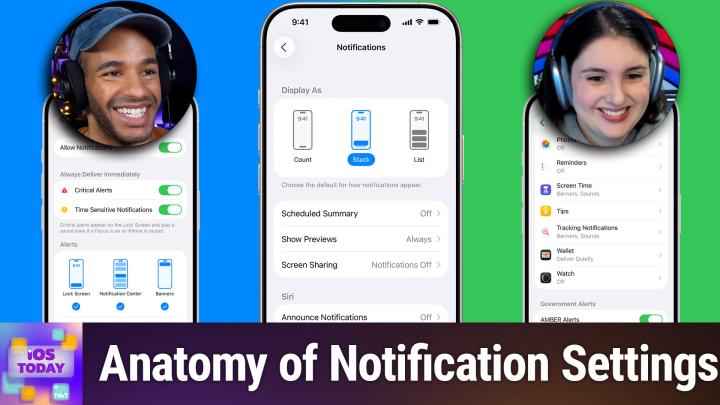
All TWiT.tv Shows (Audio)
iOS Today 794: Notification Management
00:46:28
Taming the Overload on Your iPhone & iPad
Loading summary
Transcript35 lines
- [00:00]
A
Coming up on iOS today, Rosemary Orchard and I, Micah Sargent help you manage your notifications. Stay tuned. This episode is brought to you by outSystems, a leading AI development platform for the enterprise. Organizations all over the world are creating custom apps and AI agents on the Outsystems platform and with good reason. Build, run and govern apps and agents on one unified platform. Innovate at the speed of AI without compromising quality or control. Trusted by thousands of enterprises worldwide for mission critical apps, teams of any size and technical depth can use Outsystems to build, deploy and manage AI apps and agents quickly and effectively without compromising reliability and security. With Outsystems, you can accelerate ideas from concept to completion. It's the leading AI development platform that is unified, agile and enterprise proven allowing you to build your agentic future with AI solutions deeply integrated into your architecture out systems. Build your agentic future. Learn more@outsystems.com TWIT that's outsystems.com podcasts you
- [01:07]
B
love from people you trust.
- [01:11]
A
This is Twit this is iOS Today episode 794 with Rosemary Orchard and me, Micah Sargent. Recorded Tuesday, March 17, 2026 for Thursday, March 19, 2026 Notification Management hello and welcome to iOS Today, the show where we talk all things iOS, iPadOS, WatchOS, HomePod OS. My voice was not warmed up for this. I am one of your hosts. My name is Micah Sargent and my voice is not.
- [01:46]
B
Well, it probably is coming from inside the speaker, but my voice is not that of the speaker. I'm just a speaker. I'm Rosemary Orchard and I'm here on iOS today with Micah because, you know, we thought that you might like to get some updates and be notified about all the cool things that are happening, folks.
- [02:03]
A
Yes. So if you are wondering what we're talking about when we talk about notification management, this is actually from an irl. I heard some people kind of talking about and complaining about notifications on iOS and kind of not understanding the different aspects of it. And so there's a lot that comes with notifications. There's kind of like you got to have a base understanding of how it works and what you can do. And so because of that I thought it'd be a good opportunity for us to kind of talk about not just, you know, interacting with your notifications, but what notification summaries are, for example, and how you can kind of change things to suit what you need specifically from the service. So let's kind of dig into that now. Rosemary, I see you have a Phone up on your screen.
- [03:01]
B
I do.
- [03:02]
A
Are we working with there?
- [03:04]
B
Okay. So at the moment I have one notification on my home screen and I. I've got to tell you folks, it was really, really difficult. This is a notification from omnifocus. It was really difficult not to tap on this notification, go into Omnifocus and check this off, because that's what I wanted to do, but that's not what I'm doing. So there's a couple of things about this notification. First of all, when my phone is locked, it just shows me Omnifocus the name of the application that sent me the message or the notification. It does not show me any further details than that. This is a setting that you can have so that when your phone is locked or your iPad is locked, then it doesn't show any details. So if somebody just stumbles across your device and they pick it up to, you know, figure out whose it is, they're not going to see any details. And that is something that you can configure in notification settings. When I actually tap on my phone screen and I've unlocked my phone, then I can see that this is a time sensitive notification. I have actively chosen to make omnifocus notifications time sensitive, which means they're always going to pop up regardless of what I'm doing. There's other kinds of notifications where you can just have it appear as a banner at the top. You can have it appear in the middle of your screen. You can have it just go straight to the notification center. I don't do that for Omnifocus because these notifications are very important. And unfortunately, I've now tapped on the notification. That's very frustrating. But yes, then what you can do from any notification which is really important is you can swipe right on it. Now don't tap on notifications when you're looking at thinking, okay, like, why am I getting notifications from this application? Start by swiping right on it, because this will reveal two things. First of all, it reveals a clear button so you can clear the notification. Well, that's fine. You don't have to do that. The second one is options. And then here there's a bunch of different things that you can do. So in my case, Omnifocus is set to sign sensitive. I can say, hey, turn off time sensitive. And that's an option direct from any notification I get from the app. Because, you know, that is kind of important. If you're getting like bing, bing, bing notifications and you don't want those right now. You can sort that out. You can also usually say mute for an hour or mute for today, things like that for various applications. And then there should be, depending on the app, a configure in blah blah, apply. So for Omnifocus it says configure in omnifocus. Microsoft Teams. Configure in Microsoft Teams. Now, not every app offers this, but the vast majority of apps do offer this because it is quite important. You know, what kind of notifications do you want? Do you want, if you have say the Reddit app installed, do you want notifications for their breaking news alerts? Probably not. You know, you're probably going to choose to get your news elsewhere unless it's maybe sector specific. But you know, you can then configure in app which then allows you to go through and toggle fine grain controls on and off. Uh, one thing I will say, if you have multiple accounts in an app, make sure you check your notification settings for every account. Because that tripped me up with a couple of apps in the last couple of weeks and I've been there going, why am I getting these notifications? Turns out I was signed into the same app. They have a multi account feature. Reddit is one of these. And you have to configure your notifications per account in the app. And then you can also just configure it globally on iOS, which is a bit more of a, you know, hammer approach than a chisel approach where you're there going, do I want notifications? Yes or no? Do I want to see them later, yes or no. So yeah, it's good to understand where you can start controlling your notifications. And I would always suggest looking to see if an app has notification settings.
- [06:47]
A
Absolutely. Well put. You know, it's really nice that over time Apple has added kind of different ways to get to things. And you mentioned, you know, the swiping option, being able to tap that options and then pop in to view the settings is great. I also want to mention that at any time, if there was a specific app, one app that we'll be talking about in a future episode, it's called Loner. And so you can type in that app in the search bar and then it pops up. Any of the stuff related to that app, I could do the same thing for the other app that has given me a notification. And in this case I can see, there we go, notifications for the settings and then go in and understand kind of what is involved here. Now let's Kind of take a look at sort of the. How do we want to put it? The. Oh, the anatomy. The anatomy of notification settings. So in the settings app, first and foremost we can tap on notifications. We'll talk about the standard of what's involved here, but I want to pop into again a specific notification just so we can see what is typical when it comes to this. So we'll go with Dropbox. Oh no, let's go with Fantastical. So first and foremost you have the toggle to turn on and off notifications. Secondly, depending on whether you have scheduled notifications turned on or notification summary turned on, you will see a notification delivery option here. The first option says immediate delivery. The second option says scheduled summary. We'll talk a little bit about scheduled summaries in a moment. So I won't dig into that. But right now you can see immediate delivery is turned on. That means that when the notification comes, it is when the notification is sent from the server, it is immediately provided to you. Always deliver immediately. So this is what Rosemary was talking about with the time sensitive notification, which means that it will, no matter what, be delivered to you immediately, will pop up immediately and then it remains on the lock screen for an hour now alerts. This is where a lot of people kind of go, okay, what's going on here? Do I need. This will give you the ability to choose where notifications appear. Lock screen obviously means that the notification will appear on the lock screen. Toggling this off means that you will never see those notifications on the lock screen. There may be apps where you don't want it to notify you while the phone is locked and that's a way to get rid of that notification. Center means that when I swipe down to access notification center, I can see the notification. If I have notification center turned off here, you won' never get a notification in your notification center. The only places it'll pop up are on the lock screen and by way of banners. What are banners? Banners are the little pop ups that happen while you're doing other things. So while you're actively on the device, that little banner will slide down from the top or appear from the top and will give you the notification. From there you have the option to change the style of the banner. So there's a temporary one that means that it appears, you see it and then it goes away. Persistent means it appears and it doesn't go away. So those specifically related to the banner, whether or not the notification is allowed to make a sound, this sound toggle importantly, does follow your system rules on sound. So I've had this is something that I've had before. I somebody said I have sound turned on for my notification, but I never hear it. I said do you have silent mode turned on? And they did. And so it's not going to make a sound if you don't have sounds turned on. Badges this is I found to be controversial outside of the tech techosphere. In the techosphere we're very quick to well, at least I am and other people that I've talked to there are apps where I do not have badges turned on. I don't need to see that little red circle bothering me to let me know that there's notifications that I missed. So toggling off badges means that this little so if we look in the bottom right corner of my iPad here, the settings app has that red circle with the one in it. The photos app has the red circle with a one in it. That is a badge letting you know how many notifications you're missing from that app. Announce notifications. This lets you get a notification with Siri and so it will actually read these notifications out loud to you while you have in your AirPods or another supported music listening device. And then you can change it depending on if it's a time sensitive notification or if it's all of them. And then last but not least in this section are the lock screen appearance options which determines how the as you might guess notification appears in the lock screen. Show Previews is set to when unlocked. What that means is as Rosemary was showing, the notification wasn't giving much information until she showed that she was her and unlocked the device, at which point then it would display more. So right now no previews will display unless the phone or the iPad in this case is unlocked. You can set it to show previews always. So regardless of whether it's locked or you can say I don't want to see previews, just show me that base notification without the, you know, without more information. And then notification grouping is set to automatic. So this will base it on what you have set up in your notifications settings on if it's displayed by time or if it's grouped by app, or if you don't have any notification grouping turned on, in which case it also will just be displayed by time. Now as Rosemary also talked about where there may be account based notifications, something that's really cool that many developers do, but not all developers do is they will add a button here they're able to Add a button here in the iOS settings that lead directly to the notification settings within the app. So I can tap on this. It will bring up my fantastical app and it will give me the ability to then adjust the notifications within the app. Now again, not every app needs those extra notification options within, but it's very handy to have that right here and be able to tap on it and say, okay, this is what I am doing. Now that is the anatomy of a notification sort of set of settings. Let's quickly talk about notifications and the notification settings themselves because there are different ways that you can display your notifications. The sort of default is a stack. That's the new way of doing things. And I believe, Rosemary, you've got it pulled up on your phone if you would like to talk a little bit better.
- [14:10]
B
Yeah, I do. So if you go into settings and then you scroll down a little bit and you go to notifications, then you'll get to the page that I'm currently on in settings. So there is the default option, as Micah mentioned, of stack. So that is a stack of notifications at the bottom of your screen. And it's, it's like you've got a little pile of post its. So you can see the top one. You can see that there are other post its underneath because they sort of stuck away. But you have to then tap on that first one to then pull up the list of notifications. So you can also just say that seems like a bit of work. I don't want that. I would rather just straight up have it as a list. And that is an option you can have. And the other option which I have yet to encounter anybody in the world doing is to use count. So if you are using count, please write in and let us know because I'm really curious, tell us who you are. How do you feel about it? Obviously I'm guessing you'll like it or at least I hope you do. I hope you're not using count and you actually hate it. If you are, here's your opportunity to change it to something else. So yeah, that's the first options and that's just what happens when you first unlock your phone or you open the notification center. And then we've got our scheduled summaries which I believe Maika will, will circle back to in a moment because they do require a little bit more talking about. Then we've got our show previews, which is when unlocked, you can have it always or never. So if you just, if you never want it to actually show you any details about the message or any notification that you ever receive. You can set this to never. And then you can also say that when you're screen sharing, notifications are off. Which might be why you rarely see Micro and myself getting notifications when recording iOS today because we keep this turned off for a very good reason. It's also really useful if you're, you know, pulling up your iPhone on your Mac in a meeting to show off this really cool app that you heard about on this great podcast called iOS today. You maybe don't want all notifications from other people popping in, unless perhaps you prime somebody to send you something super hilarious. But either way, that's up to you. Next up, there's some Apple Intelligence features which, depending on your version of iOS, may or may not show up. And also depending on your iPhone and its or iPad and its capabilities, if you're using an older device, it may not be compatible with Apple Intelligence. So Apple Intelligence can try to automatically figure out, hey, which notifications should I prioritize? And it can also go, oh, Mike has sent you five messages in a row. I'm going to attempt to summarize these into one. At which point it can be really good. Sometimes it's not so good. I had this on for a really long time and I turned it off just because I found that it was getting a little bit too confusing for me, because I could have sworn that I read something and I saw it in a notification summary, and then it turned out that that wasn't what my friend had actually said, and it was close to, but it wasn't exactly the same thing. Siri Suggestions can also send notifications. So that can be things like, hey, do you want to do this thing at this time? And stuff like that so you can have those. And then you see for every single app that you have installed, the notification style. And so that will allow you to then pop into the notification settings for every single app that you have. And this is also a really great place to see badges and go, hey, this app is putting a badge on my lock screen. I don't want to see that. Or on my home screen. Sorry, I don't want to see that. I don't want that little red bubble with a number in it. Thank you very much. You can turn that off for any app that you like. And every single app that has notification permissions here or has asked for notification permissions and been denied them. Hi, Toya, I'm looking at you. I really wish I could root my dehumidifier to not be running your software, then that's there as well. So yeah, there's a lot to talk about in the notification settings and I think that, you know, the, there's a. I think everybody should have a little go at experimenting here. It may turn out that you absolutely love the count or you love the list view or maybe stack is the view for you and you know, maybe previews are actually less critical and you're quite happy to have them show all the time. So you don't have to have your phone recognize your face or your iPad recognize your face or your finger before you can see things. But that's up to you to figure out and play with and see what you're happy with.
- [18:40]
A
Yes, the I find to be again, one of the more confusing aspects. This was a feature that Apple added later. I understand its purpose and I understand why it was added. But if you've ever struggled with notification summaries, let's kind of talk about what is happening here. Now when I say that I do not mean the Siri intelligence features that can summarize your notifications, but instead this is a scheduled summary which basically says I don't need certain notifications to appear right now when they pop up, but instead what I'm looking for is kind of a check in, right? An option to look at something at one point during the day and go okay, here's what I've missed. That is the scheduled summary. So let's take a look at how this this work in notifications. If we tap on scheduled summary you have the option to add multiple summary schedules. Okay so my first summary appears at 8am, the second one at 2 and the third one at 9pm this is going to collect the notifications that I have asked to be part of the summary and in at these different times. And you'll see there's an option that says show next summary. What that means is if you are in notification center you will see the notification summary for 8am or for 2pm depending on the time. But then you'll also see it will start collecting notifications for the next summary based on when those notifications are coming in. There are are what's great is that you can quickly look at the apps that you have and see what apps are sending you notifications. So this is the weekly notification average. How many notifications do I get from these apps? And you can use that to inform whether you want to include them in the notification summary. Now for me, for example, I probably don't want reminders to be included in my notification summary. I probably don't want the Habit app to be included there or Fantastical to be included there because those and the Messages app, I want those notifications to appear right away. But everything else relatively, I'm okay with those appearing in just my summaries. So then from that point on I will see the system start to collect my notifications. So you'll see there's a, there's a thing under here in a notification center that says your next summary and it shows two notifications. So these are the notifications that I will see now that it's 9:30. The my next one appears at 2:00pm so at 2:00pm that's where all of those notifications will be collected and I'll be able to see those. What's cool is you can swipe left on a notification that comes through, choose options, and then change it from right now where it's appearing as a summary. I could change that to say deliver immediately. So at any point, if you decide, oh, actually that one I want right away, you can easily take it out. If a notification pops up, you can tap it and say, actually I want you to add that to my scheduled summary. So that is what scheduled summary is for. It's simply there to help you kind of collect. It's a sort of a basket or bucket into which you pour those notifications and then you check in on them when you are ready as opposed to them just popping up right away and kind of perhaps overwhelming you. Rosemary, any other notification advice or options or settings that you want to share?
- [22:47]
B
So as I mentioned right at the beginning of the show, you can swipe right from the right to the left on the lock screen to adjust your notification preferences. And if you're going to play with notification summaries, I would 100% suggest that you do this because then you can go, hey, I got this notification from Blah Blah app and I don't care about that right now. I want to see it, but I want to see it later. And you swipe from the right to the left and you can say hey, add to notification summary right there. Or if it's in your notification summary and you've decided that actually no, you did want to see that sooner for whatever reason, you can move it out of the notification summary.
- [23:22]
A
Alrighty. So if you also have questions about notifications that you didn't get answered on today's show, or have some suggestions that you want to share, you can always email us iostodaywit tv. But now the news is up next. It's time for the news.
- [23:43]
C
Whether you bond over streaming binge worthy videos, watching sports recaps, video gaming, or by unplugging altogether, the 2026 Lincoln Nautilus Hybrid helps keep you connected throughout your journey. Learn more@lincoln.com available connectivity features and functionality vary by model. Package pricing, trials and term lengths vary by model. Video streaming and gaming are only available while parked
- [24:08]
A
there's one bit of news. Apple is continuing its rollout of hardware devices. The latest addition is the latest pair of AirPods Max. Excuse me, these are AirPods Max 2. The new AirPods Max are powered by Apple's H2 chip which gives better audio options that we haven't had from AirPods Max before. AirPods and AirPods Pro have continued to add new features and AirPods Max Gen 1 have sort of just they've done their best. Now they have better active noise cancellation, the sound quality is reportedly improved and they also have the new sort of Apple intelligence features. So with adaptive audio, conversation awareness, voice isolation, live translation, those have all come to AirPods Max 2. The this version will be available for order starting March 25th and they will then be available to sort of go in and pick up and they'll ship early next month is what Apple says the AirPods Max 2 are supposed to have. I think it's yeah, 1.5 times more effective noise cancellation, which is good. And then they also have a high fidelity listening mode. It's 24 bit 48khz audio if you are connected via the USB C cable and if you are using them wirelessly. And one of the apps that you're using them with has game mode. When game mode turns on it will reduce wireless audio latency while you are playing the game. Now Rosemary, you are currently wearing a pair of the first generation I believe, or 1.5 generation AirPods Max.
- [26:23]
B
No, very first generation AirPods Max. Yeah, these are the ones with the Lightning connector because then if something goes wrong with, you know, wireless, I can plug these ones in with the lightning to 3.5 millimeter cable which as I use them for podcasting, actually being able to plug your headphones in for that is a very useful feature. The thing that I found really interesting with AirPods Max 2, there was as Micah mentioned, a sort of 1.5 in between where they upgraded this version to USB C and basically nothing else changed apart from the fact that you then couldn't get the cable. But something they announced with this is Camera Remote where you'll be able to use the digital Crown on your AirPods Max to take photo. And I went, oh cool, that's a really awesome new feature. And then I googled it and it turns out you can actually do this on AirPods and AirPods Pro already if you own those, which is good because I don't know how often you want to take a photo remotely of perhaps yourself using your AirPods that you have to be wearing as a shutter button for your camera. That does feel like it's quite a bit of work. But yeah, these are quite comfortable. I don't know what it is about my head wearing any kind of on ahead. So that's over ear or on ear headphones. After a while the bar feels like it digs into my head with any kind of headphones. So I have a handy dandy cozy with a little zipper that you can slide on to the headbar. But it's. I've gone into summer mode at the moment so that my mesh is here for breathability. But yeah, these are pretty comfy. You know, they're certainly a lot more comfortable for other people. I just find my head doesn't like things sitting on top of it for a long period of time. So a couple of hours is my maximum really with these.
- [28:10]
A
Your AirPods Maximum. Even the AirPods Max 2 are also. Let's see, what is it? 100% recycled rare earth elements in the magnets and then recycled polyester for the ear cushion, recycled gold plating and tin solder. And of course the paper packaging is 100% fiber based for easy recycling. 549 in the US different prices elsewhere. And yeah, they're there. And they come in different colors.
- [28:47]
B
Yeah, they come in a really lovely lilac, which is not enough to make me upgrade to brand new headphones that I've already got. I have a bit of a headphone problem. I have kitchen headphones. I have taking place me places headphones. I've got podcasting headphones. I've got. I'm going on a trip but it's a short trip AirPods Pro. I've got. I'm just wandering into town and back regular AirPods. I. It's a bit of a problem so I'm not buying AirPods Max 2. I think I've. I think I've hit my headphone limit or maybe my headphone Max as well as my AirPod Max.
- [29:19]
A
That is that. All right, let us move right along. I can hear the music. It's time for Shortcuts Corner. This is Shortcuts Corner. The part of the show where you write in with your shortcuts requests and Rosemary Orchard, our shortcuts expert, provides a response. This week's Shortcuts Corner request comes in from Matthieu, who writes in hello Rosemary and Micah. I am a big fan of your podcast. I created a simple shortcut to send my written notes on iPad or on a post it to Reminders, usually to complete simple tasks for the day. I want each line to appear as a reminder so I can mark it as completed on my phone wherever I am during the day. I just don't like that the shortcut adds an additional bullet before each item. How can I get rid of it and make the list cleaner? Thanks. And Matthieu has helpfully included a link to the shortcut so Rosemary could take a look at it and go aha.
- [30:26]
B
Yes, hopefully so mostly aha. However, there is one tiny piece of the puzzle that's missing, Mattia, and that is a photograph of a sample post it Because I don't know how you're writing your post its and this is one of those things where, you know, handwriting recognition has come leaps and bounds. I had, I want to say it was a livescribe pen at university. So it was a smart pen. You had to write on a specific kind of paper which was kind of dotted and it was supposed to be able to record what you were writing and then convert it into typed stuff on the computer. Yeah, that lasted about 1.5 lectures before I declared the pen the most uncomfortable thing I'd ever used and the technology utterly worthless. But you know, that was about 15 years ago. Technology has come further since then, which is amazing. However, it does not quite allow me to read your mind. So I do have a handy dandy sample poster here. I've not written anything on it because exactly what is written on the post it is not the point. But my question for Mathieu is are you writing like a little dash or circle or checkbox before each item on your post it? Because if you are, one way to fix this problem is just don't do that now. Easier said than done. Our brains are creatures of habit, as are our bodies. So when you pick up a pen, the easiest thing to do actually, if you have a blank piece of paper and you need to do something and your brain goes at it is to put a mark on it of some kind. So a nice dash to start your list is a great place to start. So you know it it I don't know exactly how you're writing your post it and that, that does mean that I have to do a little bit of guesswork here. Not a huge amount, but a little bit. But I can see what you've done. So I'm going to walk everybody through how this shortcut works because it's really cool. It's using Apple Intelligence. I don't think it has to use Apple Intelligence. You could do this without it, but it's a really nice use of it. So what we've got is we are sending an image into this shortcut somehow and we're extracting text from it. And then we're using the Apple Intelligence action to make a list from it. And then we're splitting that list by new lines and then we're going over each line and we're adding that line to a reminders list conveniently called Post it. Love the name. So I don't know where these bullet icons are coming from. I'm going to guess that it could be from your actual image or perhaps it's coming from the Make a list from Apple Intelligence action. However, what we're going to do is we're going to do a replace text action. And here is where we get a little bit fancy because we need to use something called a regular expression here, which basically means that we need to just say, hey, I want to get the first dash. Or actually we could say any first character. But the problem with that is then if somehow it starts with an actual letter and we remove that letter, you're probably not going to be very happy. So we can do this a number of ways. Now I could just say hey, the very first and to say first in regular expression terms. And I will make sure to expand the section and turn on the regular expression. We use a little hat symbol. If you're typing this on a physical keyboard, it's the shift and then six. On most keyboards, not all keyboards, it will vary depending on your language. But it's a little hat symbol. And that just means in regular expression terms, we are starting at the very beginning because it's a very good place to start. Okay, if you put the dollar a dollar symbol at the end of something, that means that, hey, we're looking for this. It has to be right at the end. So raising a hat to start with. And then what I'm going to say is we are going to look for any non word character essentially. And so that should be any kind of dash or dot or square or anything like that. And then we don't even need to put replace anything in the replace because we are just going to get rid of it and then instead of adding our repeat item we are going to whoopsie, why did that drag? There we go. Put that back. And then we're just going to say hey, we are going to add our updated text without our repeat into our reminders list. And that's it. Very simple. So yeah, it's a case of using a regular expression. I would definitely recommend use a regular expression for this. Even if it starts with a dash. If for some reason there's a dash in your reminder and you say hey, replace all dashes with nothing, that's then going to mess with the rest of the text in your reminder. So you could just say hat and then you would need to use a backslash before it to escape a minus symbol. But I would just go with any non word character and if you want to. And there is a space after that you can also throw a space in there and that is the one that I will share with everybody in the show.
- [35:35]
D
Notes Disney wants to know, are you ready?
- [35:39]
A
Yeah.
- [35:40]
D
For Marvel Studios Thunderbolts the New Avengers now streaming on Disney.
- [35:45]
B
Let's do this.
- [35:45]
D
One of the best Marvel movies of all time is now streaming on Disney.
- [35:50]
B
Hey, you weren't listening to me.
- [35:52]
D
I said Thunderbolts the New Avengers is now streaming on Disney.
- [35:56]
B
Meet the New Avengers.
- [35:59]
A
Let's go. Cool.
- [36:00]
D
Then Marvel Studios Thunderbolts the new Avengers rated PG 13 now streaming on. You guessed it, Disney plus
- [36:08]
A
beautiful. Well, with that let us head into our app caps. This is the part of the show where we share apps or gadgets that we are excited about and think you all should know about. Now I have talked before on this show about my wonderful case from speaking speech and spee. I've heard it pronounced in so many ways and so however you want to pronounce it, S, P, I G E N. I was on MacBreak weekly recently and Andy came. Andy not go had a new way of pronouncing it so it doesn't matter. Regardless, this is the case that I've talked about before. The classic LS and then the strap that I came to find out about later that has this wonderful little button to detach the lanyard from the side and it is delightful and cute. And I also talked about how on the side button the word hello is written. That design motif is carried on into the lanyard strap. But the reason why I'm bringing this up again, even though I have already talked about those devices, is because speaking has even more yes, along with the iPhone case and the iPhone lanyard, you can get a Mag Safe wallet that is also beautifully designed and thwacks to the back of the case. If it's three cards, it doesn't have tracking or anything like that. So it's not a special case by any means. But this little wallet case is cute and it also has that little hello motif again. And my favorite what if your AirPods Pro could look like a mouse? Yes, this is my favorite new Spigen thing, which is a little case for AirPods and the if you've ever dropped your AirPods case on the ground, they are, it seems, designed with physics in mind to rocket launch the AirPods across the room from wherever you drop them. The cool thing about this case is because it's trying to be to look like a mouse, they went ahead and installed a little clip that you sort of you press at the bottom of it and that makes the top able to Open and your AirPods are inside of there and so when you press it down it latches closed and so now your AirPods are protected inside of this little case that again looks kind of like mouse and then the lanyard loop is perfectly at the end so that it gives this idea as if the mouse cord is coming away from the case. The LED light shines perfectly through on the front. The only thing about this case is that if you were trying to use MagSafe charging for it, it does not do that, but it will do wireless charging through the case. It's just not it doesn't magnet. So that's one thing to bear in mind with the AirPods specifically, the charging port is still exposed at the bottom and so you can easily charge that way and know that you're charging. It also has holes on the bottom for the little speakers that are there to help you find the case. But I just think that they have made a clever set of cases and accessories and bravo to to them for creating that so you can check all of those out there. Rosemary, do you want to tell us about your app cap?
- [40:00]
B
Yeah, I do because I have recommended a couple of different apps over the years for this and a bunch of them have gone subscription and things like that and there's just always those particular venues that you purchase a ticket for something for and then they I don't for some reason want to give you an Apple Wallet pass. Drives me a little bit crazy and I was browsing threads probably a few months ago now before I unfortunately got tonicillitis and had to miss multiple shows because I couldn't talk. I came across this really cool app called NeatPass. And NeatPass allows you to get a PDF so you can actually just just go to print and then tap on the share button and then share straight into Neat Pass the confirmation of your tickets from a venue and then it will generate an Apple Wallet pass for you. And one of the ways that it does this is by using on device. Not somewhere off in the cloud, not random chat GPT or CLAUDE or co pilot or whatever, but on device intelligence and language learning models. You can also create a pass manually. Now this app is free to download and you get to create one pass for free and then is $4.99 one time in app purchase to unlock unlimited passes. So I'm going to create one manually here and you can specify what kind of wallet pass you want to create because it's not just for event tickets and things like that. It's also really useful for loyalty cards because some places little don't give you an actual loyalty pass that shows up in Apple Wallet. They won't need to open the app which when there's no signal in store doesn't work. So you can do that. There's coupons that you can also create generic passes, things like that. So I'm going to create an event ticket and I will specify the organizer. So I'm just going to select here and then I need to capitalize this correctly because I am writing TWITTB only I can't spell. That's an E not a W. The event name is going to be iOS today and I will be the ticket holder. That is indeed the time today. This started at 4pm and well I, I won't bother with the end one for now. Doors open. Yeah, let's, yeah let's. Let's put one minute before the show. That seems like a good time. I can put in a physical ticket location which is great so that it'll do the geo popup for your ticket. You can specify your ticket type. Oh heck yes. I am VIP for sure. Good news is tickets are free to watch the live show here at TWIT always. So you know you can join us anyt. Uh, there is no age restriction. Uh, I can put in an email address like for example iostodayit TV if you would like to get in contact with us. I really wish it would stop autocorrecting Twit to anything but Twit. Um, there we go. And I can put Twit TV iOS as our website and all of these things. You can customize the color and more and then when I tap on the plus button it will have created this. Now obviously you can add a whole bunch more information. You can customize things, you can add photos, you can do banners, all sorts of things. You could spend hours making this as much as beautiful as you want it, or you can just quickly put in your information and then go, hey, add to Apple Wallet and done. Simple. Honestly, I really love NeatPass. I really like the model. The developer seems like a genuinely really nice person. I've interacted with him a little bit on social media, seems like a great person. And yeah, I'm always happy to support an indie app developer, especially when they create a great app that's using on device language learning models to help us put all these cool things together. Because AI is fun, but privacy is also very important.
- [43:55]
A
Thank you to the developer for making such a cool app, folks. With that we've reached the end of this episode of iOS today. I want to remind you all, iostodaywit TV is how you get in touch. Don't forget about our wonderful club Club TWiT. TWiT TV Club TWiT, where you can go to become part of the fun. You can also scan that QR code in the top corner there. When you join the club, you gain access to every single one of our shows ad free. Just the content. That's right. You also gain access to our special feeds that includes a feed covering our sort of behind the scenes before the show, after the show. We also have a feed that has our live news coverage of tech news events. So for example, on Monday, yesterday as we record this show, the wonderful Jeff Jarvis, Leo Laporte and myself covered Nvidia's GTC conference. And so that was a great time talking about what Jensen Huang and the team have announced. You can also gain access with that, a third feed that has our special club twitch shows like My Crafting Corner which will be happening tomorrow or I guess yesterday as the show is published. It is also where you can see our other special shows, Stacy's Book Club. I think we've got, you know, we've got coffee time from time to time, we've got photo time. So many wonderful things there in the club and access to the members only Discord Server. A fun place to go to chat with your fellow club Twitters and those of us here at TWiT. If all of that sounds good to you, Again, again, Twitter TV Club twit. $10 a month, $120 a year. We'd love to have you Rosemary Orchard if people would like to follow you online and check out all the great work you're doing, where should they go to do so?
- [45:47]
B
The best place to find me is rosemaryorthard.com, which has got links to apps, books and podcasts where you can find me around the Internet and of course links to all my social media with the exception of the clubtoit Discord where people are currently having a little bit of a discussion about ice cream. But also it is, I believe, Savvy's first time watching. So welcome to the live show. Savvy. Oh, sorry Suki. I'm sorry I got that wrong. But well done on getting to join us this time. Hopefully your daughter is feeling better soon.
- [46:14]
A
Welcome welcome. If you are looking to find me online, I can be found ikissargent on many a social media network or you can head to the finally back in action. Chihuahua Coffee C H I H U A H U A Coffee the wonderful bento service closed down and so I migrate my bento and I think I've pulled it off. So yes, if you head to Chihuahua Coffee, that will redirect to my website which has all of my links there, so be sure to check it out. And that brings us to the end, truly of this episode of iOS today. Thank you so much for being here. Welcome. Catch you again next time. Bye bye. If you're looking for more Apple coverage, can I invite you to check out MacBreak Weekly? Every Tuesday they dig into everything happening with the iPhone, with iPad, with Mac, and so much more.